
Supported features
| Feature | Supported | 3DS |
|---|---|---|
| Standard Checkout | 🟢 | 🟢 |
| Subscriptions | 🟢 | 🟢 |
| Update Subscription | 🟢 | 🟢 |
| Additional Payment | 🟢 | |
| Salesforce Payment | 🟢 | |
| GooglePay | 🟢 | |
| ApplePay | 🟢 | |
| Express Checkout | 🟢 | |
| Preauthorization | 🟢 |
Payment provider configuration options
To generate your credentials, follow these instructions from Square: Square API Access Tokens
| StoreConnect Field | Usage |
|---|---|
| Provider | Picklist Value API Name = Adyen |
| API Mode | sandbox / production |
| API Key | API Key |
| API Secret | |
| API Options | Client KeyMerchant NameLive URL (When using in Production) |
To specify the Client Key, add the following to the API Options field of the Payment Provider record:
api_client: "Client_key"
To specify your Adyen merchant name, add the following to the API Options field of the Payment Provider record:
merchant_account: "Merchant Name"
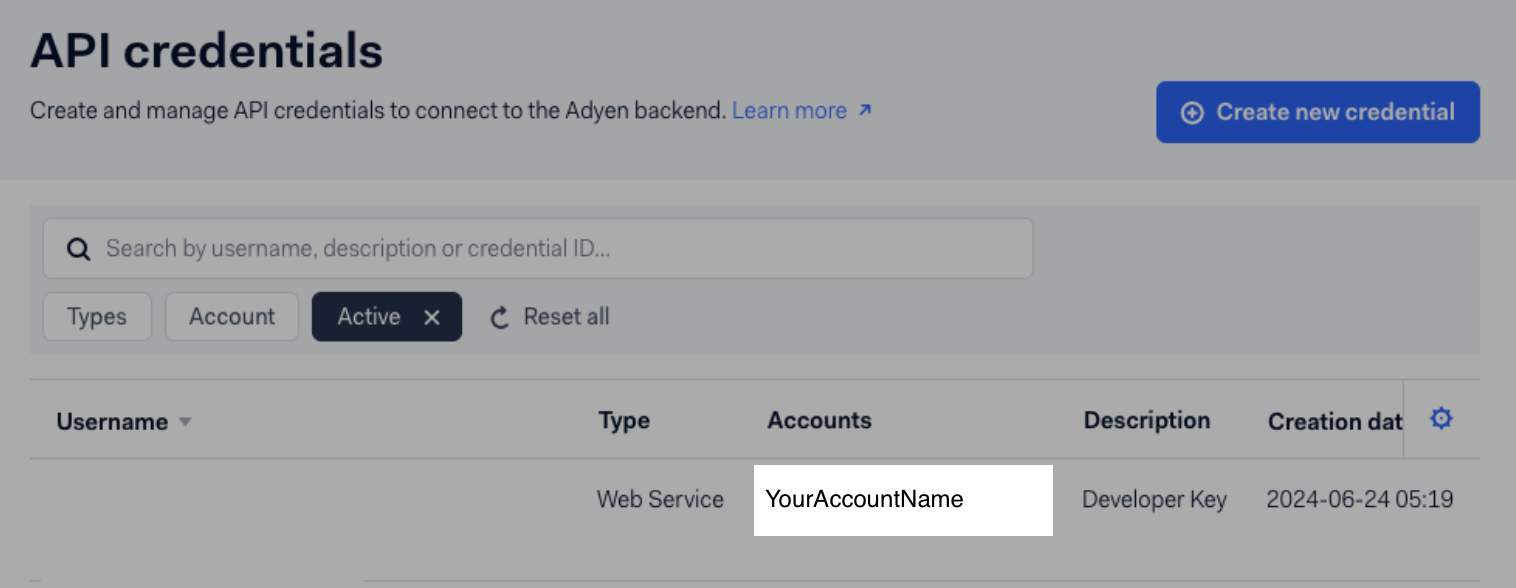
Live URL
When you use Adyen in production to take live payments, you will need to add the Live URL parameter to the API Options.
Get the prefix from your Adyen Account > live Customer Area under Developers > API URLs > Prefix.
For example, if this was your prefix for your live URL:
1797a841fbb37ca7-your_companyAbcD
Then you would add to the api options:
live_url_prefix: 1797a841fbb37ca7-your_companyAbcD
Google pay
To enable Google Pay, add the following to the API Options field of the Payment Provider record:
merchant_name: "Display Name"
merchant_google_id: "Google_ID"
The Display Name is what will appear to the customer and should represent your organization.
For testing, use any value for the Google ID. Before going live, get your Google ID from the Google Pay & Wallet Console.