
Location Finder is a StoreConnect Website feature that allows customers to search for and find various physical places that sell or service your products.
You can have multiple Location Finders on your site, e.g. one for your Outlets and one for your Service Centres.
Basic search
In its most basic form, the Location Finder allows the customer to select a Country and/or State and see a list of matching results. There are no smarts with this basic search, it is a straight filtering of locations by address data.
Google maps
The Location Finder supports using Google Maps to show search results on a map. All that’s needed to enable this is to provide a valid Google Maps API Key in your Store Settings.
For even smarter searches, Google Maps with Geocoding enabled allows customers to find locations closest to them.
How to setup location finder
To set up Location Finders you need to use 3 objects:
- Account - Account object is used to define the location and location details.
- Location Group - Defines the actual Location Finder, eg Outlets, or Service Centres.
- Location Group Account (as a join object found under the Accounts related list) - Associates Location Groups and Accounts so that an Account (Location) can belong to many Location Groups.
Minimum requirements to configure an account as a location
To configure an Account as a Location, the minimum requirements you need are:
Is Locationcheckbox is enabled in theAccountAccountis associated to aLocation Group.
By default it will use the Billing Address as the Location Address. You can either change this to the Shipping Address using the Location Address Source picklist, or set to empty and supply the address in the Location Address fields.
If you opt to use either the Billing or Shipping address as the source, the Location address fields will be populated with a copy of the source address when the record is created/updated.
1. Account - location details
Is_Location - Determines whether an Account is being used as a Location. Does not affect anything else, but will only be considered a Location when this is checked. Location Address Source - Picklist. Can be empty, or set to “Billing Address” or “Shipping Address”, this will prefill the address fields below.
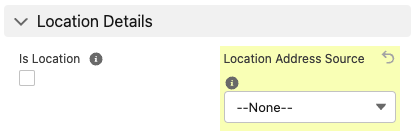
1.1 Location details - **address fields
**
Used when Location Address Source is empty
| Location City | Address City |
|---|---|
| Location Country | Address Country |
| Location Postal Code | Address Postal Code |
| Location State | Address State |
| Location Street | Address Street |
| Location | Geolocation field for Latitude/Longitude) |
| Location Path | This is the url path that the Location will be available at on the website (depending on Theme). It needs to be unique per Store. |
| Location Display Name | The Location name that will show on the website (depending on Theme). If not provided will use the Account’s Name field. |
| Location Email | The Location’s email address to show on the website (depending on Theme). |
| Location Phone | The Location’s phone number to show on the website (depending on Theme). |
| Location Website | The Location’s web address to show on the website (depending on Theme). |
| Location Info Markdown | Content to show on the website (depending on Theme). |
| Location_Meta_Description | For SEO Search Description |
| Location_Meta_Keywords | For SEO Keywords |
| Location_Meta_Title | For SEO Title |
When supplying the Location Address fields manually, you will need to also supply values for the Latitude and Longitude in the Location (geolocation) field. Without Lat/Lng values, the Location cannot be shown on the map or be found via a proximity search.
2. Location group - fields
| Active | Only active Location Groups show on the website. |
|---|---|
| Display Name | The Name of the Location Finder on the website. If not provided will use the Name field. |
| Meta Description | Content for the meta tags (used for SEO) |
| Meta Keywords | Content for the meta tags (used for SEO) |
| Meta Title | Content for the meta tags (used for SEO) |
| Path | This is the url path that the Location Finder will be available at on the website. It must be unique per Store. Your location finder will be found at /find/{path} |
| Store | A Location Group must be associated with a Store. It will only show on the website for the Store that it is associated with. |
Location filters
The simplest implementation of the Location Finder performs a search against a location. There are two ways to allow searches to be further refined (other than location).
1. Category filters
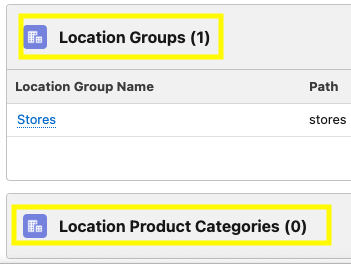
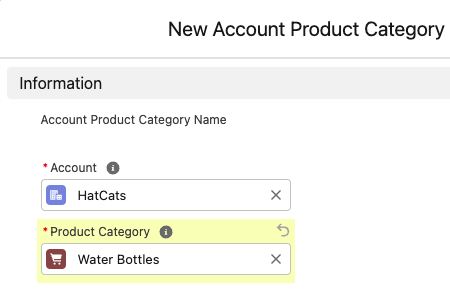
For a Product Category to be relevant to a Location Group, it must share the same Store via Taxonomy as the Location Group, the Product Category can belong to any of the Store’s taxonomies.
2. Product filters
Product filters build upon Category filters and can be extended by adding Products to Product Categories. This allows the search to provide location results for the specific Product.
Product filters are an extension of Category filters. You need to first set up some Category filters, then add Products to the Categories.
You can add a link or button on the Product page to open that Product on the Location Finder page. E.g. The finder might be “Stores” and the button labelled “Where to Buy”.
The Product Categories don’t need to have any products in them. It’s purely a way to further tag Locations for search purposes.
Google maps integration
The Location Finder makes use of the following Store Variable Key:
GOOGLE_MAPS_API_KEY
When this is set to a valid value (a real API key for the Google Maps service) it will enable the Map functionality on the Location Finder (depending on Theme). Permitting your Google Maps account to use the Geocoding service will also enable the proximity based searching (i.e. find locations near to the customer).
If Salesforce address fields aren't populating geolocation data, ensure the corresponding Data Integration Rules for geocoding are active, and that the address data is complete and accurate.
Here is a salesforce published article about this common org question: https://help.salesforce.com/s/articleView?id=000692560&type=1
URL params
If you wanted to control part of the Location Finders features you can pass it parameters. You can see the list of URL params as you use Location Finder, you can use these in various ways to direct your customer to a particular page with a location / account already presented on the page.