
The first thing you will probably want to do with your new theme is change one or more of the built-in templates. Templates are what control the content you see on your Store; they define the HTML layout as well as the data content you want to show. There are a few kinds of template - each serving a different purpose. Which ones you customise will depend on what you want to achieve.
On the Related tab of your new theme, you will see a section for Theme Templates.
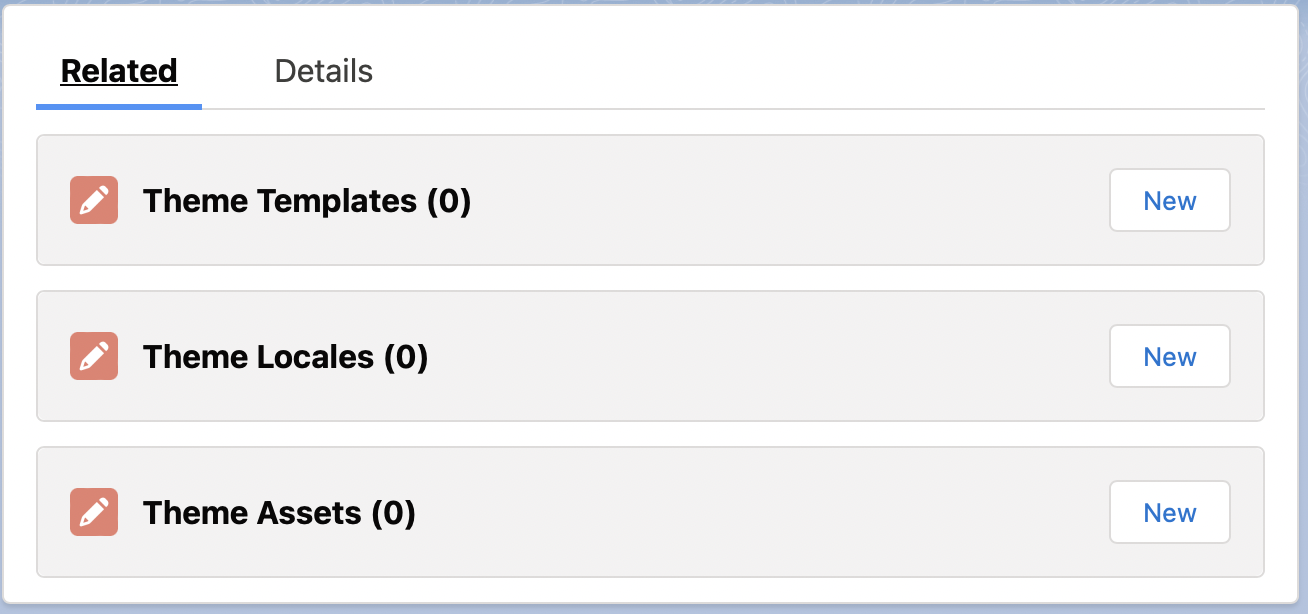
When creating a template, there are two important pieces of data required; Key and Content.
The Key tells the theme engine what template this is. For all page-level templates, it must start with pages/. Then for the specific page types you must specify the exact name.
For example, to customise the Home page, the key must be: pages/home
Keys must be unique for a Theme, i.e. you can’t have multiple templates with the key: pages/home
Page Templates
Page-level templates are templates that are output as the content of the entire page between the header and footer. They correspond to the page that the user is visiting. Some examples are, the home page, the product page, the search page, the cart page etc.
The Content specifies what will show for that template. You can supply any HTML content (including CSS and Javascript if you need, though that’s not recommended). You can also use Liquid code to create smart templates that can access your data. For more information see the Liquid Reference section in our documentation.
Note: You cannot use Markdown in the templates.
| Page | Key |
|---|---|
| account | pages/account |
| additional_payment | pages/additional_payment |
| article | pages/article |
| article_category | pages/article_category |
| auth/confirmation/pending | pages/auth/confirmation/pending |
| auth/confirmation/resend | pages/auth/confirmation/resend |
| auth/invitation/accept | pages/auth/invitation/accept |
| auth/invitation/pending | pages/auth/invitation/pending |
| auth/login | pages/auth/login |
| auth/missing_details | pages/auth/missing_details |
| auth/password/forgot | pages/auth/password/forgot |
| auth/password/reset | pages/auth/password/reset |
| auth/register | pages/auth/register |
| cart | pages/cart |
| cart.js | pages/cart.js |
| checkout | pages/checkout |
| form_submission | pages/form_submission |
| home | pages/home |
| location | pages/location |
| locations | pages/locations |
| maintenance | pages/maintenance |
| order | pages/order |
| page | pages/page |
| product | pages/product |
| product_category | pages/product_category |
| products | pages/products |
| search | pages/search |
| voucher | pages/voucher |
Content Block Templates
The second type of template you can customise are the content block templates. Content block templates are the templates used to show the various types of content blocks you use on your site. For instance, if you use a slideshow content block on your home page, it will be rendered using the built-in slideshow template. If you want to change how the slideshow looks or works, you can now customise it, or any of the other content blocks.
You can customise any of the built-in content blocks:
| Content Block | Key |
|---|---|
| container | pages/container |
| featured_articles | pages/featured_articles |
| featured_categories | pages/featured_categories |
| featured_pages | pages/featured_pages |
| featured_products | pages/featured_products |
| html | pages/html |
| image | pages/image |
| image_beside_text | pages/image_beside_text |
| image_text_overlay | pages/image_text_overlay |
| media | pages/media |
| slideshow | pages/slideshow |
| text | pages/text |
| video | pages/video |
You could also create your own custom content blocks. For example, if you wanted to create a new content block to render a widget, you would add an item to the Content_Block__c.Template__c picklist and give it the value widget. Then create a theme template with key blocks/widget to render your new content block.
Content block templates are created the same way as page templates. The only difference is that the key must start with blocks/ and must correspond to one of the Content Block template entries in the Content_Block__c.Template__c picklist.
Snippet Templates
The final template type is Snippets. Snippets are reusable templates you can load from any other template. For example, you may have a header that you want to use on each page. You can create a snippet for this as follows.
Create a new theme template with the key snippets/page_header and whatever content you want to be in your page header. Note that the key must start with snippets/ but the rest of it can be whatever you like as long as it’s unique for the theme.
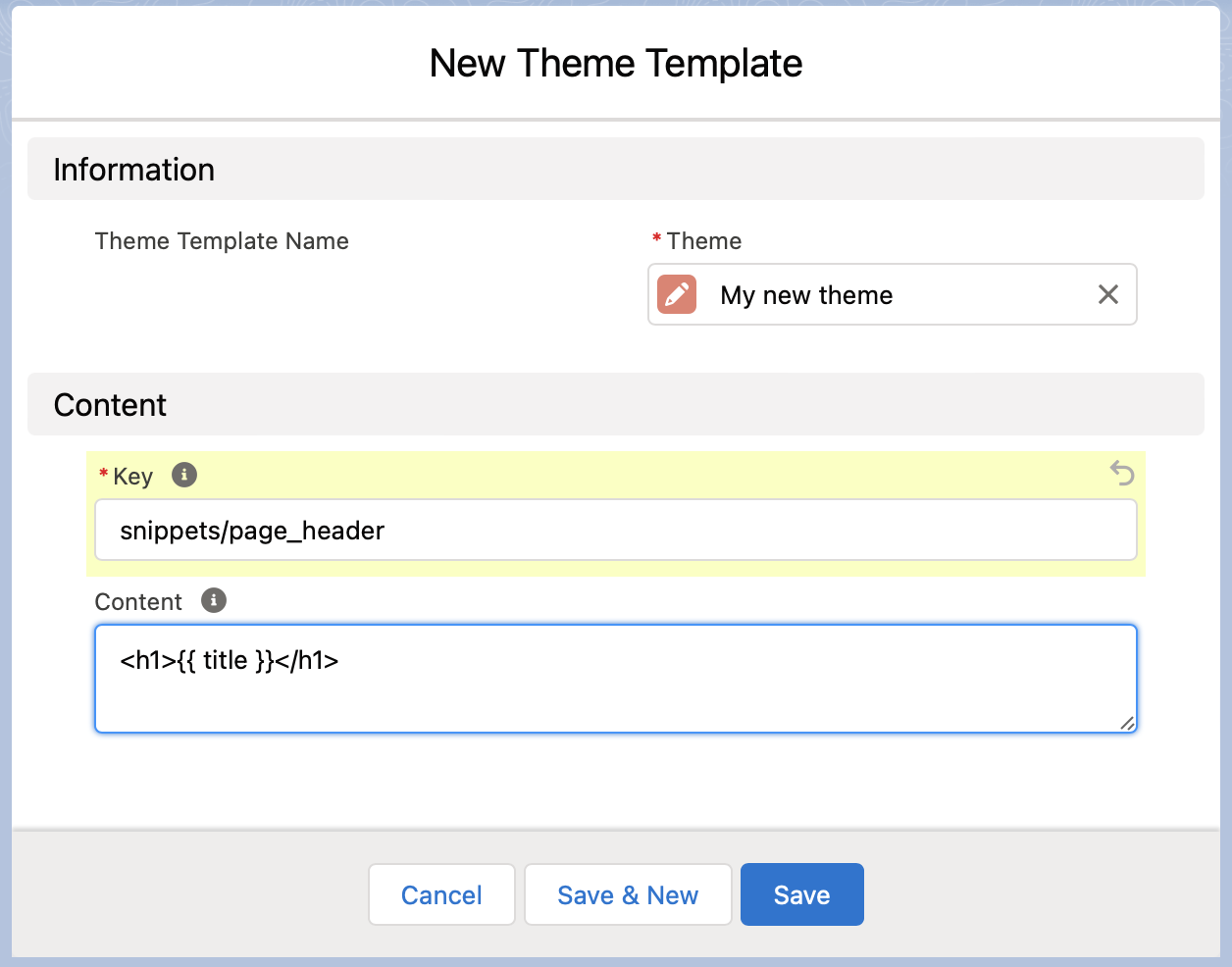
To use this snippet from another liquid template, use the following liquid code:
{% render "page_header" %}
You’ll note that the sample snippet we created above calls a liquid variable title. The variable will be empty unless we pass a value in for it as follows:
{% render "page_header", title: "My Title" %}
Let’s update our home page template to use the header to use our new snippet.
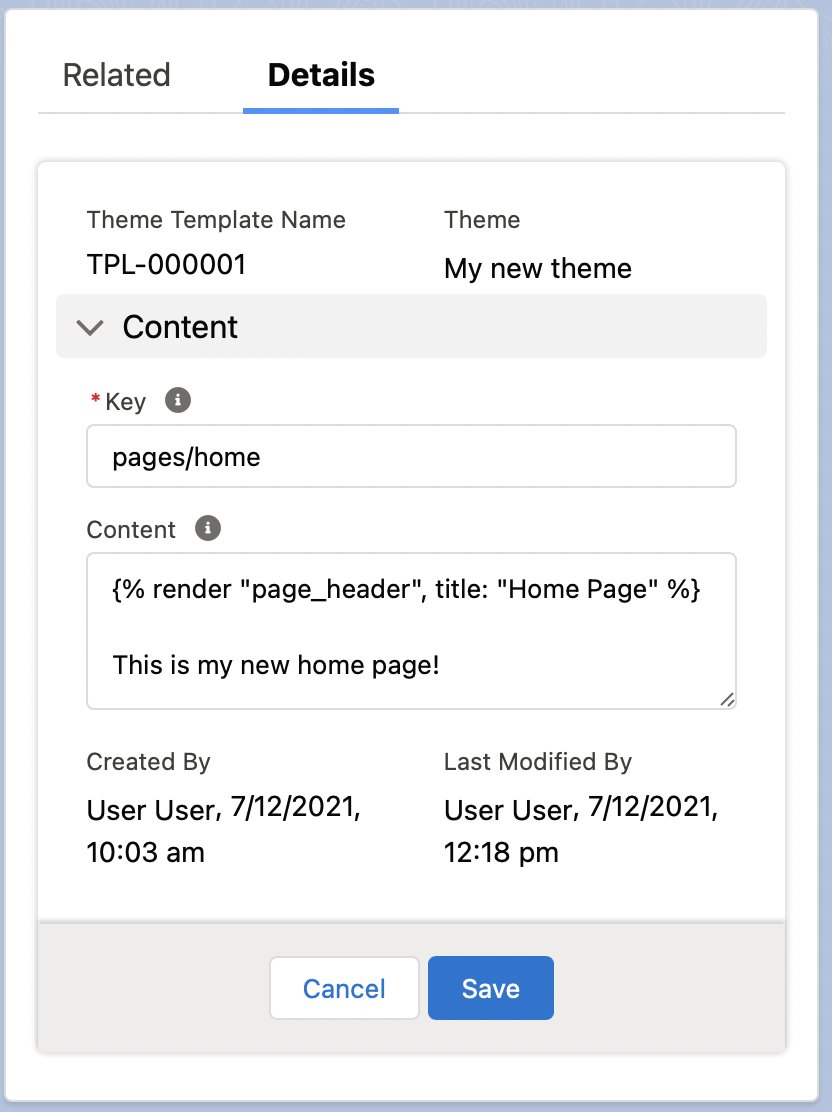
When we preview it we now see our new snippet is showing.
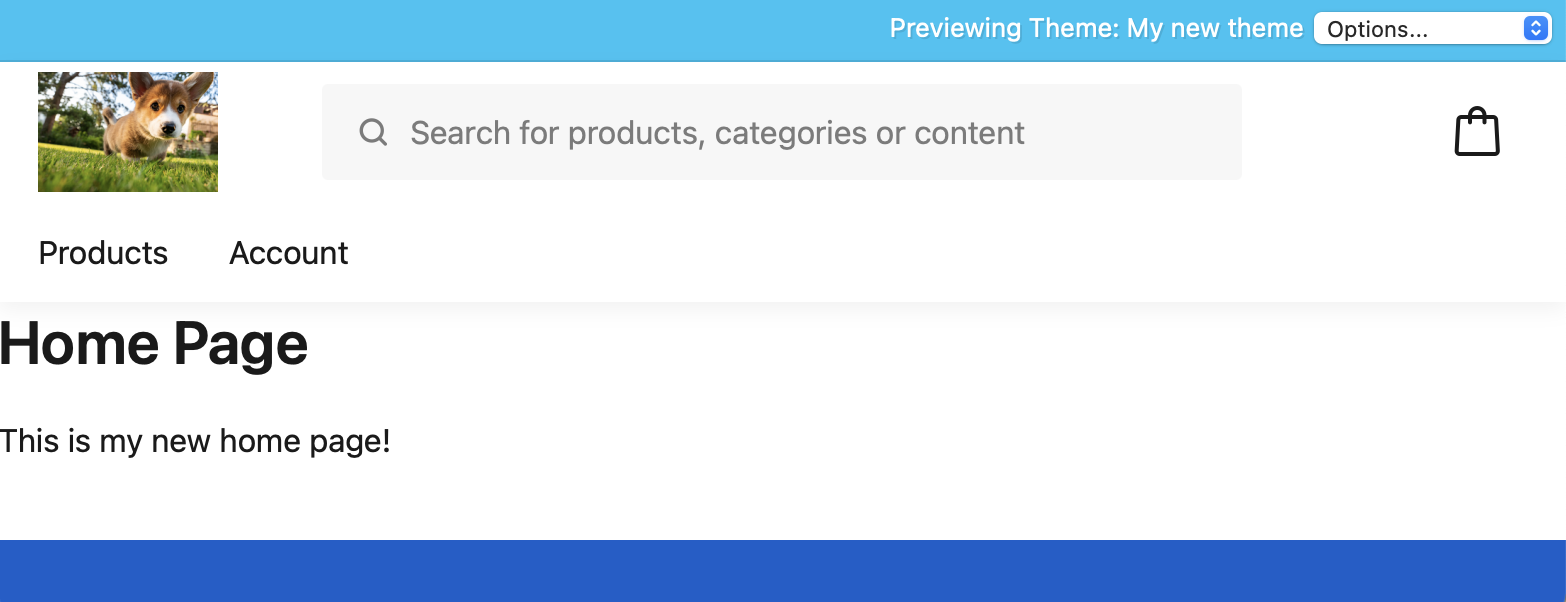
You can create any number of snippets, and load them from any other template, including other snippets. However, don’t try to load a snippet into itself - you’ll cause an infinite loop and crash your site.