# Adding custom JavaScript, CSS and head content

Source: https://support.storeconnect.com/articles/adding-custom-javascript-css-and-head-content · Last modified 21 August 2026

Quite often you will need to add custom CSS, JavaScript, or a head content tag such as
Google Tag Manager to your online store. StoreConnect provides several ways to insert
content into your site on a per store basis, most of them configured on the Store record
or on their own records in the
[Content Management (CMS)](content-management) area.

## On this page

1.  [Which method to use](#which-method-to-use)
2.  [Head content block](#head-content-block)
3.  [JavaScript and script blocks](#javascript-and-script-blocks)
4.  [External Javascripts field](#external-javascripts-field)
5.  [CSS and custom styles](#css-and-custom-styles)
6.  [Body content block](#body-content-block)
7.  [Debugging custom JavaScript](#debugging-custom-javascript)

## Before you start

-   You need edit access to the **Store** record for the store you are changing.
-   To use script blocks, you need access to the **Script Blocks** tab. If you cannot see
    it in the App Launcher, ask your Salesforce administrator to grant tab and object
    access.
-   Custom code is applied per store. If you run more than one store, repeat the steps for
    each one.

## Which method to use

| Method | Use it for | Liquid | Where it renders |
| --- | --- | --- | --- |
| [Head content block](#head-content-block) | Head tags, font links, meta tags, and JavaScript that has to contain Liquid | Yes | End of `<head>` |
| [Script blocks](#javascript-and-script-blocks) | JavaScript libraries and snippets you want to keep as separate, individually ordered records | No | `<head>`, before the head content block |
| [External Javascripts field](#external-javascripts-field) | One block of global JavaScript held directly on the Store record | No | `<head>`, before script blocks |
| [Body content block](#body-content-block) | Live chat widgets and other scripts that must load after the page content | Yes | Just before the closing `</body>` tag |

For CSS, see [How to add custom CSS](adding-custom-css).

## Head content block

Use the head content block for global custom Liquid code, font links, and JavaScript
that contains Liquid code. For JavaScript libraries and snippets there are better
options, covered in the next section.

1.  Go to the **Content Blocks** list and select **New** (`s_c__Content_Block__c`).
2.  Set the **Template** to **No added styling**.
3.  Provide a name such as "Head Content Block", or a name of your choice.
4.  Use the **Content** field to paste the code, script, or tag you need in the head
    section of your site.
5.  Select **Save**.
6.  Open your store's **Store** record and point it at the block:
    1.  Under the **Global Content** section, select the **HTML Head Content Block**
        field (`s_c__Head_Content_Block_Id__c`).
    2.  Search for your head content block.
    3.  Select **Save**.

Your content now renders in the head of every page on that store.

:::warning

**HTML Head Content Block** is in the **Global Content** section of the Store record, not
the **Content Management System (CMS)** section. Do not confuse it with **Page Header
Content Block**, which sets the visible header of your store.

:::

For example, to add Google Tag Manager, paste its container snippet into **Content**:

```html

<!-- Google Tag Manager -->
<script>(function(w,d,s,l,i){w[l]=w[l]||[];w[l].push({'gtm.start':
new Date().getTime(),event:'gtm.js'});var f=d.getElementsByTagName(s)[0],
j=d.createElement(s),dl=l!='dataLayer'?'&l='+l:'';j.async=true;j.src=
'https://www.googletagmanager.com/gtm.js?id='+i+dl;f.parentNode.insertBefore(j,f);
})(window,document,'script','dataLayer','GTM-XXXXXXX');</script>
<!-- End Google Tag Manager -->
```

## JavaScript and script blocks

Script Blocks hold JavaScript that is included on your web store, and keep your scripts
organized and maintainable as a set of records rather than one long block of code. Each
one is an `s_c__Script_Block__c` record, so you can also create them through the API or
Data Loader. See the [Script Block object reference](script-block-object-reference) for
every field.

1.  Go to the **Script Blocks** list and select **New**.
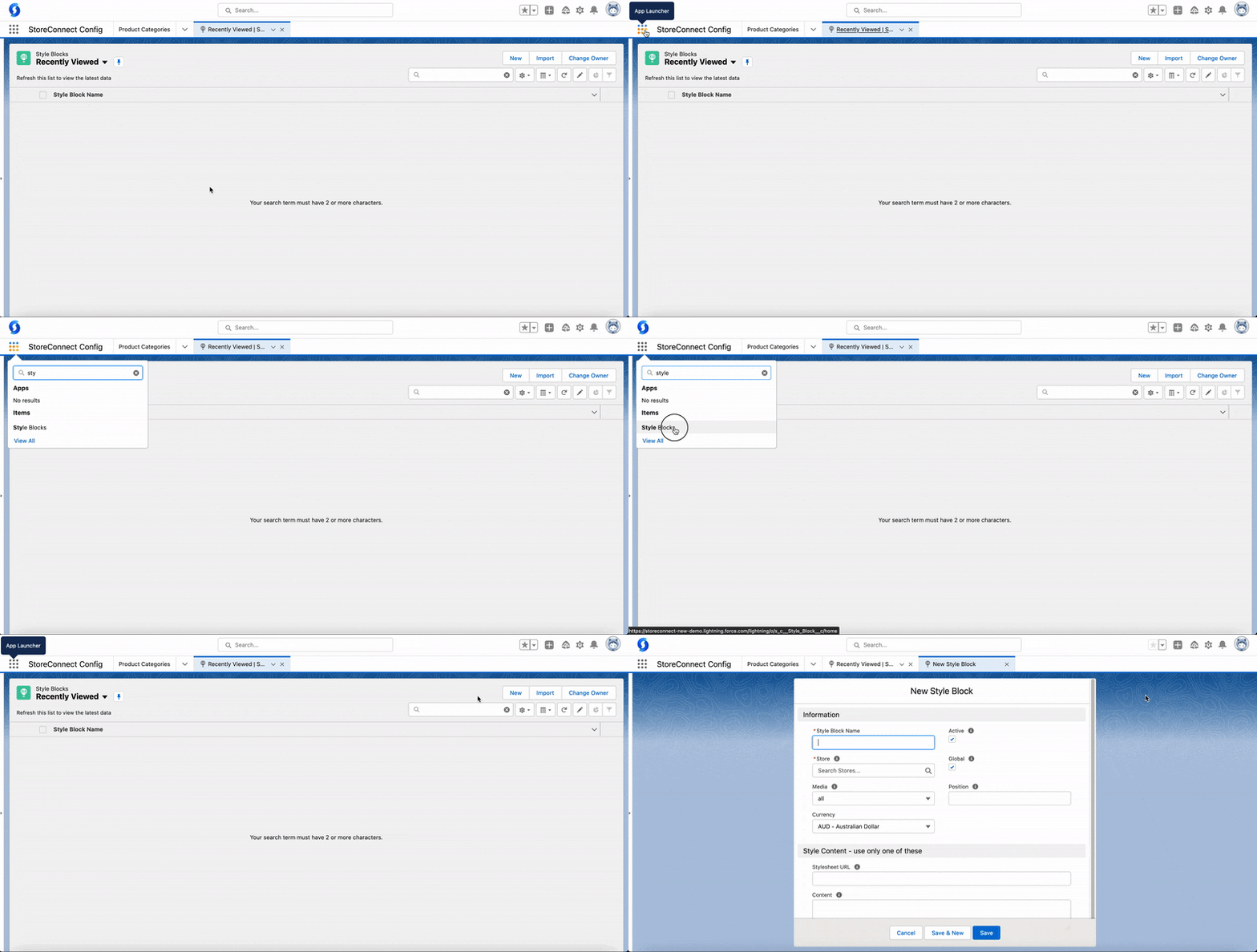
    ![Salesforce App Launcher open, with Script Blocks being searched for](https://res.cloudinary.com/hzkr6fi81/image/upload/v1781677787/documentation-media/style-blocks.gif)

2.  Give it a useful name.
3.  Set the configuration:
    -   **Store** — the store this script block belongs to.
    -   **Active** — only active script blocks are included on the website.
    -   **Channels** — the surfaces the script runs on. Select **Web** for your online
        store, **POS** for the point of sale app, or both. This field is required, and a
        script block without **Web** never loads on your online store even when it is
        active and global.
    -   **Global** — include the script automatically on every page. Leave it unchecked
        and the script block is not included on your store at all.
    -   **Position** — the order script blocks load in. Lower numbers load first, and
        this only applies when **Global** is checked.
4.  Provide the script itself, using one of:
    -   **Script URL** — the URL of an external JavaScript file, for example
        `https://example.com/script.js`. If you set this, any value in **Content** is
        ignored.
    -   **Content** — the JavaScript itself, written **without** `<script>` tags.
        StoreConnect adds them for you.
5.  Select **Save**.

An active, global script block set to the **Web** channel is rendered in the `<head>` of
every page on your store, wrapped in `<script>` tags, or as
`<script src="...">` when you set **Script URL**.

You can also add code such as a Facebook pixel or a domain validation meta tag here, as
long as it is not already wrapped in `<script>` tags.

:::warning

Liquid code does not work inside Script Blocks. If your script needs Liquid, use the
head content block above instead.

:::

:::note

If you link a script block to a **Cookie** record for privacy compliance, it only loads
for visitors who have consented to that cookie. Script blocks with no linked cookie
always load. See [Cookie management and privacy compliance](cookie-management-and-privacy-compliance).

:::

## External Javascripts field

The **External Javascripts** field on the Store record
(`s_c__External_Javascripts__c`) holds a single block of JavaScript that renders in the
`<head>` of every page, wrapped in `<script>` tags. Use it for a quick global script when
you do not need the ordering and on/off control that separate script blocks give you.

1.  Open your store's **Store** record.
2.  Under the **Global Content** section, select the **External Javascripts** field.
3.  Paste your JavaScript, written **without** `<script>` tags.
4.  Select **Save**.

Your script now runs in the head of every page on that store, before any script blocks.
Liquid code does not work in this field.

## CSS and custom styles

See [How to add custom CSS](adding-custom-css).

## Body content block

The **Body Content** field links to a CMS content block holding anything you want
inserted at the end of the `<body>` of your store.

Common uses are live chat scripts, or other custom JavaScript that needs to load after
the page has loaded.

1.  Go to the **Content Blocks** list and select **New** (`s_c__Content_Block__c`).
2.  Set the **Template** to **No added styling**. The body content block is rendered
    through its template, so any other template wraps your code in that template's
    markup.
3.  Provide a name such as "Body Content", or a name of your choice.
4.  Use the **Content** field to paste the code, script, or tag you need in the body
    section of your site.
5.  Select **Save**.
6.  Open your store's **Store** record and point it at the block:
    1.  Under the **Global Content** section, select the **Body Content** field
        (`s_c__Body_Content_Block_Id__c`).
    2.  Search for your body content block.
    3.  Select **Save**.

Your content now renders just before the closing `</body>` tag on every page on that
store.

## Debugging custom JavaScript

The most common problem with custom JavaScript is a script that never runs, despite
correct syntax and no errors in the console. This usually means the script ran before
the elements it needs existed.

Wrap your code in a `DOMContentLoaded` or `load` event listener so it runs once the page
is ready.

```js

// Run the logic inline
document.addEventListener('DOMContentLoaded', () => {
  console.log('Hello!');
});

// Or define the function first, then reference it
const init = () => {
  // logic here
};

document.addEventListener('DOMContentLoaded', init);
```

:::note

In the second example, `const init` must be declared before the line that references it.
A `const` cannot be used above its own declaration, so listing the event listener first
throws a `ReferenceError` and the script silently does nothing.

:::

Your script now runs once the page is ready, and the `console.log` appears in the browser
console on load.

---

## Follow StoreConnect

- [Email Newsletter](https://getstoreconnect.com/c/lp-newsletter)
- [LinkedIn Newsletter](https://www.linkedin.com/build-relation/newsletter-follow?entityUrn=7444956928444862464)
- [YouTube](https://www.youtube.com/channel/UCngKdP2x8l1wcbAKW3tvU8g)
- [LinkedIn](https://www.linkedin.com/company/storeconnect)
- [X / Twitter](https://x.com/storeconnecthq)

## Popular Links

- [Partners](https://getstoreconnect.com/partners)
- [News](https://getstoreconnect.com/articles/news)
- [Events](https://getstoreconnect.com/articles/events)
- [Feature Comparison](https://getstoreconnect.com/how-we-compare)
- [Download a free trial](https://appexchange.salesforce.com/appxListingDetail?listingId=a0N3A00000FMkeKUAT)
- [Book a Demo](https://getstoreconnect.com/contact)

## Documentation

- [Help documentation](https://support.storeconnect.com/help-documentation)
- [AI agents](https://support.storeconnect.com/ai)
- [Videos & tutorials](https://support.storeconnect.com/videos-tutorials)
- [Developer reference](https://support.storeconnect.com/developer-reference)
- [Release notes](https://support.storeconnect.com/release-notes)
- [Troubleshooting](https://support.storeconnect.com/troubleshooting)
- [Trust Center](https://trust.getstoreconnect.com/)
- [Status Page](https://status.storeconnect.com/)

## Contact

- info@getstoreconnect.com
- US +1 415 745 3230
- AUS +61 2 8365 2308

100 S Ashley Dr, Suite 600-2461
Tampa FL 33602-600 USA

Level 22, Sydney Place
180 George Street
Sydney, NSW, 2000, AUS

---

StoreConnect Support — https://support.storeconnect.com/articles/adding-custom-javascript-css-and-head-content