# How to insert media using Liquid
Source: https://support.storeconnect.com/articles/liquid-how-to-insert-media · Last modified 21 August 2026
## Inserting images using Liquid filters
You can easily insert any image from the database into your content by using a simple liquid filter. This method is particularly useful when creating complex theme templates, or when you need to insert images within text in your articles or page content.
**Example**
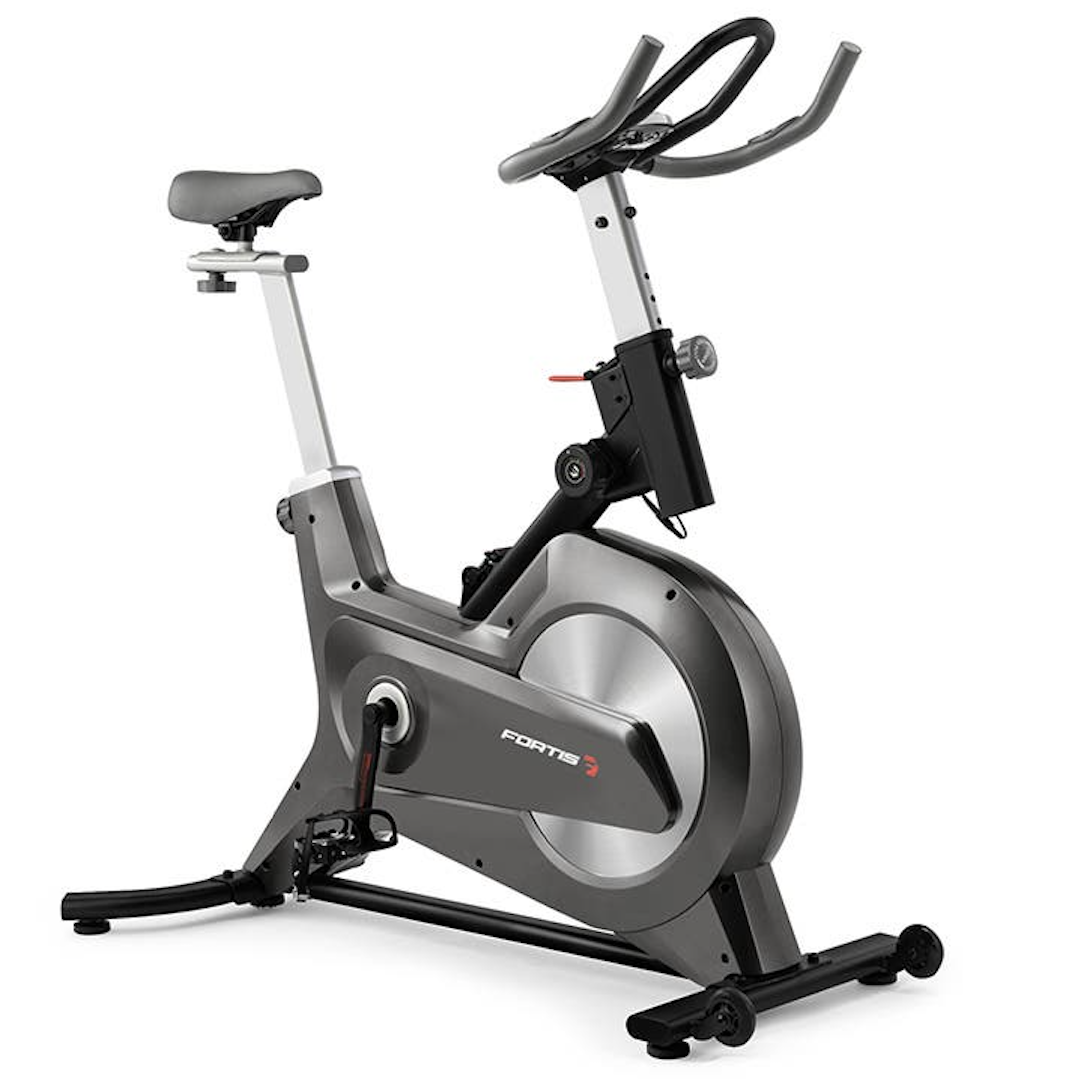
Suppose you have uploaded an image of your bike product. The media record has generated the identifier `spin-bike-home-hero`, which you can use within the following liquid image filter:
```
{% assign image = all_media['spin-bike-home-hero'] %}
```
or you can use it in one line of code:
```
```
And this will be the output with its original size:
If you still using a StoreConnect version below 10.50, please use the following liquid filter:
```
{{ "spin-bike-home-hero" | image, size: "large", class: "some-class", alt: "Spin Bike Image" }}
```
### Rendering images in various sizes
With our cloud-based storage, you can now render images in different sizes. This becomes very useful when you need to save site memory and fit images according to your design.
**Important:** Avoid setting an image size attribute in hero and full-width banners as they will not expand to 100% on very large screens.
Available image sizes include:
- massive: 2048px
- huge: 1024px
- large: 640px
- medium: 480px
- thumb: 240px
- small: 100px
- tiny: 50px
- icon: 32px
- pico: 16px
**Example using the thumb size attribute**
```
```
**Output:** A 240px width image

## Inserting videos
You can insert any video from the database with a simple liquid filter. This filter is useful when you want to embed a video within some content or within an article. They can also be used within theme templates.
The input (sample-video) is the Video identifier. The rest of the inputs are all optional.
```
```
Use the following filter if you using any version below StoreConnect 10.5.
```
{{ "sample-video" | video: autoplay: false, controls: true, height: 'auto', width: '100%', loop: true, muted: true }}
```
This will output:
## Embedding youtube videos
The input (MdAKrzOLQTg) is the YouTube video id.
```
{{ "MdAKrzOLQTg" | youtube }}
```
This will load the video:
You can also specifying the starting time (in seconds) like this:
```
{{ "MdAKrzOLQTg" | youtube, 10 }}
```
StoreConnect 10.5.0 and up use
```
{{ "MdAKrzOLQTg" | youtube, start_at: 10 }}
```
This will load the video and start it 10 seconds in.
## Embedding vimeo videos
The input (65107797) is the Vimeo video id.
```
{{ "65107797" | vimeo }}
```
This will load the video:
You can also specifying the starting time (in seconds) like this:
```
{{ "65107797" | vimeo, 10 }}
```
StoreConnect 10.5.0 and up use
```
{{ "65107797" | vimeo, start_at: 10 }}
```
This will load the video and start it 10 seconds in.
## Inserting content blocks
You can insert any content block from the database with a simple liquid filter.
The input (main-image-overlay-block) is the Content Block identifier.
```
{{ "main-image-overlay-block" | content }}
```
If you are using StoreConnect 10.5.0 and up use:
```
{{ all_content_blocks["main-image-overlay-block"].render }}
```
This will output the content block with that identifier.
---
## Follow StoreConnect
- [Email Newsletter](https://getstoreconnect.com/c/lp-newsletter)
- [LinkedIn Newsletter](https://www.linkedin.com/build-relation/newsletter-follow?entityUrn=7444956928444862464)
- [YouTube](https://www.youtube.com/channel/UCngKdP2x8l1wcbAKW3tvU8g)
- [LinkedIn](https://www.linkedin.com/company/storeconnect)
- [X / Twitter](https://x.com/storeconnecthq)
## Popular Links
- [Partners](https://getstoreconnect.com/partners)
- [News](https://getstoreconnect.com/articles/news)
- [Events](https://getstoreconnect.com/articles/events)
- [Feature Comparison](https://getstoreconnect.com/how-we-compare)
- [Download a free trial](https://appexchange.salesforce.com/appxListingDetail?listingId=a0N3A00000FMkeKUAT)
- [Book a Demo](https://getstoreconnect.com/contact)
## Documentation
- [Help documentation](https://support.storeconnect.com/help-documentation)
- [AI agents](https://support.storeconnect.com/ai)
- [Videos & tutorials](https://support.storeconnect.com/videos-tutorials)
- [Developer reference](https://support.storeconnect.com/developer-reference)
- [Release notes](https://support.storeconnect.com/release-notes)
- [Troubleshooting](https://support.storeconnect.com/troubleshooting)
- [Trust Center](https://trust.getstoreconnect.com/)
- [Status Page](https://status.storeconnect.com/)
## Contact
- info@getstoreconnect.com
- US +1 415 745 3230
- AUS +61 2 8365 2308
100 S Ashley Dr, Suite 600-2461
Tampa FL 33602-600 USA
Level 22, Sydney Place
180 George Street
Sydney, NSW, 2000, AUS
---
StoreConnect Support — https://support.storeconnect.com/articles/liquid-how-to-insert-media
![{{ all_media['spin-bike-home-hero'].image.alt_text }}]({{ all_media['spin-bike-home-hero'].image.thumb_url }}) ```
**Output:** A 240px width image

## Inserting videos
You can insert any video from the database with a simple liquid filter. This filter is useful when you want to embed a video within some content or within an article. They can also be used within theme templates.
The input (sample-video) is the Video identifier. The rest of the inputs are all optional.
```
```
Use the following filter if you using any version below StoreConnect 10.5.
```
{{ "sample-video" | video: autoplay: false, controls: true, height: 'auto', width: '100%', loop: true, muted: true }}
```
This will output:
## Embedding youtube videos
The input (MdAKrzOLQTg) is the YouTube video id.
```
{{ "MdAKrzOLQTg" | youtube }}
```
This will load the video:
You can also specifying the starting time (in seconds) like this:
```
{{ "MdAKrzOLQTg" | youtube, 10 }}
```
StoreConnect 10.5.0 and up use
```
{{ "MdAKrzOLQTg" | youtube, start_at: 10 }}
```
This will load the video and start it 10 seconds in.
## Embedding vimeo videos
The input (65107797) is the Vimeo video id.
```
{{ "65107797" | vimeo }}
```
This will load the video:
You can also specifying the starting time (in seconds) like this:
```
{{ "65107797" | vimeo, 10 }}
```
StoreConnect 10.5.0 and up use
```
{{ "65107797" | vimeo, start_at: 10 }}
```
This will load the video and start it 10 seconds in.
## Inserting content blocks
You can insert any content block from the database with a simple liquid filter.
The input (main-image-overlay-block) is the Content Block identifier.
```
{{ "main-image-overlay-block" | content }}
```
If you are using StoreConnect 10.5.0 and up use:
```
{{ all_content_blocks["main-image-overlay-block"].render }}
```
This will output the content block with that identifier.
---
## Follow StoreConnect
- [Email Newsletter](https://getstoreconnect.com/c/lp-newsletter)
- [LinkedIn Newsletter](https://www.linkedin.com/build-relation/newsletter-follow?entityUrn=7444956928444862464)
- [YouTube](https://www.youtube.com/channel/UCngKdP2x8l1wcbAKW3tvU8g)
- [LinkedIn](https://www.linkedin.com/company/storeconnect)
- [X / Twitter](https://x.com/storeconnecthq)
## Popular Links
- [Partners](https://getstoreconnect.com/partners)
- [News](https://getstoreconnect.com/articles/news)
- [Events](https://getstoreconnect.com/articles/events)
- [Feature Comparison](https://getstoreconnect.com/how-we-compare)
- [Download a free trial](https://appexchange.salesforce.com/appxListingDetail?listingId=a0N3A00000FMkeKUAT)
- [Book a Demo](https://getstoreconnect.com/contact)
## Documentation
- [Help documentation](https://support.storeconnect.com/help-documentation)
- [AI agents](https://support.storeconnect.com/ai)
- [Videos & tutorials](https://support.storeconnect.com/videos-tutorials)
- [Developer reference](https://support.storeconnect.com/developer-reference)
- [Release notes](https://support.storeconnect.com/release-notes)
- [Troubleshooting](https://support.storeconnect.com/troubleshooting)
- [Trust Center](https://trust.getstoreconnect.com/)
- [Status Page](https://status.storeconnect.com/)
## Contact
- info@getstoreconnect.com
- US +1 415 745 3230
- AUS +61 2 8365 2308
100 S Ashley Dr, Suite 600-2461
Tampa FL 33602-600 USA
Level 22, Sydney Place
180 George Street
Sydney, NSW, 2000, AUS
---
StoreConnect Support — https://support.storeconnect.com/articles/liquid-how-to-insert-media
```
**Output:** A 240px width image

## Inserting videos
You can insert any video from the database with a simple liquid filter. This filter is useful when you want to embed a video within some content or within an article. They can also be used within theme templates.
The input (sample-video) is the Video identifier. The rest of the inputs are all optional.
```
```
Use the following filter if you using any version below StoreConnect 10.5.
```
{{ "sample-video" | video: autoplay: false, controls: true, height: 'auto', width: '100%', loop: true, muted: true }}
```
This will output:
## Embedding youtube videos
The input (MdAKrzOLQTg) is the YouTube video id.
```
{{ "MdAKrzOLQTg" | youtube }}
```
This will load the video:
You can also specifying the starting time (in seconds) like this:
```
{{ "MdAKrzOLQTg" | youtube, 10 }}
```
StoreConnect 10.5.0 and up use
```
{{ "MdAKrzOLQTg" | youtube, start_at: 10 }}
```
This will load the video and start it 10 seconds in.
## Embedding vimeo videos
The input (65107797) is the Vimeo video id.
```
{{ "65107797" | vimeo }}
```
This will load the video:
You can also specifying the starting time (in seconds) like this:
```
{{ "65107797" | vimeo, 10 }}
```
StoreConnect 10.5.0 and up use
```
{{ "65107797" | vimeo, start_at: 10 }}
```
This will load the video and start it 10 seconds in.
## Inserting content blocks
You can insert any content block from the database with a simple liquid filter.
The input (main-image-overlay-block) is the Content Block identifier.
```
{{ "main-image-overlay-block" | content }}
```
If you are using StoreConnect 10.5.0 and up use:
```
{{ all_content_blocks["main-image-overlay-block"].render }}
```
This will output the content block with that identifier.
---
## Follow StoreConnect
- [Email Newsletter](https://getstoreconnect.com/c/lp-newsletter)
- [LinkedIn Newsletter](https://www.linkedin.com/build-relation/newsletter-follow?entityUrn=7444956928444862464)
- [YouTube](https://www.youtube.com/channel/UCngKdP2x8l1wcbAKW3tvU8g)
- [LinkedIn](https://www.linkedin.com/company/storeconnect)
- [X / Twitter](https://x.com/storeconnecthq)
## Popular Links
- [Partners](https://getstoreconnect.com/partners)
- [News](https://getstoreconnect.com/articles/news)
- [Events](https://getstoreconnect.com/articles/events)
- [Feature Comparison](https://getstoreconnect.com/how-we-compare)
- [Download a free trial](https://appexchange.salesforce.com/appxListingDetail?listingId=a0N3A00000FMkeKUAT)
- [Book a Demo](https://getstoreconnect.com/contact)
## Documentation
- [Help documentation](https://support.storeconnect.com/help-documentation)
- [AI agents](https://support.storeconnect.com/ai)
- [Videos & tutorials](https://support.storeconnect.com/videos-tutorials)
- [Developer reference](https://support.storeconnect.com/developer-reference)
- [Release notes](https://support.storeconnect.com/release-notes)
- [Troubleshooting](https://support.storeconnect.com/troubleshooting)
- [Trust Center](https://trust.getstoreconnect.com/)
- [Status Page](https://status.storeconnect.com/)
## Contact
- info@getstoreconnect.com
- US +1 415 745 3230
- AUS +61 2 8365 2308
100 S Ashley Dr, Suite 600-2461
Tampa FL 33602-600 USA
Level 22, Sydney Place
180 George Street
Sydney, NSW, 2000, AUS
---
StoreConnect Support — https://support.storeconnect.com/articles/liquid-how-to-insert-media