
When you bulk add records into Salesforce, you can also include relationships for product variants, product categories, and media.
Before you begin
- Ensure any fields you wish to populate or update are accessible on the object's page layout that is assigned to you. Note that the field does not need to also be on a Lightning Page.
- You have StoreConnect Administrator permissions
Prepare the CSV
The CSV you upload needs to present data in a specific way to allow for easy and seamless import. We recommend downloading the sample CSV (see above) as a guide to how to set up the file.

Note that the import process is 'idempotent', which means you can re-upload the same CSV over and over, and the importer will match existing product records and only add new or changed records.
Product import file requirements
- Up to 10,000 rows
- Up to 26 records per row
- Up to 5 child price book entries per product
- Up to 5 child product variants per master product
- Up to 5 child product categories per product
- Up to 5 child media items per product
- Maximum of 260,000 records total
- File size limit of 2mb
- Format for date time fields: 2024-12-01 01:00:00.000Z with a space between date and time
Upload products via CSV
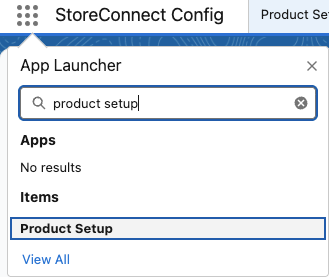
- Search for Product Setup in the App Launcher.
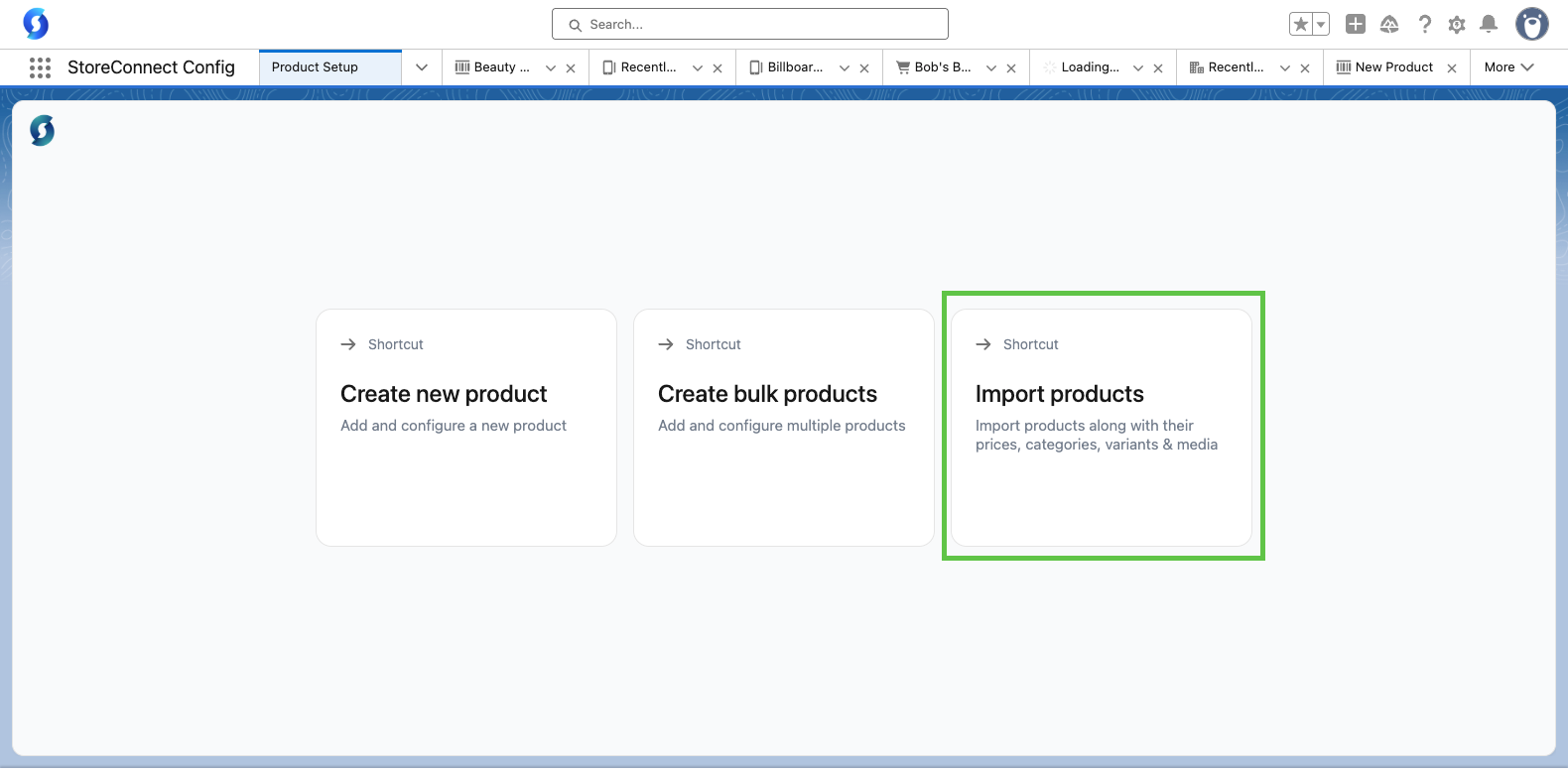
- Provide you have the correct access, you should see three options, including the Import Products option.
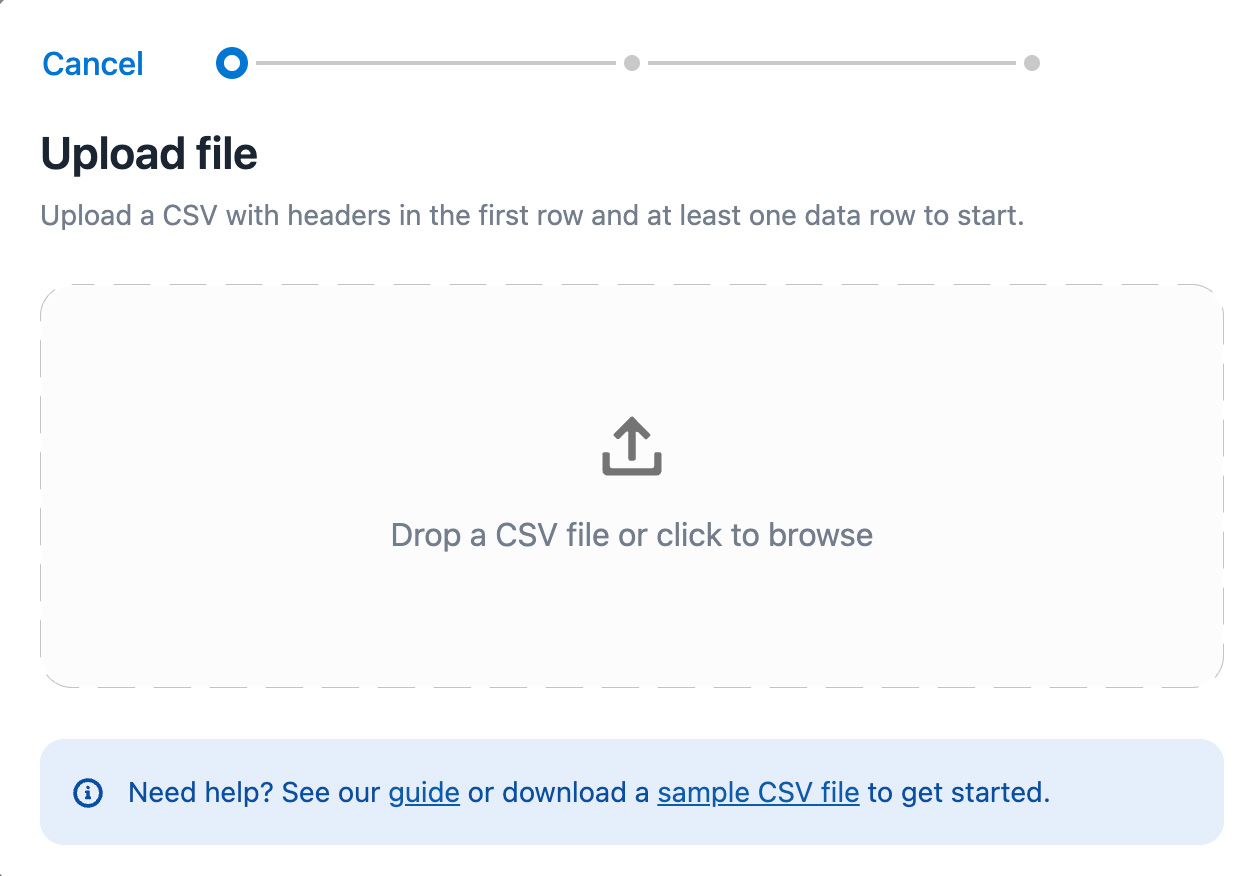
- Download a sample CSV if you need help setting up your file. You can add or delete any columns as required.
- Map the CSV data to Salesforce fields. When you add a CSV for upload, you are prompted to map the spreadsheet columns to their appropriate Salesforce object fields, before actual import begins."
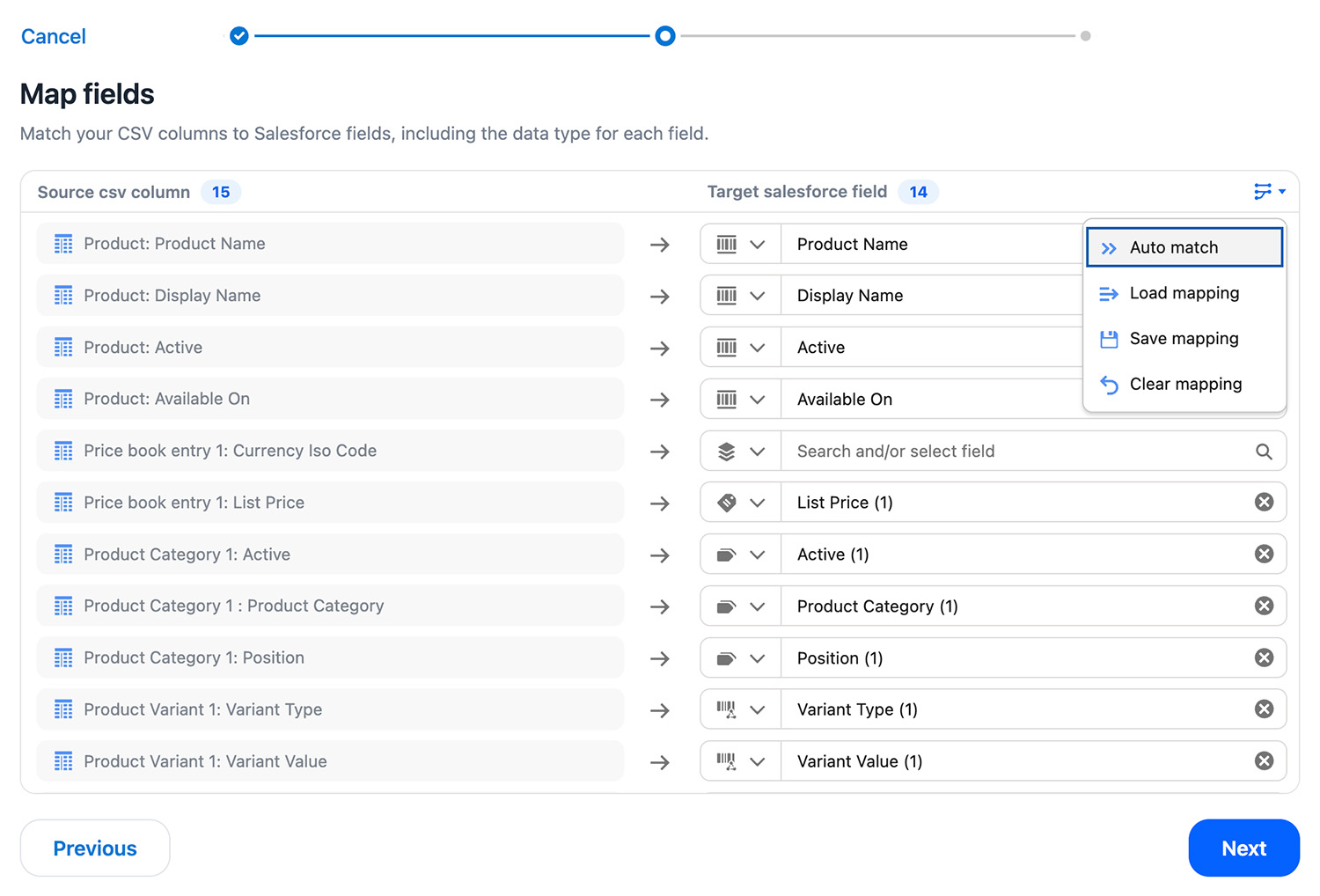
- Mapping options are available in the dropdown menu (shown above) giving you several options.
- You can select:
- Auto match - attempts to automatically link all columns to their recognized Salesforce field
- Load mapping - allows you to add your own mapping file.
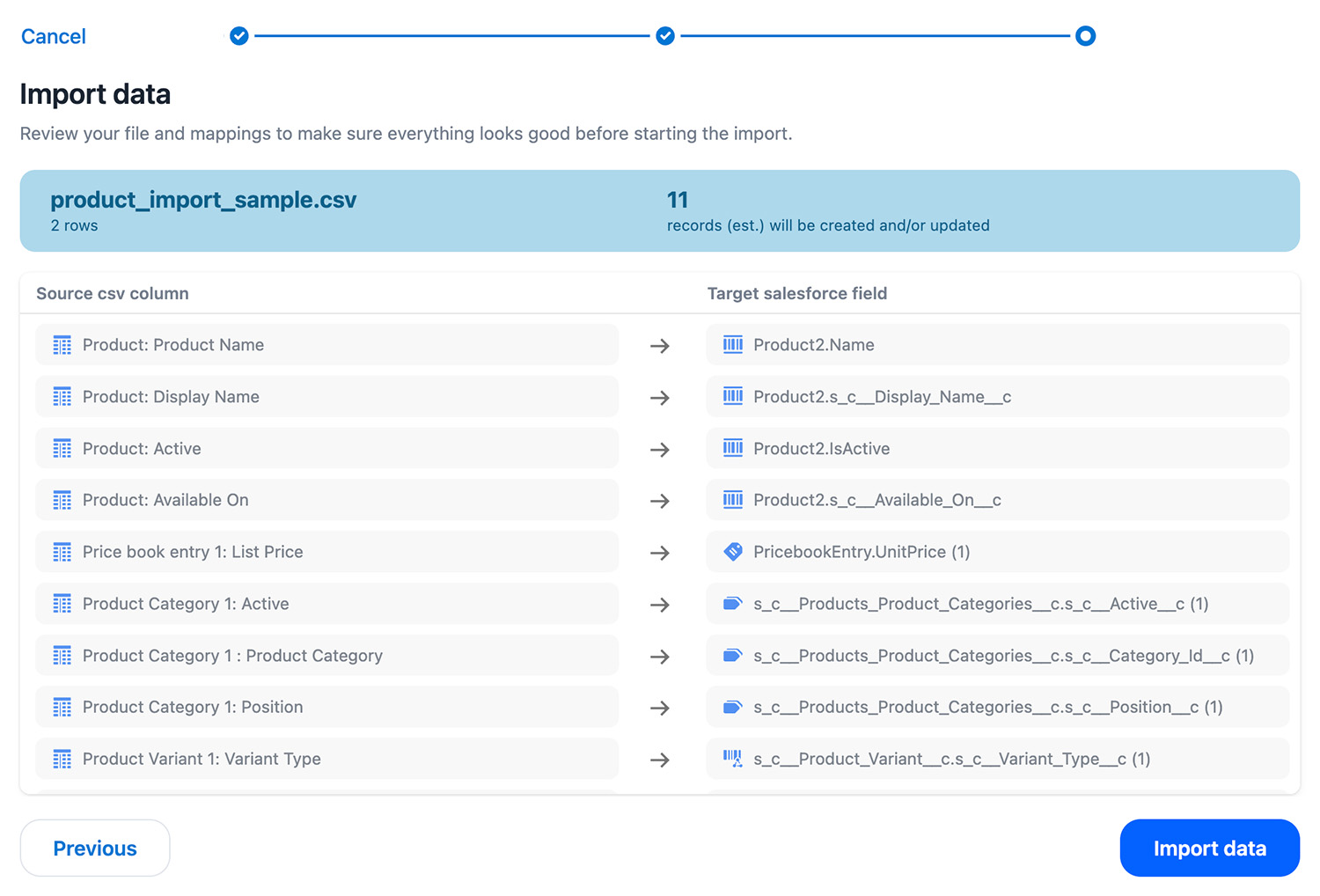
- When everything is mapped, select Import data. Any columns that can't be mapped to a Salesforce object field will not be included in the import. Import time depends on the number of records within the CSV file, but doesn't generally take long.
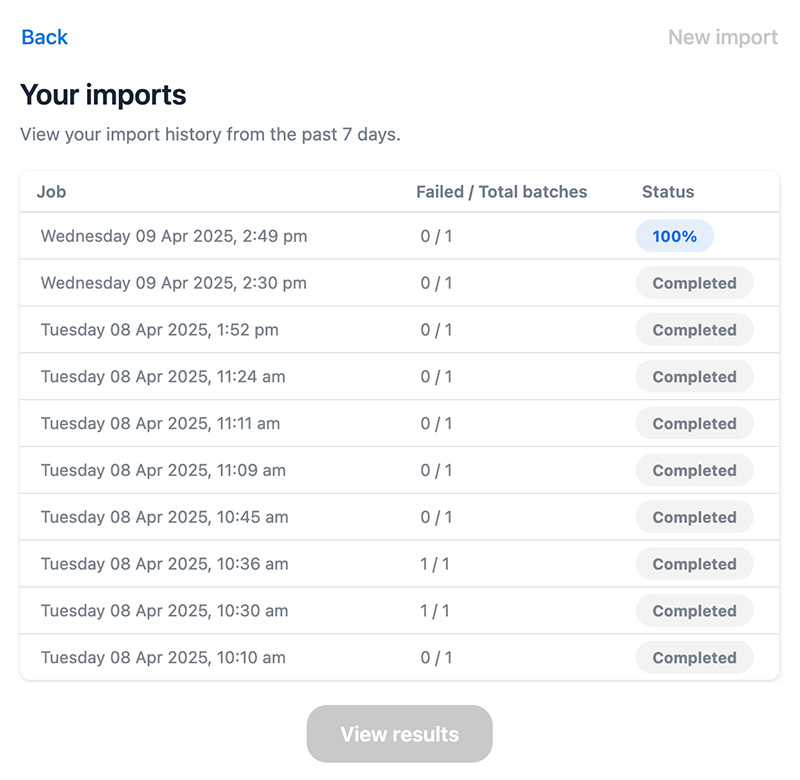
- The Your Imports screen appears when the job is running, and you can click View Results when the job is finished. The results screen shows the files list of all Success and Error logs for every import. Here you can download and view the complete status of every import.
- Use the error log to determine any changes to the CSV before re-importing.
Update existing products and related objects using CSV import
Tip: If you use a data management tool like https://dataloader.io/, you can efficiently export your product data, manually update the file, and use the CSV output to import and update products all at once. Otherwise, follow the process below to update products in bulk.
Prepare the CSV
- Add a column to the CSV for the Product: ID. This is the unique identifier for the product in Salesforce. You need to include the Product ID of existing products, otherwise a new ID will be generated and you may end up with duplicate records.
- To update child objects of an existing product (ie: Price Book Entries, Product Categories) include the Salesforce ID for those specific records, along with the new prices, assignments, etc. included afterwards.
- Up to 5 records can be created and/or updated for each related object of a product.
- If you want, you can import NEW records as well as UPDATE existing records within the same CSV file.
Here is an example of a CSV section for an existing product ID which will update an existing price book entry (1) as well as create a secondary new price book entry for a different price book (2):

Through this operation, a new record will be inserted if no ID value already exists, or an existing record will be updated if a specified Salesforce record ID exists in the table.
Preparing related objects
To include lookup field values for related products, set the Name value. For example, use the Price Book (ie: Standard Price Book), instead of its Salesforce ID, so this record links to the product automatically. However, not all related objects need to be mapped to their product lookup field, this also happens automatically based on the row of the CSV file.
Preparing variant products
For Variant products you will need to indicate the master product, simply include the Name of the Master product as in this example:

Using other unique identifiers
When updating existing records, you can use unique identifiers instead of Salesforce IDs. This option is available only for specific objects and field values:
- Product: use the
s_c__Slug__cvalue - PricebookEntry: You can specify a unique identifier in one of two formats:
product sf id:price book sf id[:currencyisocode]Example:01tBn0000079yP8IAI:01sBn000001ILiFIAW:AUDproduct-slug:price book name[:currencyisocode]Example:test-slug:Standard Price Book:AUD
Note: The currencyisocode is included only if multi-currency is enabled.
Important: Identifiers are case-sensitive. They must exactly match the constructed identifier and the returned values, especially if Salesforce IDs are involved.