
A customer who forgets their password can trigger their own password reset, but if they need help, you can send them to the correct URL or trigger it for them.
Self-reset password
Customers can click the Forgot Password link on the sign in screen when trying to access your store. This will take them through the reset password flow.
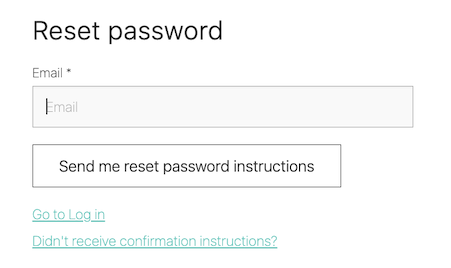
URL to reset password
If a user cannot access the sign in screen, you can provide this reset password URL, tailored for your store domain: https://yourstoredomain.com/auth/password/new
Trigger a password reset from Salesforce
Note: You may need to add the reset password field to the Contact object page layout in Salesforce before you are able to do this. See Add fields to a page layout.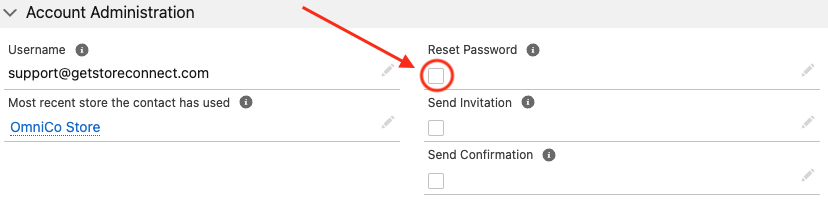
- Open the user account in Salesforce.
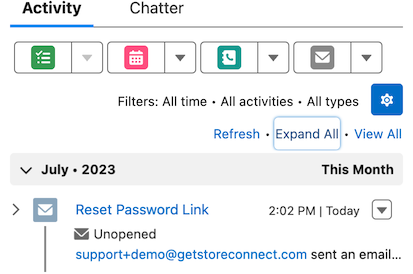
- Select the Reset Password option and save. And email will be sent to the contact with instructions for the password reset. This may take a couple of minutes to send and will show in the activities section once sent.
TIP: If you ever need to access the reset password link that was sent, you can open the email in the contact’s Activities section. The link will be in there.
Troubleshooting password resets
If the reset password email does not send:
- Check there is an Organization Wide Email address set up per this help documentation.
- Check that a username already exist for the contact (If it does not exist use the Send Invite feature instead).
- Check that there are no duplicate contacts with the same email address or same username.
- Check that the email address has not bounced, clear any soft / hard bounces if needed - See: Salesforce - Managing Bounce Data
For all other issues, contact StoreConnect support.