You can do the following via the web console:
- Analyze template output and logic
- Trace template render chains
- Detect and diagnose errors
- Identify opportunities for optimization and improvement
Enable user access
Web console access is only available to users assigned to an appropriate Store Role. Set these up first.
About the web console
When you open the console, a new browser session starts and connects to a web socket in the background to receive logs. The console shows:
- Connecting... while establishing a connection.
- Connected once ready.
An Open Store button appears for convenience to launch the store in a new tab (optional).
Browse your store in the same browser profile. Logs for your requests will appear in the console for each page that you load.
Web console features
Request logs
- Displayed in the sidebar as you navigate.
- Only your browsing activity is logged, other customers’ activity is not visible.
- Logs are scoped to the specific store you launched the console from.
- Logs do not persist after closing or reloading the page.
- Sorted most recent first.
- Controller and Action (e.g.,
products#show) are displayed. - Request duration is shown in milliseconds.
- Red text: indicates an error in the request.
- Blue dot: indicates a debug call was made.
Log details view
- Shows request path, HTTP method (GET, POST, etc.), and duration.
- Displays a nested view of rendered Liquid templates.
- Collapsible nested entries.
- Errors in collapsed entries show an error count
- Filter options: All entries, Error entries, or Debug entries.
Add a timer for a section of code
You can add a timer for a section of code to measure the code's execution time, and record the result in the web console.
Source: app/liquid/tags/timer_tag.rb
Syntax
{% timer "label" %}
  {# liquid code to measure #}

{% endtimer %}
Parameters
| Parameter | Type | Required | Description |
|---|---|---|---|
| label | String | Yes | A name to identify this timer in the console output |
Example
{% timer "product-loop" %}
  {% for product in collection.products %}
    {{ product.name }}
  {% endfor %}
{% endtimer %}
The elapsed time for the block is recorded in milliseconds and appears in the web console under the given label.
Code timer rules
- Timers are only recorded during an active console session. The tag has no effect outside of a console context.
- Multiple timers can be used in the same template with different labels.
- Filter timings are also captured automatically for every filter invocation (with line number), without needing the timer tag.
Payment & shipping API responses and errors
Version 20.0.28 introduced Payment and Shipping API logs to the web console. These logs provide real-time visibility into APIrequests and responses for payment and shipping integrations, allowing developers to debug payment and shipping issues without needing access to external logging tools such as Papertrail, Heroku logs, or similar services.
What’s included
When a payment or shipping API call is made, the web console displays:
Request details
- Endpoint
- HTTP method
- Payload sent to the provider
Response details
- Success or failure status
- Response object returned by the provider
- Error messages (when provided by the API)
Both successful and failed requests are logged and scoped to your current browsing session, consistent with existing web console behavior.
Common use cases
- Debug failed payments during checkout
- Verify successful payment or shipping rate requests
- Identify malformed payloads or missing parameters
- Review provider error responses without backend access.
Note: Some payment or shipping providers may return limited error information. For example, certain APIs may respond with a 400 error without detailed context. However, most providers include meaningful error messages in their response bodies.
Example: successful payment API call
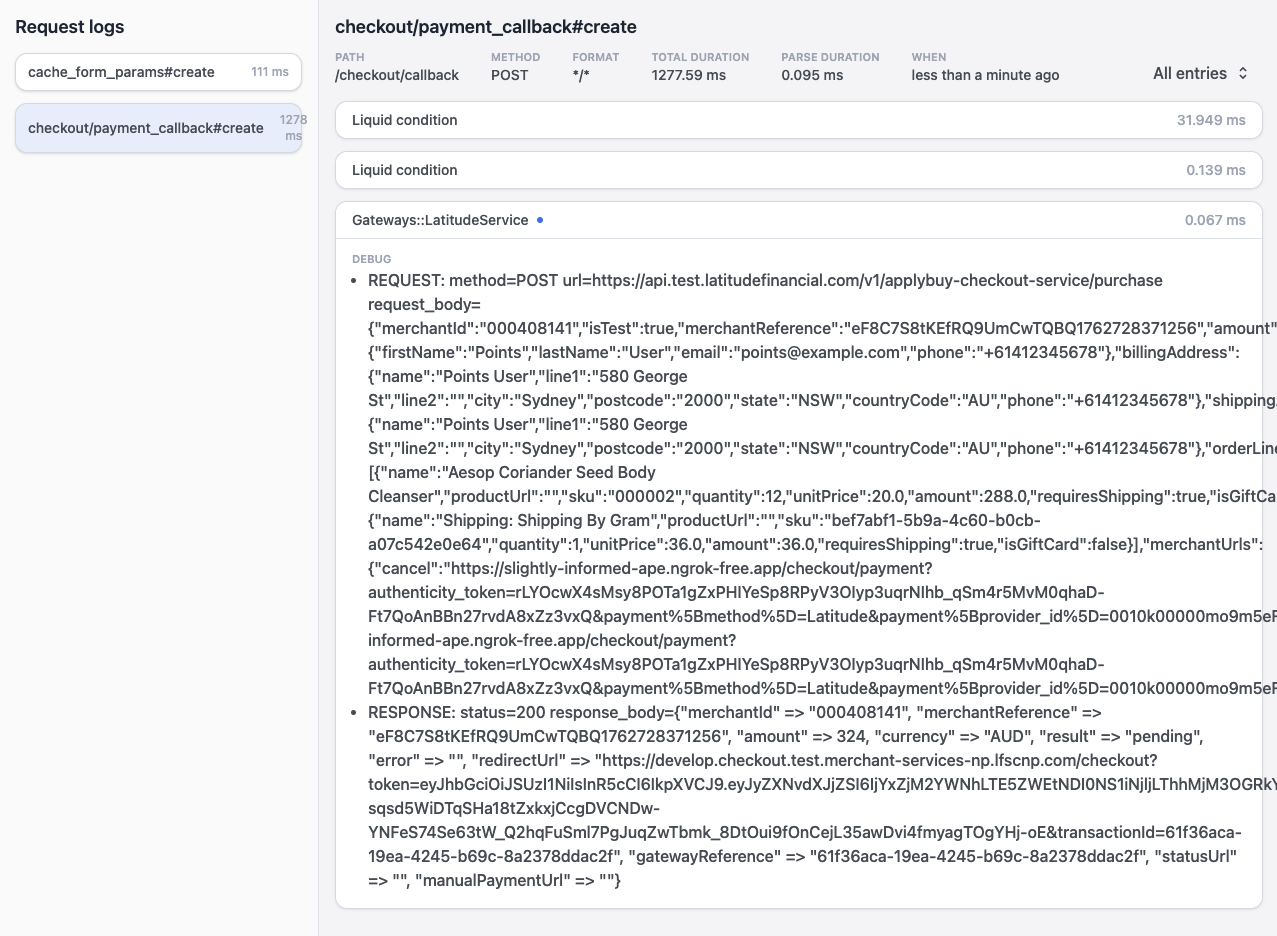
In the example below, a payment provider request completes successfully:
- A REQUEST entry shows the payload sent to the payment API
- A RESPONSE entry shows a
200status with the provider’s response object - The request is marked with a blue dot, indicating a debug call
Example: failed payment API call
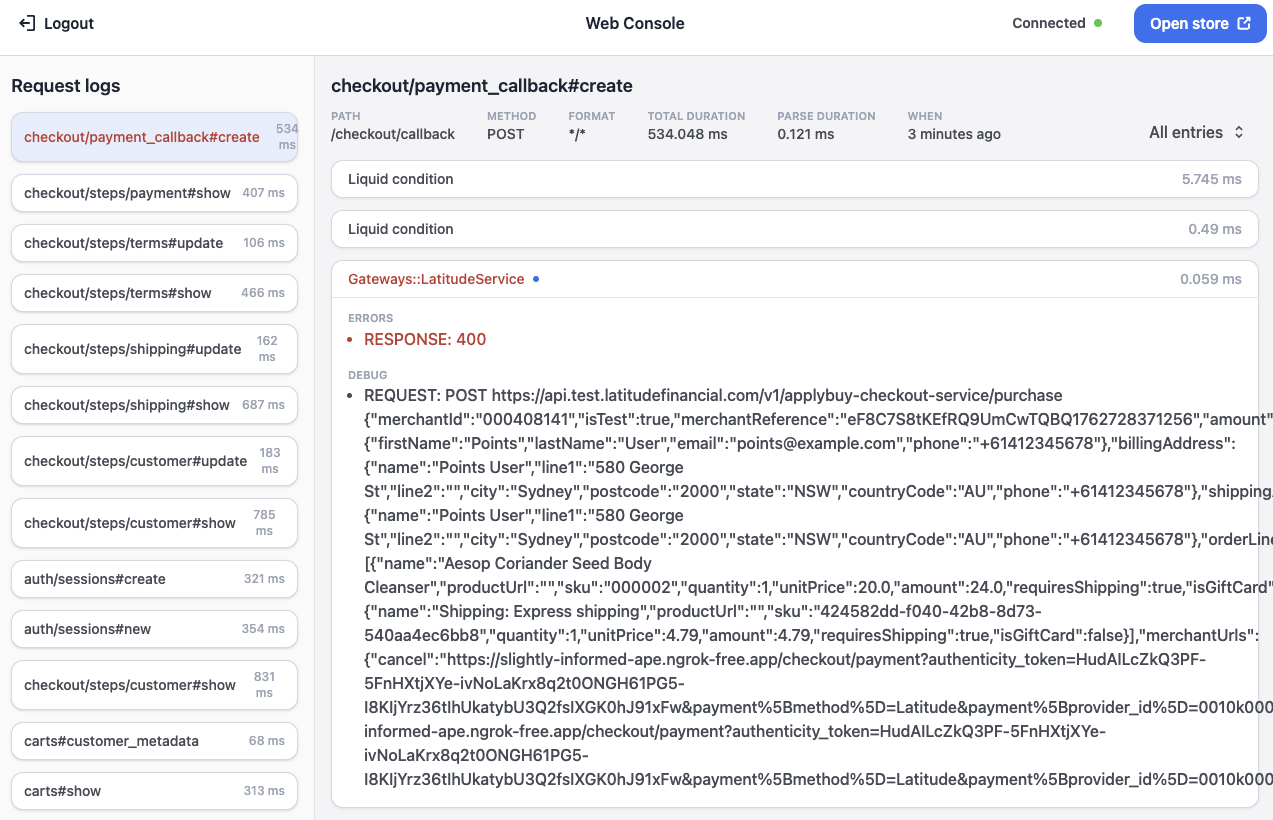
In the example below, the payment API returns a failure:
- The response status is
400 - The request entry is highlighted in red
- The request and response payloads are fully visible for debugging