
What is privacy compliance?
Privacy compliance is the catch-all term for a number of requirements imposed on websites in various territories, e.g.: GDPR in the EU, and SCA in the UK. The basic aim of these requirements is to enable the user to understand how their web interactions are being tracked, what information is being collected, and how it is being shared. Visitors must also be able to disable any of these features except those that are strictly required for the website to work.
Set up the cookies banner scripts
Our implementation assumes that cookies are set by some custom javascript on the site. So we need to know what script is responsible for each cookie.
To achieve this we have created 3 new objects:
Script_Blocks__cCookies__cCompliance_Groups__c.
The basic working premise of the cookies and compliance feature is as such:
- A Script Block is a container for any script e.g. Google analytics would be put in a Script Block, and Facebook Pixel would be put in another Script Block and so on.
- You assign a privacy sensitive Script Block to a Cookie. This designates the Script Block as a managed cookie-type script.
- And finally, the Cookie is assigned to a Compliance Group such as "Marketing Cookies" and so on.
Script blocks
A Script Block is where JavaScript code snippets such as Google Analytics, Facebook Pixel, or similar would be inserted. Conversely, Script Blocks can be used for any JavaScript code independent of the cookies and compliance system.
Active__c- booleanContent__c- long text, where the JS code goesGlobal__c- booleanPosition__c- number, for orderingStore_Id__c- lookup, Store
Global, Active script blocks will be reproduced in the Store's section, in position order.
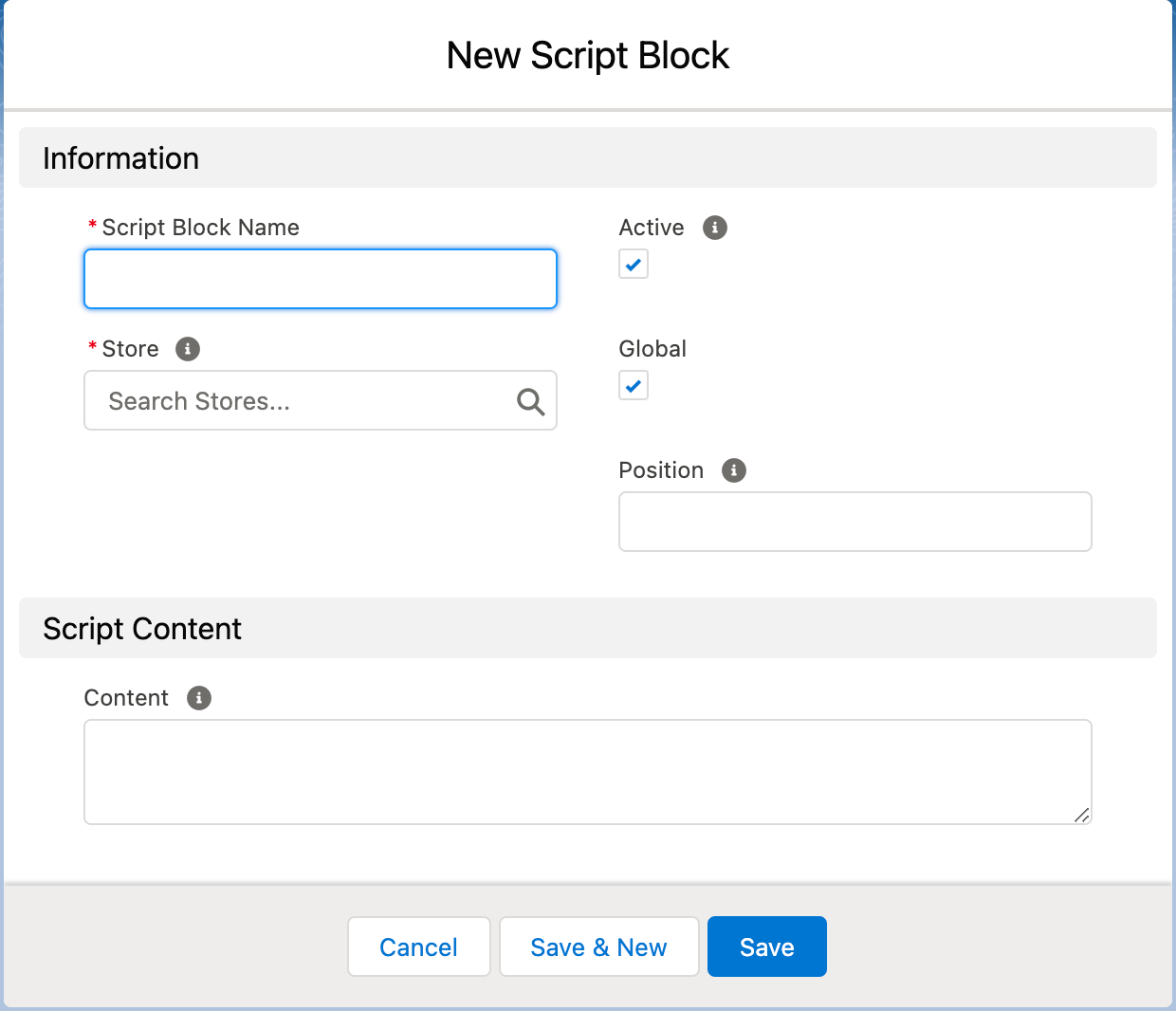
Image: Adding a Script Block
Cookies
Cookies are the JavaScript code snippets typically used by web developers to help create a better end-user experience. They are saved to an end-user's internet browser when they visit a website with cookies enabled.
Active__c- booleanCompliance_Group_Id__c- lookup, Compliance_GroupDisplay_Name__c- stringInformation_Markdown__c- textPosition__c- number, for orderingScript_Block_Id__c, lookup, Script_Block
Compliance groups
Compliance Groups are a way to group cookies by function, and a way to mark certain cookies as required. If a cookie is required, it is automatically enabled and cannot be disabled.
Active__c- booleanDisplay_Name__c- stringInformation_Markdown__c-textPosition__c- number, for orderingRequired__c- booleanStore_Id__c- lookup, Store
Implement privacy compliance
Once you have set your scripts you must then:
- Configure each of the components of the cookie and compliance feature
- Then enable it
Configure cookies
Cookies need to belong to both a Compliance Group and a Script Block in order to have any effect on the site.
They can be turned off by unchecking the Active check box
The following fields are used in the Cookie management screen to provide the user with info about what the cookie does:
Positiondefines the order the cookies are listed in within their Compliance GroupDisplay_NameInformation_Markdown
Multiple cookies can be attached to the one Script Block. This is useful when a 3rd party script is responsible for multiple cookies. If this occurs, it should be noted that the script will only show if all cookies attached to it are enabled.
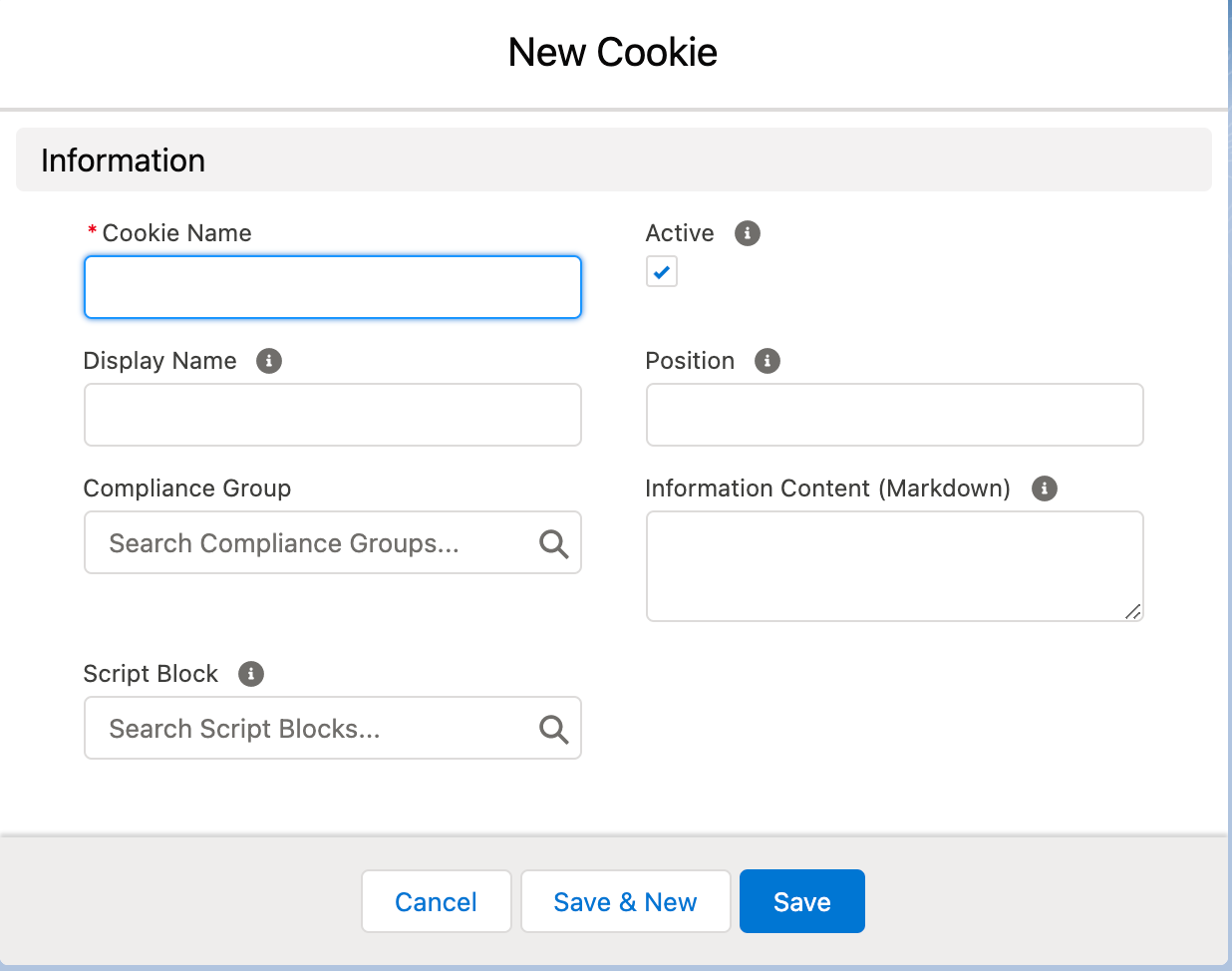
Image: Adding a Cookie
Configure compliance groups
Compliance Groups must belong to a Store.
They can be turned off by unchecking the Active check box.
They can be marked as required (enabled always) by checking the Required check box.
The following fields are used in the Cookie management screen to provide the user with info about the group of cookies:
Positiondefines the order the Compliance Groups are listed inDisplay_NameInformation_Markdown
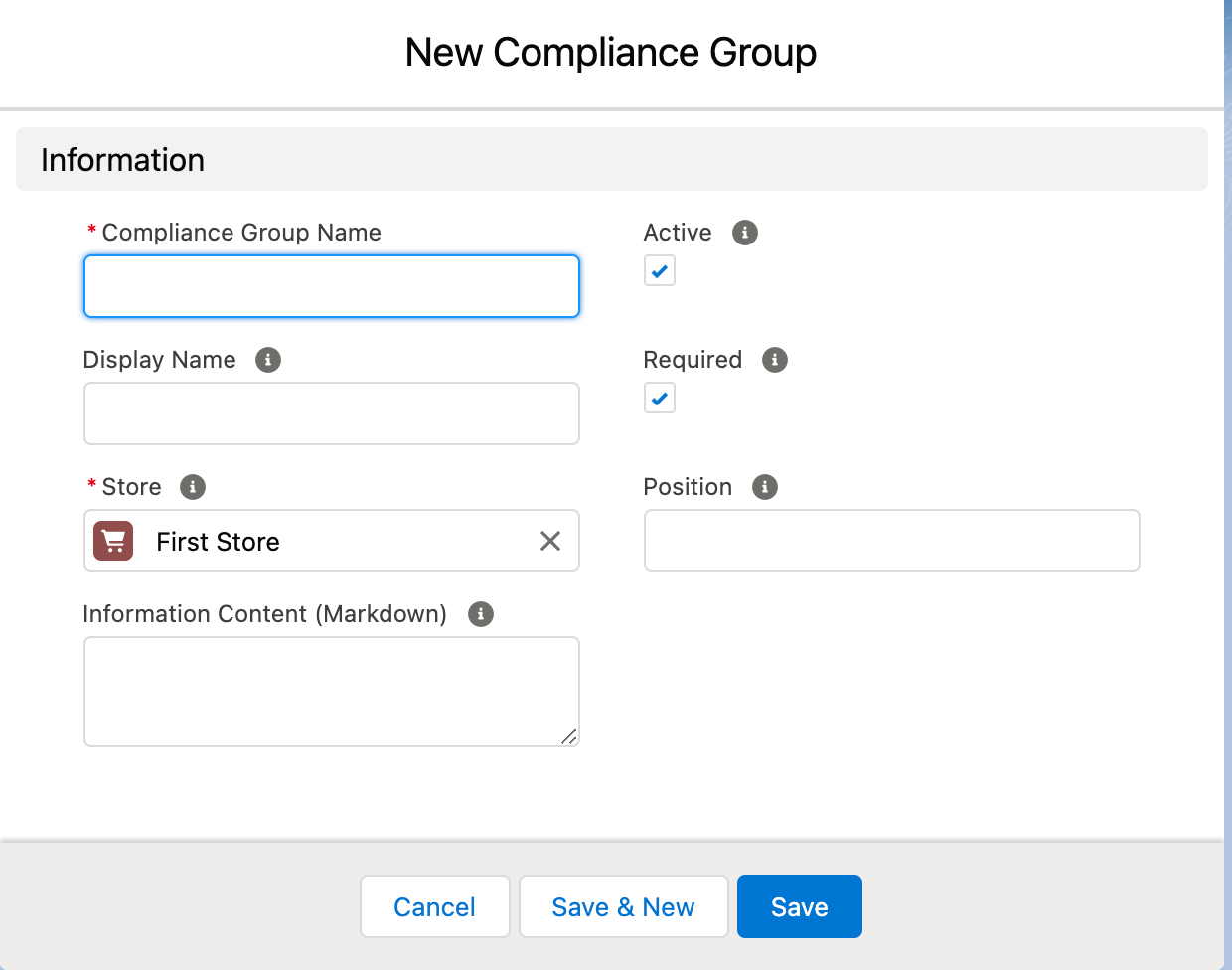
Image: Adding a Compliance Group
Configure the compliance banner
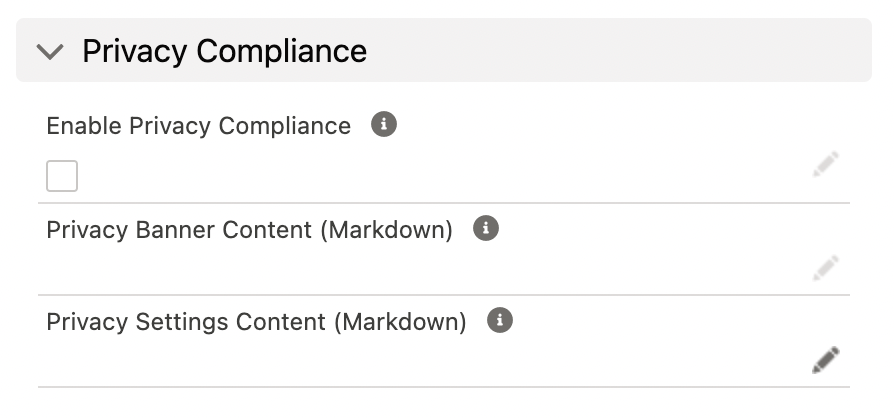
Image: Privacy Compliance
The Store object has two other fields related to the configuring of Privacy Compliance on the website:
- Privacy Banner Content, and
- Privacy Settings Content
These fields allow the Store admin to supply the content that shows in both the Banner and the Settings screen.
In our default themes, the banner will consist of three things:
- The content from Privacy Banner Content
- An Accept All button
- A Manage Cookies button
Apart from the button labels, all the text in the banner comes from content in Salesforce.
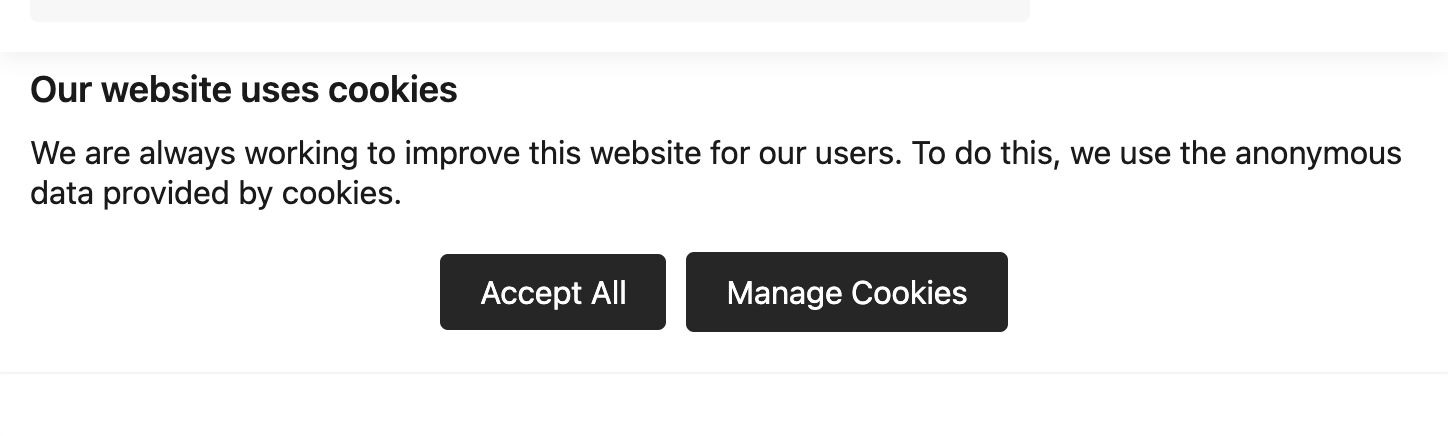
Image: Sample Cookie Banner
Likewise, the Settings screen will consist almost entirely of content supplied by the Store admin:
- the content from Privacy Settings Content as an introductory heading
- the list of Cookies grouped by Compliance Group where each group shows the group Display Name and any Information Markdown, and each Cookie also shows the Display Name and its Information Markdown
- a Save Settings buttons
- an Enable All and Save button
All text except for the button labels and the enable/disable toggles comes from content in Salesforce.
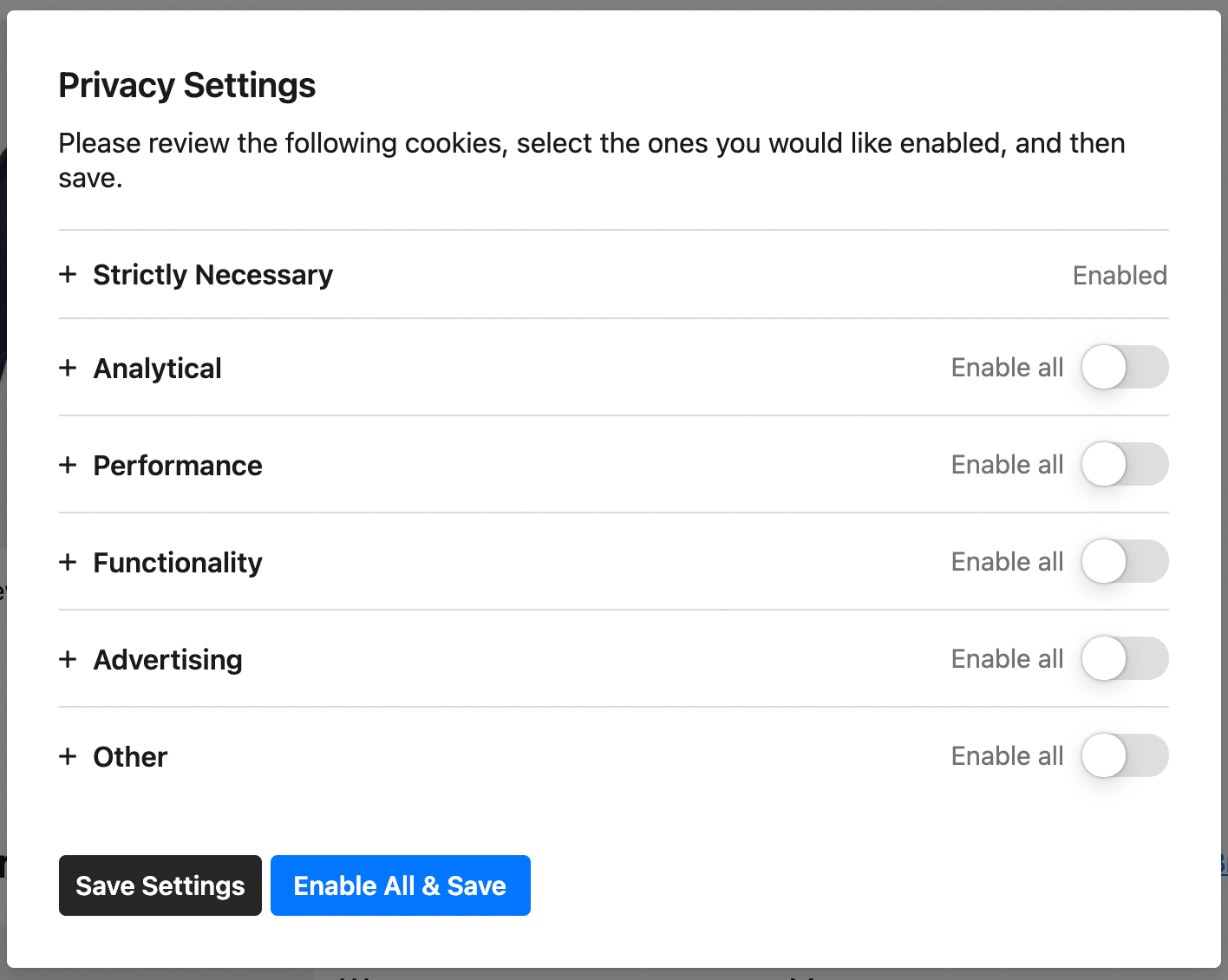
Image: Sample Settings Screen Collapsed
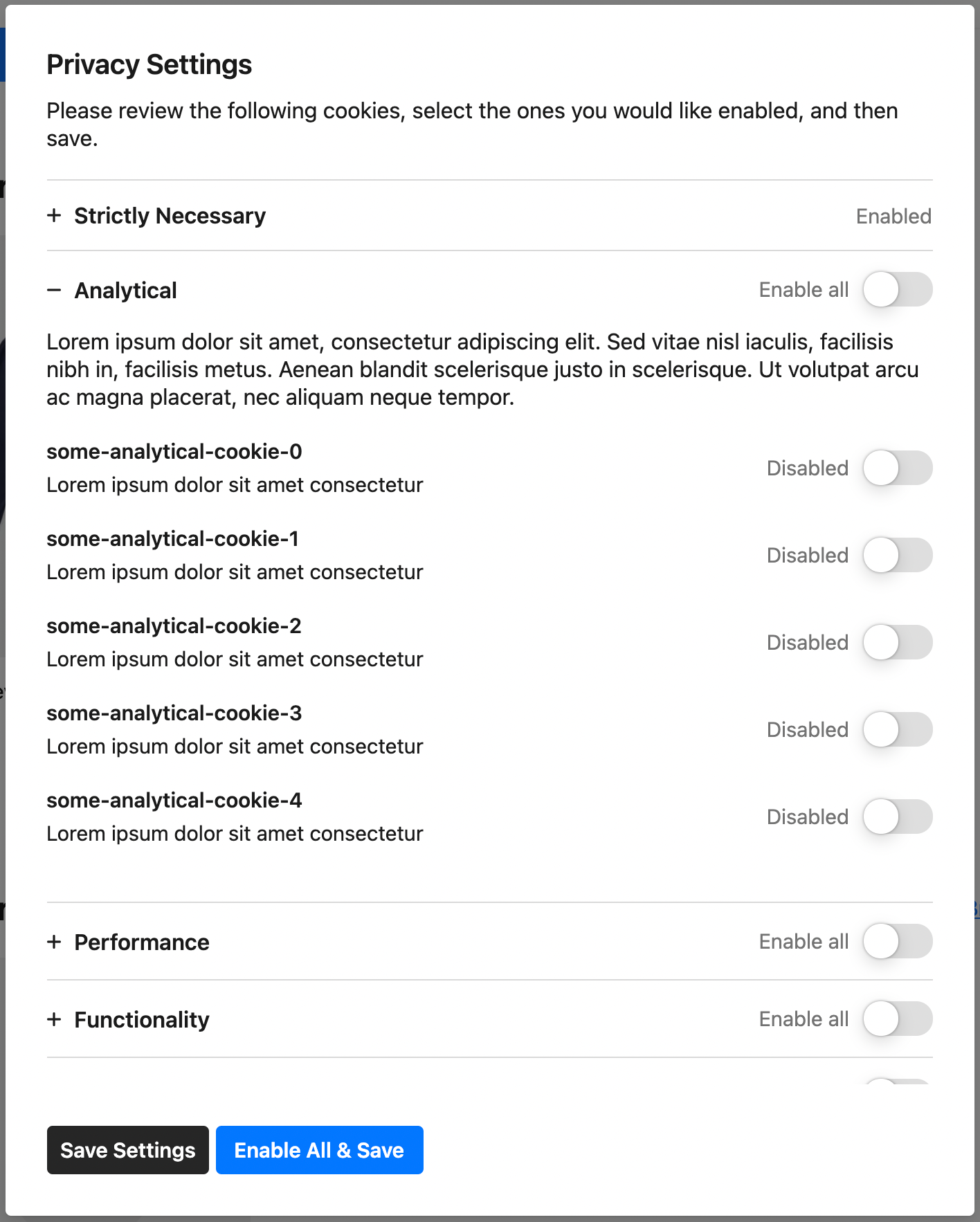
Image: Sample Settings Screen Expanded
Enable privacy compliance
The Privacy Compliance features will only work if they are enabled on the Store.
To enable it, go to the Privacy Compliance section on the Store layout and check the Enable Privacy Compliance checkbox:
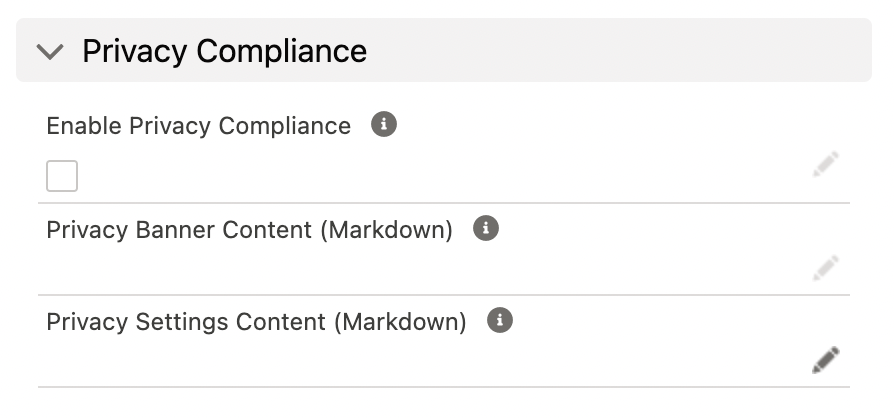
Image: Privacy Compliance Checkbox
Once the Privacy Compliance feature has been enabled:
A privacy banner will be shown on the Store to tell the user about cookies, allow them to accept all cookies or open the cookie settings to manage the cookies in greater detail.
Only Script Blocks independent of the cookies and compliance system; those linked to required Compliance Groups; and cookies accepted by the End-User will be included in the HTML tag.
If the user never bothers to accept all or manage cookies, the banner will stay there and only the independent JavaScripts or required (necessary) cookies will be included.
If they do accept or manage the cookies, the banner will no longer show and the independent JavaScripts, required (necessary) and User Accepted cookies will be included. This only lasts for the browser session. If they revisit the site on another occasion after closing the browser, they will get the banner again.
Privacy compliance with social and ad source tracking
Enabling Privacy Compliance will disable UTM tracking. To enable it, add a cookie with the internal name STORECONNECT_UTM_TRACKING.
If a cookie with that name is enabled, UTM tracking will no longer be disabled by Privacy Compliance (ie it may still be disabled for other reasons though, see that feature for more details).
Find out more about our UTM Tracking feature
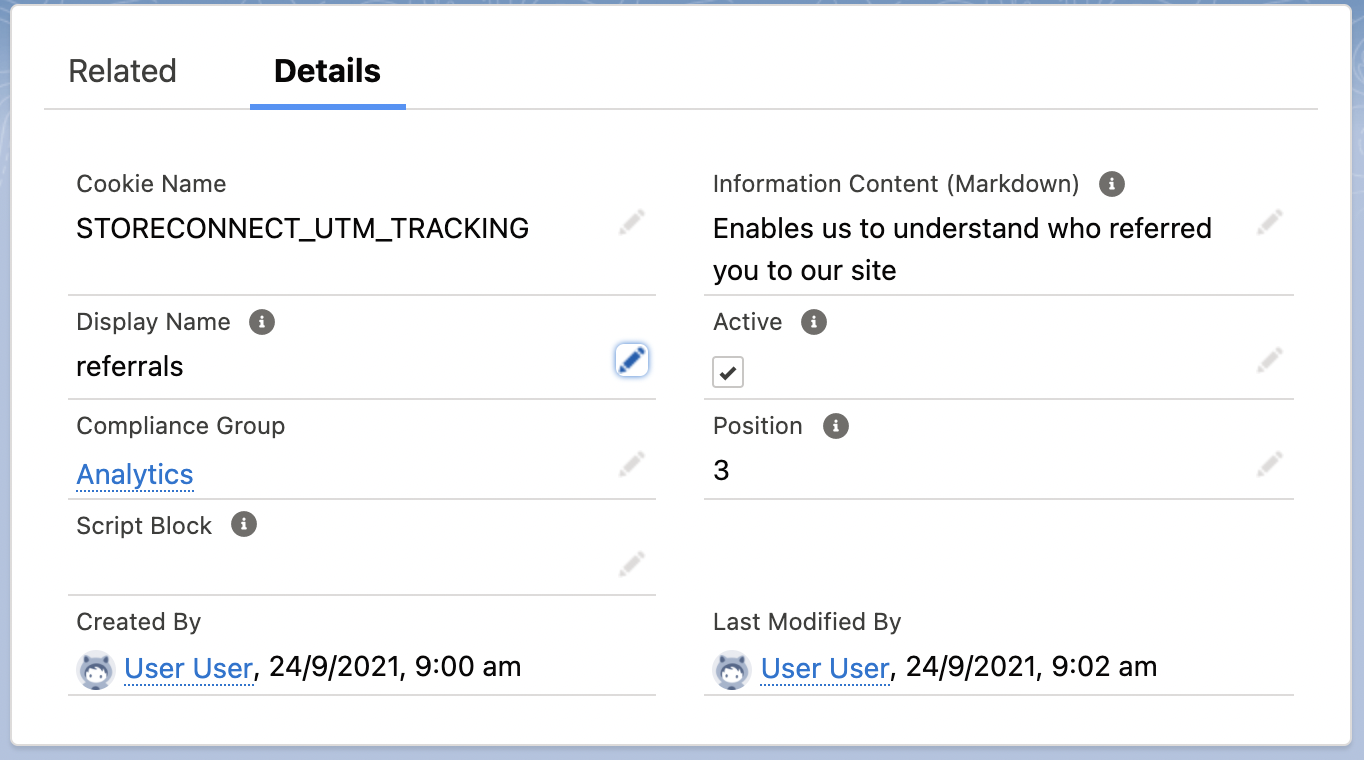
Image: Privacy and UTM Tracking
Terms
Cookie: HTTP cookies (also called web cookies, Internet cookies, browser cookies, or simply cookies) are small blocks of data created by a web server while a user is browsing a website and placed on the user's computer or other device by the user's web browser. Cookies are placed on the device used to access a website, and more than one cookie may be placed on a user's device during a session (Wikipedia). See Cookie management and privacy compliance for help on setting custom cookies and managing privacy compliances.
Store: A "store" is a website built within StoreConnect / Salesforce with its own unique domain name or path. [https://example.com](https://example.com) would be a store, and [https://getstoreconnect.com](https://getstoreconnect.com) would be another store. You could also have paths such as [https://example.com/eu](https://example.com/eu) for a website dedicated to Europe, or [https://example.com/au](https://example.com/au) as another website dedicated to Australia. You access the Store's configuration page by navigating to the StoreConnect Config app then selecting Stores from the dropdown menu.
tag: Used to contain metadata such as the title of the page, its description, and any relevant keywords. Scripts (code), links to scripts and CSS files (for page styling) may also be contained in the tag.
UTM Tracking Code: Urchin Tracking Module (UTM) codes are very common and broadly used to track website clicks and performance of marketing activities. They were originally developed by a software analytics company, "Urchin Software Corp" who were purchased by Google Corp. They in turn developed the Urchin software into what is now called, "Google Analytics".