
Member registration is a common requirement for many businesses. Even more so is being able to pay for that membership through a public-facing webpage.
This has traditionally been quite difficult or complex to do on Salesforce, requiring either heavy solutions costing tens of thousands of dollars a year to license and taking weeks or months to complete the sales and installation process.
This guide will show you how to create a complex membership form that also accepts payment, all powered by a StoreConnect instance. You could then register via credit card for a small month-to-month payment without any sales process required!
While StoreConnect has its Generic Custom Form feature, which is the best practice way of building this sort of solution, sometimes you need access to direct Salesforce objects and logic in the application flow, and you can do this by leveraging a Salesforce Lightning Screen Flow and then embedding it within a StoreConnect page to capture the membership details, make it available on a public StoreConnect site and then take the data provided to capture payment for the membership.
We can do this by leveraging a Salesforce Lightning Screen Flow and then embedding it within a StoreConnect page to capture the membership details, make it available on a public StoreConnect site and then take the data provided to capture payment for the membership.
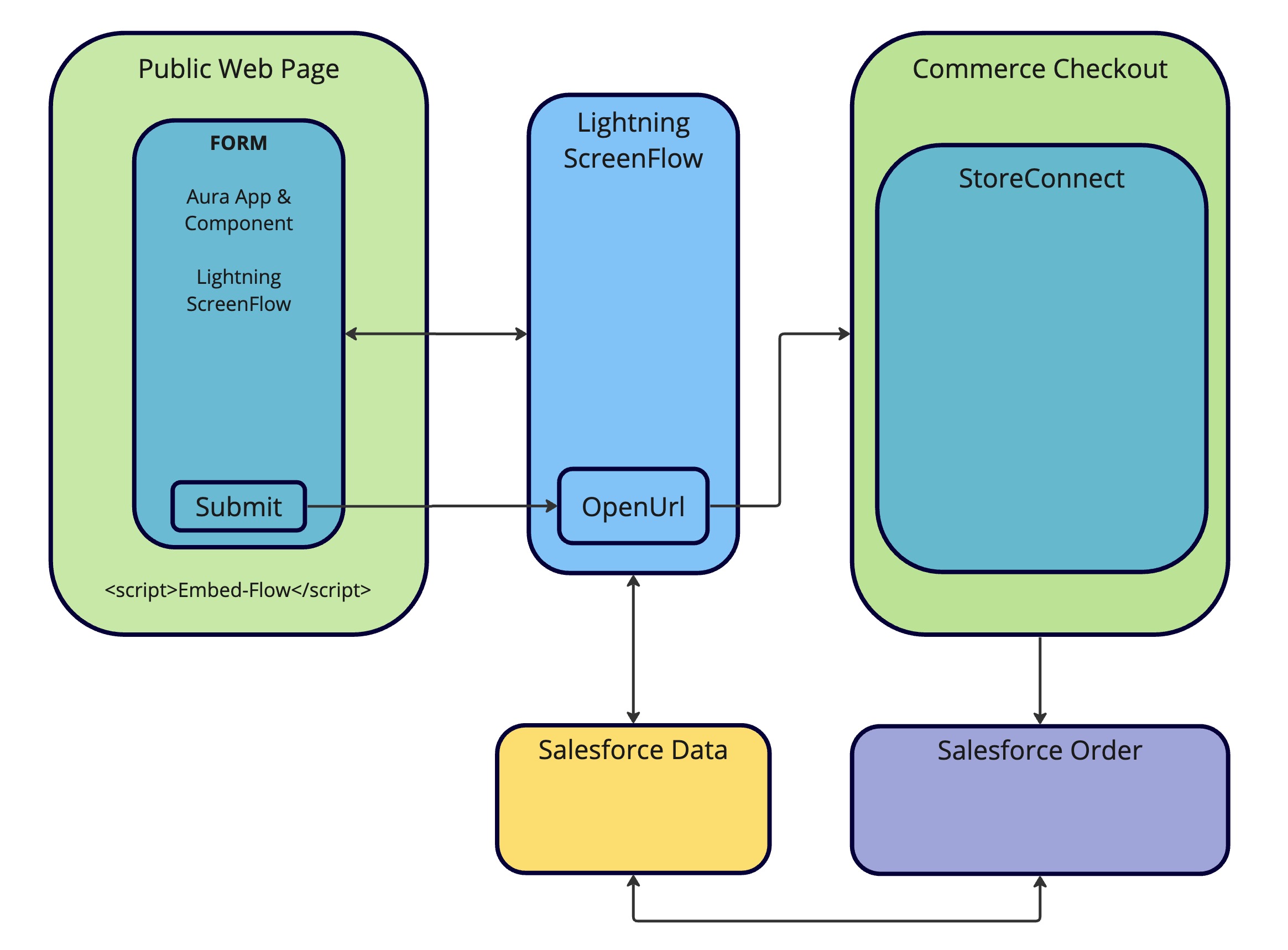
And do this all in a single afternoon, using this architecture diagram.
1. Install StoreConnect
To host this on a website, we need to get StoreConnect installed, so let’s get that started.
Before beginning with StoreConnect, ensure it is installed and properly set up. Here is the installation guide. Additionally, your StoreConnect Store and Site should be active with a functional URL. This setup enables a great way to integrate the web form and payment system.
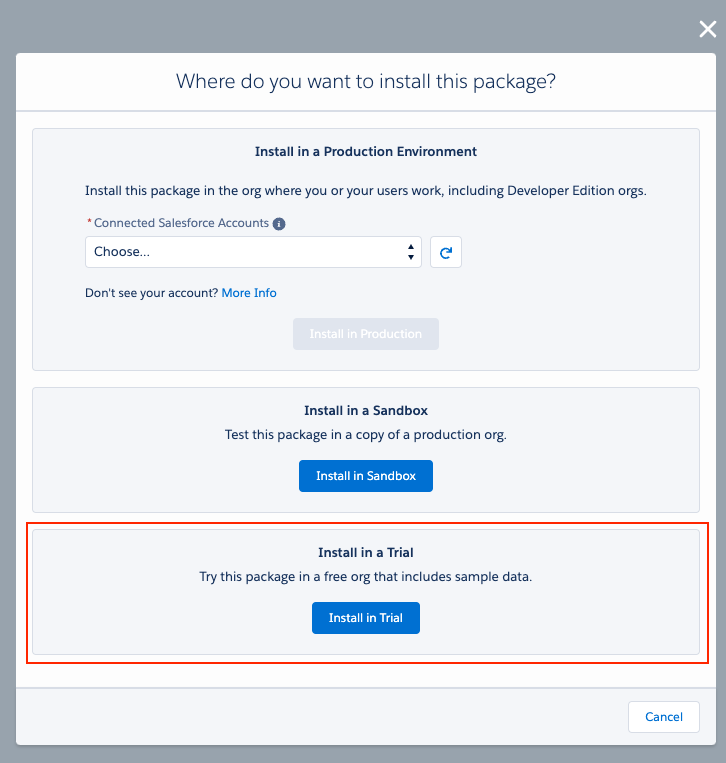
You can install a StoreConnect trial to test this solution (as done in this guide) if you are not working on a production or sandbox site implementation.
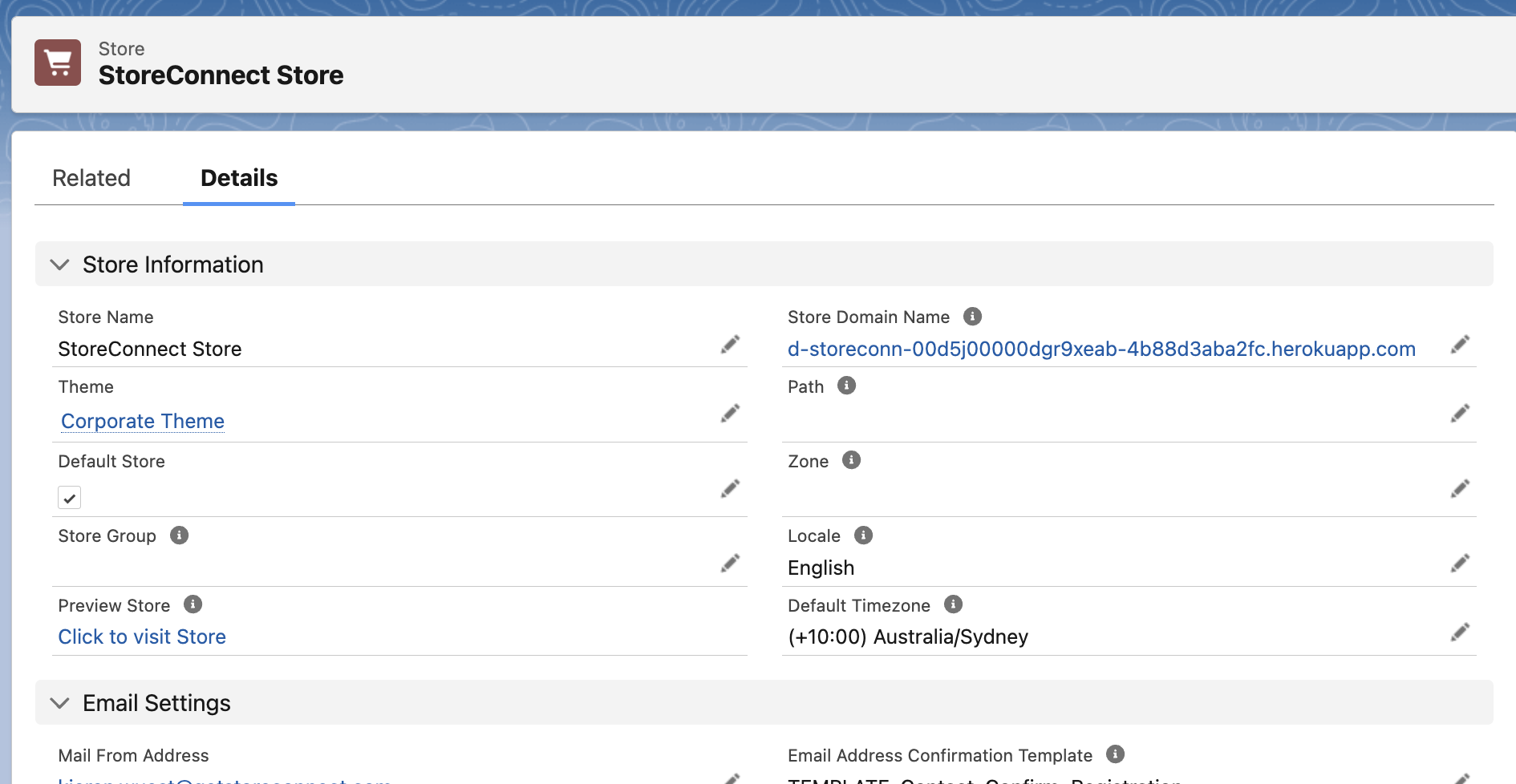
Once this is complete, you should have a StoreConnect Store and Site that is accessible online.
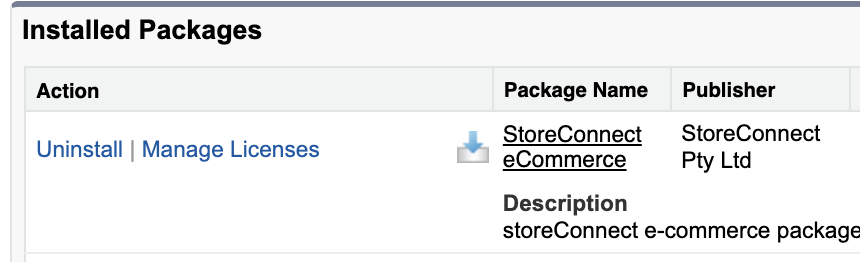
If you are installing StoreConnect as a package into your production or sandbox org, check to see this entry in the Installed Packages setup screen:
2. Openurl installation:
The first tool we need to make this work is the OpenUrl package from UnofficialSF, which allows us to redirect from the screen flow we will create to the checkout page.
1. Visit the UnofficialSF page for OpenURL.
2. Click either the “production” or “sandbox” links to install into your Salesforce Org.
As a result, we should see this entry in the Installed Packages setup screen:

3. Site custom domain set up:
The next thing we need to do is create a site within the Salesforce Org to publish your Screen Flow and make it available to embed within the StoreConnect site.
1. Search ‘Sites’ in the Setup Quick Find bar.
2. Accept the Sites Terms of Use to continue if not done previously.
3. Create a new Site record in the Sites list.
4. Give the site a name referring to the page or type of form, for example, SignUpSite.
5. Set the Active Site Home Page lookup to UnderConstruction, which we will use as a placeholder, to meet this required field.
6. Check the Active checkbox. The record should look like this:
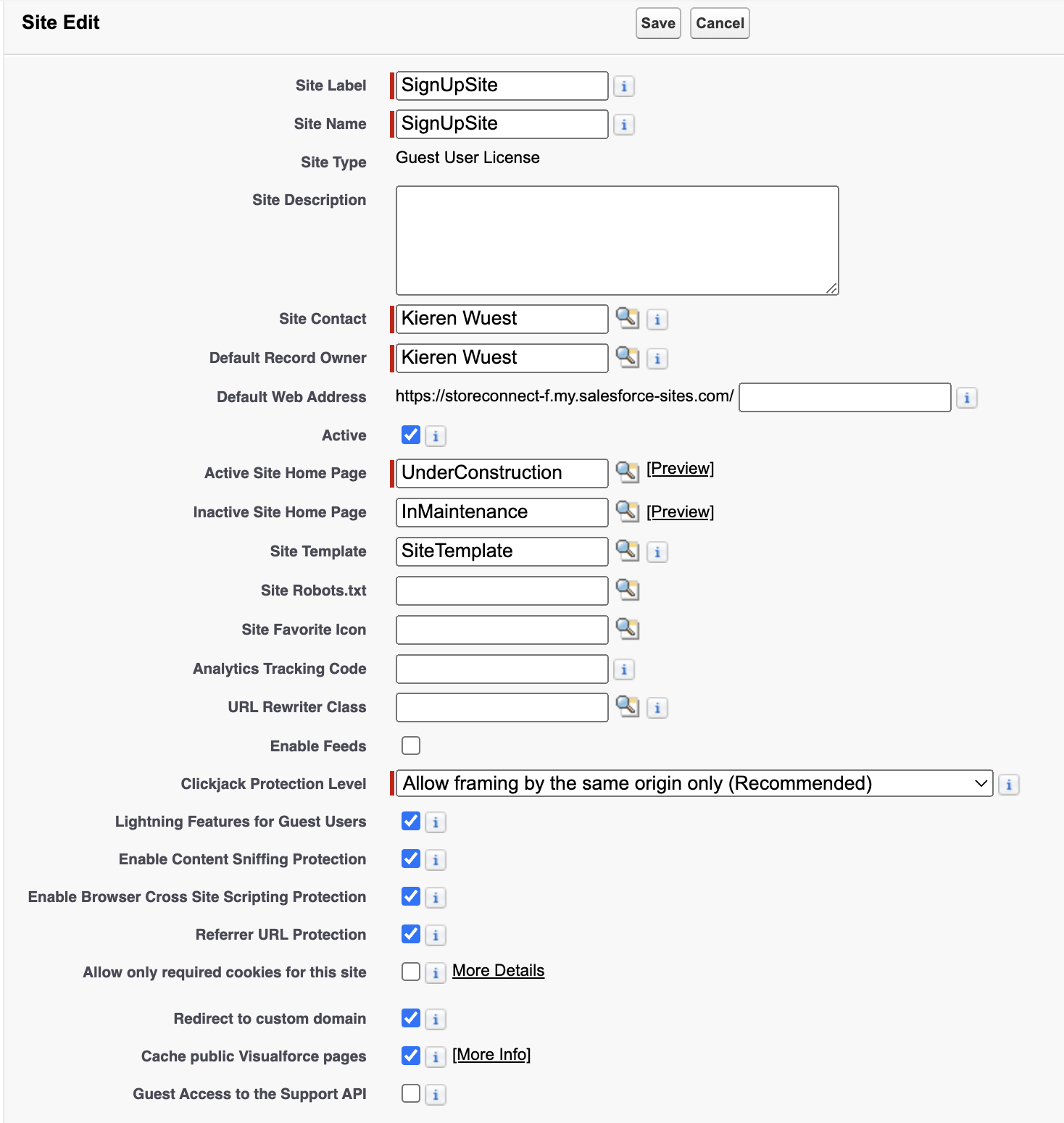
7. Leave other settings as default, and save.
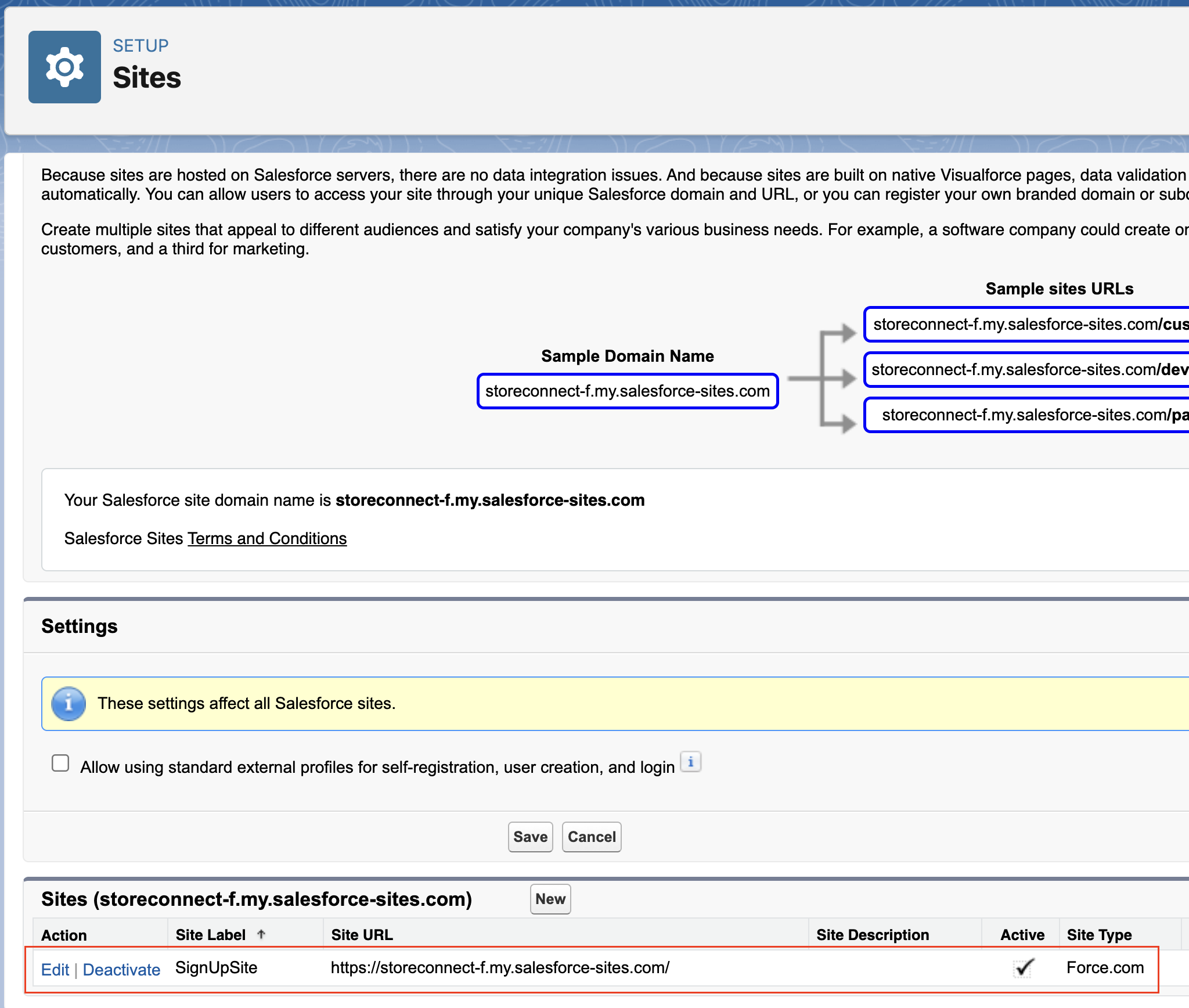
8. Note the URL of the site for the last step in Section 9.
As a result, we should see this red highlighted SignUpSite record in the Sites setup screen:
4. Enabling cors:
CORS (or Cross-Origin Resource Sharing) is a security feature that prevents sites that you don’t authorize from embedding your Screen Flow form. So, this means we need to explicitly authorize our StoreConnect site to be able to embed the form.
1. Search ‘CORS’ in the Setup Quick Find bar.
2. In the ‘Allowed Origins List’, click New.
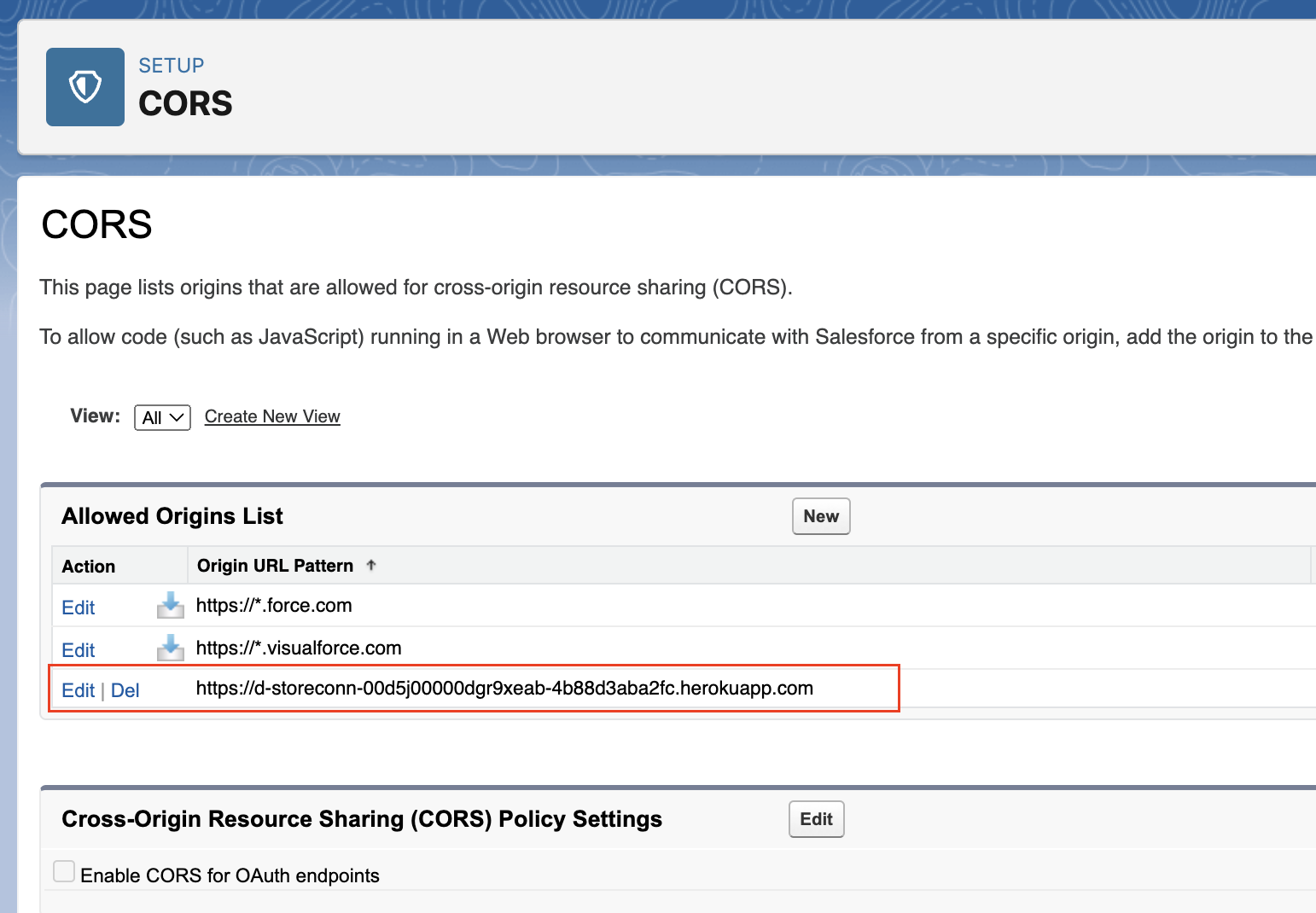
3. Add the URL pattern of the domain where your webpage form will be located. In this example, we will be using our StoreConnect store domain which you can find on the Store record created in step 1 of this guide.
4. Then click Save.
As a result, we should see this red highlighted entry in the CORS setup screen:
5. Form structure definition:
Actively defining the form fields on paper or a digital document allows us to determine and reference our data model. Use existing fields or create the necessary new object and fields in Salesforce, reflecting the information you need from new members for your form. You will use these at multiple points along the solution.
1. Define or note the fields that will be in the form.
2. Create or modify any Custom Objects and Custom Fields to be used that are not to be used with existing standard fields.
3. In this example, I will be using StoreConnect commerce checkout which creates the standard Salesforce Objects of Order, Order Items, Contact, and Account records on a successful checkout.
4. We will define the required Contact information to complete a StoreConnect checkout.
Contact.FirstName
Contact.LastName
Contact.Phone
Contact.Email
Contact.MailingStreet
Contact.MailingCity
Contact.MailingState
Contact.MailingPostalCode
Contact.MailingCountry
Note: The StoreConnect checkout creates Contact and Account records through the checkout process, and we will take advantage of that here. If you wanted to create a Lead in this process, you would reference Lead fields and consider permissions for creating these fields through the form and flow, as we will explore next.
1. We will define a Custom Object called Application and a Custom field called Membership_Option__c to demonstrate this concept. For this field, we will create it as a single select picklist, with 4 values: Basic, Premium, Professional, Corporate.
2. We will create a lookup field called Membership_Order__c, which is a lookup to the Order Object. We will end up linking the Application record to the Order record at the end of the checkout.
Application__c.Membership_Option__c
Application__c.Membership_Order__c
Note: You may have more fields for a more lengthy, involved form, to suit your needs. Also, for this example, we will not trigger any logic based on the membership options picklist selection, but based on this selection in the flow, we could modify the direct-to-cart formula to change products with a CASE() or IF() functions.
6. Access settings adjustment:
Modify the Site Public Access Settings for your newly created object and fields, allowing non-Salesforce users to complete your form.
1. Search ‘Sites’ in the Setup Quick Find bar.
2. Click on the Site Label in the Sites list. Not Edit or the site URL.
3. Click the Public Access Settings button.
4. Click Edit and check Read and Create for any of the Objects we will create in this form. In this instance, I will do this for Applications, then click Save.
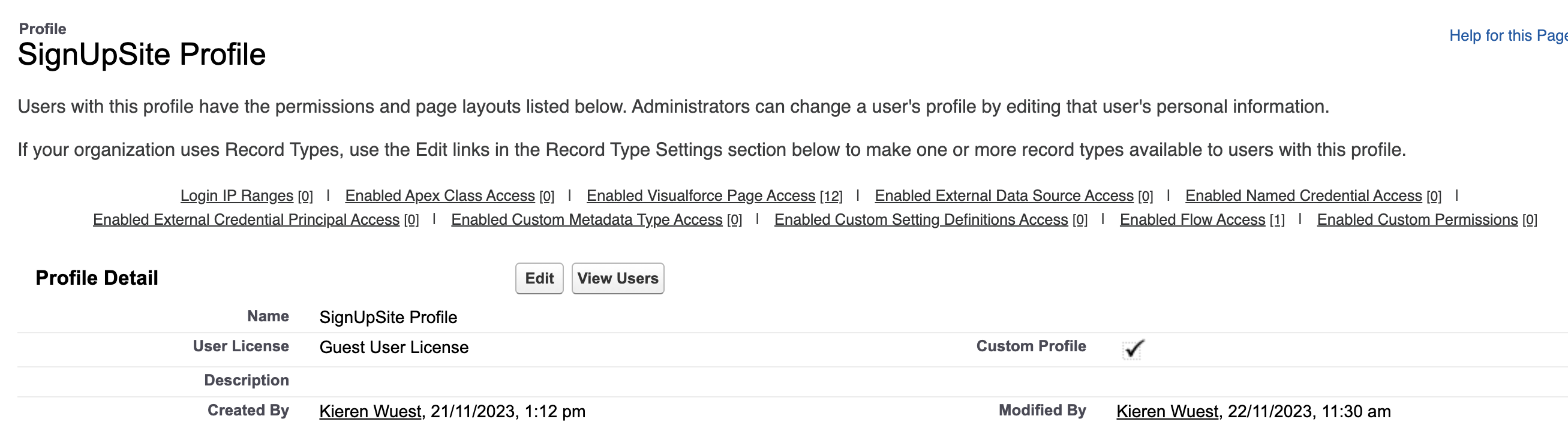
5. In the ‘Field-Level Security’ section of the Profile page, click the [ View ] hyperlink to view and appropriately modify the permissions of the fields in your form for Read Access or Edit Access. In this example, I will provide Read and Edit Access for the Membership Option field on the Applications object. Click the ‘Back to Profile’ button when complete.
Note: The StoreConnect checkout creates Contact and Account records, so we will not need to provide access for these fields in this example. Ensure you allow access for objects and fields in your form in this step.
Note: We will revisit this page when we follow section 10 below on embedding the flow on our website, after we create our Screenflow. This will allow the form to show on the page via the profile access settings.
As a result, we should have this profile configured for access to our defined data-model.
7. Flow creation:
Design a Salesforce Lightning Flow that captures user information and directs them to the StoreConnect payment page.
1. Search ‘Flows’ in the Setup Quick Find bar and click Flows under ‘Process Management’.
2. Click the ‘New Flow’ button on the top right of the screen.
3. Ensure the “Screen Flow” option is selected and click the ‘Create’ button at the bottom right of the modal.
4. Click the ‘Add Element’ circle connector that turns to a plus sign on mouse hover.
5. Select a Screen option from the ‘Interaction’ group.
6. Give your Screen a Label and an API Name.
7. Configure the Header and Footer options of the Screen Flow to control which form buttons are displayed. I will be configuring a single ‘Submit’ button.
8. Use the component menu to create a form which aligns with the data defined in section 5 of this guide. When completed, click ‘Done’. Note: Take note of the API Names of the fields to use in our direct-to-cart step below. As a result, your screen form should look something like this:
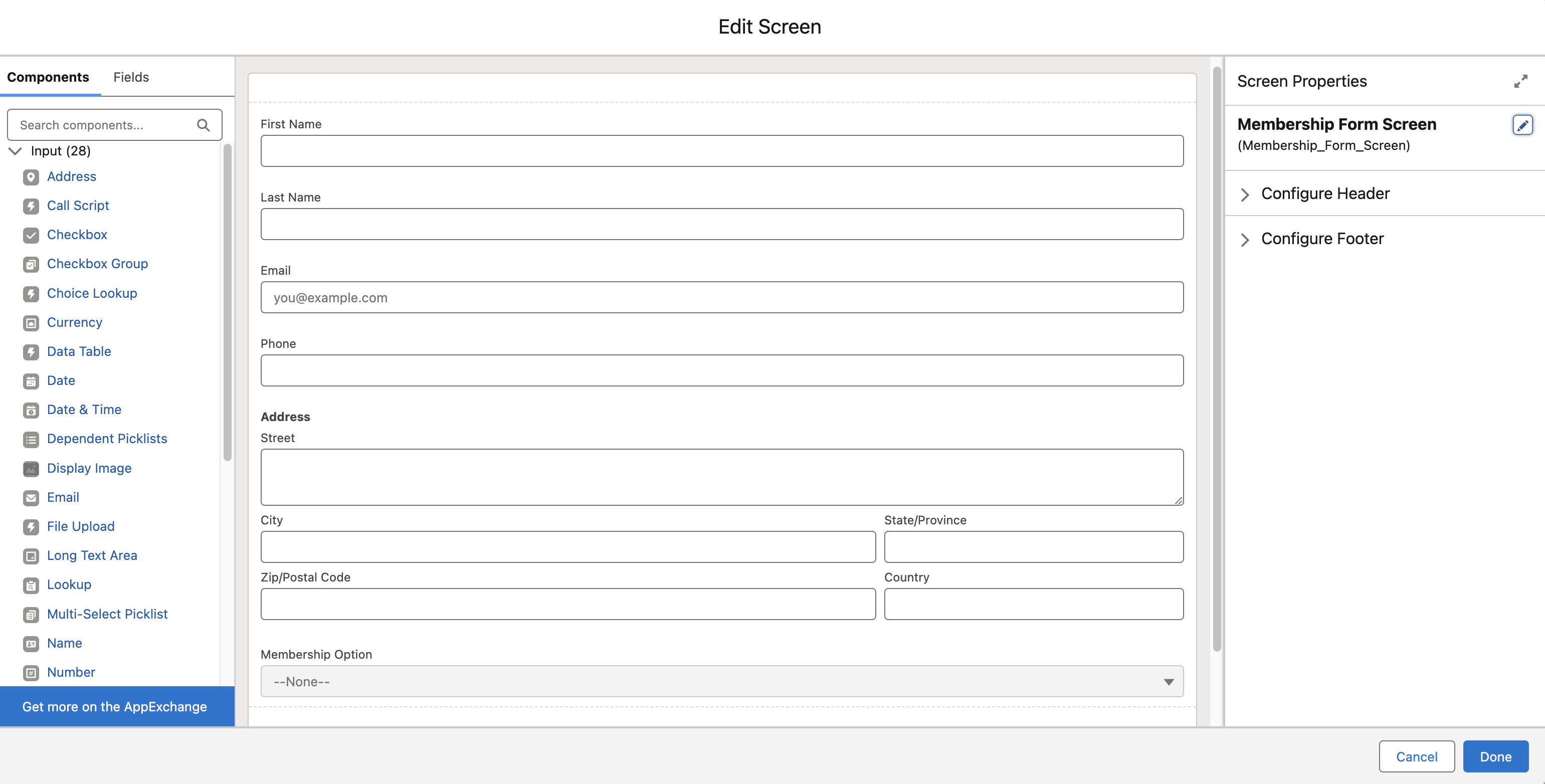 .
.
9. Click the ‘Add Element’ connector under the Screen we just created.
10. Under the ‘Data’ group, select Create Records option.
11. Provide a Label and API Name. I will use ‘Create Application’ and Create_Application.
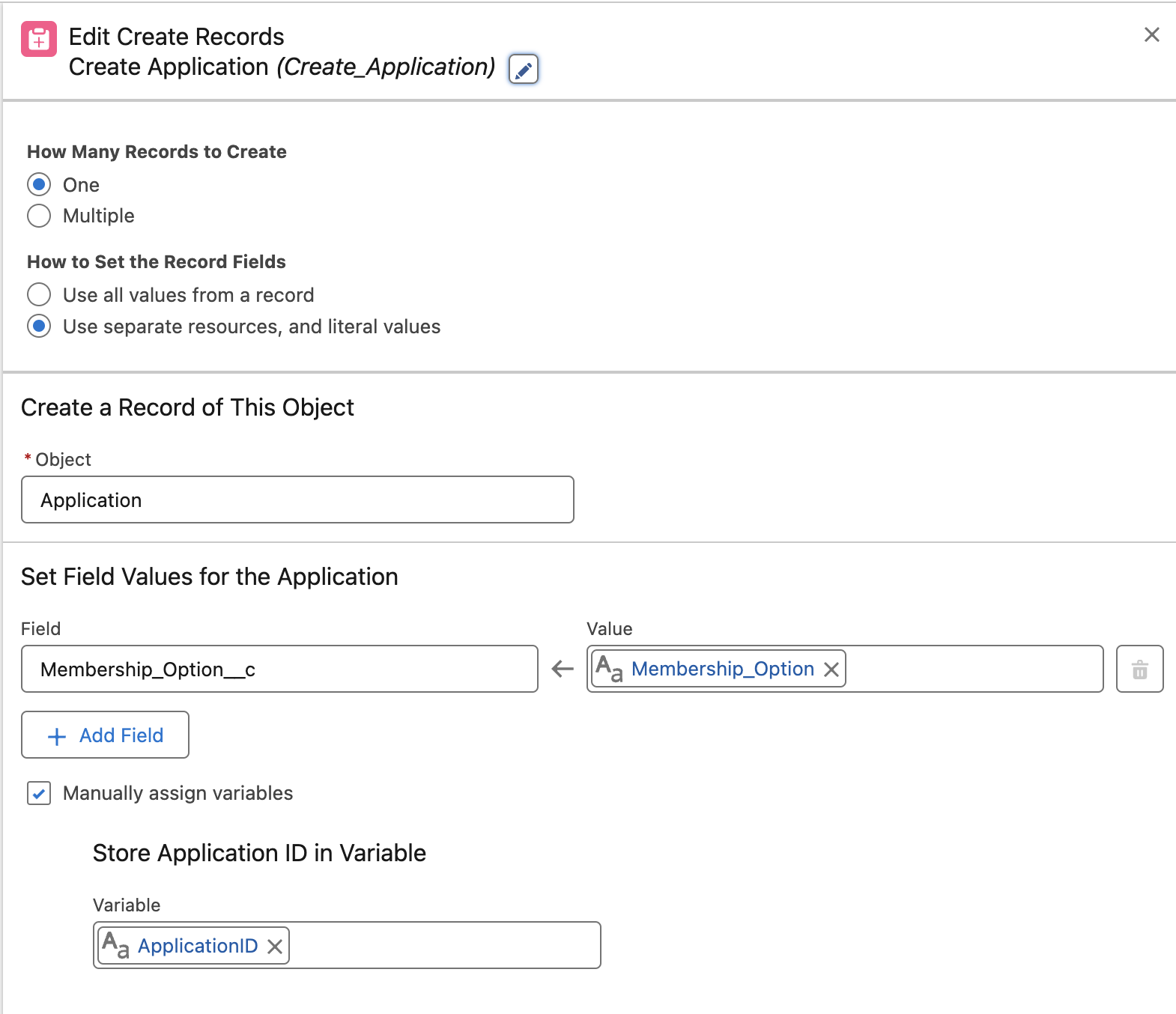
12. For this example, choose options to create One record and the option to “Use separate resources, and literal values”.
13. Under ‘Create a Record of This Object’ Record lookup. Select the Object for this Element. We are using Application.
14. Map the Object ‘Fields’ to the ‘Values’ of the API Names of the fields created in the screen element in step 8 above.
15. Check the ‘Manually assign variables’ checkbox as we will capture an ID of this record in a variable for use in Sections 7 & 10 below. Where we pass and then link the records together post-checkout.
16. Under ‘Store Application ID in Variable’ Variable field. Create a new resource of type ‘Variable’ with a data type of text and check the ‘Available for output’ checkbox. Here we will give an API Name of ApplicationID. As a result, your Create Records function should look like this:
8. Cart URL integration:
This URL solution utilises StoreConnect’s direct-to-cart URL structure.
1. Ensure that a subscription Product is configured and visible on the site and can be purchased through a checkout.
2. Note the URL path name of the product. In this example, we will note omnico-basic-membership path section from the full URL [https://d-storeconn-00d5j00000dgr9xeab-4b88d3aba2fc.herokuapp.com/products/omnico-basic-membership](https://d-storeconn-00d5j00000dgr9xeab-4b88d3aba2fc.herokuapp.com/products/omnico-basic-membership).
3. Now we define the direct-to-cart URL we will use as the browser will accept it in StoreConnect. Based on this format [store domain]{/path}/cart/[product string]?[other-parameters].
4. This will be our desired output with example customer data:
"[https://d-storeconn-00d5j00000dgr9xeab-4b88d3aba2fc.herokuapp.com/cart/omnico-basic-membership:1?type=buy&name=Bob%20Jones&email=bob@example.com&phone=0400123123&street=1%20Omega%20Street&city=Adelaide&state=South%20Australia&country=Australia&postcode=5000&return=false](https://d-storeconn-00d5j00000dgr9xeab-4b88d3aba2fc.herokuapp.com/cart/omnico-basic-membership:1?type=buy&name=Bob%20Jones&email=bob@example.com&phone=0400123123&street=1%20Omega%20Street&city=Adelaide&state=South%20Australia&country=Australia&postcode=5000&return=false)
5. We will also utilise UTM codes via StoreConnect’s UTM Tracking Codes to pass an Application Process and Id into the Order data and append these UTMs to our direct-to-cart URL.
&utm_source=membership-application&utm_token=a3I5j000000sh4PEAQ
Note: We are using a constant string that defines this process for the utm_source and the application Id we created in Section 7.16 with the utm_token.
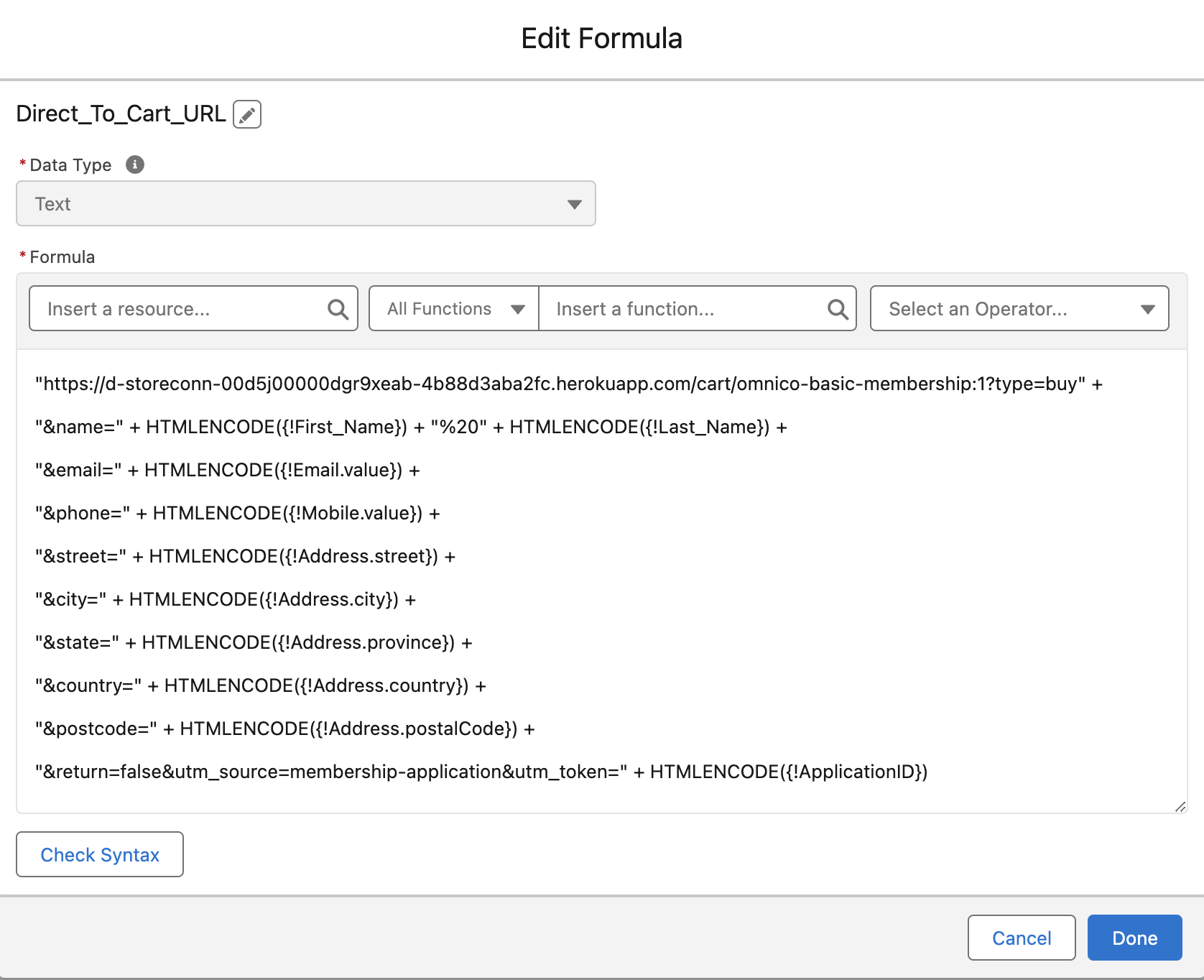
6. We will now create the Salesforce formula from our Variables in the flow, to merge a URL that OpenURL will send to the browser. We will utilise the HTMLENCODE function to transform our variable text values to URL standards. Create a New Resource in the flow with a type of formula and name it Direct_To_Cart_URL.
7. Here’s a sample formula that constructs the URL based on our current example:
"https://d-storeconn-00d5j00000dgr9xeab-4b88d3aba2fc.herokuapp.com/cart/omnico-basic-membership:1?type=buy" +
 "&name=" + HTMLENCODE({!First_Name}) + "%20" + HTMLENCODE({!Last_Name}) +
 "&email=" + HTMLENCODE({!Email.value}) +
 "&phone=" + HTMLENCODE({!Mobile.value}) +
 "&street=" + HTMLENCODE({!Address.street}) +
 "&city=" + HTMLENCODE({!Address.city}) +
 "&state=" + HTMLENCODE({!Address.province}) +
 "&country=" + HTMLENCODE({!Address.country}) +
 "&postcode=" + HTMLENCODE({!Address.postalCode}) +
 "&return=false&utm_source=membership-application&utm_token=" + HTMLENCODE({!ApplicationID})
As a result, the formula should look like this:
8. After saving this formula, click the ‘Add Element’ connector under the Create Records we just created.
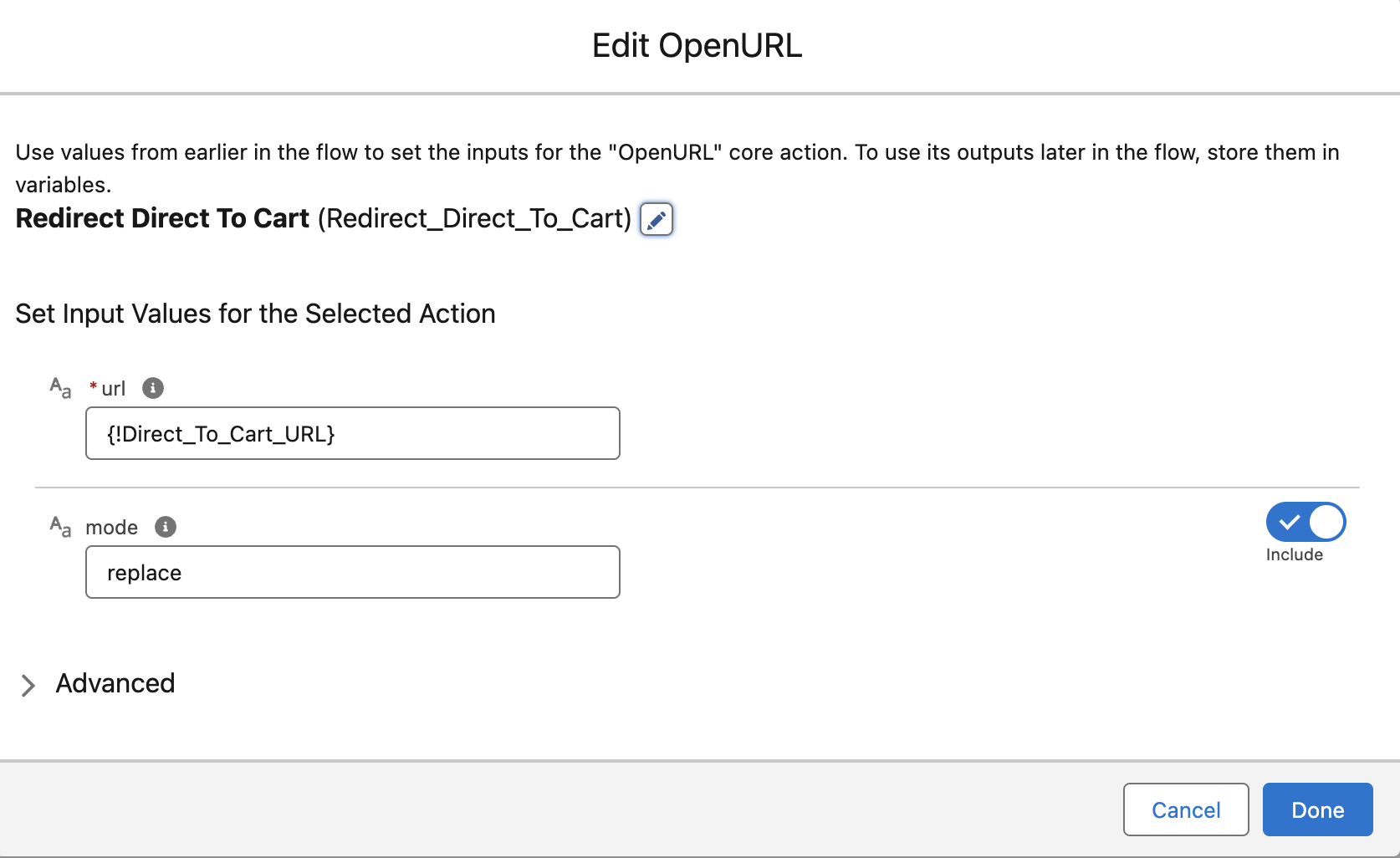
9. In the Search box, type OpenURL and click the element called OpenURL (we installed this component in section 2).
10. Provide a Label and API Name. We will use Redirect_Direct_To_Cart as the API Name here.
11. Type replace into the Mode field.
12. Add the Direct_To_Cart_URL formula resource.
As a result, we should see this in Open URL function:
13. Close this section by clicking the Done button.
As a result, our flow should look like this:
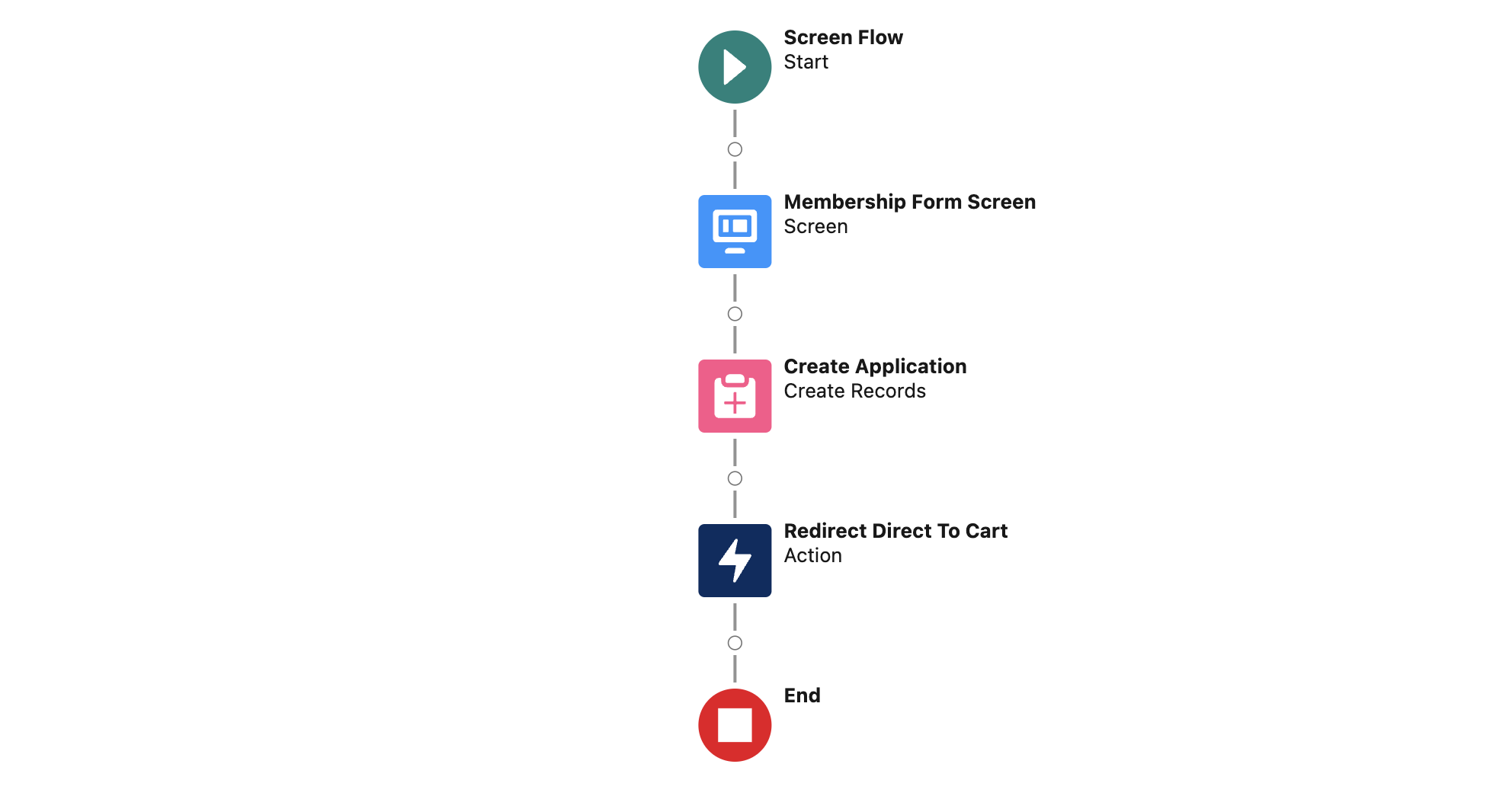
14. We now name, save, and activate the flow we created.
15. Click Save and provide a Flow Label and Flow API Name. The Flow API Name we will use is Membership_Application. Note this for use later in the next section.
16. In the Show Advanced section, set ‘How to Run the Flow’ to ‘System Context Without Sharing - Access All Data’. Click Save.
17. Click the ‘Activate’ button at the top right of the flow builder interface.
18. Click the Back arrow at the top left of the flow interface to return to our flows list.
19. Find the Flow we just created and click the arrow-down button on the far right of the row of our flow entry. Select “Edit Access.”
20. Check the ‘Override default behaviour and restrict access to enabled profiles or permission sets’ checkbox and ensure that at least the Site Profile in section 6 step 3 is Enabled here.
- End of Part 1 -