
Reward loyalty by offering your customers the opportunity to spend their loyalty points in your store.
First of all, you need to have configured your store to let customers earn points. If you haven’t configured that, follow the How to Allow Customers to Earn Loyalty Reward Points guide.
Lets configure your store to allow your customer to spend points:
Store
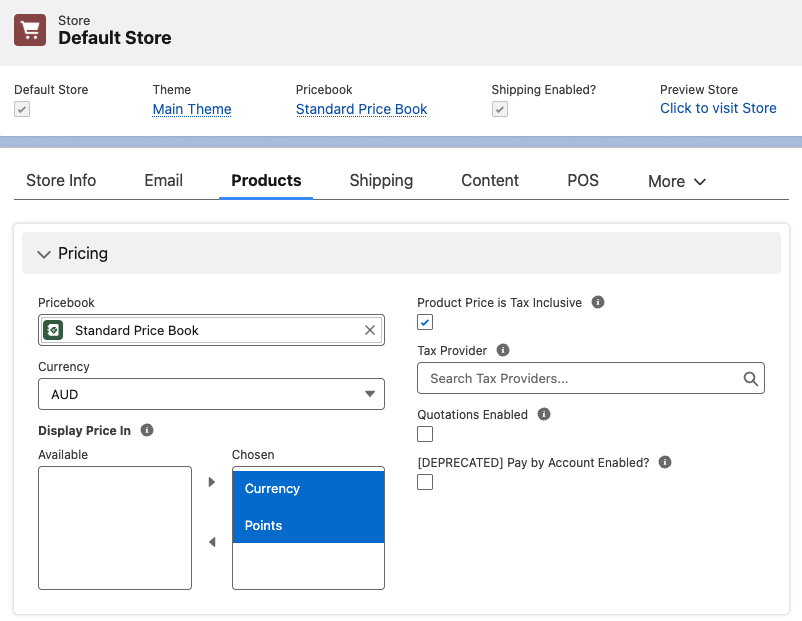
We want to allow your customers to buy products using currency or points.
- Open the Store record, click on the Products tab.
- For “Display Price In” choose Currency and Points
- Then click on the Rewards tab and on "Default Points Usage" set what stores points earned in this store can be spent in. For now, we will only allow spending points in this store
- Save the Store
Price book
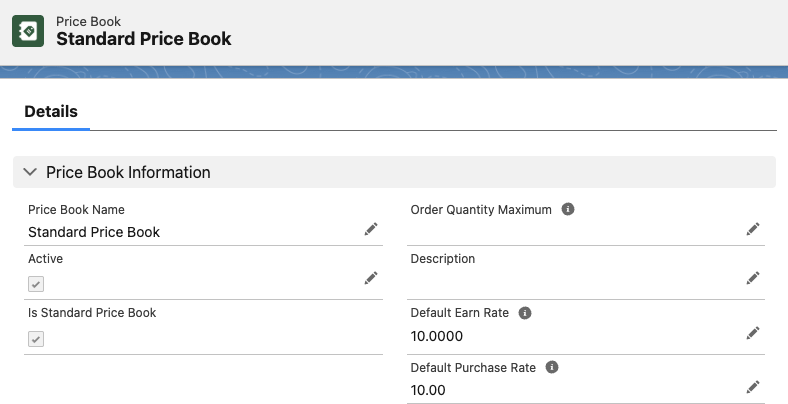
A default points purchase rate can be set for all products where a purchase points amount is not set.
- Open the Price Book for your store
- Set the Default Purchase Rate (if set to 100, a product that cost $10 would cost 1000 reward points)
- Save the Price Book
Pricebook entry
Each product that is purchasable with points must have its Pricebook Entry(s) configured to allow it.
For each product and each of it’s applicable price book entries:
- Create or Edit the Price Book Entry for the product.
- Enable “Can Purchase With Points”.
- Fill in the Purchase Points field, or leave blank to use the default rate we set earlier.
- Once the Price Book Entry has synced, check your store and make sure price now also shows in points

Shipping
Shipping can optionally be enabled to be paid with points. The shipping rate’s conversion to points will be calculated using the price book’s Default Purchase Rate.
- Go to the “StoreConnect Shipping” Product
- Edit the appropriate “Price Book Entry”
- Enable the “Can Purchase with Points”.
Account points
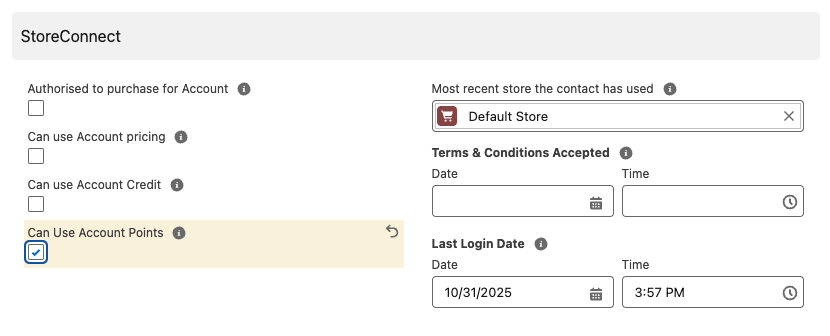
For each account, you need to specify what contacts are allowed to spend points. You may want to allow all contacts to automatically spend points associated with their account and can create a Flow to populate the checkbox on contact creation.
To test being able to spend points, you will need an account with points that you can log in as. If you haven’t already, purchase something that will earn you points and make sure you set a password after checkout so you can log in. You will need to be logged in to spend your points.
Once you have points for the account:
- Open and edit your Contact record
- Enable the “Can Use Account Points” checkbox. (If this is not visible on your page layout, ask your Salesforce Admin to add it for you.)
- Click ‘Save’
Preview a product checkout with reward points
Go to your store and make sure you can see that the products you configured show a points price as well as the currency price. Add one to your cart and see if you can now spend your points.
Checking out with points should show the Payment due now total in points for both the product and shipping if setup correctly
Paying for your order with points will reduce the number of spendable points on your account.