
Encourage loyalty by offering customers reward points when they make a purchase. These points can be built up on their account and you can then offer membership upgrades, special promotions or let them spend their points, etc.
If any of the mentioned fields are not on your page layout, follow this article to add fields to your page layouts.
Let’s configure your store to allow your customer to earn points:
Store
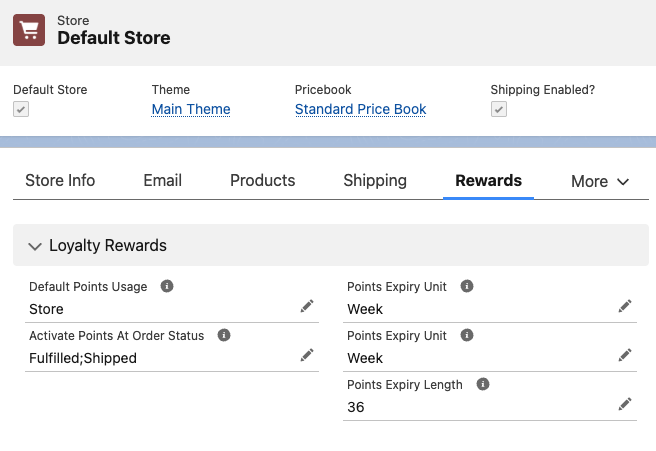
- Open the Store record
- For “Display Price In” choose only Currency
- Set “Activate Points At Order Status” by entering the API Names of the order statuses that activate (adds point to the customer’s account) the points earned for each order. If you enter more than one, separate with a semicolon
; - Set an expiry of 3 years for any earned points by entering 36 Months
- Save the Store
Price book
A default points earn rate can be set for all products where an earn points amount is not set.
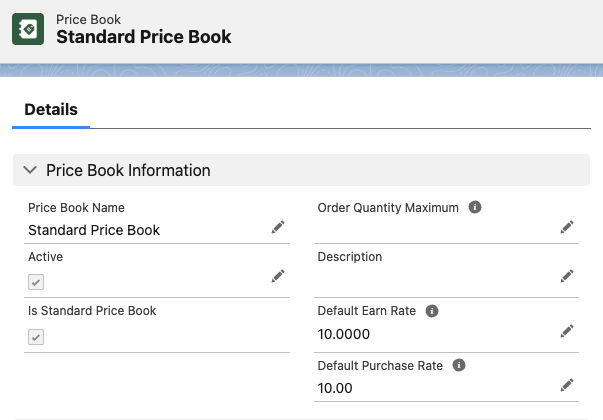
- Open the Price Book for your store
- Clone and edit the SC Price Book Record Page Layout to add the missing fields: Default Earn Rate and Default Purchase Rate
- Set the Default Earn Rate (if set to 10, a product that cost $10 would earn 100 reward points)
- Save the Price Book
Price book entry
Each product that is to earn points when purchased, must have its Price Book Entry(s) configured to do so.
For each product and each of its applicable price book entries:
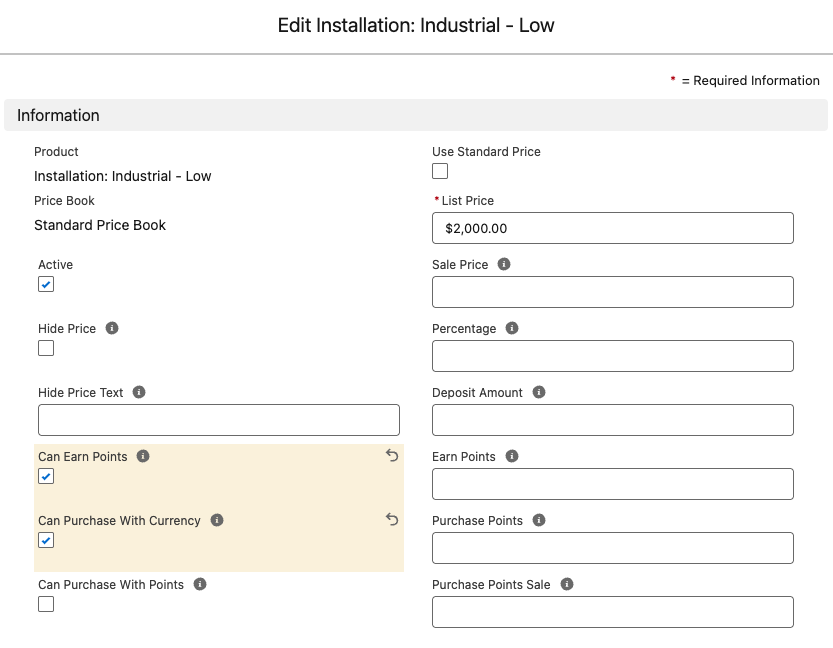
- Create or Edit the Price Book Entry for the product
- Enable “Can Earn Points” (Add missing fields to the Price Book Entry Page Layout if needed)
- Fill in the Earn Points field, or leave blank to use the default rate we set earlier, the amount in this section will show on the Product as the earn amount.
- Leave the Earn Bonus Points blank. This would give extra bonus points and can be used when running a promotion
- Enable Purchase with Currency (if not set, this is the default anyway)
- Once the Price Book Entry has synced, check your store and make sure earn points are now showing
Preview the product reward points
To make sure the setup is working as expected do the following steps.
- Buy a product from your store that will earn you points
- Complete the checkout and find your order in Salesforce
- Set the order status to a status that will “Activate’ your points
- Navigate to the Account Points object and see that a record has been created for your points and linked to your account.
The “Account Points Ledger” can be found under the “Account” Related List