
When you create a StoreConnect sync user with a Salesforce Integration license, it consumes only one Salesforce license for the integration.
Create the sync user
Make sure you save or take note of the profile details as you will need to log in and verify as this user later.
- Open the Salesforce Set Up area.
- Search or browse for Users.
- Create a new user. We recommend you call it something like StoreConnect sync user, so you can recognize it later.
- Select the following options:
- User License: Salesforce Integration
- Profile: Salesforce API Only System Integrations
- Select Save.
Give this user this Permission Set License Assignments:
- Salesforce API Integration (this must be set first before permission sets)
Assign these Permission Sets:
- StoreConnect Sync Standard Permission
- StoreConnect Sync User Permission
Set a verification method
If multi-factor authentication is enforced on your Salesforce instance, you'll need to complete this step.
Go to the email you entered for the sync user.
Get the password that has been supplied.
Go to login.salesforce.com and log in as the sync user.
Set the verification method to Use Verification codes from an authenticator app. (Such as Google Authenticator, Authy, OTP Auth, etc.). Currently the Salesforce Authenticator mobile app is not supported by StoreConnect.
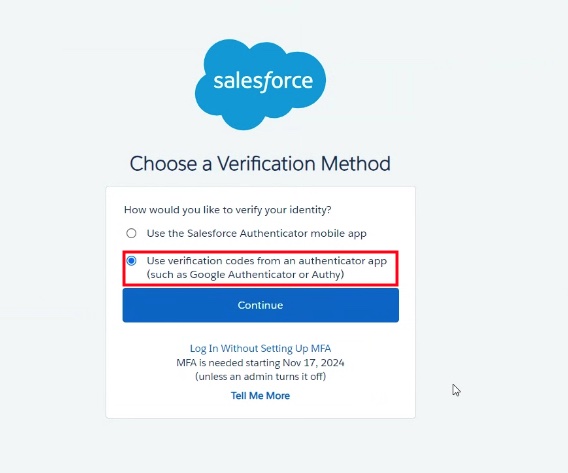
Select Continue.
This verification method is required to sign in as the sync user when setting up StoreConnect.
To go back to using your own account, sign out and back in again under your own org profile.
Set record type defaults
If multiple record types are in use on objects such as Accounts, Contacts and Orders, the sync user will need to know what record type to assign for any records created on the website side.
Navigate to Salesforce Setup > User > User Management Settings.
Disable Enhanced Profile List Views and Enhanced Profile User Interface options. This is required to see the settings.
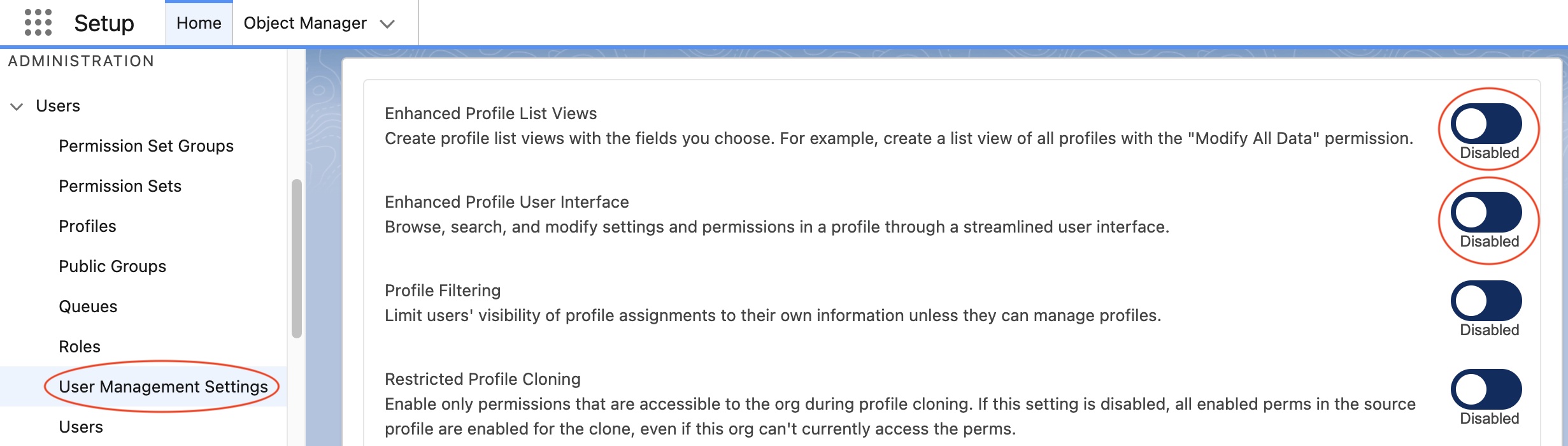
Navigate to User > Profiles > Minimum Access - API Only Integrations.
Scroll to the Record Type Settings and click Edit on the Object you have record types for.
Add the Record Types required.
Select the default record type for any new records.

Change the sync user
Use this method when you want to switch the StoreConnect sync user to a different Salesforce user.
- Go to the StoreConnect Console.
- In the left-hand menu, click Sync (under General).
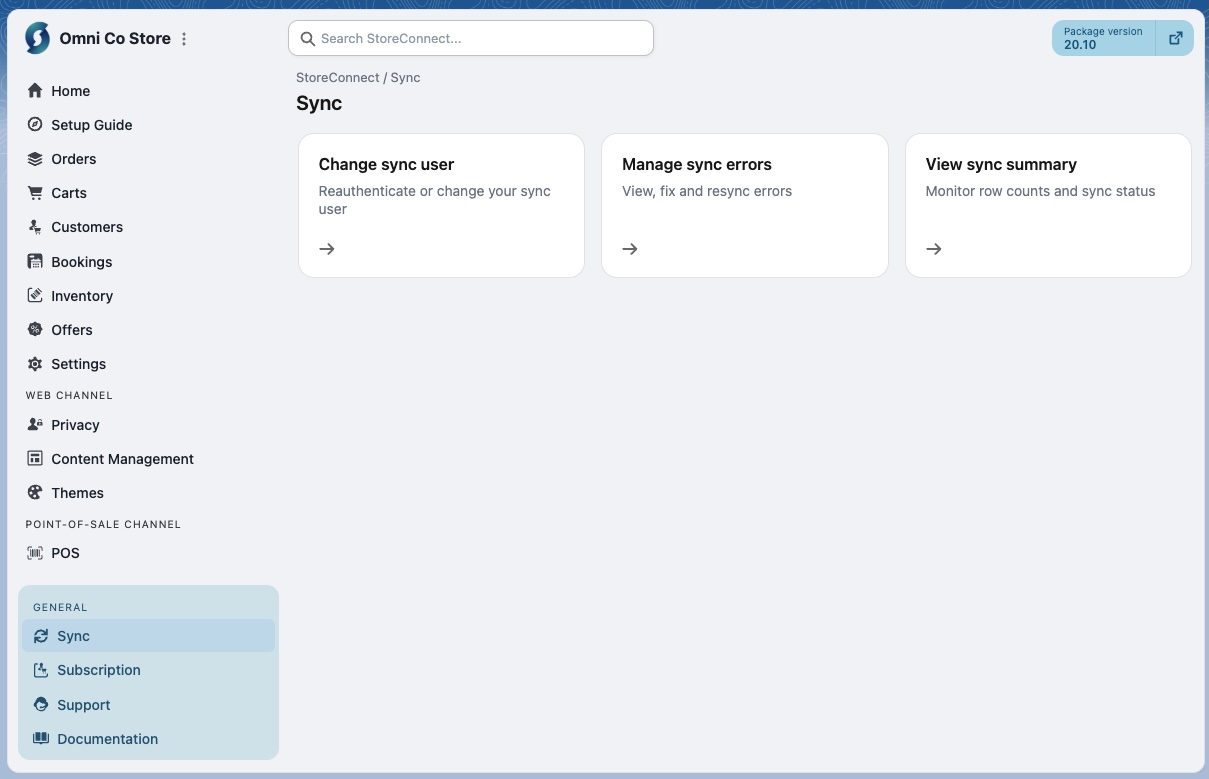
- Click Change Sync User. A dialog appears.
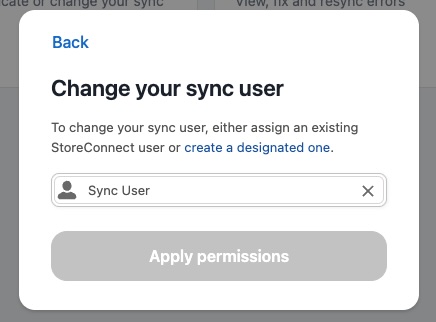
- Click the ✕ (cross) icon next to the user name.
- Enter and select the username or email of the new sync user. Note, you cannot select the same user.
- Click Apply permissions.
- Enter Verification Code (if prompted).
StoreConnect will authenticate the new user and apply the required permissions automatically.
Advanced: delete and add a new sync user via the developer console
Note: If you do not have developer console access to perform this advanced procedure, you can switch back to the original user by following the 'Change a sync user' procedure again, see above.
- In Salesforce, open the Developer Console.
- Go to the Query Editor tab.
- Run the following SQL query:
SELECT Id, Name, s_c__Text__c
FROM s_c__Setup_Configuration__c
WHERE Name = 'selected_sync_user_id'
- When the record appears:
- Select the row.
- Delete the record.
- Close the Developer Console.
- Refresh the StoreConnect Console.
- Click Sync > Change sync user.
- Add the sync user and apply permissions.
The new user will now be prompted to re-authenticate.
Recommended best practices
- Use a dedicated sync user (not a personal account)
- Avoid changing the sync user unless necessary
- Document sync user credentials securely
- If a password changes, follow the Advanced steps above to re-authenticate cleanly