
To make everyday functions easier to manage, you can build special apps for working with Salesforce and StoreConnect data.
You might build an app for a specific team (such as your warehouse team) or for everyone in your business to use. Apps can be used to scope certain business functions, and restrict them to those with app access.
Before you begin, you'll need access to Salesforce's Lightning app builder.
In the example below, we will create an app for managing orders.
Create a lightning app
Go to Salesforce Setup.
Find and open the App Manager.
Click New Lightning App.
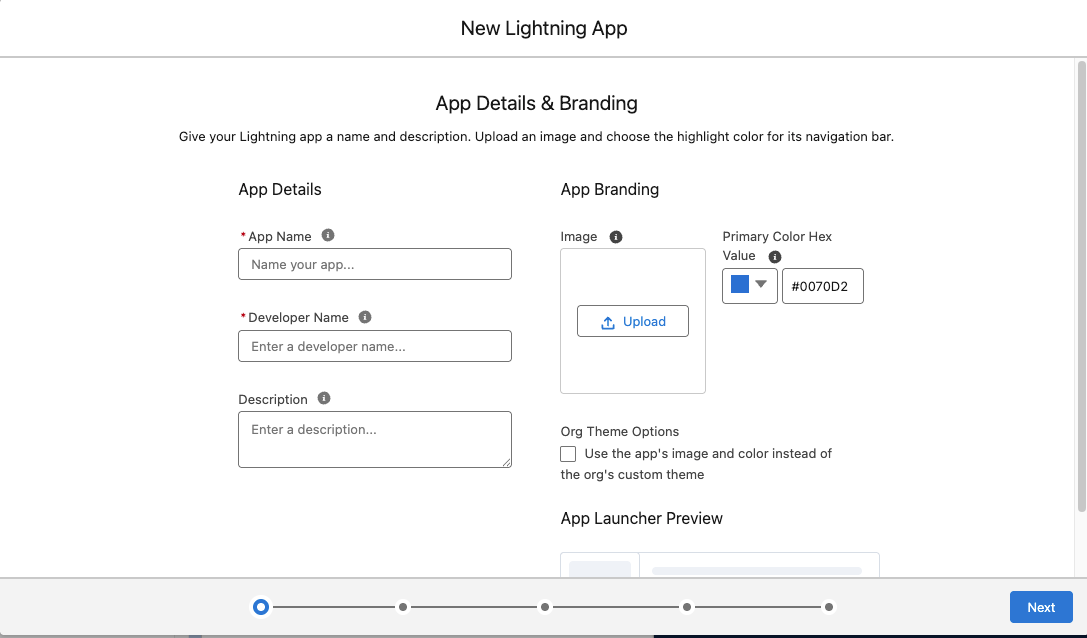
Name the app Orders Manager.
Add a Developer Name for referencing the app.
Add a description so you and others know what this app is for.
If you want, add an image that will appear in the app launcher.
Click Next. The App Options window opens.
Choose Console Navigation and click Next.
Click Add Utility Item.
- Select StoreConnect Sync and StoreConnect Navigation.
- Select the Start Automatically options and click Save.
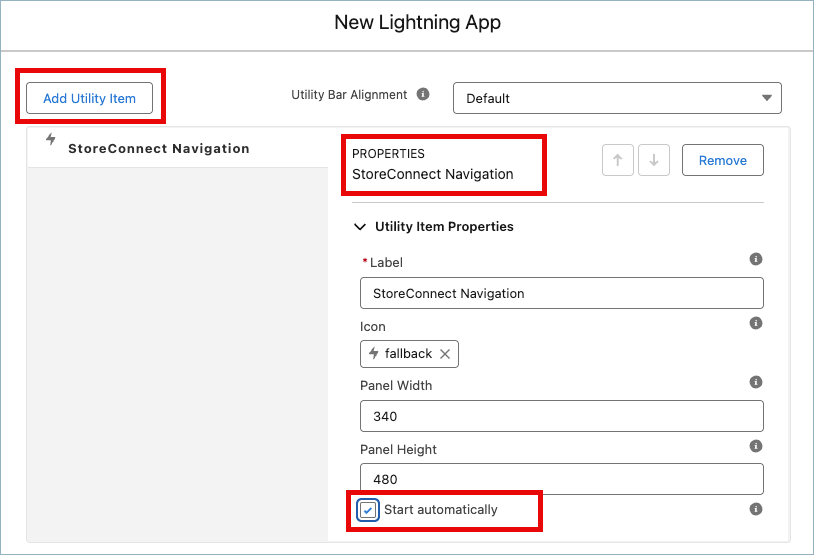
Click Next.
From the Available Items list, select and add:
- Orders
- Subscriptions
- Any others that may be useful, like Home.
Sort the items in the order you want them using the up and down arrows.
Click Next.
Set the Navigation rules for each record type by selecting Subtabs of and then making a selection from the list.
Do this for each record type, then select Next.
Choose which of the Available Profiles can access the app. Add them from the left list to the list on the right.
Click Save & Finish.
Set up quick access for StoreConnect apps
- Click on the 9 dot App Launcher icon and then click View All.
- Find the Orders Manager app you just created.
- Click and drag it to near the top of the list.
- Now when you open the App Launcher, it will show near the top.
Use the app to detect errors
- When in the app, you will see the status report at the bottom.
- Open the app to investigate issues.