
You can add a list of 'quick access' items to the POS dashboard, to help staff find popular items quickly. You might also add items to this list that do not have a barcode.
To set up these items, you'll add a new 'Quicklist' Product Category to your product taxonomy. Follow the procedures below.
Add a product category for your quicklist
- In your store, go to Key Relationships > Taxonomies, and open the relevant Taxonomy.
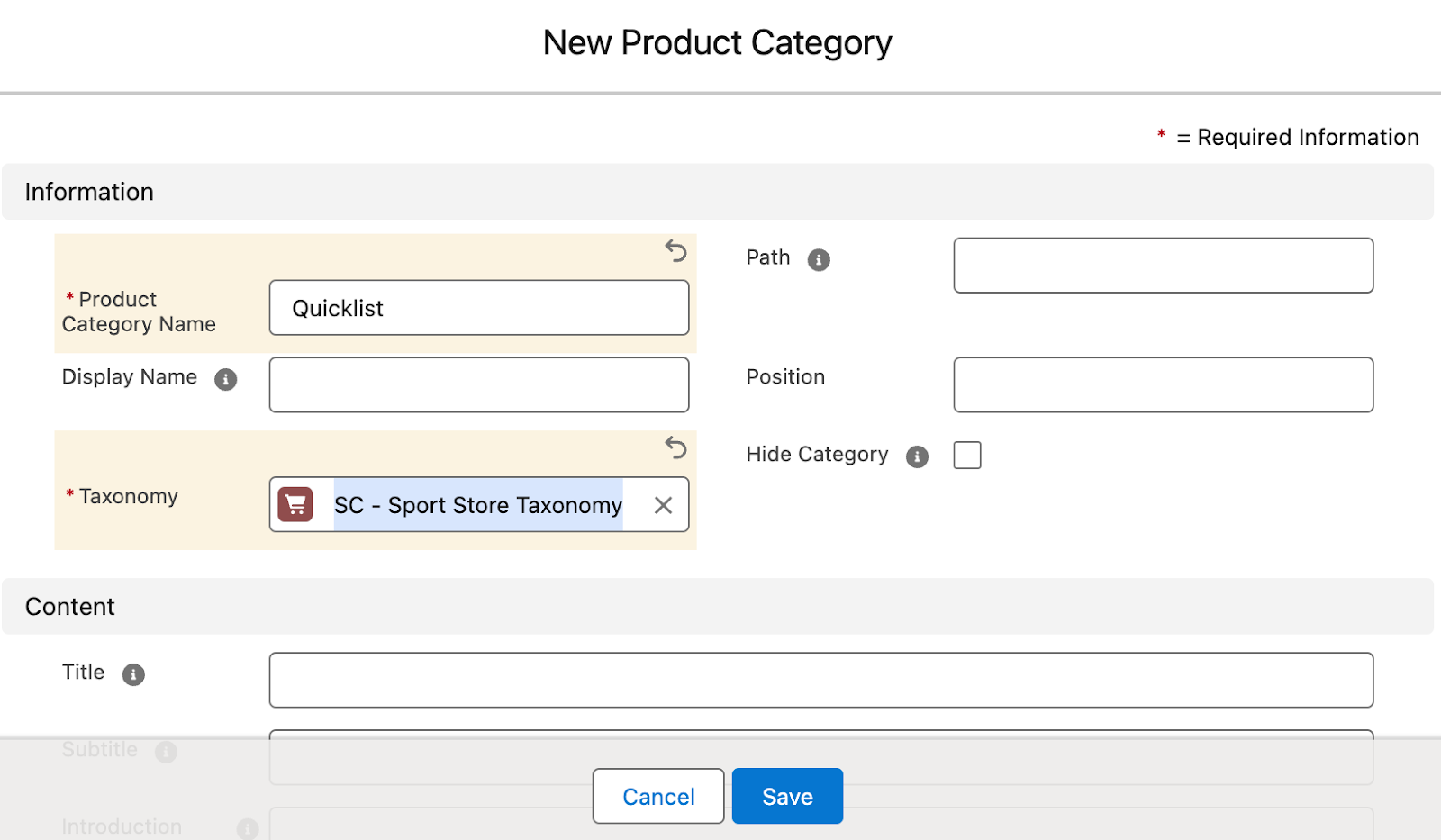
- In the Categories belonging to this Taxonomy section, click New. The New Product Category dialog opens.
- Give the category the name Quicklist.
- Select Save.
Add products to your quicklist
The products you add to your new quicklist appear on your POS dashboard.
- With the Quicklist product category open, go to the Products Belonging to this Category section and click New.
- Start typing in the Product field to find and select the product you want.
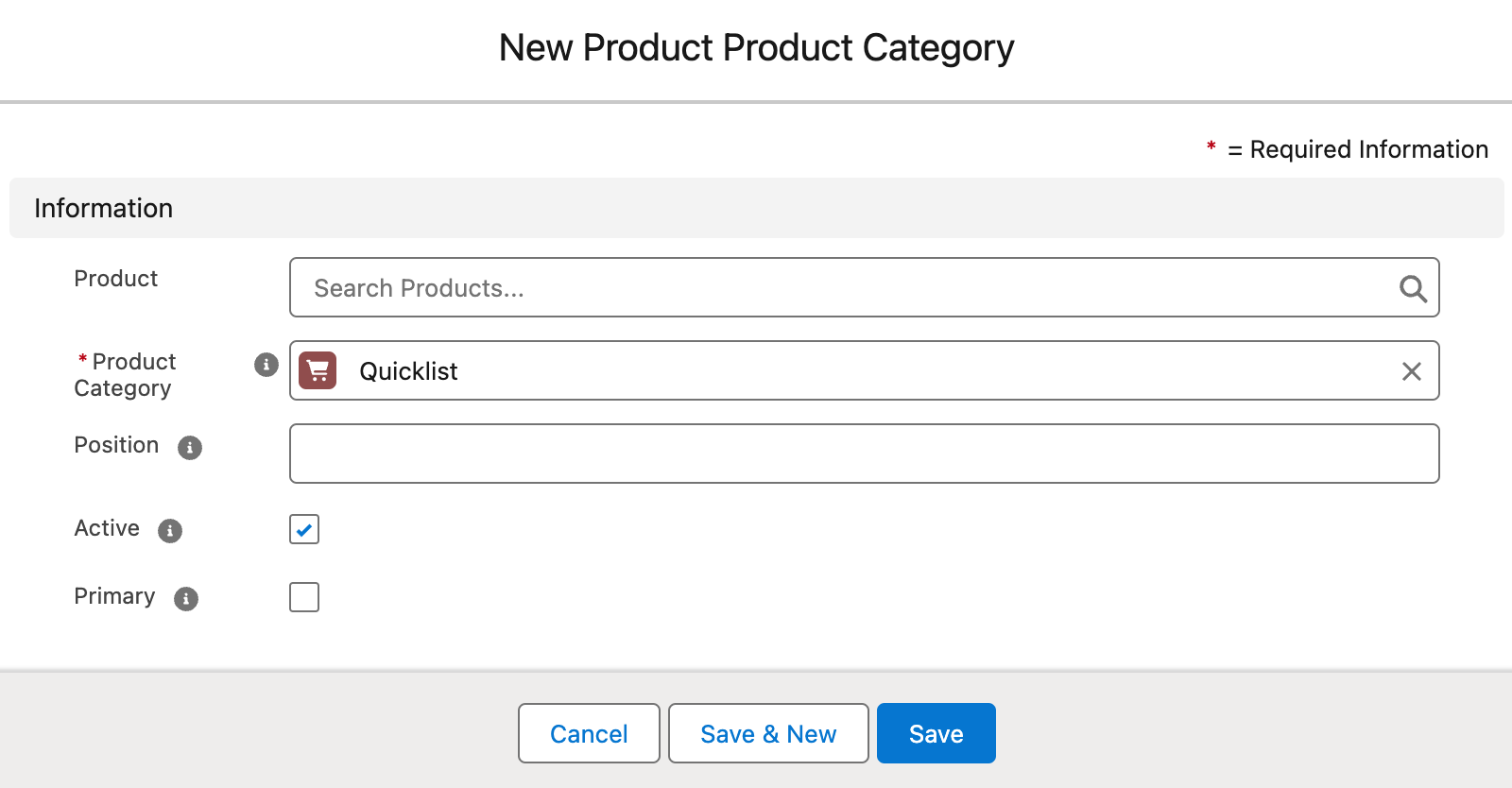
- Select a position for the product. Lower numbers appear in the list first. The higher the number, the lower down on the list. We recommend you set the position using multiples of 10, e.g. '10', '20', '30', etc. That way you can slot new products in between and control the order of the list more easily in future.
- To add more products, select Save and New. Then repeat from step 2.
- When you are finished, select Save.
Update products on your quicklist
You can remove and add items to your Quicklist whenever you need to.
- With the Quicklist product category open, go to the Products Belonging to this Category section.
- Remove any items you no longer need by selecting the dropdown arrow menu next to the item, then select Delete.
- Confirm the deletion.
- Add new products by following the Add products to your quicklist procedure above.
Add the quicklist to your outlet
In your main store record, select an outlet from the Store Outlets list on the right.
Under the Details section, you'll see a field called Quicklist Product Category.
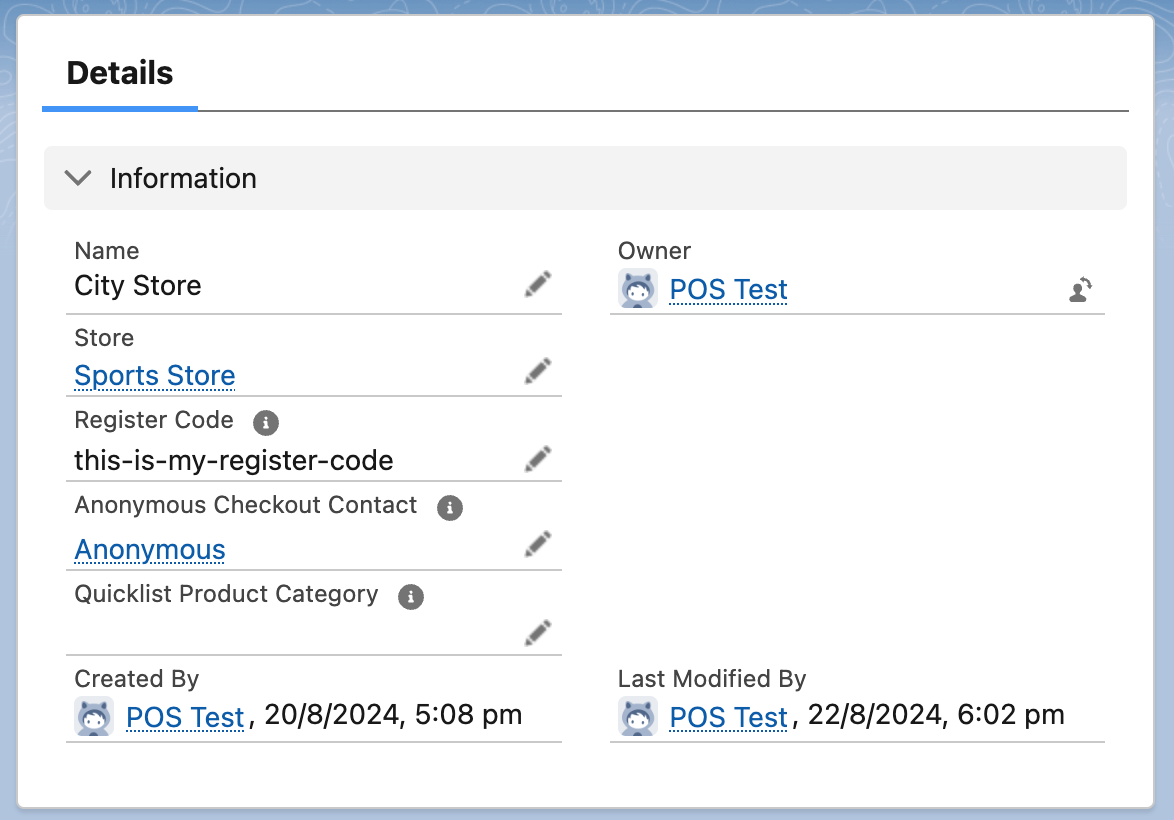
Click the pencil icon to edit.
Search for your new quicklist and select it.
Select Save.
Sync your new or updated quicklist to the POS
- In your outlet's POS view, click the Sync button in the top left corner. This updates the Quicklist in your dashboard.
- This is how the-dashboard-quicklist looks from the POS view.