
All of StoreConnect's default payment methods are automatically switched on for the POS feature. This includes: Cash, cheque/check, credit card, transfer, voucher.
- If you are happy with the defaults, you don't need to do anything.
- If you have previous set up the payment methods you want for POS, you can change the configuration following the procedures below.
- If you are setting up POS for the first time and want full control of payment methods and checkout behavior, you may want to do one or more of the procedures below.
Customize payment methods accepted at POS
You can remove the payment types you do not want to accept at POS by adding Store Variables. Variables are key-value pairs that you configure to override default settings.
Key-value pair structure
Here's an example of the key-value pair structure for payment methods.
- Key pos.payment_options.cash.enabled
- Key structure [variable applies to].[variable_type].[payment method].[state]
- Value True (enabled)* or False (disabled)
*All payment methods are enabled by default, so you only need to use variables to switch off the ones you don't want.
Payment method key-value pairs
| Method | Key | Value (Enable/Disable) |
|---|---|---|
| Cash | pos.payment_options.cash.enabled | True/False |
| Card | pos.payment_options.card.enabled | True/False |
| Transfer | pos.payment_options.transfer.enabled | True/False |
| Voucher | pos.payment_options.voucher.enabled | True/False |
| Cheque / Check | pos.payment_options.cheque.enabled | True/False |
| Pay by link | pos.payment_options.pay_by_link.enabled | True/False |
Disable a POS payment method using a store variable
Disable the payment methods you DO NOT want to apply at POS. A common setup for a restaurant, for example, is to only accept cash, credit cards, and vouchers. So they would disable the other methods.
- Open your store in StoreConnect.
- In the Key Relationships > Store Variables section, select New.
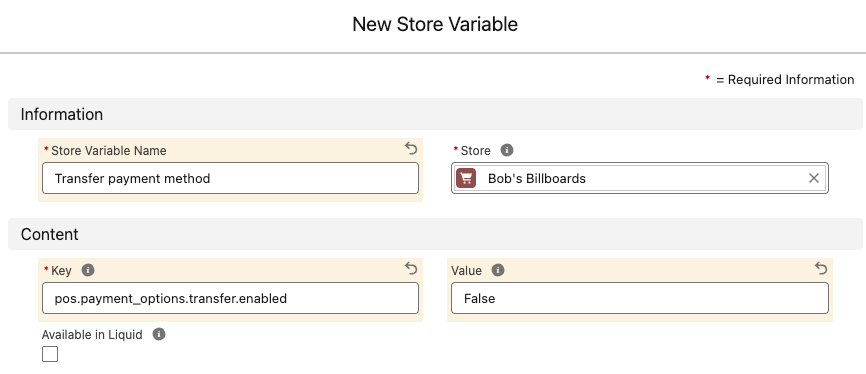
- Enter the payment method as the variable name, e.g.
Disable payments by transfer. - Enter the key for the method (see table above) and enter the Value as False.
- Select Save.
- Repeat for any other payment methods you want to disable.
Configure account or account credit payment methods for POS
If you want to allow the Pay on Account or Account Credit payment options, you need to add these as a store variable. You can also configure the POS to require authorization when using these payment methods.
Add these Store Variables to enable the payment methods
| Name | Key | Value |
|---|---|---|
| Pay on account | pos.payment_options.pay_on_account.enabled | True |
| Pay with account credit | pos.payment_options.account_credit.enabled | True |
Add these Store Variables to enforce authorization for the above methods
| Name | Key | Value |
|---|---|---|
| Account payment authorization | pos.payment_options.pay_on_account.require_authorization | True |
| Account credit authorization | pos.payment_options.account_credit.require_authorization | True |
Require purchase order number at POS
Purchase order numbers are not required by default. If you want to require users to enter purchase orders at POS, add the following variable.
| Name | Key | Value |
|---|---|---|
| Require PO number | pos.payment_options.method.require_purchase_order | True |