

Add a POS user
On this page
Each employee uses their own Outlet User record to sign into the POS system at the beginning of a shift.
To add an outlet user
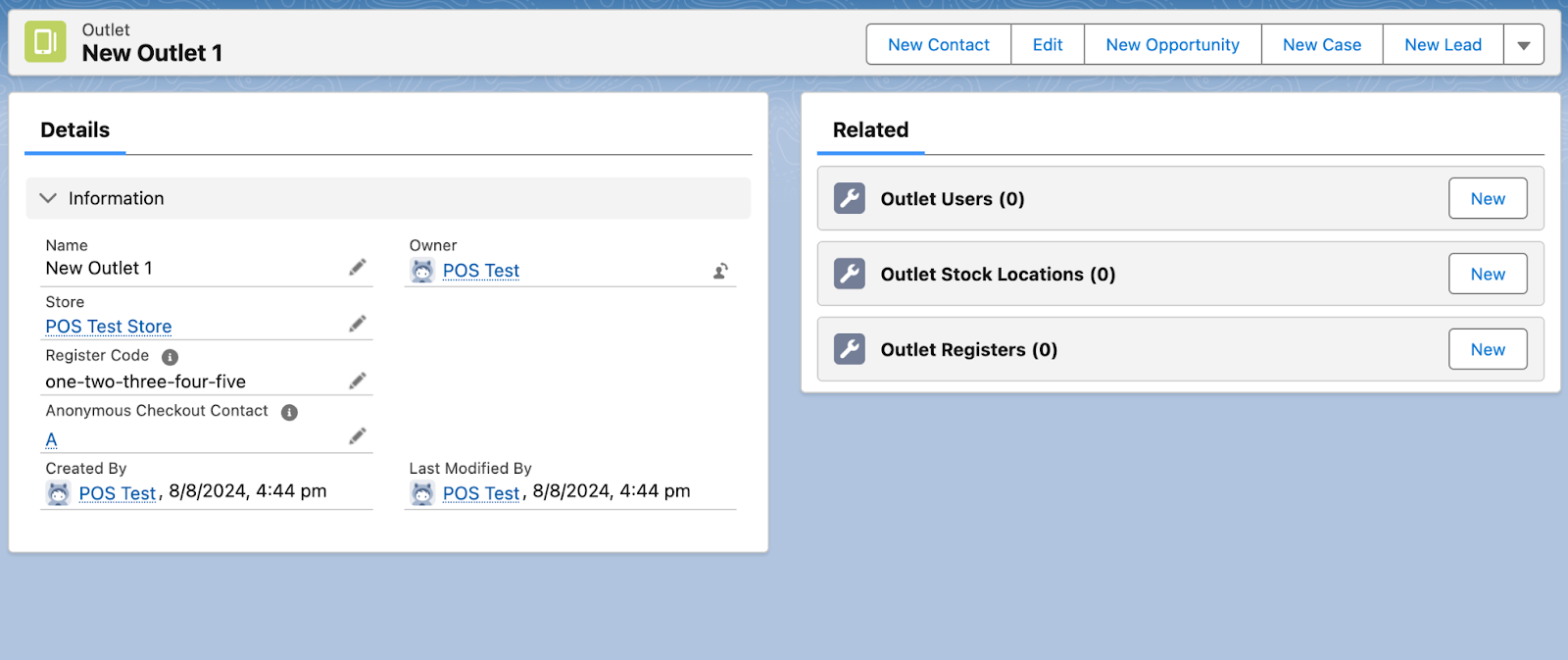
- Open the relevant outlet in Salesforce.
-
Select New in the Outlet Users section on the right. The New Outlet User screen opens.
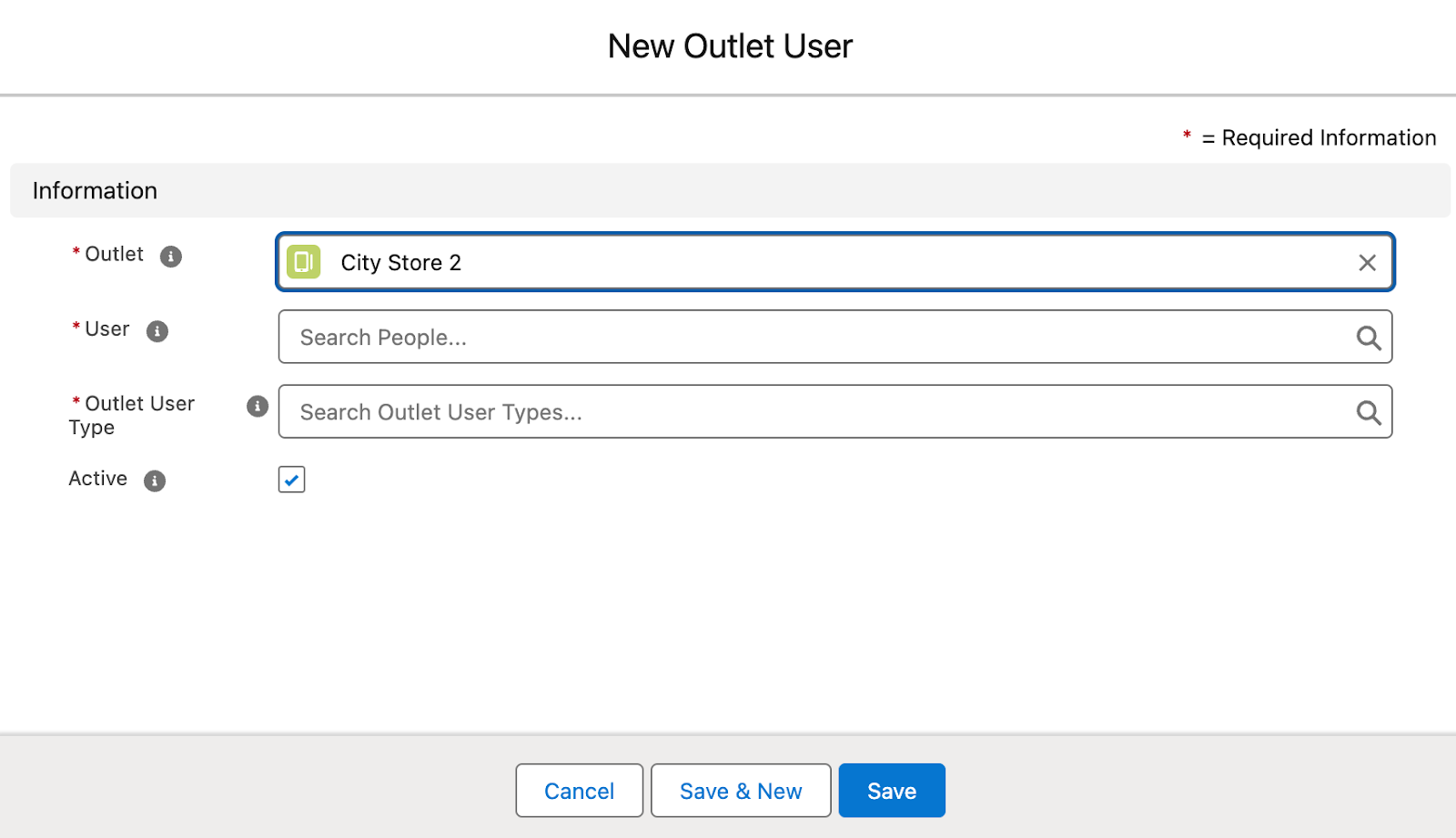
- Select the Outlet or leave the pre-selected one.
- In the User field, begin typing the name of the employee. A list of existing users opens.
- Select the employee who you want to be an Outlet User.
- Select an Outlet User Type. If you don’t have any to select, create one:
- In the list, select + Outlet User Type. A new dialog opens.
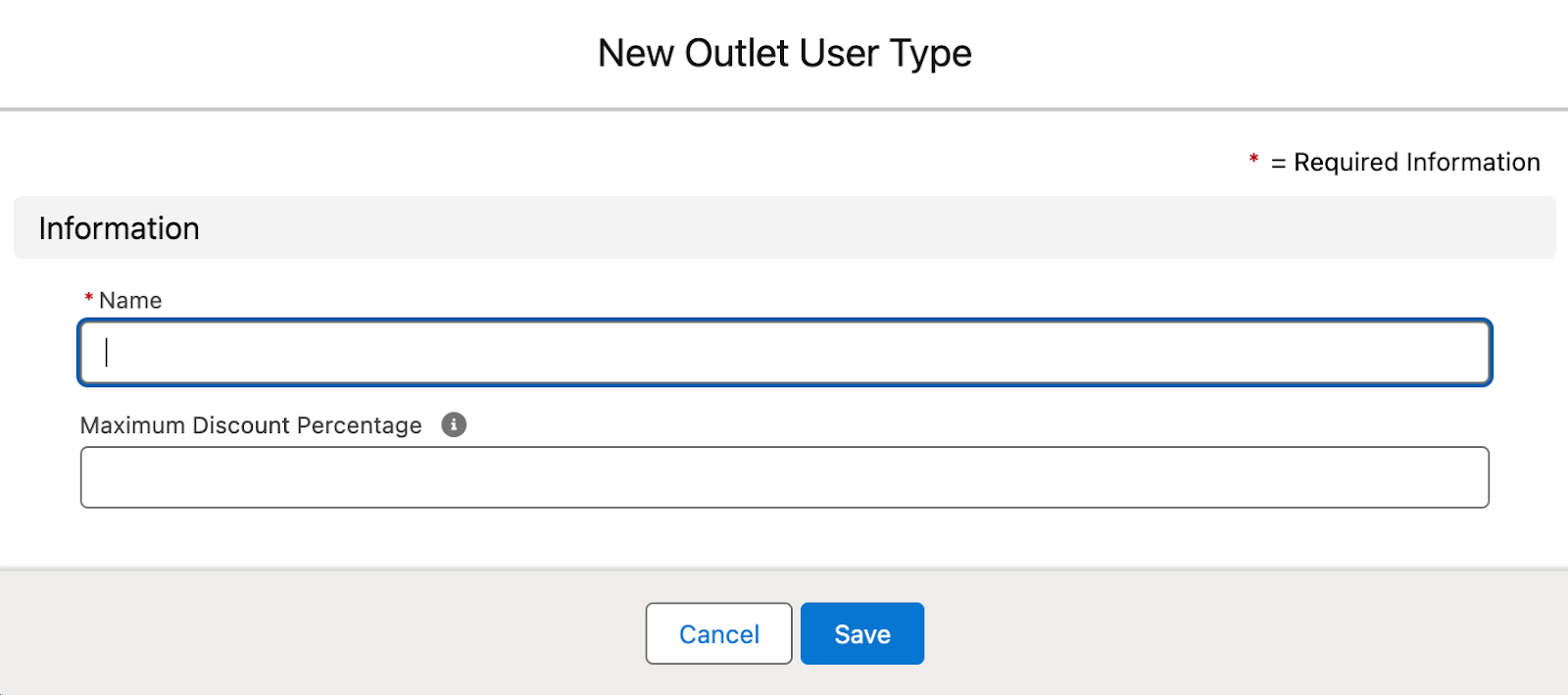
- Enter a Name. Something that describes the user type, e.g. Sales assistant.
- Enter the Maximum Discount Percentage that this user is authorised to enter at POS. This can be from 0 to 100.
- Select Save.
- Select the Active option.
- Select Save and New to create another user, or just select Save.
NEXT: Set a PIN for the user to access the POS system
RELATED: Set up an Outlet