
Downloadable content can be added for any product. First you upload a document, then create a content block add the document, then make the content block visible on your website.
Bulk uploading is supported for efficient content management.
This is the recommended sequence for adding downloadable content:
- Upload the document
- Create a Content Block and add the document to it
- Relate the Content Block to the product or products you want the download to be available for
Step 1: upload documents
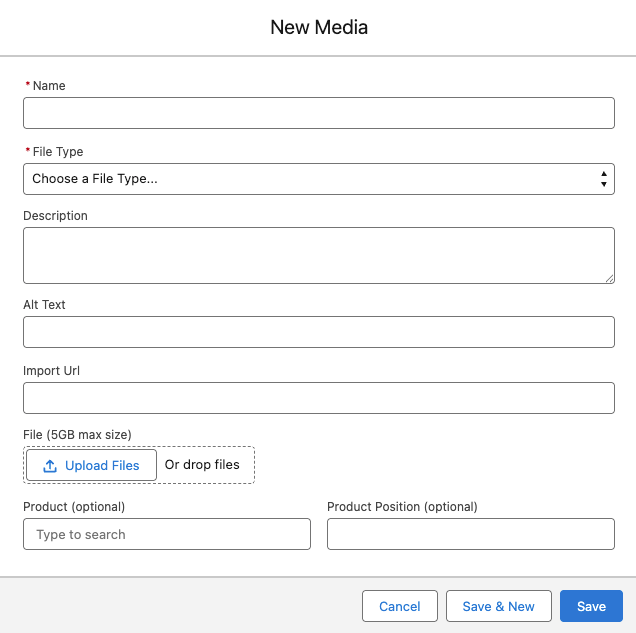
- Navigate the Media section in StoreConnect.
- Add New.
- Give the document a Name. This is what is displayed in the product listing.
- Complete the form and upload the file.
- Select Save.
For details about file limits and other conditions, see Upload images, media, and other files.
Step 2: create a content block
- Navigate to the Content Blocks section in StoreConnect.
- Add a new content block.
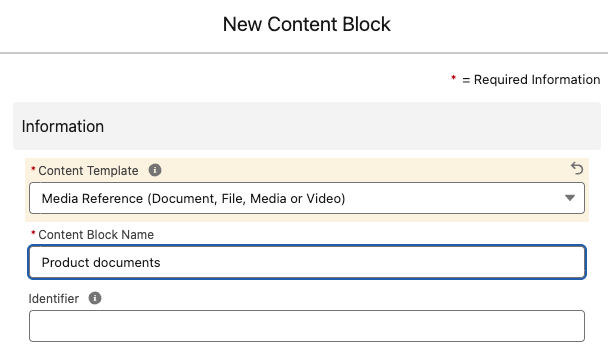
- Select Media Reference in the Content Template field.
- Give the content block a Name, such as Product documents.
- In the Media section, search and select your document in the Document field.
- Select Save.
Step 3: relate the content block to a product
- Open the content block you just created.
- Go to the Products connected to this content block section on the right.
- Select New.
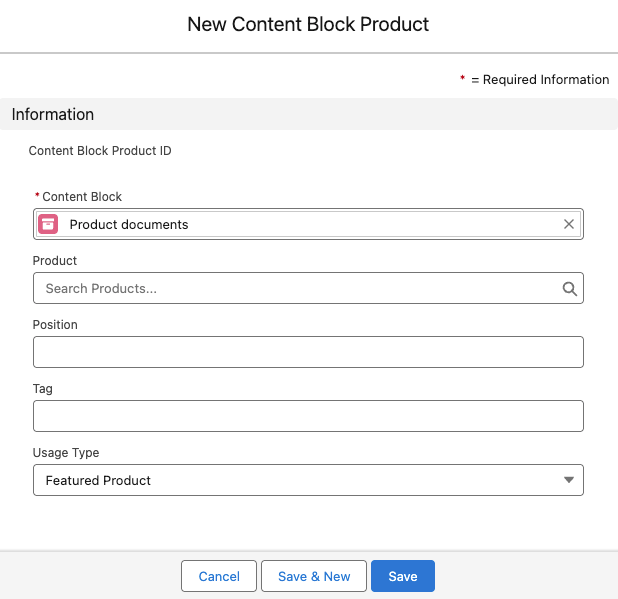
- Search and select the product you want to link to the content block.
- Set the position. This is optional to determine the sort order when a product has multiple downloadable files.
- Set Usage Type to Downloads Content. This tells StoreConnect to place the download link under the Download tab on the product page.
- Click Save & New if you want to add more products to the content block.
- Select Save when you are finished.
Upload documents in bulk
Uploading in bulk requires strong familiarity working with Salesforce objects. For more detailed information on bulk uploading media, see Upload images, media, and other files.
To bulk create the content blocks
- Create a record for each one in the
Content_Block__cobject. - Map as follows.
- Content Template - media
- Content Block Name - Use a recognisable name
- Document - Media ID for the document
Apply a standard naming convention for all of your content blocks so they are easy to find when needed. Content Blocks are not only used with products and can be used in other parts of StoreConnect, like web pages and articles so make sure your naming convention allows for that. e.g. Document - {short description} or Homepage - Top Banner. You can then create your own list views with filters to group your content blocks.
Link content blocks to products
- Use the
Content_Blocks_Products__cobject. - Map as follows.
- Content Block - Content Block ID
- Product - Product ID
- Position - Integer to determine the sort order when a product has multiple downloadable files
- Usage Type = downloads