
Add an outlet stock location so staff can manage inventory within a POS location. With this set up, you'll be able to see when items are running low, and other outlets can see if you have an item a customer wants.
Every outlet needs at least one associated stock location. This procedure assumes you have set up a [store outlet] first.
Add or select an outlet stock location
If this is a new outlet, you need to add it as a new stock location. If you are just adding the POS function for an existing outlet, you just need to select an existing stock location.
- Open the relevant outlet.
- In the Outlet Stock Locations section, select New.
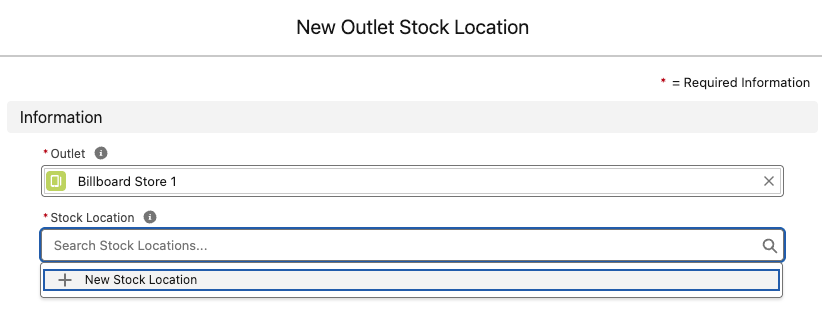
- If your outlet exists, select it in the Stock Location field and select Save. You've completed the procedure.
- If this is a new location, select + New Stock Location.
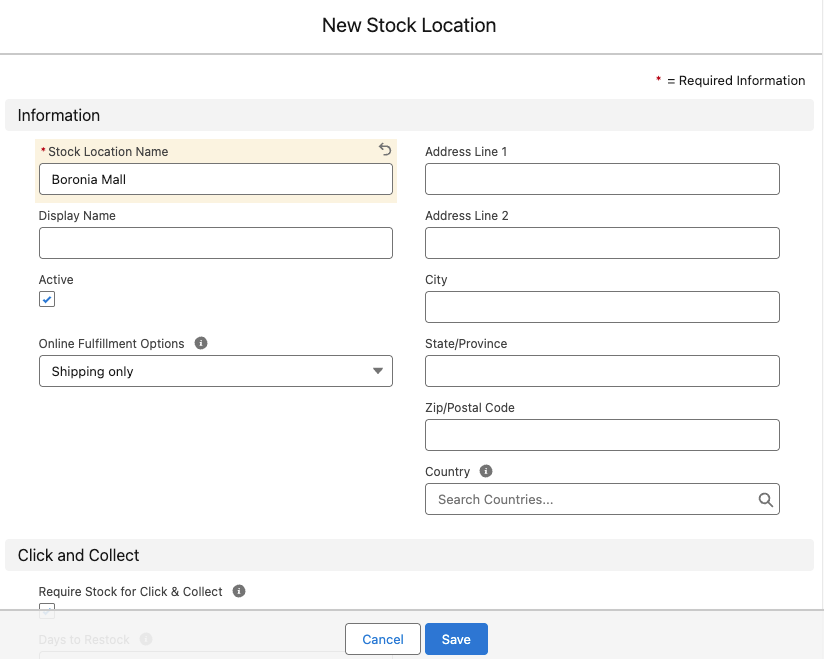
- Enter a Stock Location Name, e.g. Boronia outlet.
- Make sure that the Active option is selected.
- If you want, complete the additional address fields and configure the fulfilment options.
- Select Save. This saves the new Stock Location.
- Select Save. This saves the Outlet Stock Location.