
Add a customer record at POS
You can add a customer record from the POS terminal, even if no transaction is made. You might do this to add them to a mailing list or for other reasons.
- Select Customers in the left menu. This is an icon of a person.
- Select Create new customer.
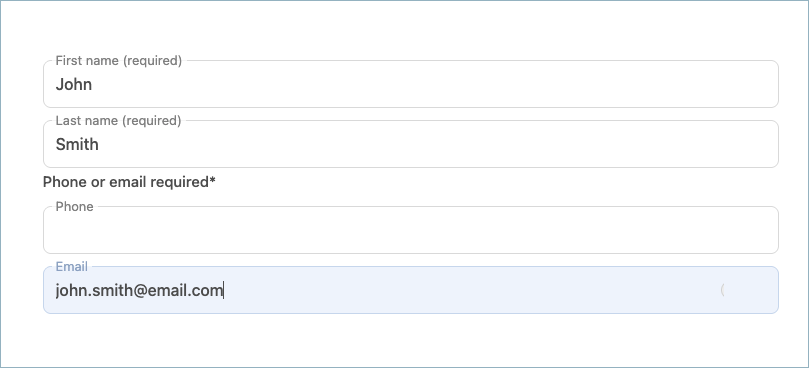
- Enter their first name, last name, and email or phone.
- Select Create new customer.
Add a customer record at checkout
With the checkout cart open, select Add customer at the top of the cart. The customer list opens.
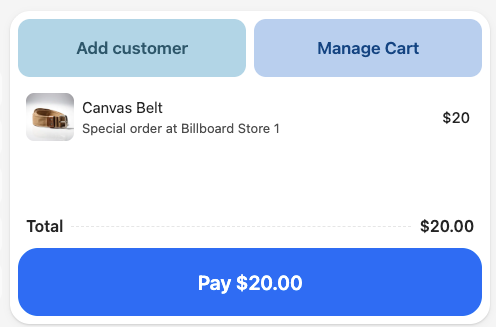
Search and select an existing customer. They are added to the cart transaction.
If they do not exist, select Create new customer.
Enter their first name, last name, and email or phone.
Select Create new customer. They are added to the cart transaction.
Complete the sale.
Remove a customer from the cart or checkout
- Select the name of the customer in the checkout area.
- In the pane that opens, click Remove from transaction.