
When searching for an order, you can refine the list by filtering for a specific store, product type, date range, customer identifiers, etc.
Search for an order at POS
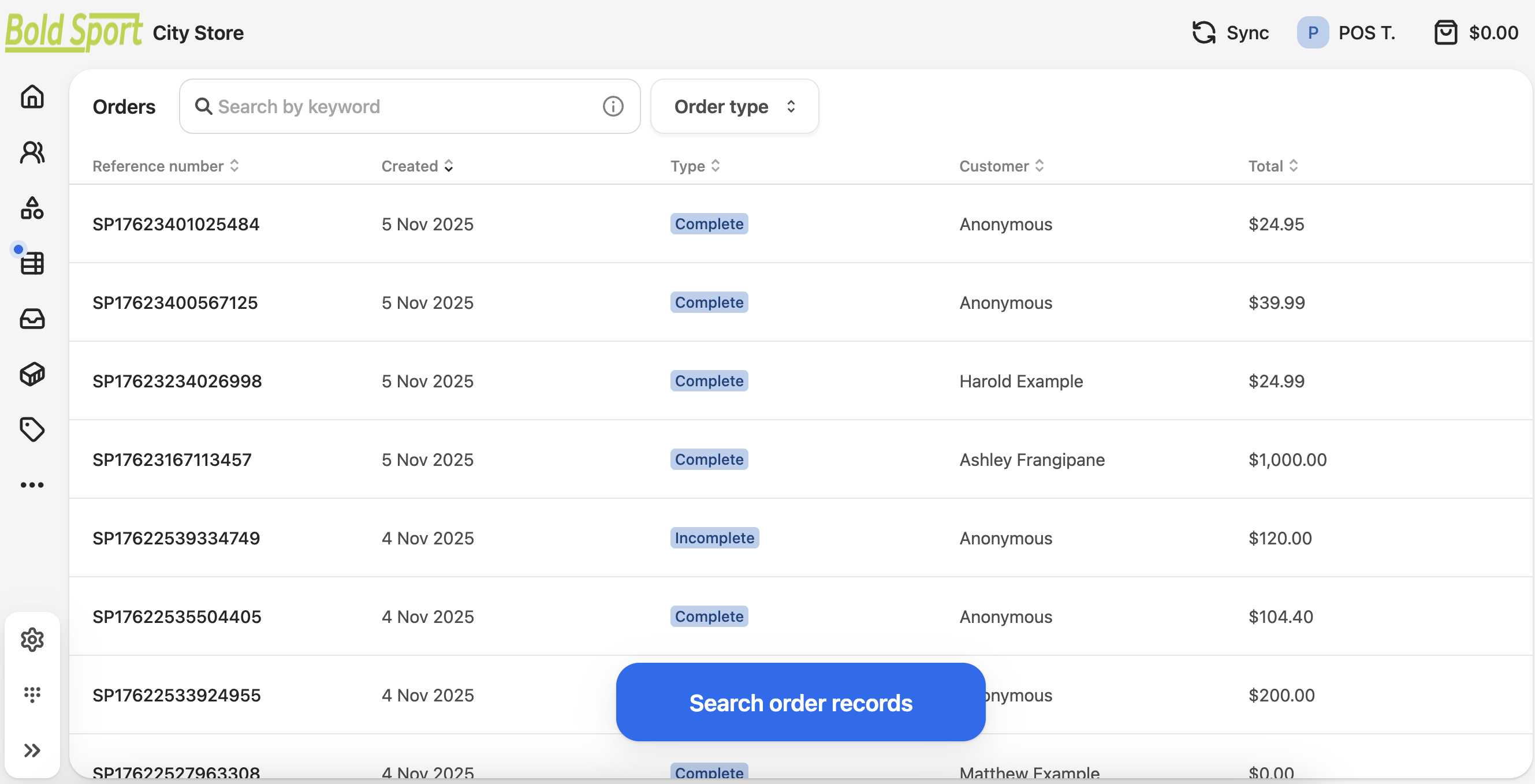
- In the POS dashboard, select the Orders icon in the left menu. It looks like a table.
- Enter a search term, such as order ID, phone number, customer name, email, etc.
- Select a filter option, e.g. Order type.
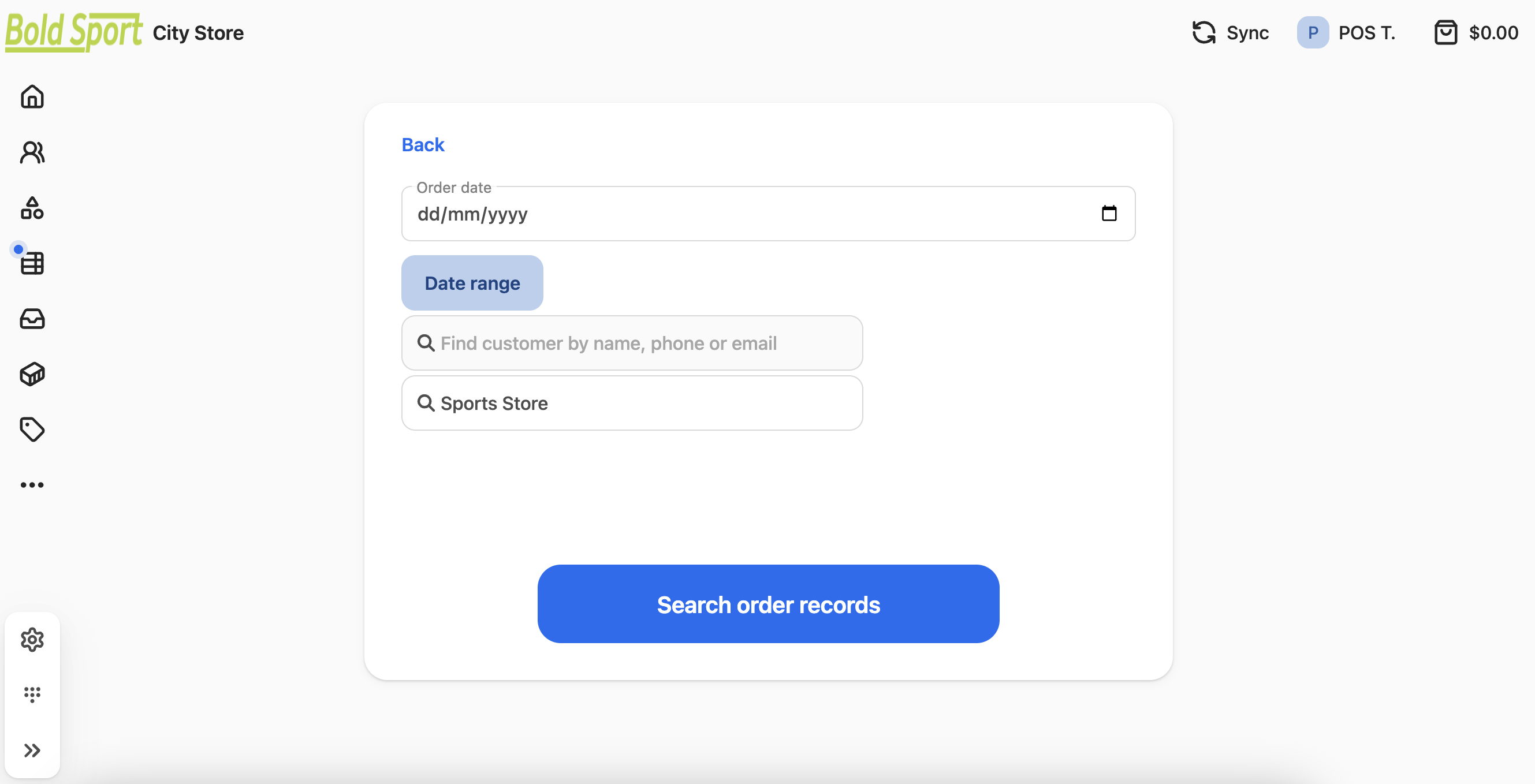
- Press Enter or Search order records, to access advanced filters and refine the list.
- If the transaction is hard to locate, you can also sort the list by column header.
- For older orders, we recommend using a date range search.
- Once you find the order, click it to view the order details.