
Before you can set up the receipt or label printer:
- Set up the the register
- (If applicable) Set up a label template
- (If applicable) Set up a receipt template
Connect printer hardware
- Sign in to the register.
- Select Settings in the sidebar menu.
- Select the type of printer you are connecting: Label or Receipt.
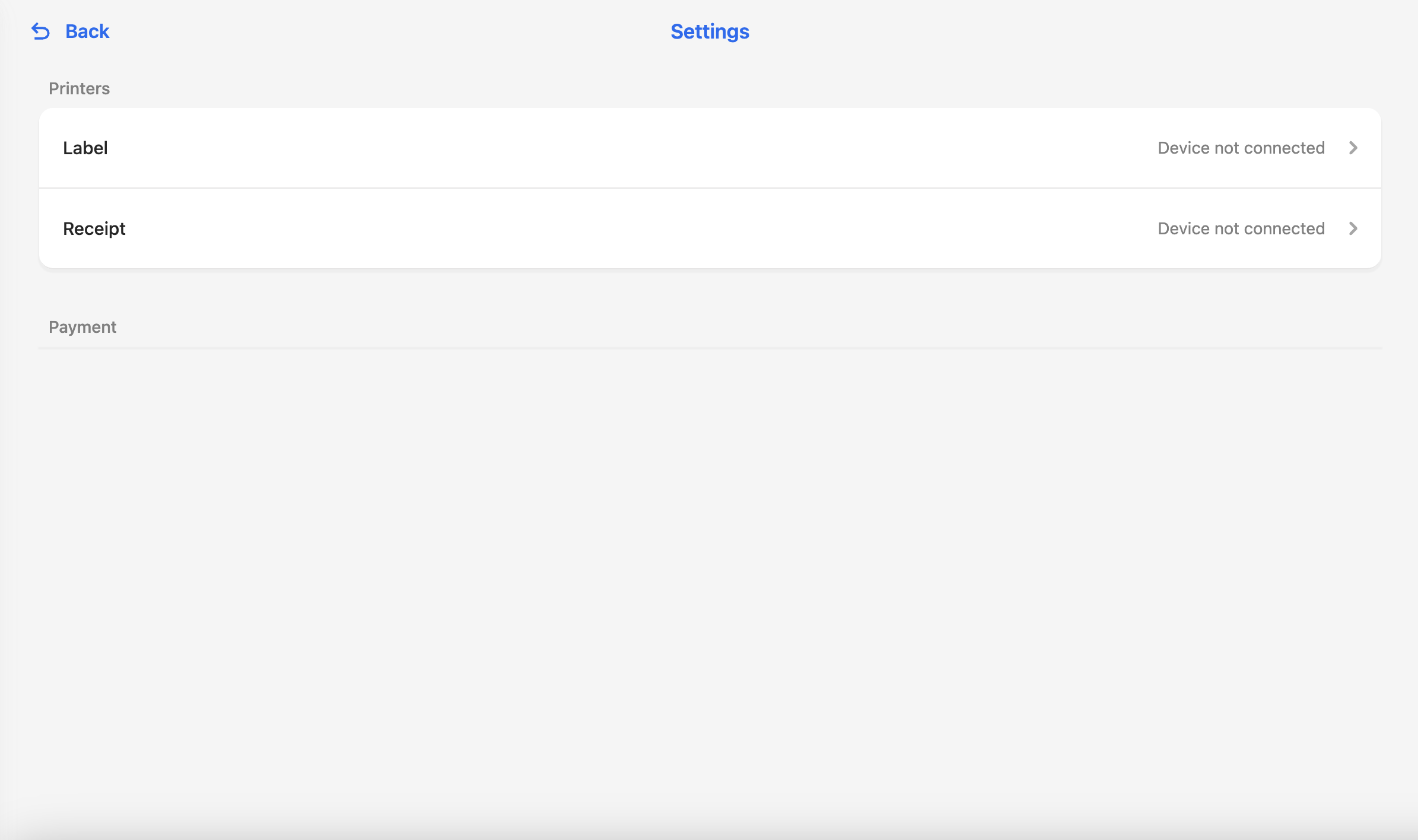
- Select the template you want to use.
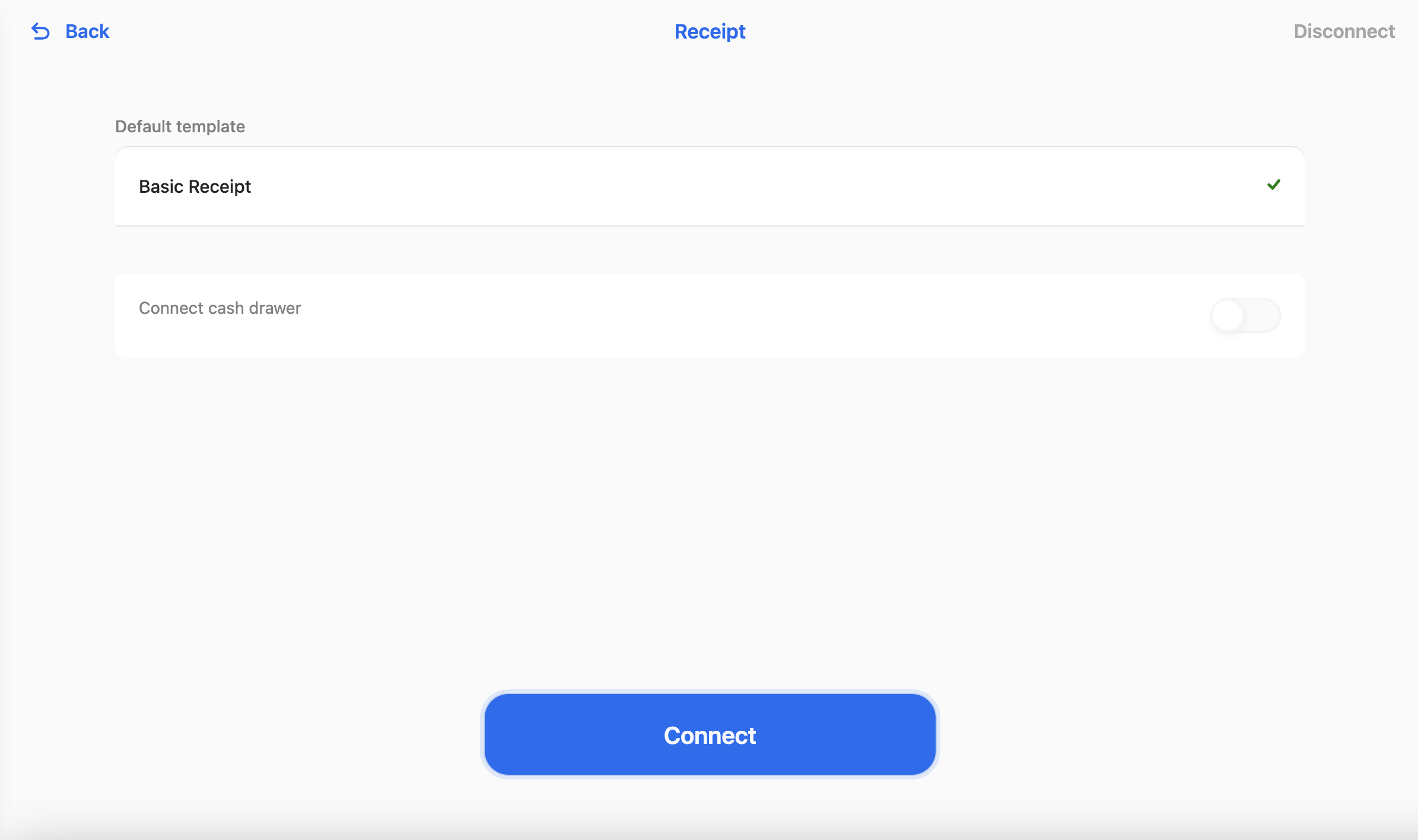
- Make sure there is the green tick next to it.
- Select Connect. You should get a pop-up like this. Select the device you want to connect.
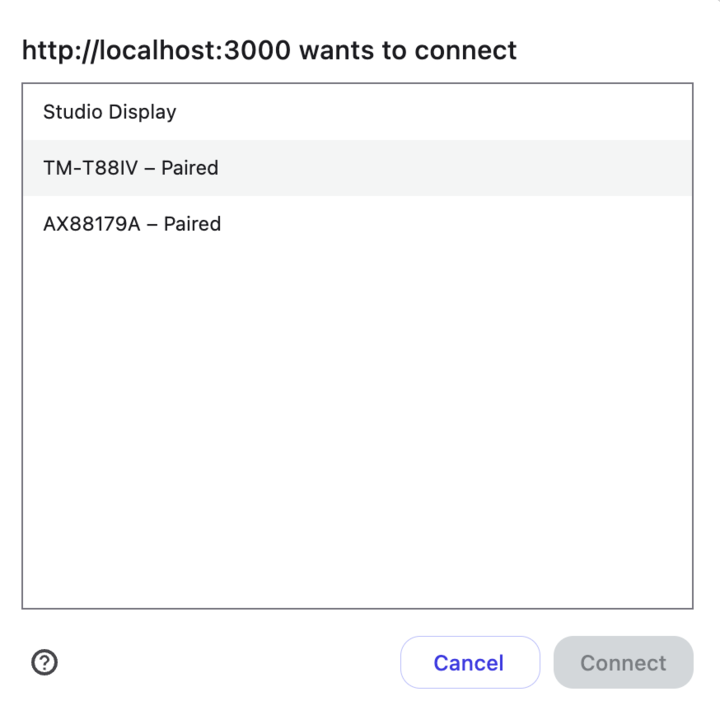
- Click Connect.
- Repeat from step 3 for each printer type.
Once they are connected, you should be able to see the 'Connect Cash Drawer' button. This controls whether the cash drawer opens after a payment transaction. You can pick which payment methods trigger the cash drawer to open. E.g. So it doesn't unnecessarily open after a card payment, but does after a cash payment. You can also turn the cash drawer feature off completely.
Install printer driver on windows devices
If you are using a windows device for a POS terminal, your receipt and label printers need to be configured to use the WinUSB driver.
The easiest way to do this is to use a tool called Zadig https://zadig.akeo.ie
- Download Zadig.
- Click Options > List All Devices
- Select your receipt printer in the dropdown list
- Make sure WinUSB driver is selected as the replacement drive and then select Install Driver.
- Repeat for your label printer.
Once this is done, the devices should connect normally to the terminal.