
If you are setting up POS for the first time, you'll need to add the PIN function to your POS configuration. This enables Salesforce to manage the PINs. Next, you configure a PIN for each employee.
If you are updating a PIN for a user, skip to the second procedure, Set or reset a PIN for a POS user.
Add the pin function to POS configuration
- Click the gear icon on the top right of the screen and select Setup. The Setup Home screen opens.
- In the top navigation bar, click Object Manager.
- Search for User in the Quick Find box**.**
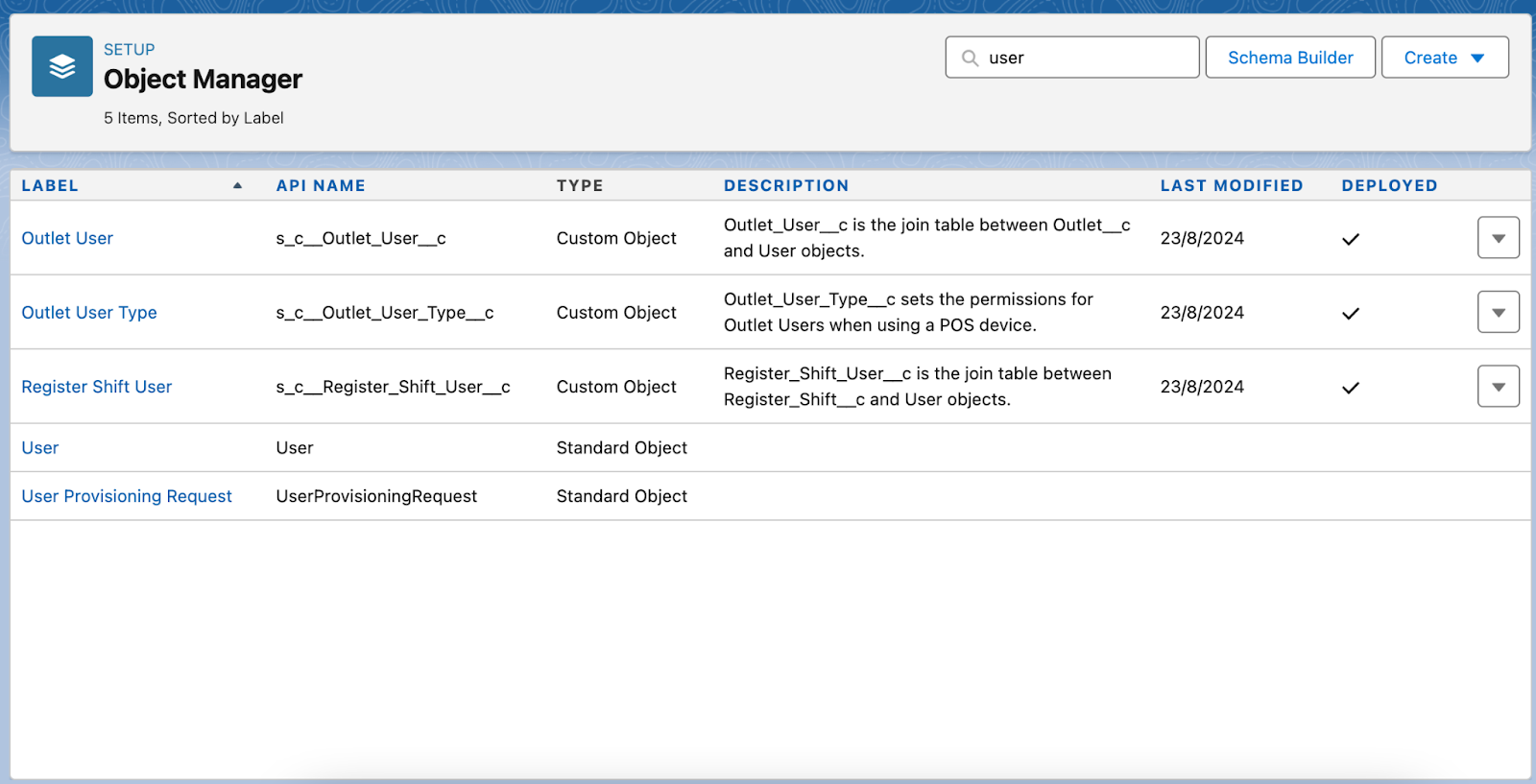
- Open the User object.
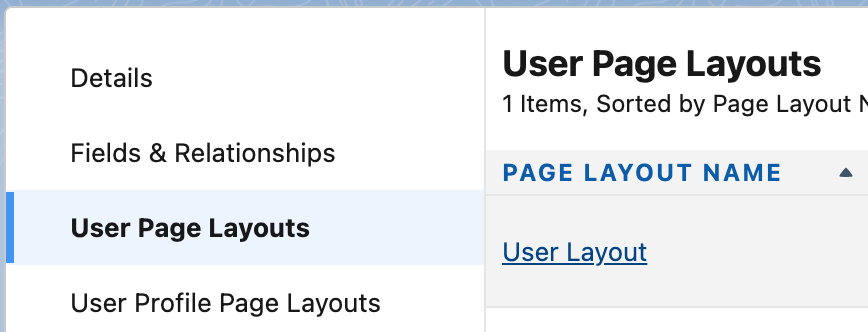
- Select User Page Layouts, then select User Layout.
- Scroll down in the bottom half of the page, until you reach the Additional Information field. This has a gray heading.
- In the top half of the screen, click and drag the PIN field and drop it under the Additional Information header.
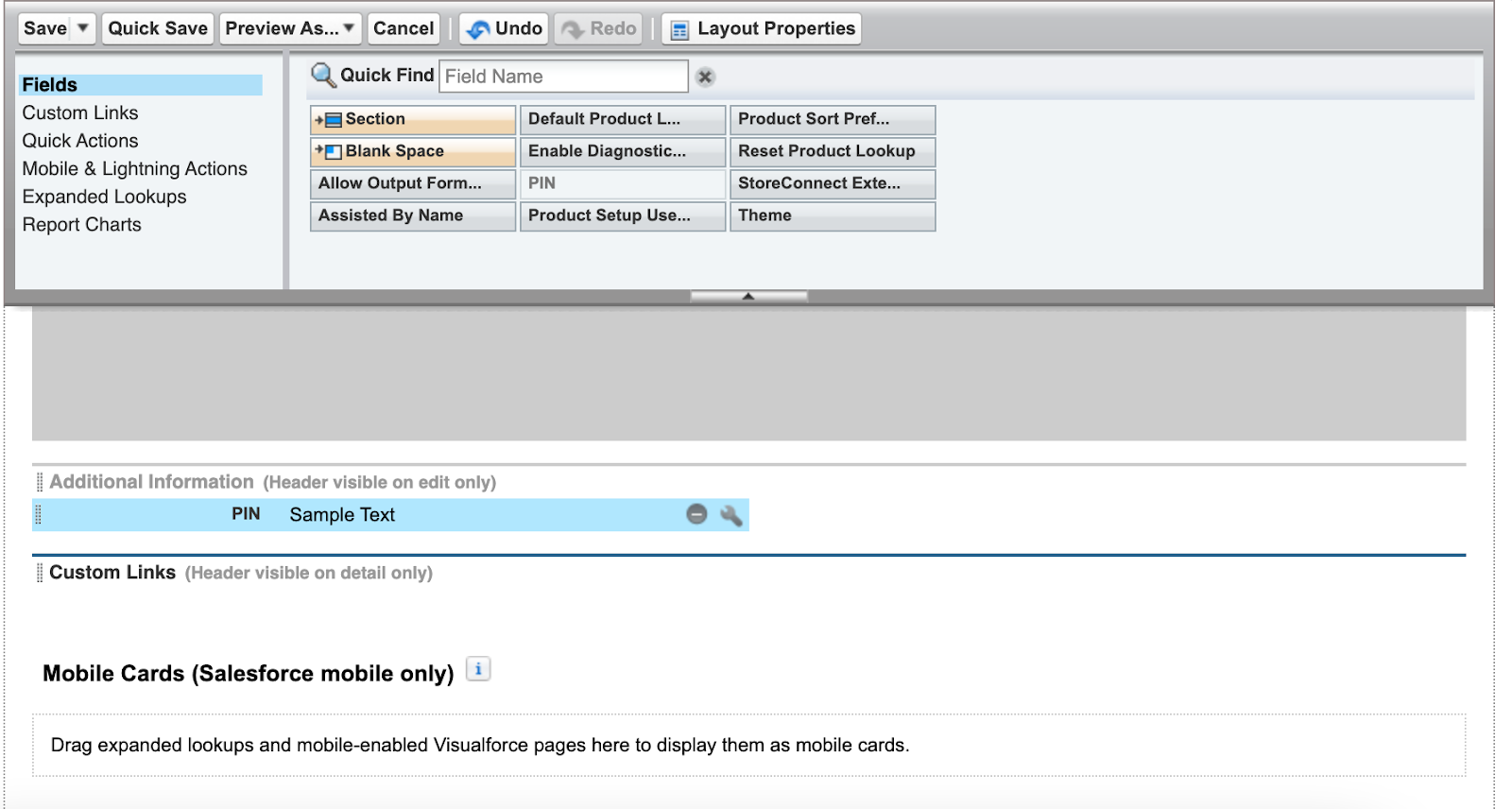
- Click Save. The PIN field will now appear in the screen that users see when they sign in to POS.
Set or reset a pin for a POS user
Use this procedure to set (or reset) a PIN for a POS user.
A PIN must be numbers only (no letters or special characters) and at least 4 digits long, e.g. 2356. Depending on the security level you want, a PIN can be longer, e.g. 123456 is fine, but 123A456 is not.
- Go to Setup > Setup Home.
- In the menu, go to ADMINISTRATION > Users > Users. A list of your users opens.
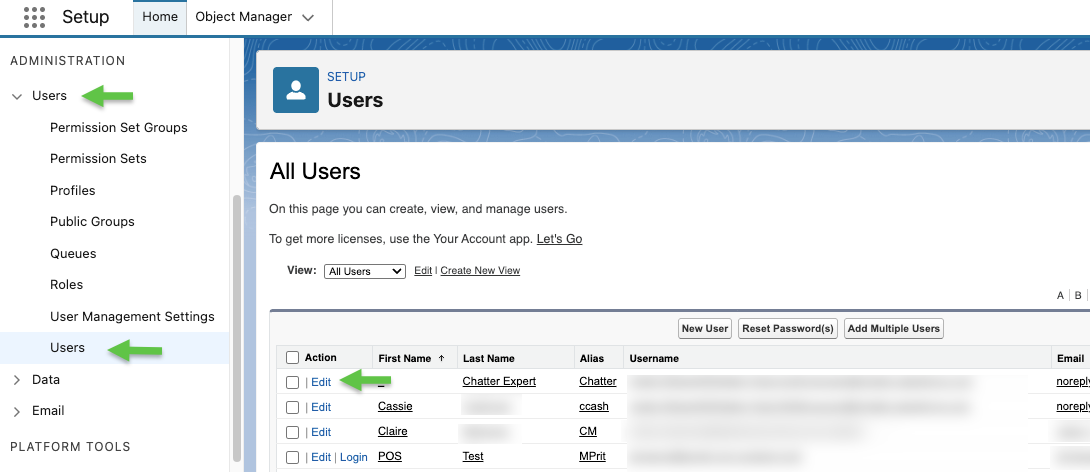
- Click Edit for the user who's PIN you want to set or change. This opens their Salesforce record.
- Scroll down to the Additional Information section.
- In the PIN field, enter a 4-digit number, or change the existing PIN.
- Click Save.
It can take a few minutes for the data to sync before the user can use the new PIN.