
Stock transfers are a bit similar to special orders and holds, but differ in that they require actions at both the sending and receiving outlets.
Video demo
Initiate a stock transfer
You can transfer stock between any outlet from any outlet.
- Add the product to the cart that you want to transfer.
- Click on the item. A set of new options appears.
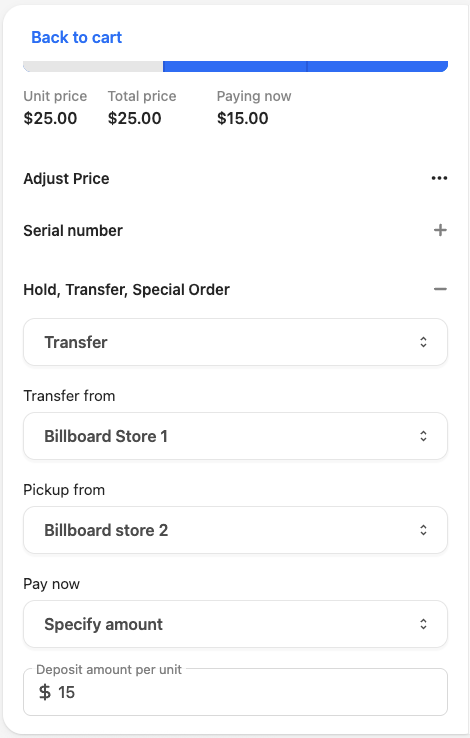
- In the Transfer, Hold, Special Order field select Transfer.
- Select the origin location in the Transfer from field.
- Select the receiving location in the Pickup from field.
- (If applicable) Select if the customer is making any payment and enter the details.
- Go back to the cart and finalize the transaction. The item now appears in the Pickups section with the status of Requested.
Mark a transferred item as sent
This procedure is done when the sending store sends the item.
- Go to the Pickups section in the POS terminal.
- Filter or search for the item and open it.
- Select Next. This moves the order status to Confirmed.
- Select Next. This moves the order status from Confirmed to Shipped.
- That is the final action to complete in the sending outlet.
Receive a transferred item
- Go to the Pickups section in the POS terminal.
- Filter or search for the order and open it. It should have a status of Shipped or Completed.
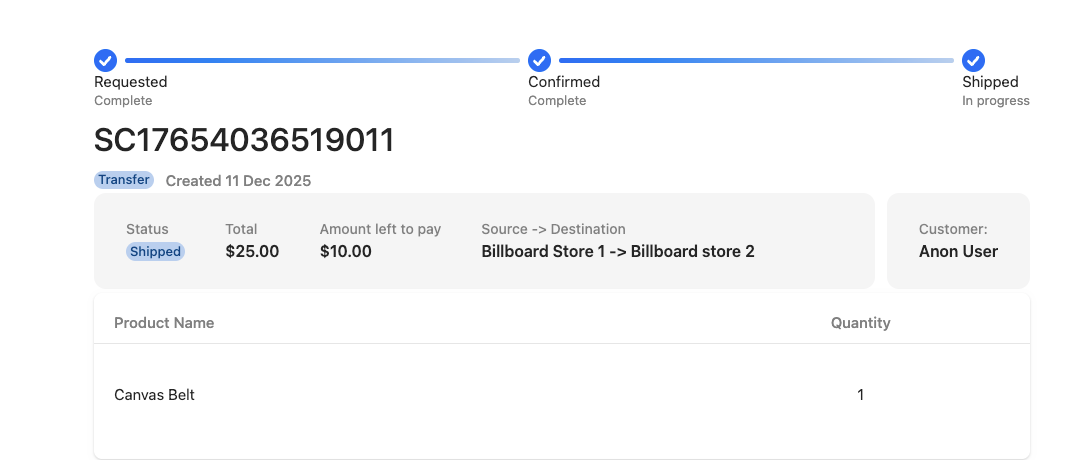
- Select Next. This moves the order status to Ready to Pick up.
Finalize the sale of a transferred item
- Go to the Pickups section in the POS terminal.
- Filter or search for the order and open it. It should have a status of Ready to Pick up.
- If the customer has outstanding payments to make, process these through the checkout as normal.
- Once the payment is finalized, select Release items.