
Manage orders placed on hold, including viewing details, adjusting quantities, finalizing the payments, and marking items as out of stock.
Video demo
Place an order on hold
- Look up the item and add it to the cart.
- Click on the item in the cart. Additional details show.
- Select the + symbol next to the Hold, Transfer, Special Order field.
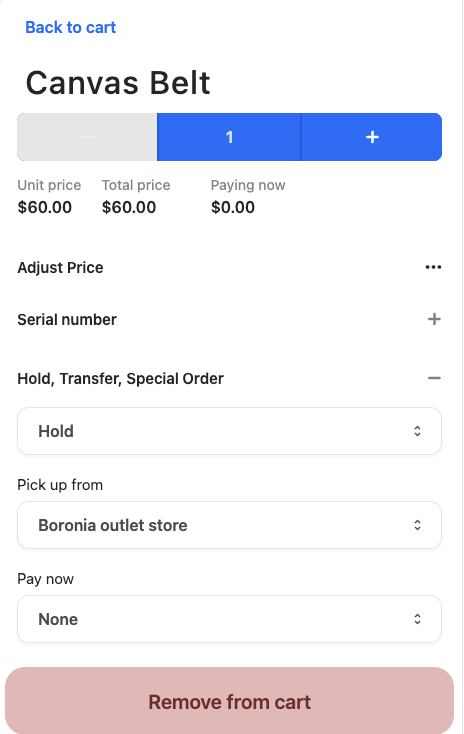
- Select Hold in the dropdown list.
- Select the store for pickup.
- Select a Pay Now option - depending if the customer will pay now, put down a deposit, or pay later.
- If you select a pay now option, enter the amount or percentage.
- Go Back to cart.
- Select Manage cart.
- Select Hold items, select and confirm items.
- Press Confirm hold.
- Select Pay [Amount] to finalize the checkout process. This places the item on hold and a receipt is issued detailing the payment made.
The order will appear in the Pickups section. You will see the order name, type of pickup requested (in this case, Hold), and the status of the order.
Take the balance of payment on a hold item
- Open the order in the register. Search the Orders or Pickups list.
- The amount owing and other transaction details are shown.
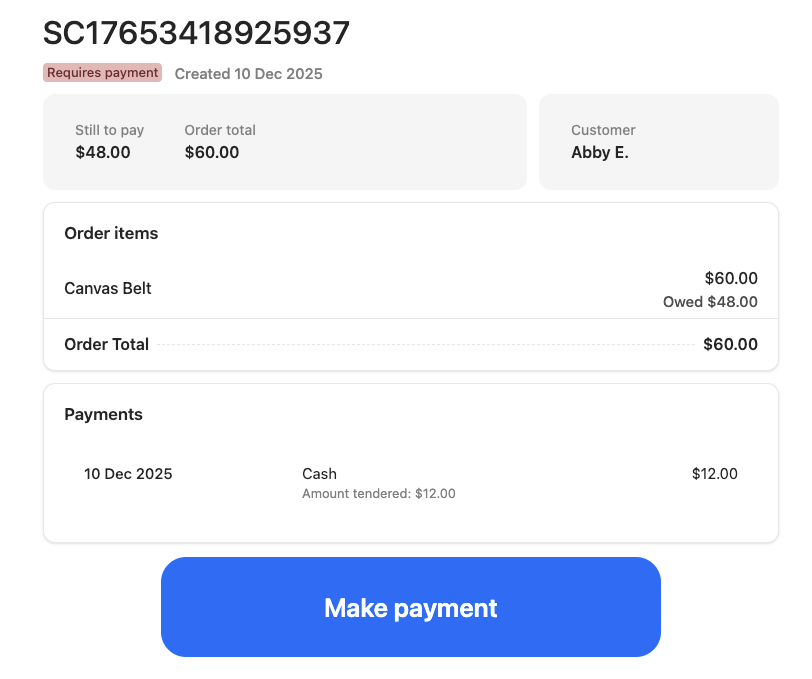
- Select Make payment and finalize the transaction.
Fulfil an order that is on hold
- Go to the Pickup section and find the hold order.
- Open it to view the details. The progress of the order is shown at the top. The Qty Expected section displays the amount of the product needed to fulfil the order.
- If the product is out of stock, you can click the minus sign button beneath Qty Available to note this. Add a note.
- Once the order has been picked, click Next. A message will pop up asking you to confirm.
- Once you confirm, the status of the order will be changed to Picked, and you won't be able to go back to the previous stage.
- Once the order has been packed and is ready for the customer to pick up, click Next and confirm.
- If the customer paid earlier, they can take their items. Select Release items.
- If they still have an outstanding balance, process the payment via the checkout as above.