
Create a special order
- Add the item to the cart.
- Select Add customer and enter the customer details.
- Click on the item in the cart to show additional options.
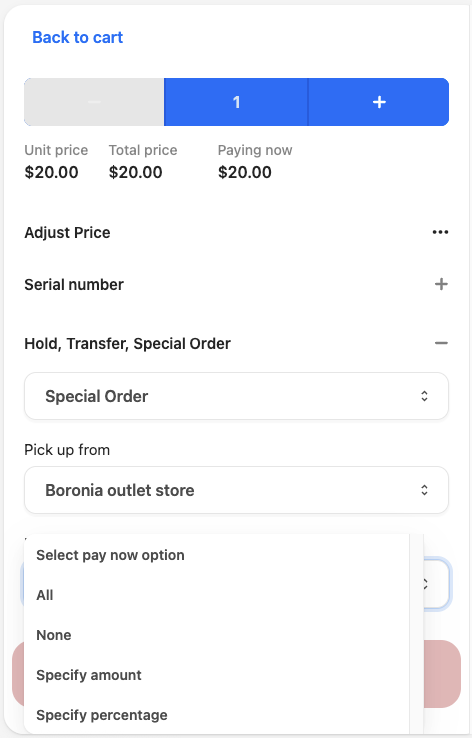
- In the Hold, Transfer, Special Order field, select Special Order.
- Select the Store location for pick up.
- Select how the customer wants to pay: all now, specify a percentage, amount, etc.
- If they are paying some or all now, follow the prompts to complete the transaction and issue a receipt.
The order will appear in the Pickup section of the POS register with a status of Requested.

Complete the sale of a special order
In the background, as the special order progresses and changes from ordered, to shipped, the item will eventually arrive and have the status of Ready to pickup.
Once a special order item comes in, you can finish processing the sale for the customer.
- Go to the Pickups section in the sidebar menu.
- Filer the list by type to show Special Orders and search or scroll to find the relevant order.
- Open the order and select Confirm available items.
- If the customer has an outstanding balance, you can select Process Payment and proceed as normal.
- After the customer has paid, select Release items. The special order is now complete.