
StoreConnect supports several test modes, allowing users to complete transactions during store setup without incurring Shared Success fees.
Test orders display a TESTING ONLY banner on the checkout and confirmation pages.
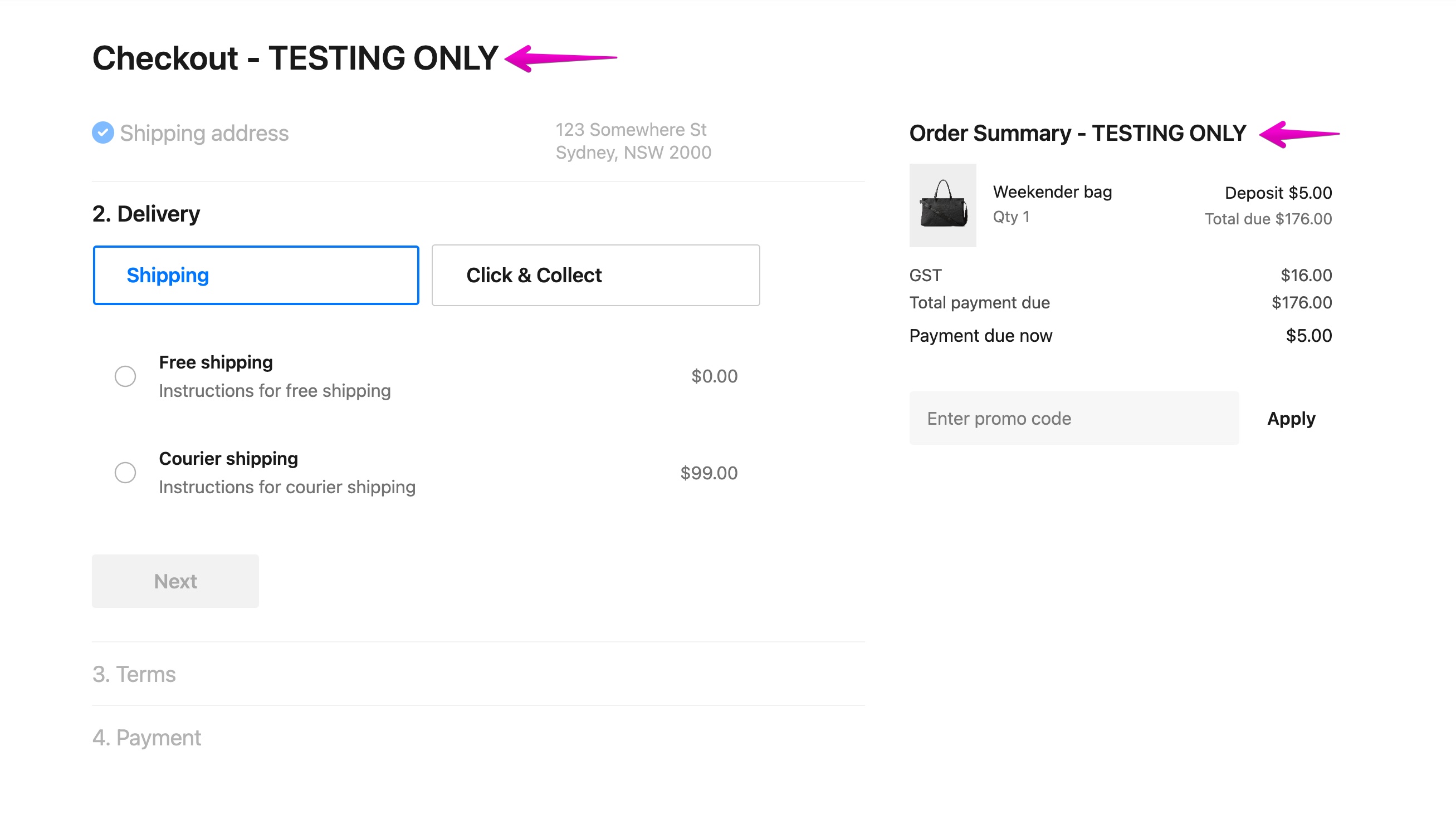
Trial and sandbox licenses are already in test mode
When StoreConnect is first installed using a Trial or Sandbox license, the associated stores are always in test mode. This behaviour is independent of the “Enable Test Mode” checkbox on the Store record.Once a production license is activated, you'll need to do controlled testing using the methods below.
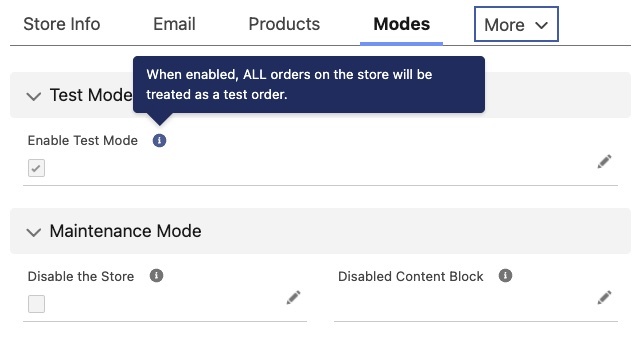
Enable test mode for your store
All new stores have the Enable Test Mode option checked. If you have a paid license, you can toggle this on and off as you need.
Add a store variable for test orders
To process test transactions and avoid a shared success fee.
Add a
test_checkout_emailsStore Variable on the relevant store. The variable Value should be a comma-separated list of up to four test email addresses.Example Value:
bob@example.com,jane@example.comOrders placed using these emails will show “TESTING ONLY”.
Orders from
support@getstoreconnect.comare also treated as test orders.
Test individual orders
- Create an order.
- Select the Test Order option.
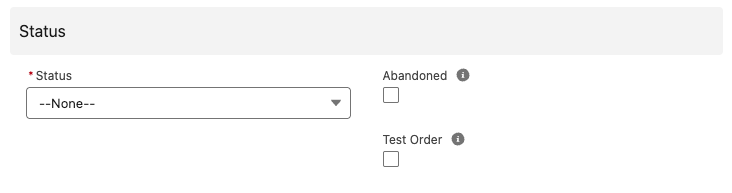
Flows, triggers, payments, and promotions run as normal, but test orders are excluded from reports.
Important notes about test transactions
- Switching on the Test Order option after order creation does not enable the order as a test order.
- Only orders flagged during checkout with TESTING ONLY are exempt from fees.