

Passing payment surcharges to customers
On this page
A payment surcharge is an additional fee added to an order when a customer pays using a specific payment method. Surcharges allow stores to pass on payment processing costs (such as credit card transaction fees) to the customer.
How it works
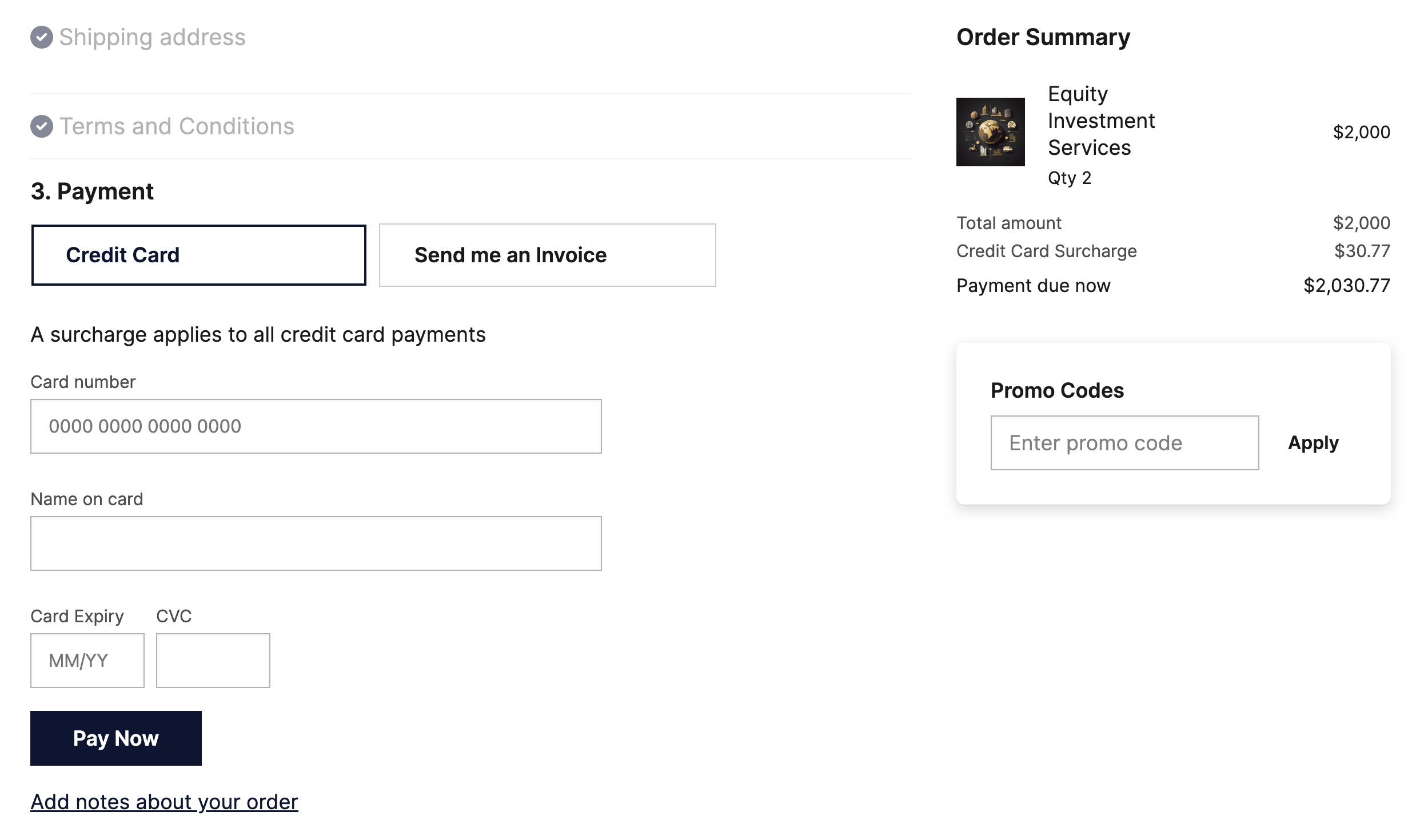
When a customer selects a payment method that has a surcharge configured, the surcharge amount is calculated and displayed to them before payment is confirmed. Once the payment is successfully processed, the surcharge is added as a line item on the order and recorded against the payment.
Before you begin
:::warning Check the regulations in your geography to ensure you are allowed to pass on payment processing fees to customers. Rules vary by region and card scheme. :::
The fee you pay your payment provider is calculated on the total amount the customer pays, including the surcharge itself. To ensure the net amount landing in your account matches the original order total, the surcharge percentage charged to the customer is always slightly higher than the rate your provider charges you. Avoid specifying an exact percentage for the surcharge, as the effective rate varies with the order amount — especially when a flat fee applies alongside a percentage.
Configure the surcharge
Surcharges are configured per PaymentProvider in Salesforce. Each PaymentProvider can optionally reference a surcharge product which defines the surcharge amount. Both a flat fee and a percentage can be configured together, or just one.
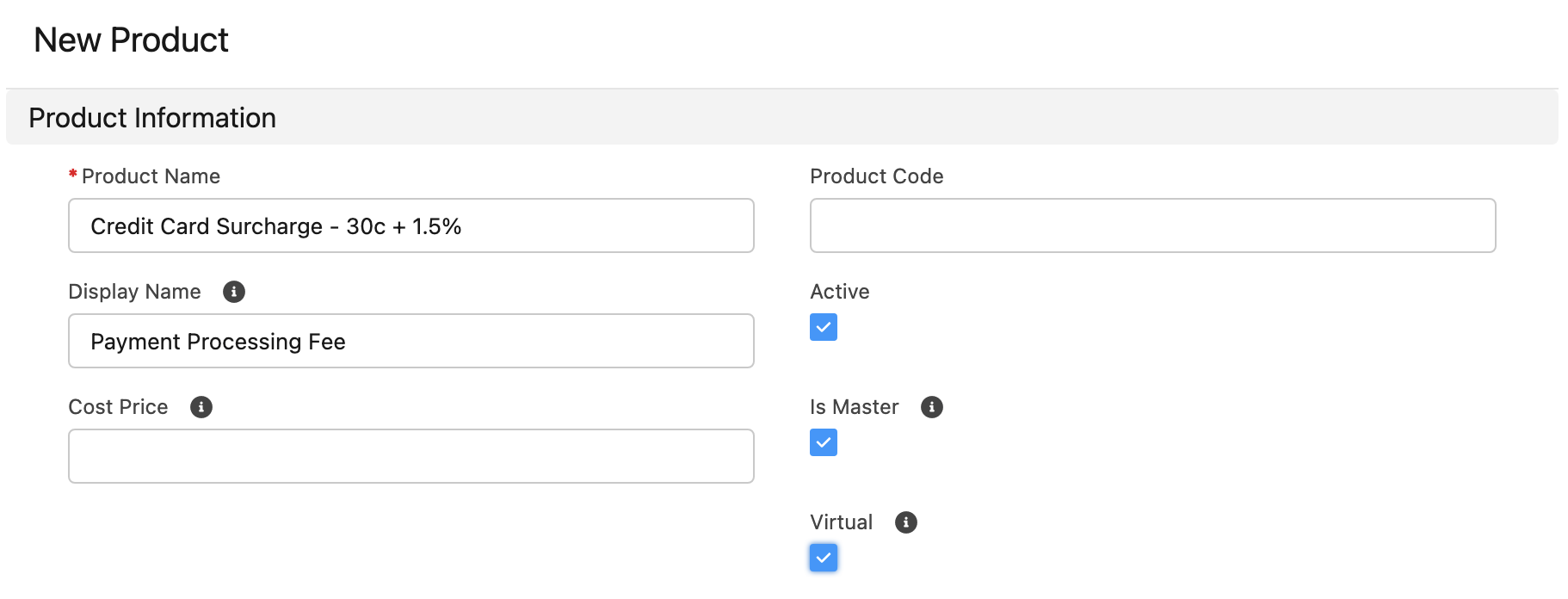
Step 1: Create the surcharge product
- Create a product and give it a display name the customer will recognize, such as Processing Fee or Credit Card Surcharge.
- Make sure the product is Active.
- Set it as a Virtual product.
-
Set an Available On date prior to today.
Step 2: Set the fee amount in the price book entry
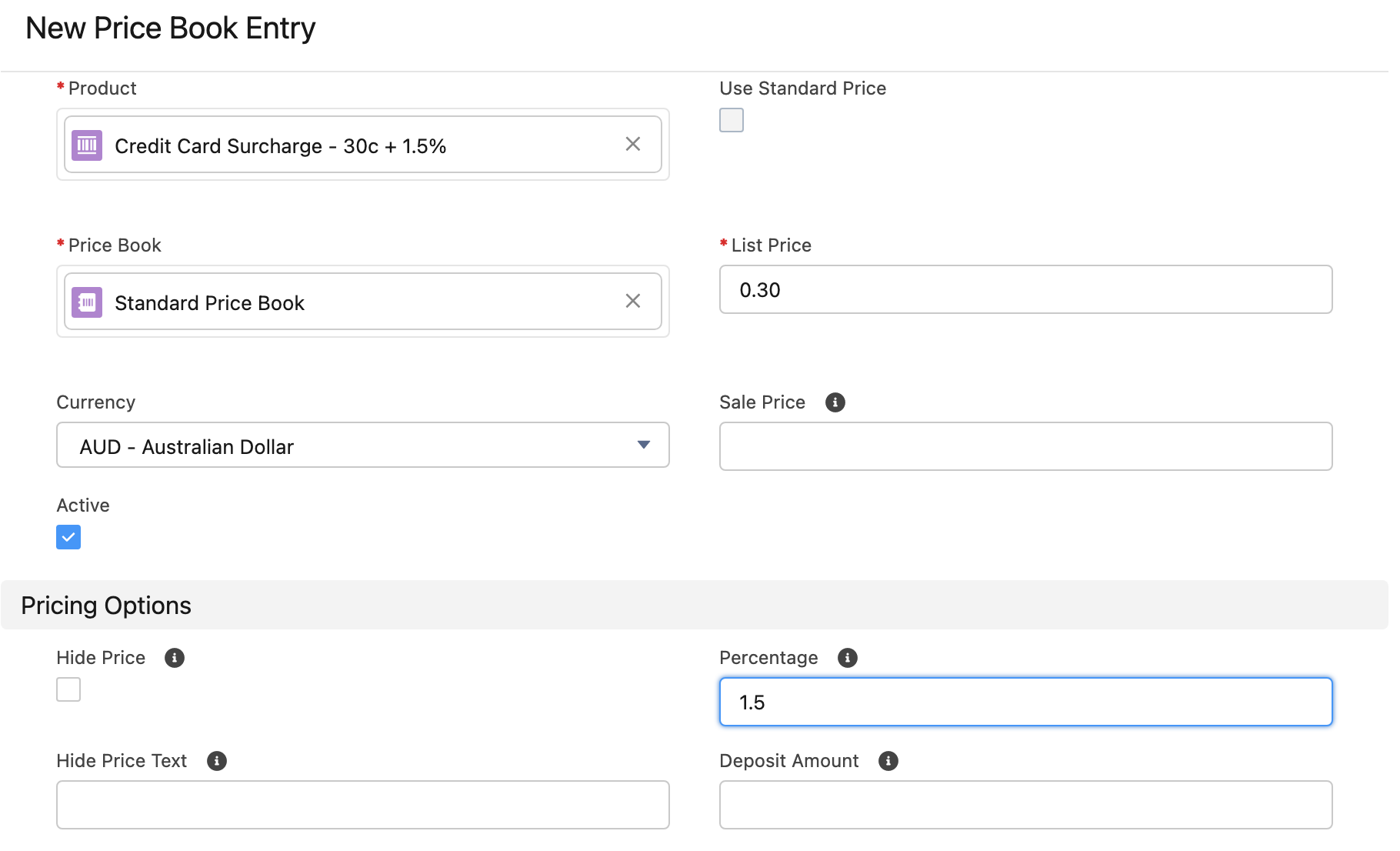
- Create a price book entry for each price book and currency you need.
- For the flat fee, set the list price (e.g.
$0.30). Set this to$0if there is no flat fee. - Set the percentage your provider charges you (e.g.
1.5). -
Repeat for each price book you intend to charge the surcharge for, including account- or membership-specific price books and any other currencies.
Step 3: Link the surcharge product to the payment provider
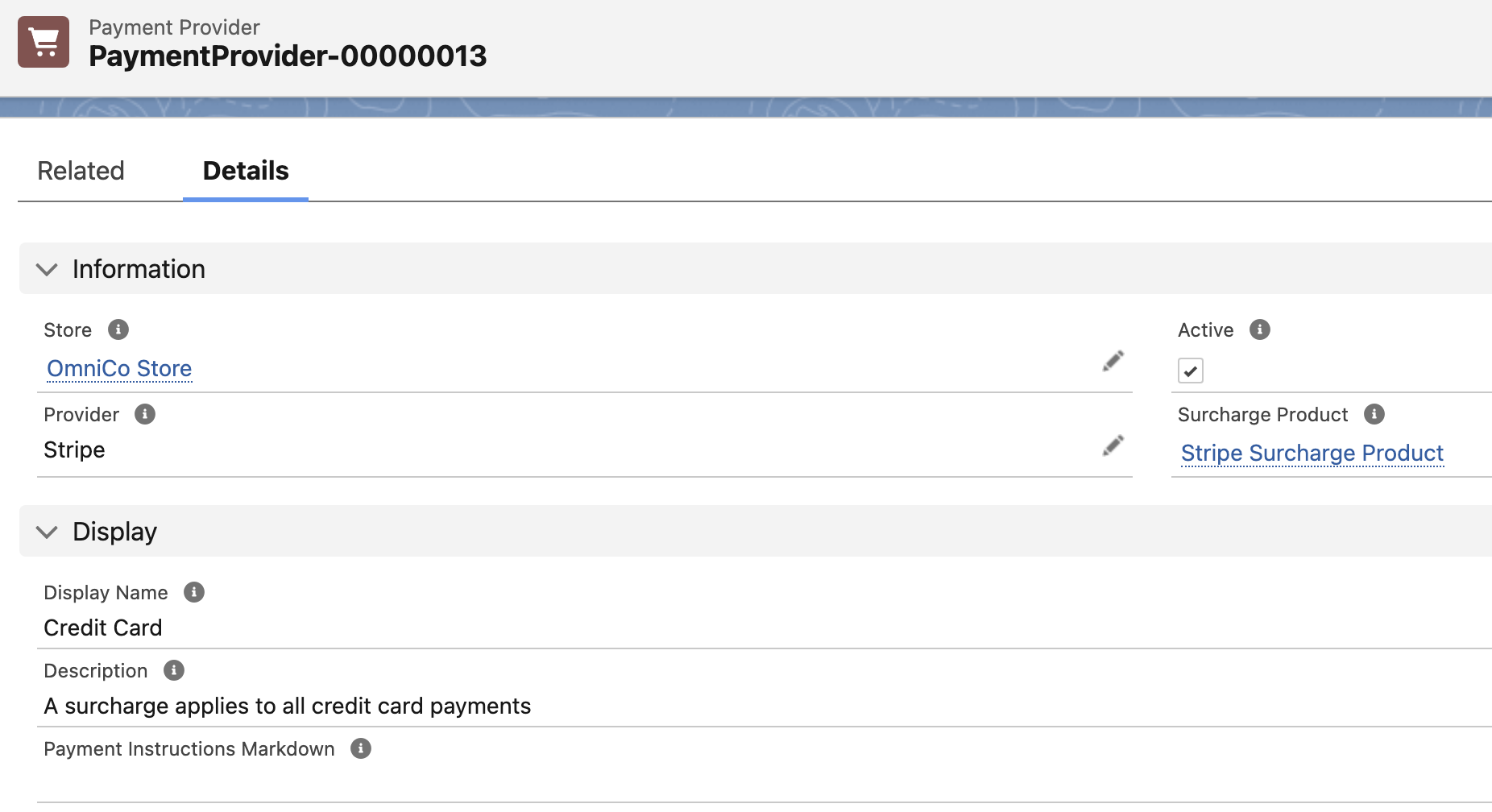
- Open the Payment Provider record and set the Surcharge Product field to the product you just created.
- Optionally add a Description. This shows on the checkout page, and can be used to disclose the surcharge.
-
Repeat for each payment provider and store this applies to.
Once configured, the surcharge is shown to customers at checkout when they select the relevant payment method.
Surcharge calculation
The surcharge is calculated at the time of payment using the following formula:
surcharge = ((flat_fee + total × percentage ÷ 100) ÷ (1 − percentage ÷ 100))
The result is rounded up to the nearest cent.
This formula ensures that after the payment processor deducts their fee from the total collected, the store receives the full original order amount. The customer pays the surcharge up front so that the processor’s deduction comes entirely out of it.
Example:
| Value | |
|---|---|
| Order total | $1,000.00 |
| Flat fee | $0.32 |
| Percentage | 1.9% |
| Surcharge | $20.67 |
| Customer pays | $1,020.67 |
If the total is zero the surcharge is always zero, regardless of any flat fee.
How the surcharge is applied
- The surcharge amount is calculated based on the amount being charged.
- A new
OrderItemof typesurchargeis added to the order with the calculated amount. - The surcharge amount and associated surcharge product are recorded on the Payment record.
The surcharge is calculated against the amount being charged in that specific payment, not the full order total. This matters for partial payments:
- Deposit payments — the surcharge is calculated on the deposit amount only.
- Additional payments — the surcharge is calculated on the remaining balance being paid.
- Subscription renewals — the surcharge is calculated on each individual subscription charge.
Tax treatment
Tax on the surcharge is determined by the taxes configured on the surcharge product. The tax method (Inclusive, Exclusive, or Exempt) is read from the surcharge product’s PriceBookEntry, falling back to the PriceBook if no entry-level override is set.
This affects how surcharge data is stored in Salesforce:
OrderItem (the surcharge line item on the order):
| Tax method | unit_price |
tax_amount |
|---|---|---|
| Inclusive | Surcharge amount (tax embedded within it) | Tax portion of the surcharge |
| Exclusive | Surcharge amount + tax | Tax amount |
An OrderItemTax record is also created for each applicable tax, recording the individual tax_amount per tax rule regardless of the tax method.
Payment (s_c__payment__c):
s_c__surcharge_amount__c— the total surcharge collected, inclusive of any tax.
Surcharges by payment origin
The following table summarizes surcharge behavior across all payment origin codes.
| Origin | Description | Surcharge applied |
|---|---|---|
| WC01 | Website one-off checkout | Yes |
| WS01 | Website checkout with subscription | Yes |
| SF01 | Salesforce payment (iframe) | Yes |
| AD01 | Additional payment link | Yes |
| PL01 | POS Pay By Link | Yes |
| SU01 | Automatic subscription — evergreen | Yes |
| SU02 | Automatic subscription — fixed term | Yes |
| MS01 | Manual subscription payment | Yes |
| PO01 | POS terminal payment | Reported by terminal |
| AP01 | API payment | No |
| AR01 | API refund | No |
WC01 and WS01 — Web checkout
Standard checkout payments, both one-off and subscription-containing carts. The surcharge is calculated on total_payable at the time of checkout (the full cart total), and a surcharge OrderItem is added to the order after a successful payment.
SU01, SU02, and MS01 — Subscription payments
Automatic and manually triggered subscription renewal payments. The surcharge is calculated on the subscription’s period price — the amount being charged for that renewal cycle — not the original order total.
SF01 — Salesforce payment
Payment initiated from within Salesforce via the embedded payment iframe on an Order record. total_payable is the remaining unpaid Order balance (total_amount − total_paid − total_remaining_subscriptions). If a prior payment on the same order already collected a surcharge, that amount is part of total_paid, so the new surcharge is calculated only on what remains.
AD01 and PL01 — Additional payment and POS Pay By Link
Both use the same AdditionalPaymentOrderSource. total_payable defaults to the remaining Order balance, but can be set to a custom amount (e.g. a partial payment entered via a Pay By Link custom amount field). The surcharge is calculated on whichever amount is being charged. Each payment produces its own surcharge OrderItem and its own s_c__surcharge_amount__c on the payment record, so an order that receives multiple additional payments will accumulate a separate surcharge item per payment.
PO01 — POS terminal payment
POS terminal payments do not go through the app-side surcharge calculation. Instead, the surcharge is applied by the terminal hardware and reported back in the payment response (e.g. Linkly’s purchaseAnalysisData.SUR field). The reported amount is written directly to s_c__surcharge_amount__c on the payment record. No surcharge OrderItem is added to the order.
AP01 and AR01 — API payments and refunds
These origins bypass the standard ChargePayment flow entirely. No surcharge calculation is performed and no surcharge OrderItem is created. AR01 is a refund, so surcharge does not apply.
Displaying surcharges in Liquid
Before payment — show available surcharges
Use cart.payment_surcharge_values or order.payment_surcharge_values to display the potential surcharge for each payment method. This allows customers to see the surcharge before making the payment.
Each entry in the collection is a Surcharge drop.
```liquid
{% for surcharge in cart.payment_surcharge_values %} {% if surcharge.price > 0 %} <div data-surcharge-id="{{ surcharge.identifier }}"> {{ surcharge.name }}: {{ surcharge.price | money }} {% if surcharge.tax > 0 %} (includes {{ surcharge.tax | money }} tax) {% endif %} </div> {% endif %} {% endfor %} ```
The identifier field matches the PaymentProvider code, so you can use it to show or hide the surcharge when the customer selects a payment method.
After payment — access charged surcharges
Once payment is complete, the applied surcharge appears as an OrderItem accessible via order.surcharge_items:
```liquid
{% for item in order.surcharge_items %}
{% endfor %} ```
The surcharge amount is also available directly on the Payment drop:
```liquid
{% for payment in order.payments %} {% if payment.surcharge_amount > 0 %} <p>Surcharge: {{ payment.surcharge_amount | money }}</p> {% endif %} {% endfor %} ```
Related Liquid references
- Surcharge - Liquid Object Reference — Liquid drop for surcharge values
- Order - Liquid Object Reference —
payment_surcharge_valuesandsurcharge_itemsfields - Payment - Liquid Object Reference —
surcharge_amountfield
Was this article helpful?
Thanks for your feedback! It helps us improve our docs.