

Create voucher products
On this page
Vouchers function as payment codes that customers can use at checkout to pay for all or part of an order, without requiring a customer account.
This procedure assumes that [vouchers have been configured] for use in your store.
- Open your Products list in StoreConnect.
- Select New.
- Give the voucher product a name and complete the basic details.
- Optional: Select the Virtual option if this is a virtual-only voucher, requiring no shipping.
- Scroll to the Voucher section.
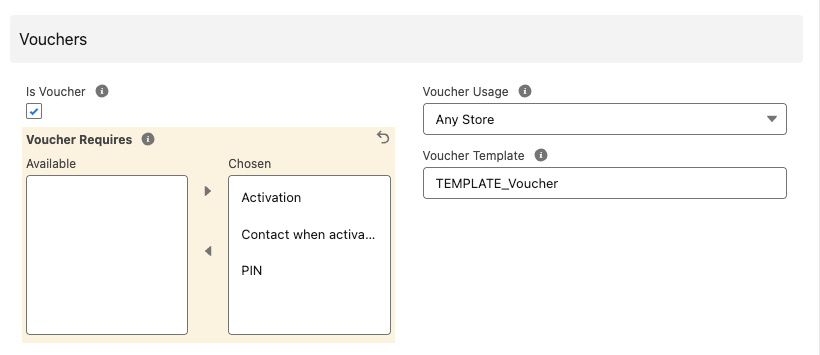
- Select the Is Voucher option.
- Set any requirements for when the voucher is used:
- Activation: an activation code is required.
- Contact when activated: a contact email is required.
- PIN: a PIN is required.
- Select a Voucher Usage option:
- Store: Voucher can only be used on the store where it was purchased.
- Store Group: Voucher can be used on the purchasing store and any store in its store group.
- Any Store: Voucher can be used on any store in your organization (subject to currency matching).
- Select a Voucher Email Template.
- Complete any remaining product configurations (description, images, etc.).
- Click Save.
To make the voucher product purchasable, make sure it meets the minimum requirements for visibility.