

Add a custom footer
On this page
This guide shows you two different ways to set a global custom footer for your site:
Create a footer using a content block
- Go to the store settings
-
Under the CMS tab click on ‘footer content block’
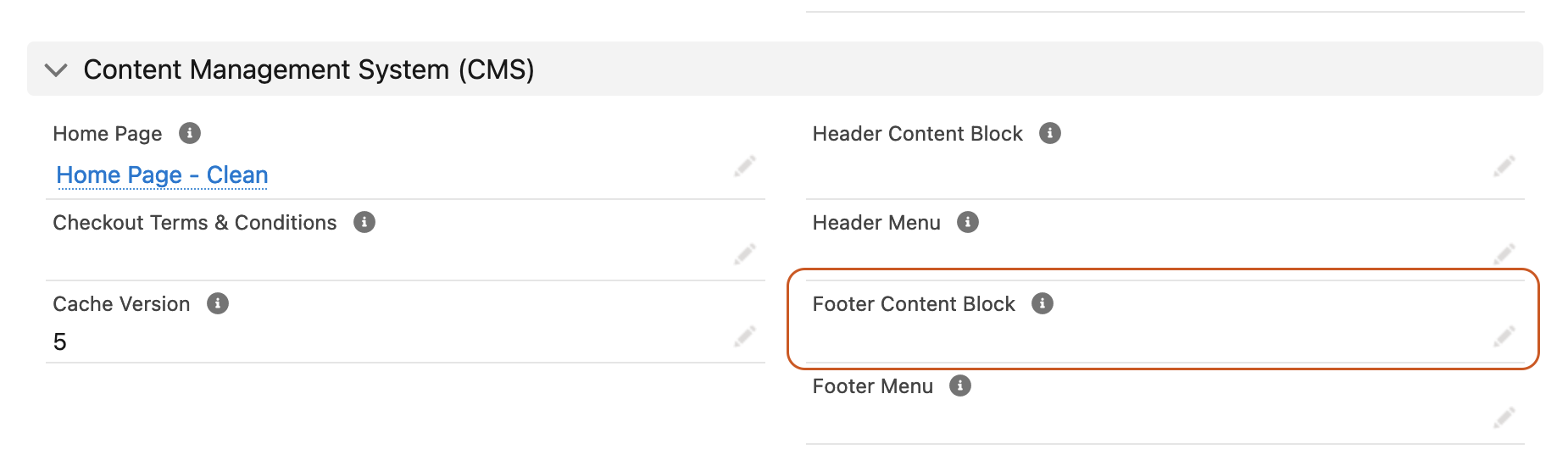
- On the dropdown being displayed click on new content block
- Select the ‘No added styling’ option in the content template field
- Give your content block a name
- Place your HTML or liquid code in the content field
- Click on Save
- Now save the Store record
Create a footer in your theme
While using a custom theme you can insert your own footer following these steps:
- Go to the theme you are currently working on
- Create a new theme template
- Use the
snippets/footerkey and paste the your template in the content field - Click on Save
Footer markup
Here’s a liquid and HTML boilerplate you can use for both methods above, feel free to modify it.
```
{%- cache “footer”, items: [current_store, current_customer, current_privacy] -%} {%- if current_store.footer != blank %} {{ current_store.footer.render }} {%- else %}
  {%- if current_store.footer_menu != blank %}
    {{ current_store.footer_menu.render }}
  {%- endif %}

    © {{ current_store.name | default: "StoreConnect" }} {{ current_store.timezone | now | date: "%Y" }}
    {%- if current_privacy.accepted? %}

        {{ "privacy.manage_settings" | t }}

    {%- endif %}
{%- endif %} {%- endcache %} ```