

Apply product traits using templates
On this page
About product trait templates
Product trait templates allow you to apply a predefined set of traits (categories, types, values) to a product when you create it. Traits allow your customers to find products using filters by choosing from the trait values. For example, in an online bookstore, you can filter books by genre, author, publisher, etc.
Applying a product trait template saves time manually configuring similar products, and automatically applies the template when selected in the new product.
A product trait template cannot update, overwrite, or sync the traits defined in the template for existing products. They also cannot be used to update product traits in bulk.
Create a product trait template
This procedure assumes you have already set up product traits.
Create a product trait template
- In the App Launcher, search for and open the Product Trait Templates list.
- Select New.
- Give the template a name.
- Select Save.
- In the template you just created, select Related.
- In the Product Trait Template Items section, select New.
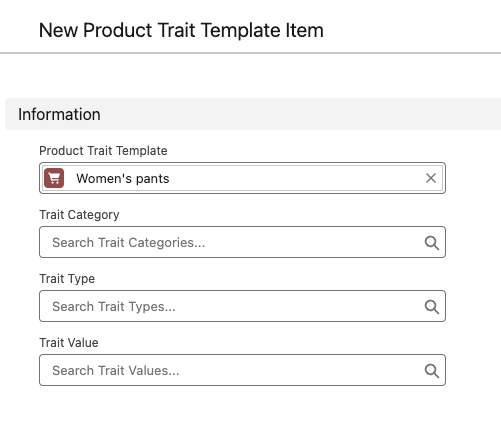
- Select from existing product traits to add to this template:
- Trait Category
- Trait Type
- Trait Values
- Select Save.
Create and apply a product trait template to a product
- Go to your products list and create a New product.
- Complete the necessary fields, Name, Display Name, etc.
- Select a template in the Product Trait Template field.
- If there is no applicable template:
- create on on the fly and select New Template.
- Follow the prompts to create and save the template.
- Select Save in the product record. This product now has all the pre-defined traits applied and will appear when customers use the trait filters.