

Campaign members and mailing lists
On this page
Many online stores ask the customer to opt in to receive promotional or other types of emails when they purchase. Here’s an example of this at sign up / checkout.
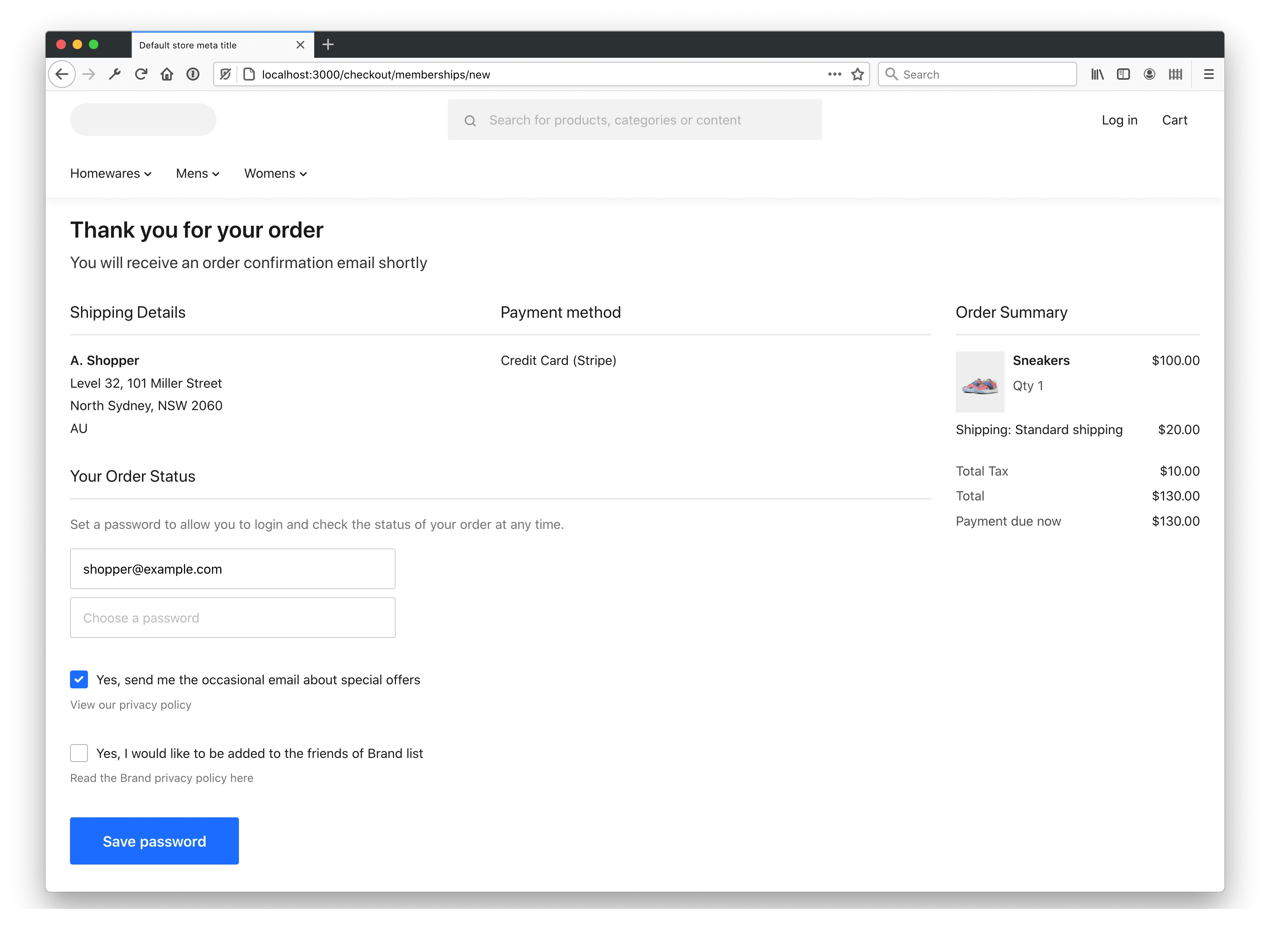
StoreConnect allows you to offer your customers to sign up to one or more separate mailing lists using the standard Salesforce Campaign object. Here’s how to set this up.
Add a new campaign
- Search for ‘Campaigns’ in the App Launcher to open your store campaigns.
- Select New to add a new campaign.
- Complete the details and Save.
Show the campaign in your store
- Open your store in StoreConnect.
- Go to Additional Relationships > Campaigns, and select New.
- Enter a Name and select the campaign you created above.
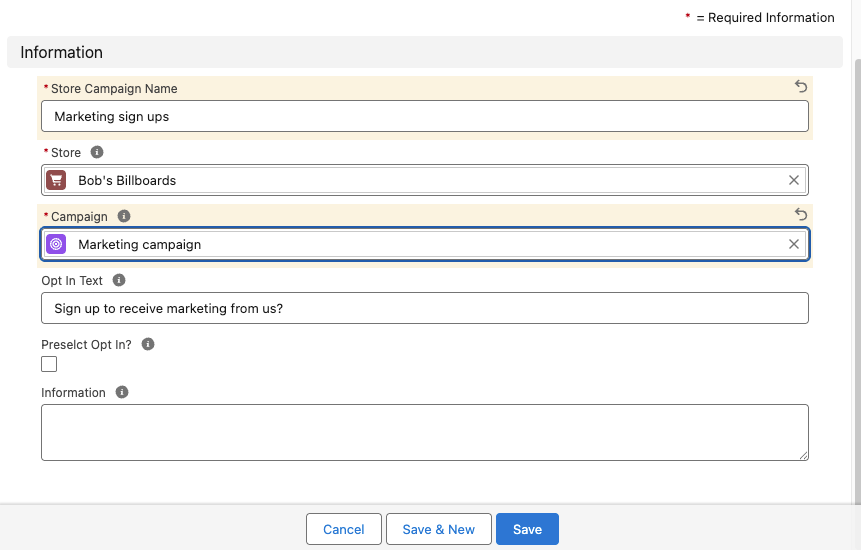
- Keep or override the Opt In Text, e.g. you might want it to say “Sign up to receive the latest deals?”.
- Click Save.
Your store will prompt each new customer to sign up to your campaign on checkout. Customers can adjust their subscription settings at any time by logging into your store, going to their account page and selecting the campaigns you want to offer them.
Privacy and spam laws
Take care managing subscriptions that you adhere to legal obligations. Many countries require you to enable easy opt-out, and to set opt-out as the default state.
Multi-store campaigns
Each store can have its own set of campaigns you want to sign your users up to providing you with complete control across your multi store setup.
Unsubscribe customers
When you want to unsubscribe a campaign member, update the hasoptedoutofemail field on the campaignmember table:
* Set to TRUE for opting out
* Set to FALSE for opting in
If you export campaign members, make sure you filter out the members who have opted out, to ensure they don’t receive emails on the specific campaign.