

About the media manager
On this page
If you are using this for the first time, you may also need to do a few admin tasks.
Take a video tour of the media manager.
Media manager features
- Folder-style structure with a collapsible, hierarchical tree, up to three levels.
- Grid or list view layouts with sortable columns, thumbnail previews, and infinite scroll.
- Real-time search and advanced filtering by type, tag, folder, and other criteria.
- A favorites system for quick access to frequently used assets.
- Media preview modal with metadata and contextual actions.
- Integrated media creation from product records via a dedicated StoreConnect action.
- The ability to see where a media object is used in your store.
Who can use the media manager?
By default, the following roles can access the media manager.
- StoreConnect Admin
- Content Manager
- Order Manager
The StoreConnect Theme Manager and StoreConnect Sync roles explicitly exclude the Media menu.
If you can’t see the Media section, contact your Salesforce admin.
Access the media manager
- Go to the StoreConnect Console.
- Select Media from the menu.
The left panel contains the collapsible folder tree and navigation controls. The right panel displays the contents of the selected folder or the full library when no folder is selected.
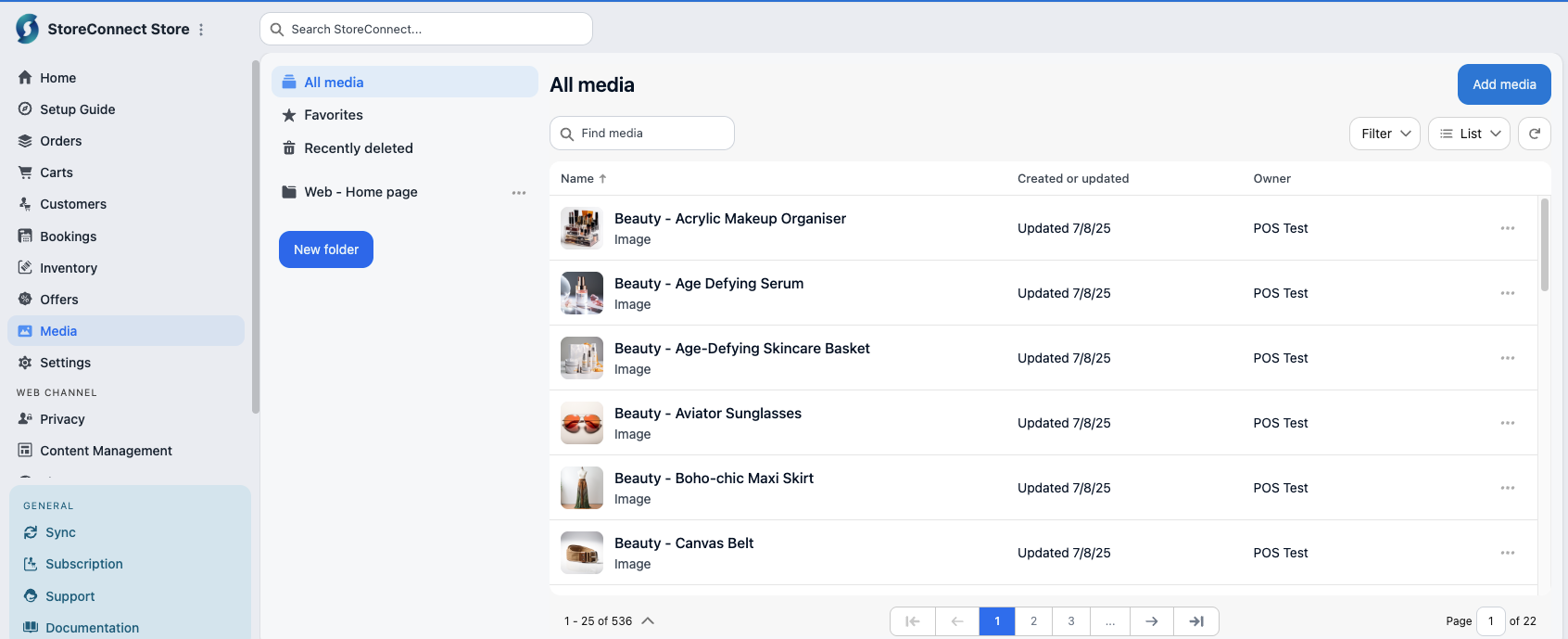
Switch between grid and list view
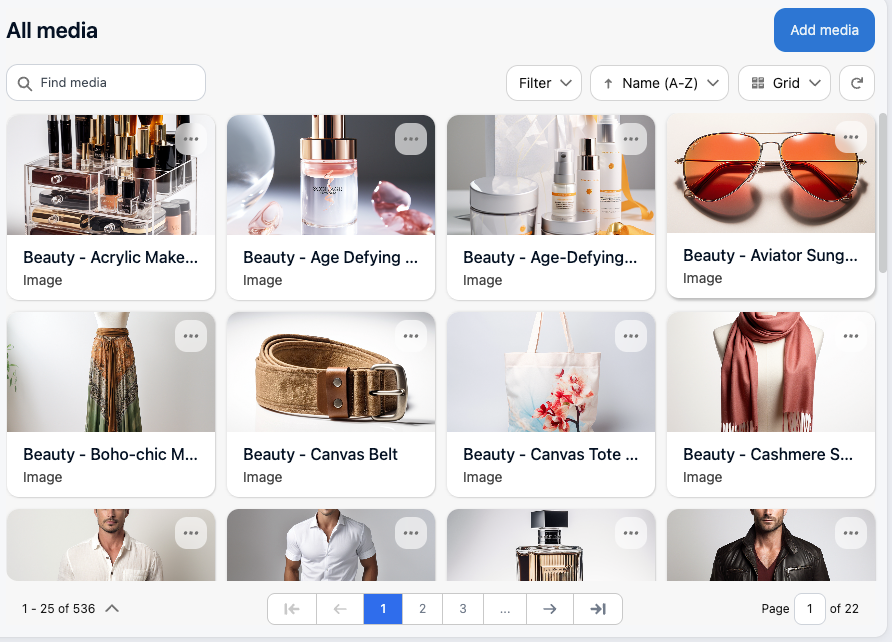
The right panel supports two layout options. Select the Grid view icon to display media as thumbnail cards with hover actions. The view updates immediately.
Legacy media handling
After you upgrade to use the new media manager (v20.15 or later), existing media references on product layouts redirect to the console. You might need to review and update any affected layouts after upgrading.
Was this article helpful?
Thanks for your feedback! It helps us improve our docs.