

Collect company details at checkout
On this page
For B2B transactions, it’s useful to capture the customer’s company name during checkout. Use this process to add a company name field to your checkout, and optionally make it required and relabel it.
When the field is enabled, an account is created during checkout based on the company name (or the customer’s first and last name if no company is given). The customer can later update the company name, which updates only the account’s Display Name field.
Enable the company name field
The field is turned on with a Store Variable:
- Open the Store record you want to allow a company name on.
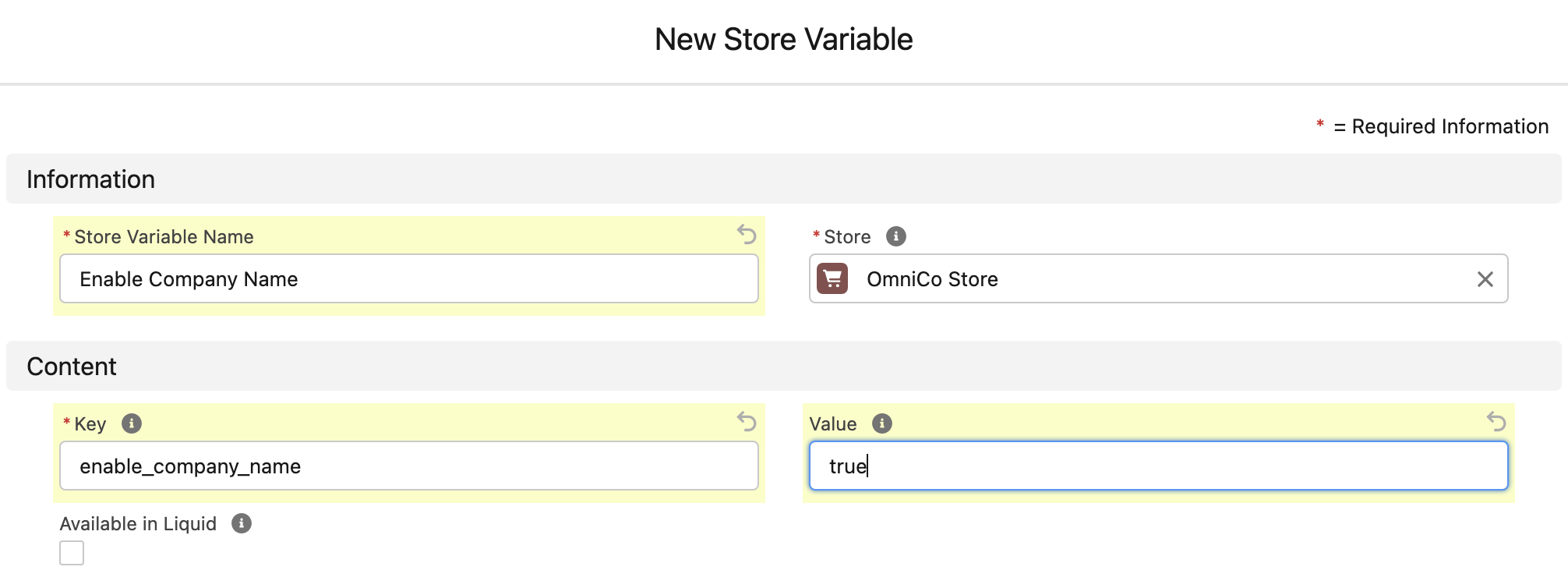
- In the Store Variables related list, create a new Store Variable.
- Give it a Name, such as
Enable Company Name. - Set the Key to
enable_company_name. - Set the Value to
true. - Switch on Available in Liquid.
-
Click Save.
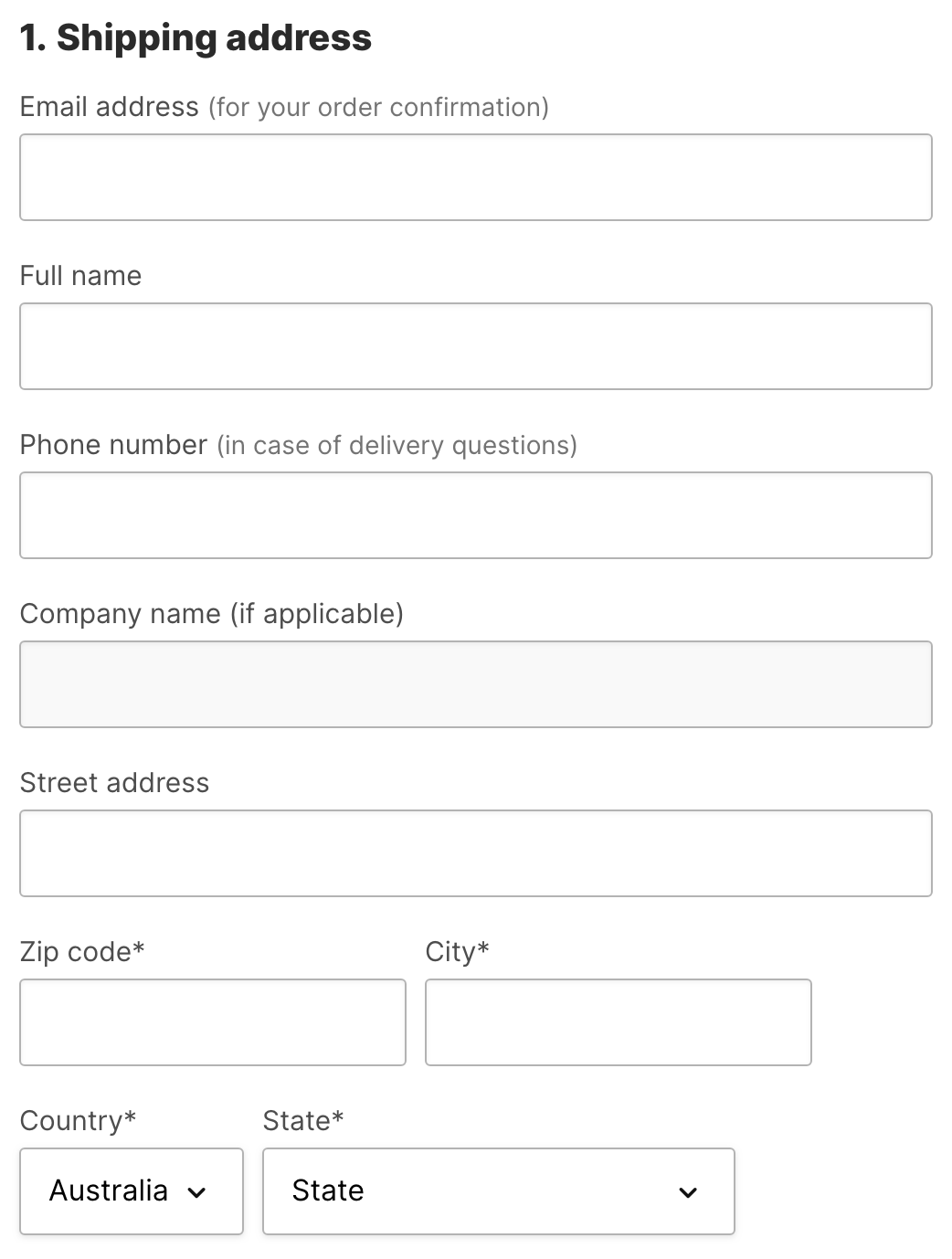
The company name field now appears at checkout:
Make the company name required
If the field is left blank, it is filled automatically with the customer’s full name. To force customers to enter a business name instead, add a small script to the content block in your store’s HTML Head Content Block field (see Adding custom JavaScript, CSS and head content):
- Open your Store record and find the HTML Head Content Block field in the Global Content section. Make sure you are using HTML Head Content Block, not Header Content.
- If a content block is already linked, open it and skip to step 4. If there is no link, edit the field and select New Content Block.
- Select the No Added Styling template and give the block a name such as
Head Content. - Add the following to the Content field:
```liquid
<!-- Customer Name Required at Checkout -->
{%- if current_request.path == '/checkout/customer_information' %}
    <script type="text/javascript">
        document.addEventListener('DOMContentLoaded', ()=> {
        const nameField = document.querySelector('#checkout_customer_information_form_company_name');
        nameField.setAttribute('required', 'required');
        });
    </script>
{%- endif %}
```
- Click Save.
Change the field label
To relabel the company name field (for example to “Business Name”), use a Theme Locale translation:
- From the Store record, find the Theme field.
- If a theme is already linked, open it and skip to step 4. If there is no link, edit the field and select New Theme, then give the theme a name such as
My Theme. - Open the theme’s Theme Locales related list, and open a Locale record (or create one if none exist).
- In the locale’s related list, create a Locale Translation.
- In the Key field, enter
checkout.customer_information.form.company_name. - In the Value field, enter the label you want, such as
Business Name. - Click Save.
Confirm it is working
Open your store’s checkout and confirm the company name field appears with the label you set. If you added the script, confirm the field is required: try to continue without entering a company name, and check that checkout stops you.
Was this article helpful?
Thanks for your feedback! It helps us improve our docs.