

Set up shipping providers
On this page
StoreConnect supports integrating directly with some shipping providers to make your shipping logistics more efficient. With a shipping provider configured, your orders can be picked up and shipped by your provider with very little effort. Once an order is ready to ship, StoreConnect will automatically register the shipment with the provider and retrieve the tracking code.
Shipping prices can also be calculated based on data returned from providers and used to charge for shipping at checkout in place of or in conjunction with your own Shipping Rates
When using Shipping Providers, you must also configure at least one Stock Location with its full address, including the country, so the carrier knows where the order is being shipped from. Use the state’s ISO code instead of the full state name, eg. NY for New York. This combined with the Country will provide the carrier with the full code, eg. US-NY.
Provider configuration
From your Store record, you can find the Shipping Provider Related List. If it is not showing, add it to your page layout.
Shippit
Shippit is a multi-carrier shipping platform. StoreConnect retrieves live carrier rates from Shippit at checkout and can register shipments for carrier collection. Tracking updates are delivered via webhook.
See Shippit shipping provider for full setup instructions.
Custom
The Custom provider type lets you connect StoreConnect to your own rate calculation endpoint. StoreConnect sends cart details to your endpoint and displays the rates it returns at checkout.
See Custom shipping provider for full setup instructions, including authentication options and request/response format.
Easyship
See Easyship shipping provider for full setup instructions.
Bringg
Bringg allows you to connect with multiple well known logistic companies and use their services to ship your products. You will need an account with Bringg and also the logistic companies you wish to use.
Once you have API credentials from Bringg, you’ll need to set the following when creating a Shipping Provider record:
- API URL -
https://api.zenkraft.com - API Environment - (
testorproduction) - API Key - (the key provided by Bringg)
- API Secret -
x
API Options (add carrier details here)
Getting shipping rates from a carrier (e.g., UPS) requires an account and a carrier code. These are to be configured in the API Options field using this format:
carriers: [{ carrier_code: "ups", shipping_account: "1234567" }, { carrier_code: "fedex", shipping_account: "56789" }]
Shipstation
ShipStation supports integrating with multiple carriers through Sendle or your existing carrier accounts.
Once you have API credentials from ShipStation, you’ll need to set the following when creating a Shipping Provider record:
- API URL -
https://ssapi.shipstation.com - API Environment -
production - API Key - (the key provided by the ShipStation service)
- API Secret - (the secret provided by the ShipStation service)
From your ShipStation dashboard you can manage and add your chosen carriers.
Next, see the ShipStation document about configuring ShipStation services
Australia Post
Refer to the Australia Post shipping provider documentation.
Startrack
To configure a StarTrack Shipping Provider is the same process as Australia Post, but will use an 8-digit account number.
Requesting collection of an order
Once an order or part of an order is ready to ship, you can register the shipment with your provider. They will then issue a tracking number and a courier will later arrive to collect the parcel.
For a shipment to be registered with your service provider, you must have the following configured:
Stock Location
- The shipment must have a Stock Location defined
- The Stock Location must have all address fields populated
Products
- Each product in the shipment must have all of the following populated:
- Shipping Weight and Shipping Weight Unit
- Shipping Length, Shipping Width, and Shipping Height
- Shipping Dimensions Unit
Shipment
- Edit the order’s shipment record
- Set Provider to
Australia PostorStarTrack - Set Provider Service to the Product ID provided to you
- Set Status to
Ready to ship - Click ‘Save’
Scope shipping providers to channels
The Channels field on a Shipping Provider record controls which sales channel the shipping provider is available to. Use channel scoping when you need different shipping options for in-store versus online — for example, a flat “Local pickup” rate that only appears on POS, or a country-wide shipping provider for web orders.
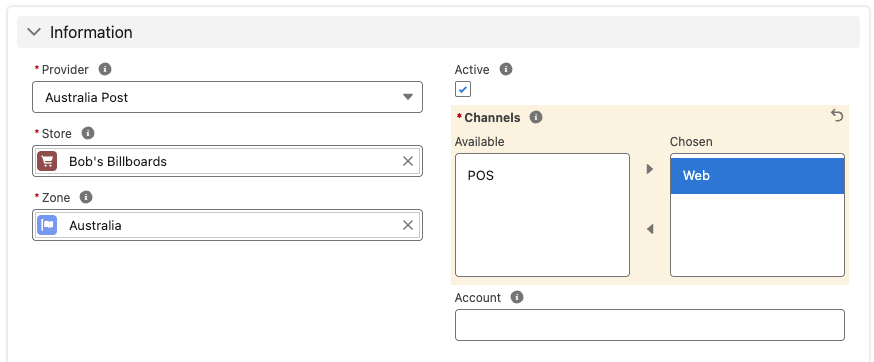
| Channel | Effect |
|---|---|
| Web | Provider appears at web checkout only; not available in POS |
| POS | Provider appears in POS only; not available at web checkout |
| Web + POS | Provider is available on both channels |
This is a required field on all new Shipping Provider records. For backward compatibility, existing records are treated as applying to all channels.
Calculated shipping rates
For your shipping provider’s rates to be calculated and offered at checkout, you need to do the following:
- Ensure your provider is configured for the store per the above instructions
- Enable shipping for the store
- All products shippable using this calculated rate are configured to allow the provider as a shipping method
Configure product shipping method
A picklist value needs to exist for the Product’s Shipping Methods multi-select picklist field. This can be added by your Salesforce System Admin by adding a value with the API Name for the provider.
| Provider | Picklist API Name |
|---|---|
| Shippit | Shippit |
| Custom | Custom |
| Bringg | Bringg |
| Easyship | Easyship |
| ShipStation | ShipStation |
| ShipEngine | ShipEngine |
| Australia Post | australia_post |
| StarTrack | star_track |
For each product, in the product record, add the providers you want to offer as a chosen Shipping Method. This shipping option will be offered to your customers if all items in their cart are configured to allow shipping with this provider (not including virtual products).
Enable shipping
On the Store record, find the ‘Enable Shipping’ checkbox and make sure it is set to true.
Was this article helpful?
Thanks for your feedback! It helps us improve our docs.