

Subscription products
On this page
When a subscription product is purchased at checkout, a Subscription record is created for it which is where any recurring payments are managed from.
This topic covers the principles and configuration side of subscriptions, see Add a subscription product to skip straight to the procedure.
Compatible payment providers
Before setting a subscription product, make sure the payment provider(s) you use support recurring subscription payments. Not all payment providers do.
Subscription types
Evergreen subscriptions
Evergreen subscriptions continue until cancelled. They can be set up as monthly, weekly, etc. Each time a subscription payment is due, a new order is created in Salesforce that references the original order. Evergreen subscriptions are active until:
- Cancelled by the customer from their order history page in your store
- Recurring payment failure (account delinquency)
- Manually cancelled on the Subscription record
One-time subscriptions
One-timesubscriptions have a fixed number of payments required until they finish. Think of a mobile phone contract where you don’t pay upfront for the device. Each payment is added to the original order as a Payment record in Salesforce. One-time subscriptions are active until:
- The subscription is fully paid
- Recurring payment failure (account delinquency) results in manual cancellation of the Subscription record.
Generally, there are penalties for customer’s early exit of this kind of subscription. This is managed via the policies you set and that the customer agrees to.
(Salesforce CPQ users only) remove StoreConnect page layout fields
If you use Salesforce CPQ, you need to update your page layout to remove any StoreConnect subscription fields in the page layout. Once removed, you’ll just use the CPQ-provided fields.
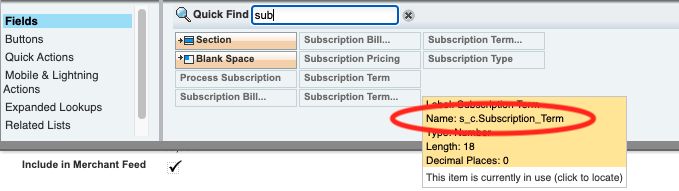
For example, the fields Subscription Term, Subscription Pricing, and Subscription Type may appear twice, and you need to remove the StoreConnect field version.
To identify the StoreConnect field, move your mouse over the field item. StoreConnect field names have a prefix of s_c, as in s_c.Subscription_Term.
Subscription product settings
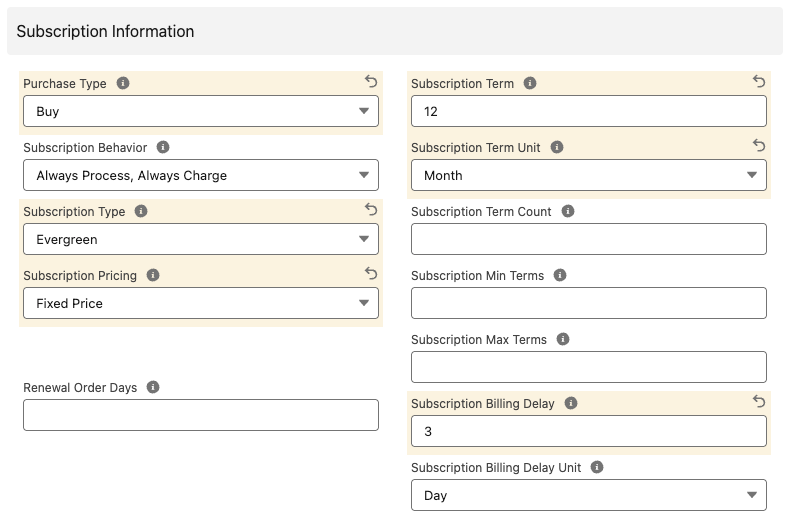
Products have several fields that are used to configure the product to work as a subscription. Each field is listed below with its configuration options.
Subscription pricing (required)
The pricing mode used. Currently only Fixed Price is supported in StoreConnect.
Subscription type (required)
This is the type of subscription term being used, currently Evergreen and One-time are supported.
Subscription term and subscription term unit
These fields define how often payment is taken for the subscription.
For example, a single month subscription might be:
- Subscription Term: 1
- Subscription Term Unit: Month
An annual subscription would be:
- Subscription Term: 12
- Subscription Term Unit: Month
Default Subscription Term Unit: If you don’t set a Subscription Term Unit, a default unit of 12 will be used. If you want to update this default, go to Custom Metadata Types in Salesforce Setup.
If using CPQ: The metadata setting must match the CPQ Subscription Term setting.
Subscription term count (one-time subscriptions only)
When configuring a one-time subscription product, you need to set how many times the customer is to be charged until the subscription is considered “fully paid” and therefore ended. This needs to include the first payment made at checkout.
For example, if a product is $1,000 and is paid at $100 per month, set the Price Book Entry List Price to $100 and the Term Count to 10. This means the customer is charged $100 a total of 10 times adding up to $1,000.
Subscription billing delay and subscription billing delay unit
Use these fields if you want additional time to make adjustments to a subscription amount, before billing. You might do this so you can include additional metered usage costs, or to provide credits, etc.
This is also helpful when your subscription product pre-pays for a service, and you credit unused service to the following term or the customer used above what the subscription covers. The delay gives you a chance to add the difference for the next payment.
A 3-day delay would be:
- Subscription Billing Delay: 3
- Subscription Billing Delay Unit: Day
Where Next Renewal Date is the 1st of the month, Next Billing Date would be the 4th of the month.
A delay of a month would be:
- Subscription Billing Delay: 1
- Subscription Billing Delay Unit: Month
This might be used on an annual subscription where the payment for the next year is charged a month into the year.
Renewal order days
The Renewal Order Days field controls how many days before the billing date StoreConnect creates the Salesforce Order record for the next renewal. This lets you report on upcoming revenue, allow early payment, or trigger automations ahead of the charge date.
See Subscription renewal orders for full details on how renewal orders work, how to configure them, and how to manage them in Salesforce.
Subscription behavior
Subscription behavior is about how you want to manage the subscription purchase transaction when you sell this product, and at the next billing event. For example, do you want to process the subscription and take credit card payments automatically? Or do you want to manage part or all of the subscription manually?
| Behavior | At checkout | At next billing date |
|---|---|---|
| Always Process, Always Charge (most common) | Only payment providers that support recurring payments (subscriptions) are offered at checkout. Payment is created with the payment provider selected at checkout. Customers are charged based on the checkout amount. Subscription record is created. | Subscription is processed, and for Evergreens, an Order record is created. Payment record is created with Payment Provider stored on the subscription record. Payment Gateway is called and the customer is charged using payment token stored on subscription record. Payment amount set to the amount successfully charged. Subscription record is updated. |
| Always Process, Charge if possible | All payment providers offered at checkout. Payment is created with payment provider selected at checkout. The customer is charged a checkout amount unless the provider is a Pay Later or Pay on Account type. Subscription record is created. | Subscription is processed, and for Evergreens, an Order record is created. Payment is created with Payment Provider stored on the subscription record. If the provider supports subscriptions, Payment Gateway is called and the customer is charged with a payment token stored on the subscription record. Payment amount set to the amount successfully charged. Subscription record is updated. |
| Always Process, Charge first | All providers offered at checkout. Payment is created with the payment provider selected at checkout. The customer is charged the whole amount unless the Provider is PayLater or Pay on Account type. Subscription record is created. | Subscription is processed, and for Evergreens, an Order record is created. No Payment record is created and the Payment Gateway is not called. The order’s balance stays outstanding. Subscription record is updated. |
| Always Process, Never Charge | All providers offered at checkout. Payment is created with the payment provider selected at checkout. Customers are charged a non-subscription amount only unless the Provider is PayLater or Pay on Account type. Subscription record is created. | Subscription is processed, and for Evergreens, an Order record is created. No Payment record is created and the Payment Gateway is not called. The order’s balance stays outstanding. Subscription record is updated. |
| Never Process, Charge if possible | All providers offered at checkout. Payment is created with the payment provider selected at checkout. The customer is charged the whole amount unless the Provider is PayLater or Pay on Account type. Subscription record is created. | Nothing happens. Subscription record is not updated. |
| Never Process, Never Charge | All providers offered at checkout. Payment is created with the payment provider selected at checkout. Customer is charged non-subscription amount only unless the Provider is PayLater type. Subscription record is created. | Nothing happens. Subscription record is not updated. |
| Never Process, Charge Upfront | All providers offered at checkout. Payment is created with the payment provider selected at checkout. The customer is charged the full subscription amount up front in a single payment — for a one-time (fixed-term) subscription this is every scheduled payment combined into one charge — unless the Provider is a PayLater or Pay on Account type. Subscription record is created. | Nothing happens. Subscription record is not updated. The subscription was paid in full at checkout, so no recurring charges are ever taken. |
Discounts, promotions, and vouchers
How price reductions interact with subscription products depends on the type of offer applied.
Automatic discounts
An automatic discount scoped to a subscription product reduces the product price at checkout. This discounted price becomes both the initial payment amount and the subscription’s recurring payment amount. All subsequent renewal payments use this locked-in price.
For example, if a subscription product is listed at $100/month and a 20% discount applies, the customer pays $80 at checkout, and all future renewals also charge $80.
:::note The discounted price is locked in at the time of purchase. If you later remove or change the discount, existing subscriptions are not affected — only new purchases use the updated price. :::
Promotions (promo codes)
A promotion applied at checkout is added to the order as a separate discount line item. The subscription product’s individual price is not changed by the promotion, so the recurring period price is based on the full product price, not the promotion-adjusted checkout total.
Promotions apply to the initial order total only — they do not carry through to subscription renewal amounts.
Vouchers
Vouchers cannot be used to pay for subscription products. At checkout, the voucher amount is calculated against non-subscription items in the cart only. See Vouchers for details.
In this section
Was this article helpful?
Thanks for your feedback! It helps us improve our docs.