

Product page content
On this page
Here’s what the parts of a product page look like in the default structure.
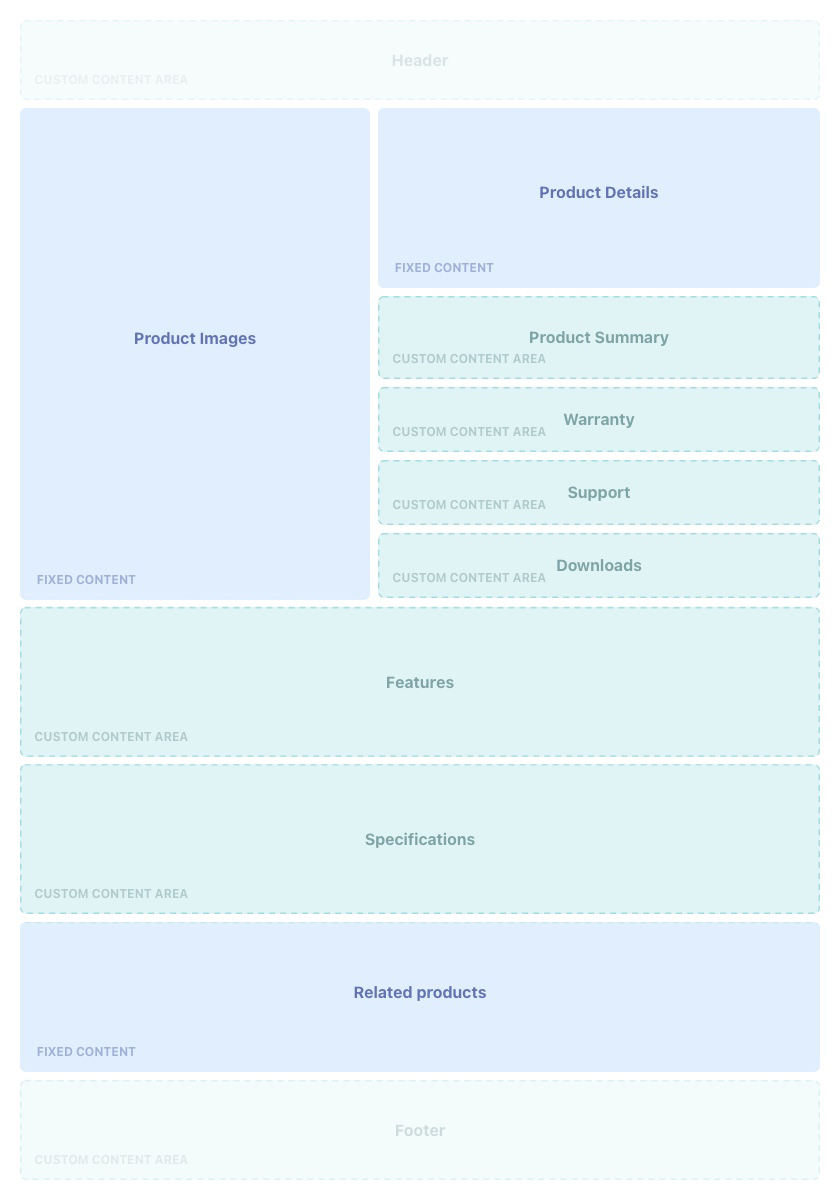
At the top is the area for product images and product details, shown in blue. The product details section holds the display name, product code, price, and purchase options (add to cart, or buy it now). If the product is a bundle or a booking, or has variants, the relevant components are shown here too.
Custom content can be added in the content block areas shown in green.
Custom content blocks
These content fields on the Product accept Text, Markdown, and HTML. You can also customize content using Liquid, which needs Liquid experience.
- Product Summary
- Warranty
- Support
- Downloads
- Specifications
- Features
Every field except Product Summary:
- Has Liquid added automatically to render the content blocks related to the product.
- Displays a section title on the product page that the customer selects to expand, revealing the content, when there is content to render.
Add content blocks to a product page
- Open the Product record and go to Content Block Products in the Additional Relationships list.
- Select New.
- Search for and select the content block you want to add to the page.
- Set Position. This determines the order in relation to other content blocks in the same section.
- Set Usage Type to one of:
Warranty contentSupport contentDownloads contentSpecifications contentFeatures content
- Select Save.
:::note
Usage Type also offers Featured Product, which creates a featured products content block. It is not the same as Features content. See feature products on a page.
:::
:::note The Specifications field may already show a line of Liquid that renders the product’s traits. That happens when the Trait Type has Display on Product Page checked. You do not need to change it. :::
To configure Related Products, add them to the Related Products Children list.
In this section
Was this article helpful?
Thanks for your feedback! It helps us improve our docs.