

Manage stock levels
On this page
You need to enable Track Inventory on a product for StoreConnect to track its inventory using a Stock Level record — one per product per Stock Location. Each Stock Level record holds two key numbers:
- Count on Hand — the number of units physically at that location.
- Available to Sell — the number of units available for new orders to claim.
These two numbers can differ because stock is reserved the moment a customer completes checkout, but Count on Hand only drops when the order ships. A product cannot be purchased when Available to Sell reaches 0, unless Backorder is enabled on its Stock Level.
You can raise that cut-off above zero with Out of Stock Level on the Stock Level, so the storefront stops taking orders while units are still on the shelf. It sets when selling stops, not how many units are reserved, and a negative value does nothing. See Set a reorder point for how to configure it, and Backorders for selling past zero.
If Track Inventory is disabled on a product, Stock Level records for that product have no effect on availability.
This article covers the following topics:
- Count on Hand and Available to Sell
- How orders affect stock levels
- Correct or adjust your inventory count
- Viewing stock adjustment history
- Troubleshooting stock discrepancies
Count on Hand and Available to Sell
Count on Hand
Count on Hand is the number of units physically in stock at a location. StoreConnect updates it automatically — it decreases when an order ships and increases when an order is cancelled after shipping or when stock arrives via a transfer. Each of these movements creates a Stock Adjustment record, and Count on Hand is the running total of all Stock Adjustments since the most recent stocktake or initial inventory record.
:::warning Do not type a value directly into Count on Hand. It is recalculated automatically and any value you enter will be overwritten. To correct the count, use Change Quantity, Set Quantity, or a stocktake. :::
Available to Sell
Available to Sell is the number of units available for new orders to claim. StoreConnect calculates it as:
Available to Sell = Count on Hand − quantity committed to active orders
An order is “active” — and therefore reduces Available to Sell — when all three conditions are true:
- The order’s checkout is complete (
Checkout Step = completeorpos-complete) - The order’s status is not in your configured shipped statuses
- The order’s status is not in your configured cancelled statuses
Available to Sell recalculates automatically whenever an order is placed, an Order Product quantity changes, or an order status changes.
:::warning Do not type a value directly into the Available to Sell field. Like Count on Hand, it is an auto-calculated field and any manual entry will be overwritten. Make adjustments using Change Quantity, Set Quantity, or a stocktake. :::
How orders affect stock levels
Which stock level an order uses
When a customer places an order, StoreConnect selects a Stock Level for each Order Product. A Stock Level is eligible if:
- Its Available to Sell is greater than 0, or Backorder is enabled on the Stock Level
- The Stock Location’s configured delivery type matches the customer’s selected delivery method
From all eligible Stock Levels, StoreConnect picks in this priority order:
- The location the customer selected (if delivery is Click and Collect)
- The eligible Stock Location with the lowest Priority number, if it is active
- The Stock Level with the most Available to Sell
StoreConnect chooses between eligible Stock Locations using the Priority number on the Store Stock Location record, which links a Stock Location to a store. The lowest number is chosen first, and a blank Priority sorts last. See Stock locations for how BOSFS (Buy Online, Ship From Store) uses the same Priority number.
When quantity exceeds available stock
StoreConnect does not split an Order Product across multiple Stock Levels. If the ordered quantity exceeds what a single Stock Level can supply, StoreConnect assigns the full quantity to the highest-priority eligible Stock Level — even if that results in a negative Available to Sell.
You decide how to resolve the shortfall:
- Ship from multiple locations — edit the Order Product records to split the quantity across Stock Levels, accepting potentially higher shipping costs.
- Transfer stock first — use a Stock Transfer to consolidate stock at one location before dispatching.
Orders created directly in Salesforce
When an order is created through the StoreConnect checkout, stock deduction is handled automatically. When you create an order directly in Salesforce, the same deduction rules apply but you must manually fulfill the recalculation conditions by setting the Quantity and Stock Level on the order.
To ensure stock deducts correctly on a manually created order:
- Create the order in Salesforce.
- Add an Order Product.
- Set the Stock Level and the Quantity.
- Save.
Both fields must be completed on this first save for the stock recalculation to work.
If the Stock Level is not assigned on the initial save, assigning it later will not deduct Available to Sell even if you also update the Quantity in the same edit — the trigger only fires when Quantity changes relative to its previous saved value.
Count on Hand behaves the same as for web orders — it only deducts when the order moves to a status configured as a Shipped status. Assigning a Stock Level alone does not change Count on Hand.
If stock isn’t deducting after following these steps, check:
- The Stock Level was assigned before or at the same time as the Quantity was set.
- The order is not already in a Shipped or Cancelled status (these exclude the order from the Available to Sell calculation even when quantities change).
- The product has Track Inventory enabled.
How order status changes impact stock updates
StoreConnect uses two custom metadata type records to know when to adjust stock:
- Order Shipped Status — statuses that mean products have physically left the location
- Order Cancelled Status — statuses that mean the order will not be fulfilled
When an order moves to a shipped status, Count on Hand decreases by the quantity of each Order Product and the order stops counting against Available to Sell. Moving to a second shipped status does not decrease Count on Hand again.
When an order moves to a cancelled status, StoreConnect reverses any Count on Hand reduction from shipping and returns the quantity to Available to Sell.
:::warning If an order moves back from a shipped status to a non-shipped status, StoreConnect reverses the Count on Hand reduction. If your fulfillment workflow uses follow-on statuses after the initial shipped status (for example, Delivered after Shipped), add all those statuses to the shipped metadata — otherwise moving to Delivered will incorrectly restore stock. :::
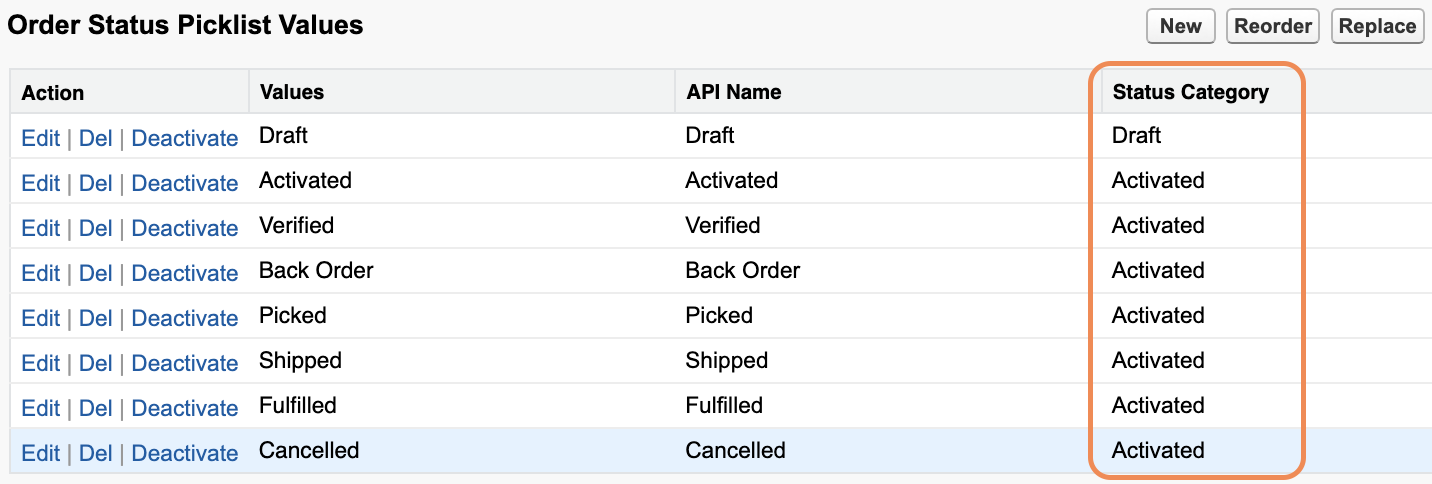
To prevent unintended edits to Order Products in shipped or cancelled states, mark those statuses as an Activated Status Category.
Configuring shipped and cancelled statuses
- Go to Setup > Custom Code > Custom Metadata Types
- Find StoreConnect Settings and click Manage Records
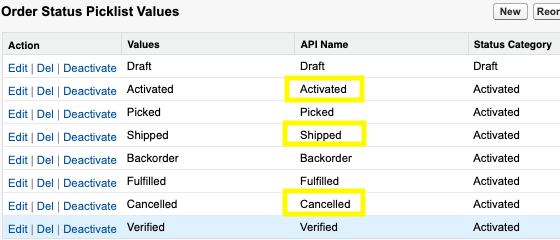
- Edit Order Shipped status and enter the API values of your shipped Order Status picklist values, comma-separated (for example,
Shipped,Delivered,Complete) - Edit Order Cancelled status and enter the API values of your cancelled Order Status picklist values, comma-separated (for example,
Cancelled,Returned)
:::note
Enter values exactly as they appear in the API — no spaces around commas. Shipped,Delivered,Complete works; Shipped, Delivered, Complete does not. A trailing space prevents the status from matching.
:::
:::warning These settings are not retroactive. Orders that moved through statuses before the metadata was configured will not have Stock Adjustment records created for them. Correct any affected Stock Levels manually using the methods in Correcting your inventory count. :::
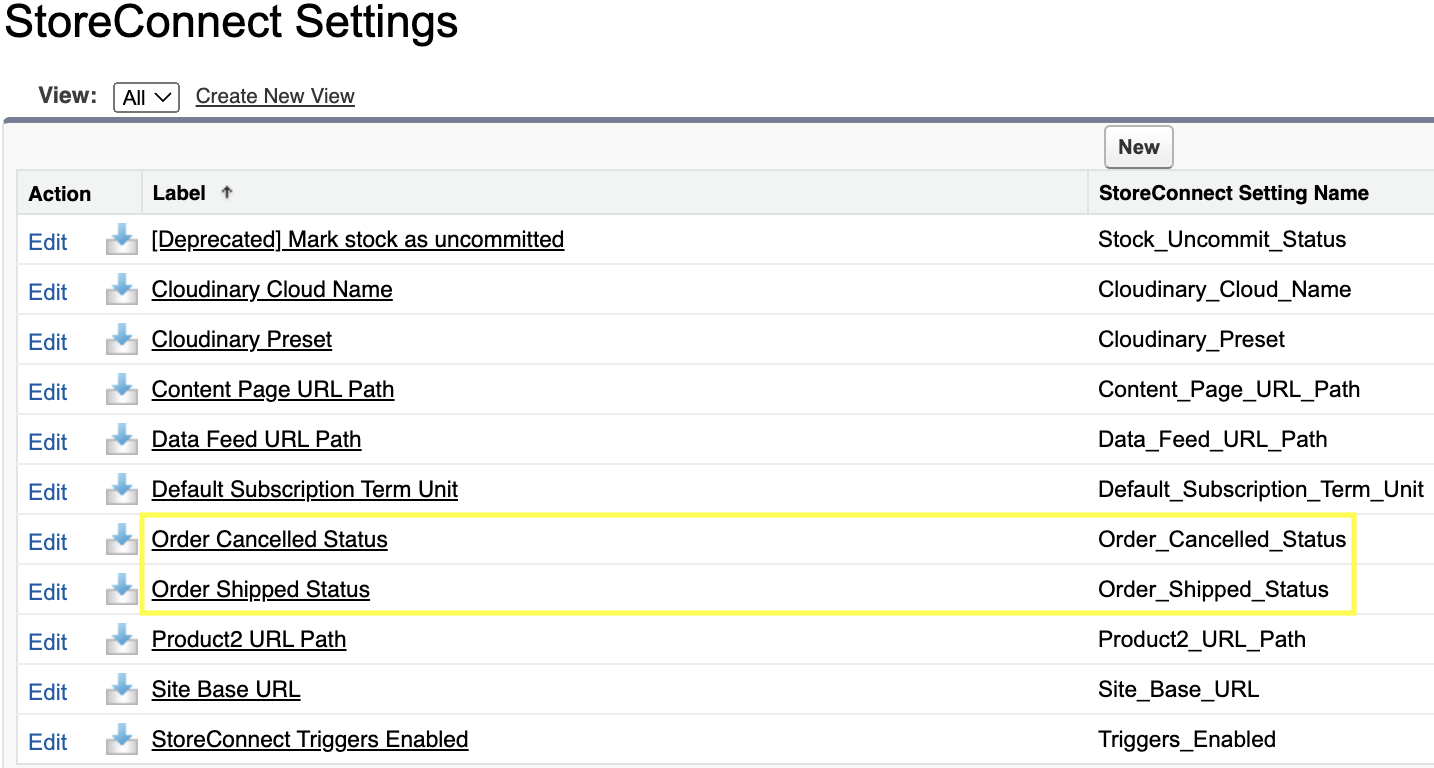
The default metadata values are:
-
Order Shipped Status:
ShippedandActivated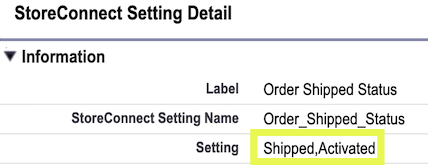
-
Order Cancelled Status:
Cancelled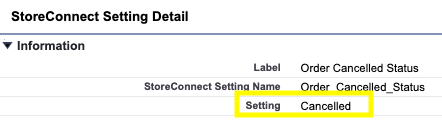
The values you enter must match the API values of your Order Status picklist, not the display labels:
Correct or adjust your inventory count
All three methods adjust Count on Hand directly — Available to Sell recalculates automatically. Allow around 30 seconds after saving, then refresh the record to see the updated values.
Change quantity
Use Change Quantity to adjust the count by a specific amount — for example, because a unit was damaged or an extra one was found. Enter a positive number to add stock or a negative number to remove it.
Example: Count on Hand is 10. Entering 5 sets it to 15. Entering -5 sets it to 5.
Set quantity
Use Set Quantity when you know the exact correct total. StoreConnect replaces the current Count on Hand with the number you enter. This is the simplest option for most corrections.
Example: Count on Hand is 10. Entering 3 sets it to 3.
:::note If you fill in both Set Quantity and Change Quantity on the same save, only Set Quantity is applied. :::
Stocktake
Use a stocktake after a full physical count of your location. It resets Count on Hand and Available to Sell to your physical count and sets that figure as the new baseline for all future calculations.
See Record a stocktake for the full procedure, processing details, and how to view stocktake history.
Viewing stock adjustment history
Every stock movement that changed Count on Hand is recorded as a Stock Adjustment record in the related list on the Stock Level record.
To view the full history:
- Open the Stock Level record
- In the related list, select View All on the Stock Adjustments list
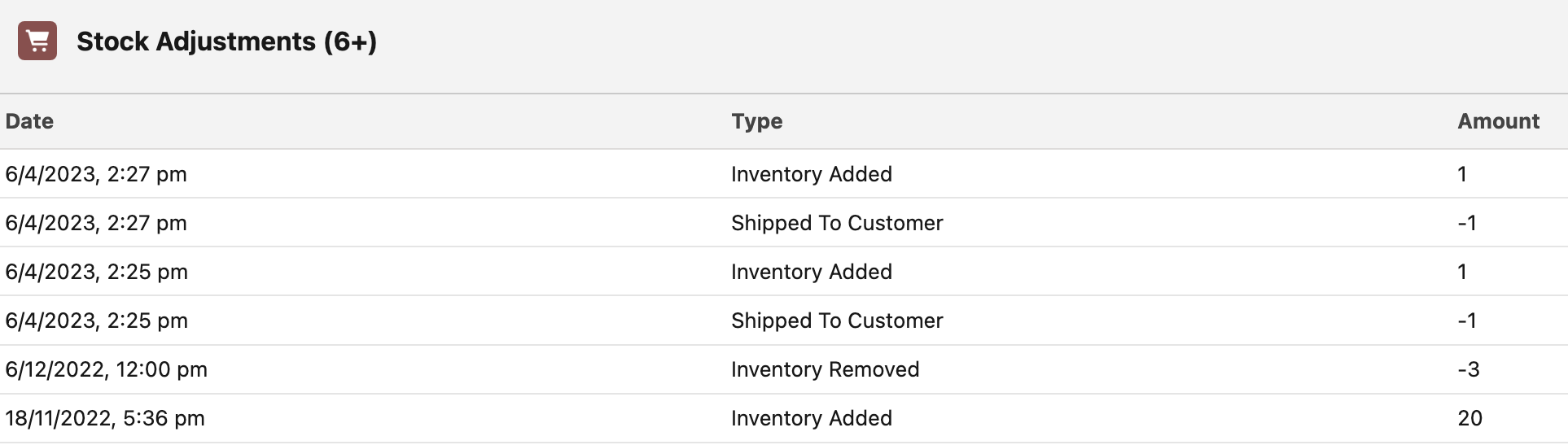
You can add a Stock Adjustment record manually to adjust Count on Hand. Do not delete existing records to reverse an adjustment — deletion does not trigger a recalculation. Instead, add a new record with a negative quantity.
Troubleshooting stock discrepancies
If Available to Sell does not match what you expect, work through these checks before adjusting values manually.
1. Confirm your shipped and cancelled status metadata is correct
The most common cause of Available to Sell appearing too low is an order status that StoreConnect does not recognize as shipped. Open the Order Shipped status and Order Cancelled status custom metadata records and confirm that every status your team uses is listed, with no spaces around commas.
2. Identify which orders are consuming stock
The Order Products related list on a Stock Level record shows every Order Product ever linked to that Stock Level — including abandoned carts and fully shipped orders. Not every row reduces Available to Sell.
An Order Product reduces Available to Sell only when all three conditions are true:
Checkout Step = completeorpos-complete- The order’s status is not in the Order Shipped status list
- The order’s status is not in the Order Cancelled status list
To isolate the rows that are actually reducing Available to Sell, run a SOQL query or create a filtered list view using these conditions rather than relying on the related list count.
3. Check for orders processed before the metadata was configured
If a status was missing from the shipped metadata in the past (for example, Sent was added later), orders that moved through that status during the gap will not have had their Count on Hand reduced. Correct the affected Stock Levels manually using Set Quantity or a stocktake.
4. Force a recalculation
Available to Sell only recalculates when something related to the Stock Level changes. After fixing metadata or correcting orders, save any value into Set Quantity on the Stock Level — even the current count — to trigger a fresh recalculation.
Was this article helpful?
Thanks for your feedback! It helps us improve our docs.