

Configure POS payment methods
On this page
POS payment methods are configured using Store Variables. All variables follow this pattern:
pos.payment_options.{type}.{attribute}
Where {type} is the payment method identifier (e.g. cash, card_integrated) and {attribute} is one of enabled, label, or require_purchase_order.
Payment methods at POS
The table below lists all available payment types, their default display labels, and whether they appear at POS by default.
| Payment method | Type | Default label | Available by default |
|---|---|---|---|
| Cash | cash |
Cash | Yes |
| Card (manual) | card |
Card (manual) | Yes |
| Card (Tyro) | card_integrated |
Card (Tyro) | Yes |
| Card (Square) | card_square_integrated |
Card (Square) | Yes |
| Bank transfer | bank |
Bank transfer | Yes |
| Cheque | cheque |
Cheque | Yes |
| Voucher | voucher |
Voucher | Yes |
| Pay on account | on_account |
Pay on account | Yes |
| Account credit | account_credit |
Account credit | Yes |
| Pay by link | pay_by_link |
Pay by link | Yes |
| Latitude | latitude |
Latitude | No — must be explicitly enabled |
| Card (Linkly) | linkly |
Card (Linkly) | No — must be explicitly enabled |
| Card (Quest Airpay TAP) | quest_airpay_tap |
Card (Quest Airpay TAP) | No — must be explicitly enabled |
| Gift Card (Vii) | vii |
Gift Card (Vii) | No — must be explicitly enabled |
Enable or disable a payment method
Payment methods available by default appear at POS without any configuration. To remove one, set enabled to False. Payment methods not available by default are hidden until you set enabled to True.
| Store variable key | Value |
|---|---|
pos.payment_options.{type}.enabled |
True or False |
Add a store variable to enable or disable a payment method
- Open your store in StoreConnect.
-
In the Key Relationships > Store Variables section, select New.
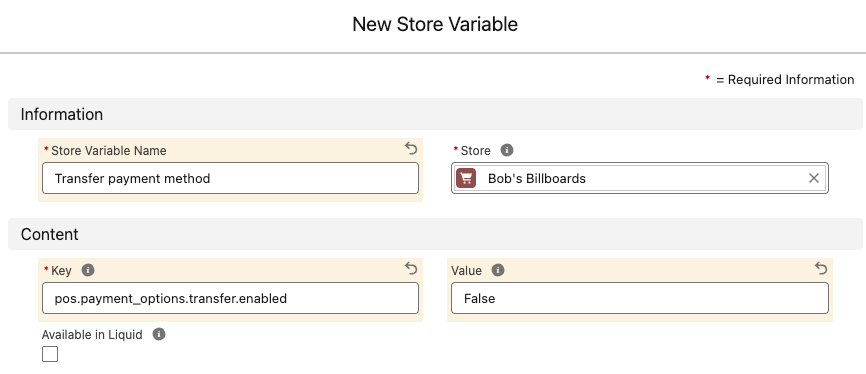
- Enter a descriptive name for the variable, e.g.
Disable bank transfer at POS. - Enter the key for the payment type, e.g.
pos.payment_options.bank.enabled, and set the Value toTrueorFalse. - Select Save.
- Repeat for any other payment methods you want to change.
:::note Latitude and Vii also require a Payment Provider record with valid API credentials to be configured in Salesforce. The store variable alone is not sufficient to activate these integrations. :::
Require a purchase order number
You can require operators to enter a purchase order number when using a specific payment method. This is configured per payment type.
| Store variable key | Value |
|---|---|
pos.payment_options.{type}.require_purchase_order |
True or False |
For example, to require a PO number when a customer pays on account:
| Name | Key | Value |
|---|---|---|
| Require PO number for account payments | pos.payment_options.on_account.require_purchase_order |
True |
You can apply this to any payment type, setting it for each type separately.
Relabel payment methods at POS
You can change the display name of any payment method to match your store’s terminology, for example displaying “EFTPOS” instead of “Card (Tyro)”, or “Notes” instead of “Cash”.
| Store variable key | Value |
|---|---|
pos.payment_options.{type}.label |
Your custom label text |
The table below shows the store variable key for each payment type.
| Payment method | Default label | Store variable key |
|---|---|---|
| Cash | Cash | pos.payment_options.cash.label |
| Card (manual) | Card (manual) | pos.payment_options.card.label |
| Card (Tyro) | Card (Tyro) | pos.payment_options.card_integrated.label |
| Card (Square) | Card (Square) | pos.payment_options.card_square_integrated.label |
| Card (Quest Airpay TAP) | Card (Quest Airpay TAP) | pos.payment_options.quest_airpay_tap.label |
| Card (Linkly) | Card (Linkly) | pos.payment_options.linkly.label |
| Latitude | Latitude | pos.payment_options.latitude.label |
| Bank transfer | Bank transfer | pos.payment_options.bank.label |
| Cheque | Cheque | pos.payment_options.cheque.label |
| Voucher | Voucher | pos.payment_options.voucher.label |
| Pay on account | Pay on account | pos.payment_options.on_account.label |
| Account credit | Account credit | pos.payment_options.account_credit.label |
| Pay by link | Pay by link | pos.payment_options.pay_by_link.label |
| Gift Card (Vii) | Gift Card (Vii) | pos.payment_options.vii.label |
Set a payment method label
- Open your store in StoreConnect.
- In the Key Relationships > Store Variables section, select New.
- Enter a descriptive name for the variable, e.g.
Relabel cash to Notes. - Enter the key for the payment type (see table above) and your custom text as the Value.
- Select Save.
- Repeat for any other payment methods you want to relabel.
:::note Label changes take effect once the next POS sync completes. If a store variable exists but its value is empty, POS falls back to the default label.
The account credit label is also used in context-sensitive messages. If you set it to “Charge Account”, POS displays “Refund to Charge Account” and “Charge Account applied”. Labels are configured at the store level and cannot be set per outlet or per register. :::
Was this article helpful?
Thanks for your feedback! It helps us improve our docs.