

Change the account for an order
On this page
Reassign an order from one account and contact to another. Use this process to correct an order that was placed under the wrong account, most often when a customer has two contact records because they checked out with a different email address.
There are two ways to do this, and the right one depends on whether the two records are genuine duplicates:
- Merge the records when the two accounts and contacts represent the same person and should become one. The order moves automatically as part of the merge.
- Manually reassign the order when the accounts must stay separate and you only need to move the order.
:::warning Moving an order is not reversible from the original account’s side. Once moved, the order no longer appears under the original account. :::
Before you begin
An order only appears in an account when it is also associated with the store you are logged into. Before reassigning, confirm the order is associated with the correct store. A mismatch is common when you run multiple stores or enter orders manually in Salesforce. If the store association is wrong, the order stays hidden even after you fix the account.
Method 1: Merge the duplicate account and contact
Use this when the two records are the same person.
When merging, keep the contact the customer uses to log in to your store, which is the contact currently missing the order.
:::warning If you keep the wrong contact, the customer’s password is tied to the contact record that no longer exists, and they will have to reset their password to access their account. :::
Once the merge completes, the order moves to the surviving account and contact automatically. No further action on the order is needed.
Method 2: Manually reassign the order
Use this when the accounts must stay separate. The reassignment is three field changes on the order (editable in Salesforce, or in bulk via Data Loader or the API):
-
Open the order that is on the wrong account.
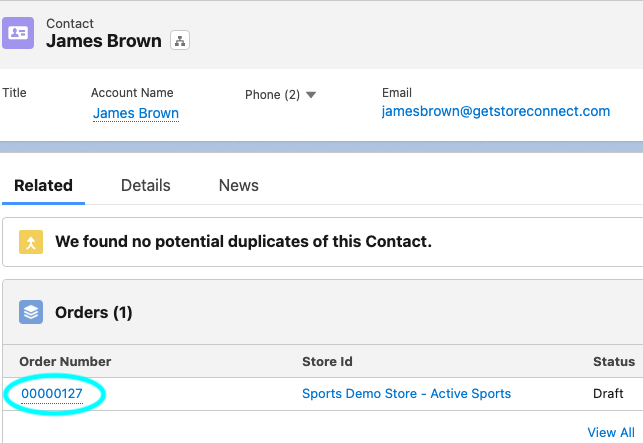
- Set the Account Name, Contact, and Billing Contact to the correct account and contact.
-
Click Save.
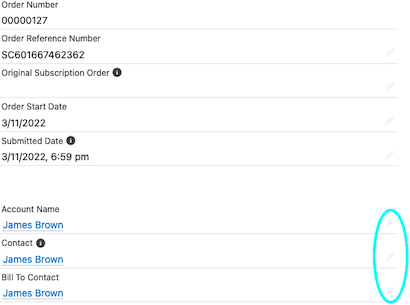
:::tip The Billing Contact does not always change. For example, when someone else paid for the order, leave it as the person who paid. :::
Confirm the move
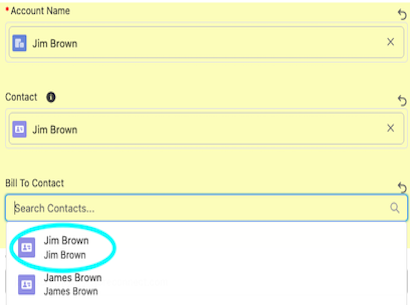
Open the correct account and check the order now appears in its order history. It should no longer be visible under the original account.
Clean up the duplicate records
If you reassigned manually and the original account and contact were duplicates you no longer need, delete them so duplicates do not accumulate.
Example
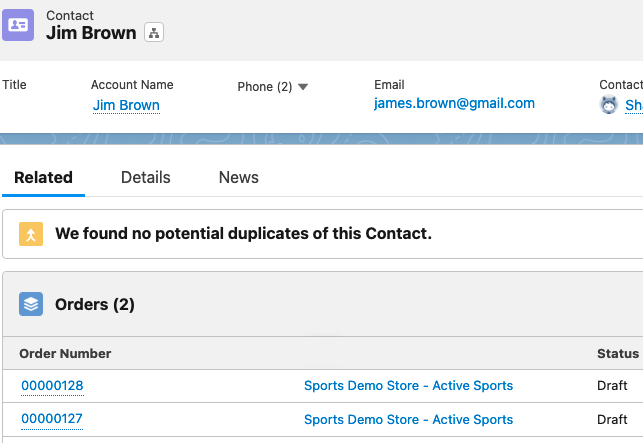
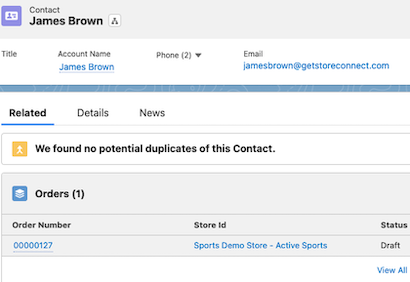
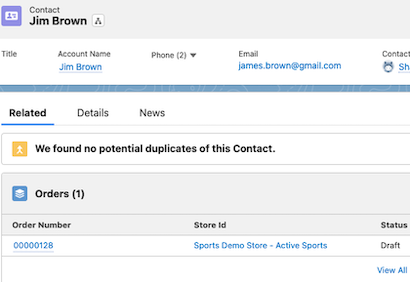
James, known as Jim to friends and family, made a few purchases but cannot see his first order in his account. Looking him up shows two contact records: James Brown (jamesbrown@getstoreconnect.com) and Jim Brown (james.brown@gmail.com). He used his work email by mistake on the first order and wants it under his personal account. Because these are the same person, this is a Method 1 (merge) case, keeping the Jim Brown contact he logs in with.
Video guide
A quick demonstration of James’ order being moved to his other account.
Was this article helpful?
Thanks for your feedback! It helps us improve our docs.