

How to list your site as a trusted URL in Salesforce
On this page
Use this process to add your store’s domain to Salesforce as a trusted site, so the Take Payment button on an Order can communicate with your payment provider. Until you do this, Salesforce’s content security policy blocks that communication and the button fails.
Before you begin
- You need Salesforce administrator permissions to edit Setup.
- Have your store’s domain ready, including
https://. If you have taken your store live on your own domain, use that. Otherwise use your.storeconnect.appaddress.
Add your store as a trusted site
- Go to Setup > CSP Trusted Sites.
- Select New Trusted Site.
- Enter a Trusted Site Name, for example
StoreConnect Domain. - Enter your store’s URL in the Trusted Site URL field.
- Select all of the CSP Directives.
-
Select Save.
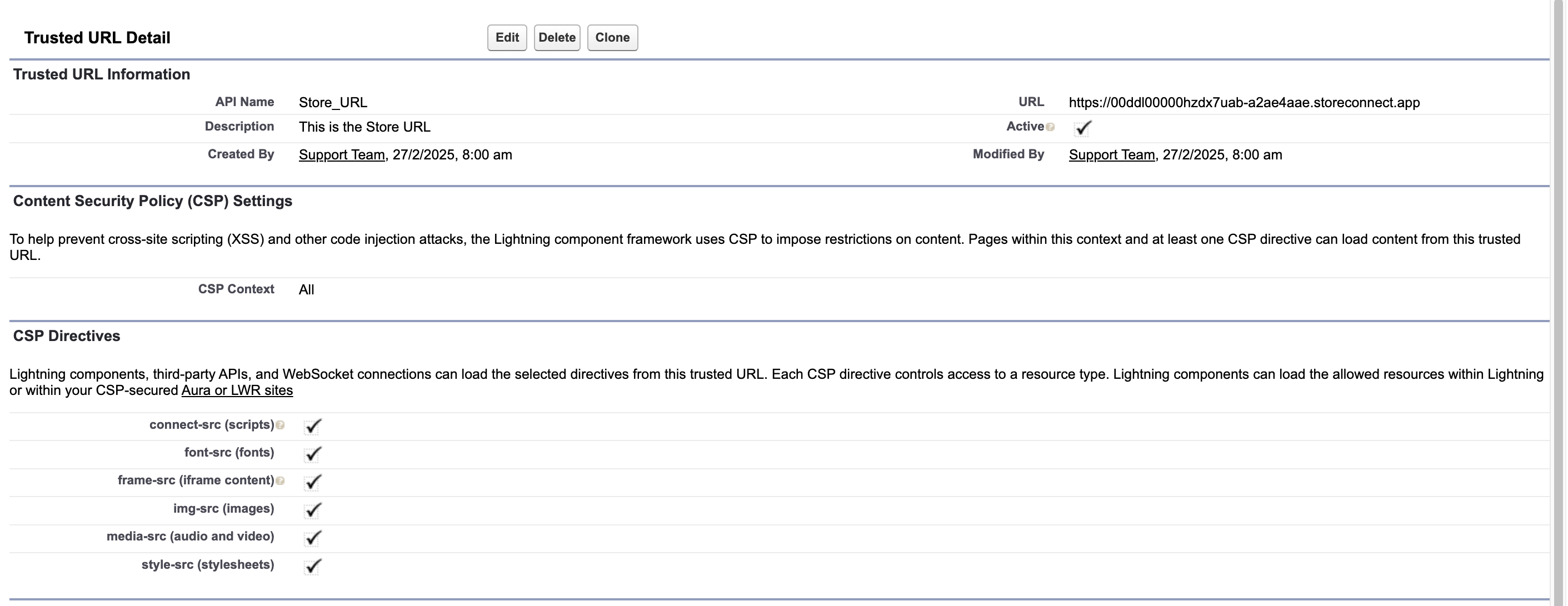
- Confirm the site is active: it appears in the CSP Trusted Sites list with Active selected.
- Open an Order and select Take Payment. The payment provider loads instead of returning an error.
:::note
Add a separate trusted site for each store domain you use. A store on its own domain and the same store’s .storeconnect.app address are two different URLs to Salesforce.
:::
For more detail, see Salesforce’s CSP Trusted Sites documentation.
Was this article helpful?
Thanks for your feedback! It helps us improve our docs.