

Set up a StoreConnect sync user
On this page
Use this process to create the dedicated Salesforce user that StoreConnect syncs through, assign its permissions, and authorize the store connection. A sync user on a Salesforce Integration license consumes only one Salesforce license for the integration.
Choose the task you need
- Setting up StoreConnect for the first time. Work through create the sync user, assign permissions, and authorize the store connection in order. Each step depends on the one before it.
- Your org uses multiple record types. Also complete set record type defaults.
- Want to clear the “Missing Salesforce Permissions” warning. Complete enable the View All Data permission after you assign permissions.
- Switching the connection to a different Salesforce user. Go straight to change the sync user.
- The sync user is stuck and cannot re-authenticate. Use clear the stored sync user.
- Something failed with a permission error. See troubleshooting.
Before you begin
- You need Salesforce administrator permissions to create users, edit permission sets, and change profile settings.
- StoreConnect must already be installed in the org.
- Record the sync user’s username and password as you create them. You sign in as this user later to authorize the connection.
Create the sync user
- Go to Setup > Users.
- Select New User.
- Give the user a recognizable name, such as
StoreConnect sync user. - Set the following:
- User License: Salesforce Integration
- Profile: Salesforce API Only System Integrations
- Select Save.
- Confirm the new user appears in the Users list with the Salesforce Integration license.
Assign permissions to the sync user
Complete this after the user exists, as two separate parts on two separate related lists. Both are required, and the User License and Profile fields set when you created the user do not cover either of them.
Assign the permission set license
- On the sync user record, go to the Permission Set License Assignments related list and select Edit Assignments.
- Select Salesforce API Integration, then select Save.
- Confirm Salesforce API Integration is now listed under Permission Set License Assignments on the user record.
Assign the permission sets
- On the sync user record, go to the Permission Set Assignments related list and select Edit Assignments.
- Add StoreConnect Sync Standard Permission and StoreConnect Sync User Permission, then select Save.
- Confirm both permission sets are now listed under Permission Set Assignments on the user record.
Enable the View All Data permission (optional)
Sync works without this, but enabling it clears the Missing Salesforce Permissions warning that the StoreConnect Console and StoreConnect Sync can otherwise show for a sync user on the Salesforce Integration license.
:::warning Complete this only after you assign the permission set license above. Enabling View All Data before Salesforce API Integration is assigned causes a user license doesn’t allow the permission error. :::
- Go to Setup > Permission Sets.
- Select StoreConnect Sync Standard Permission.
- Select System Permissions.
- Select Edit, then find View All Data in the list.
- Select the checkbox to enable it, then select Save.
- Confirm View All Data is now selected on the permission set, and that StoreConnect no longer shows the Missing Salesforce Permissions warning.
Authorize the store connection
Once the sync user exists and its permissions are assigned, authorize the connection from the StoreConnect Console using OAuth.
:::note If the authorization tab is blocked by your browser, or you close it before finishing, select Reopen sign-in to open it again. Select Cancel if you need to start over. :::
- In the StoreConnect Console, open the Setup Guide, or go to Setup > Change sync user.
- Select the sync user you created if it is not already selected, then select Authorize.
- In the browser tab that opens, sign in to Salesforce as the sync user and approve the authorization request.
- Return to the StoreConnect Console. The page polls automatically and shows progress.
- Confirm the connection is established: the console moves on to the next setup step and no longer prompts you to authorize.
Set record type defaults
Complete this only if multiple record types are in use on objects such as Account, Contact, and Order. Without a default, the sync user does not know which record type to assign to records created on the website side.
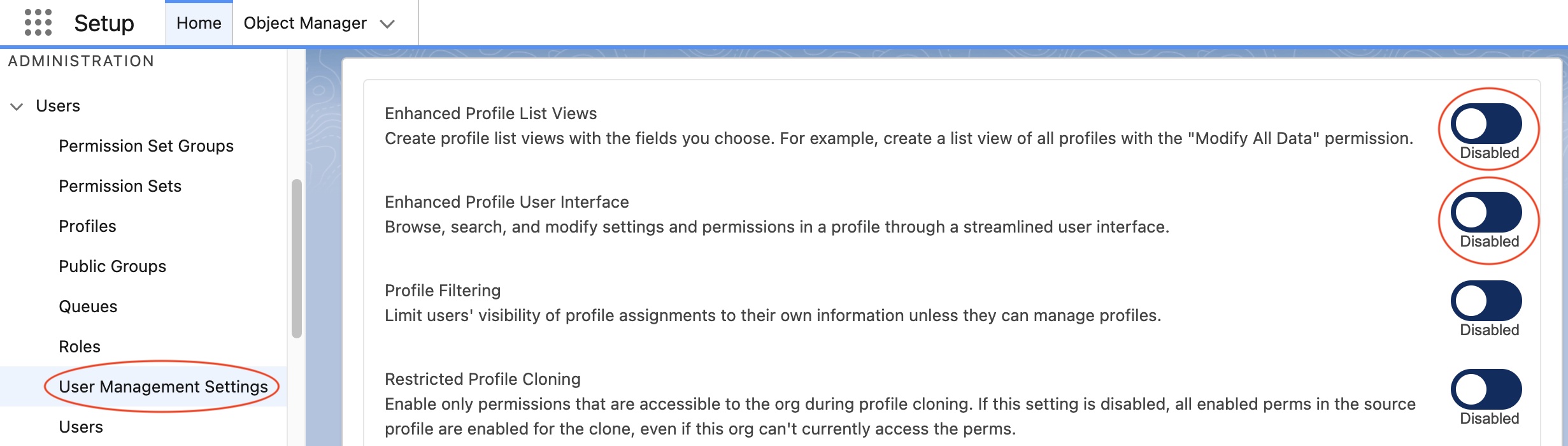
- Go to Setup > User Management Settings.
-
Turn off Enhanced Profile List Views and Enhanced Profile User Interface. The record type settings are not visible while these are on.
- Go to Setup > Profiles > Minimum Access - API Only Integrations.
- Go to the Record Type Settings section and select Edit on the object that has record types.
- Add the record types the sync user needs.
-
Select the default record type for new records, then save.

- Confirm the default is applied: place a test order on your store and check that the resulting Account, Contact, and Order records use the expected record type.
Change the sync user
Use this process to switch the StoreConnect connection to a different Salesforce user. You cannot select the user that is already connected. StoreConnect applies the required permissions to the new sync user automatically.
- Go to the StoreConnect Console.
-
In the top-right Setup menu, select Change sync user.
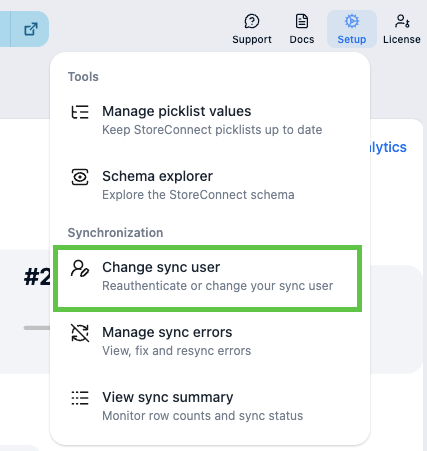
- In the dialog, select the new sync user by username or email, then select Apply permissions.
- Select Authorize.
- In the browser tab that opens, sign in to Salesforce as the new sync user and approve the authorization request.
- Return to the StoreConnect Console. The page polls automatically.
- Confirm the change worked: the dialog closes on its own and the console shows the new sync user.
Clear the stored sync user
Use this process when the connection is stuck and change the sync user does not resolve it, for example after the sync user’s password changes. Deleting the stored configuration record forces StoreConnect to prompt for authentication again.
:::warning This deletes a StoreConnect configuration record and cannot be undone. Sync stops until you add a sync user and authorize the connection again. If you do not have Developer Console access, use change the sync user to switch back to the original user instead. :::
- In Salesforce, open the Developer Console.
- Go to the Query Editor tab.
-
Run this SOQL query:
sql SELECT Id, Name, s_c__Text__c FROM s_c__Setup_Configuration__c WHERE Name = 'selected_sync_user_id' - Select the row that is returned, then delete the record.
- Close the Developer Console.
- Refresh the StoreConnect Console.
- Go to Setup > Change sync user, then add the sync user and apply permissions.
- Confirm the reset worked: the console prompts the sync user to re-authenticate.
Troubleshooting
“The user license doesn’t allow the permission: Edit Asset” during sync
This FIELD_INTEGRITY_EXCEPTION means the sync user’s Salesforce API Integration permission set license is missing. Without it, Salesforce blocks standard object access, including edit access to Asset, even though the permission sets themselves are already assigned.
- On the sync user record, go to the Permission Set License Assignments related list and check whether Salesforce API Integration is listed.
- If it is not listed, select Edit Assignments, select Salesforce API Integration, then select Save.
- Go to the Permission Set Assignments related list and confirm StoreConnect Sync Standard Permission and StoreConnect Sync User Permission are still listed. Re-add them if not.
- Confirm the fix: retry the action that failed. The error no longer appears.
“The user license doesn’t allow the permission” when editing a permission set
This happens if you try to enable a system permission, for example View All Data, directly on StoreConnect Sync Standard Permission before you assign the permission set license. Salesforce blocks the save with a list of every incompatible system permission on the permission set, typically including View All Data, View All Forecasts, View Event Log Files, View Reports in Public Folders, View Setup and Configuration, and View Roles and Role Hierarchy. The exact list depends on which system permissions the permission set has enabled.
- On the sync user record, go to the Permission Set License Assignments related list and check whether Salesforce API Integration is listed.
- If it is not listed, select Edit Assignments, select Salesforce API Integration, then select Save.
- Retry enabling the system permission on the permission set.
View All Data itself is optional. See enable the View All Data permission.
StoreConnect Sync shows a “Missing Salesforce Permissions” warning
StoreConnect Sync’s own authorization check can show this warning independently of anything in StoreConnect’s setup:
Missing Salesforce Permissions (1 occurrence)
Authorization to Salesforce is missing important permissions. If at all possible, please grant the View All Data permission to your authorizing user to ensure the best sync experience.
Sync works correctly without View All Data, so this warning does not indicate a problem. To clear it, see enable the View All Data permission.
Cannot access the StoreConnect Console without System Administrator
Assigning the sync user’s permission sets and scheduling the Apex batch jobs StoreConnect relies on both currently require the person doing the setup to hold the System Administrator profile. A custom profile with the same StoreConnect permission sets assigned is not sufficient, even if it grants equivalent object and field access elsewhere in the org. Use a System Administrator profile user to complete this guide; there is no supported workaround today.
Recommended practices
- Use a dedicated sync user rather than a personal account.
- Avoid changing the sync user unless you need to.
- Store the sync user credentials securely.
- If the sync user’s password changes, use clear the stored sync user to re-authenticate cleanly.
Was this article helpful?
Thanks for your feedback! It helps us improve our docs.