

Managing StoreConnect upgrades
On this page
Use this process to prepare your store for a major StoreConnect upgrade, such as moving from v20 to v21, switch to an updated theme at the right moment, and confirm the store works once the upgrade is complete.
A major upgrade happens in two stages. StoreConnect upgrades the Salesforce package in your org first, then upgrades the website that runs your storefront to the matching version. StoreConnect upgrades the package at its own discretion, and you might not be told in advance. StoreConnect notifies you before it upgrades the website, which gives you time to prepare and test before the cutover.
Patch upgrades within your current major version work differently. StoreConnect applies them automatically as bug fixes and security patches are released, so this process doesn’t cover them.
A package upgrade is additive. It adds new objects, fields, and settings to your org, and it doesn’t remove your existing fields or data. Your storefront doesn’t use any of these additions until the website is upgraded, so the gap between the two stages is your window to prepare.
A package upgrade can also include bug fixes to the package’s own logic, such as Apex and validation rules. Unlike the additions, these take effect in your org as soon as the package is upgraded, so check Fixed bugs in the release notes as soon as you hear the package has been upgraded.
How StoreConnect releases work
StoreConnect ships two types of release, on separate schedules:
- Package releases (for example, v21.11 and v21.12) — update the Salesforce package: objects, fields, Apex logic, validation rules, and the StoreConnect Console. A package upgrade can change how records behave, which fields are available, and how the console is laid out.
- Website releases (for example, v21.0.13 and v21.0.15) — update the StoreConnect web application: storefront behavior, payment gateway integrations, checkout flows, and Liquid templates. These deploy automatically and independently of the package.
Each set of release notes has the same sections: Breaking changes and cautions, Deprecated fields, Enhancements, and Fixed bugs. The steps below tell you what to do with each one.
Before you start
- You have System Administrator access to your production Salesforce org, so you can search for where fields are used and change page layouts and picklist values.
- You know the version your org runs now and the version you are moving to. My StoreConnect lists the StoreConnect version and Package version for each org.
- If you want to test the upgrade before it reaches production, you have a Salesforce sandbox set up as described in get a StoreConnect sandbox.
Prepare for the website upgrade
Do this after StoreConnect tells you the package in your org is on the new version, and before the website is upgraded to match.
- Open My StoreConnect and note the Package version and StoreConnect version for the org you are upgrading.
- Start a written action list for the upgrade. Each step below adds to it.
- Open the upgrade guide for your move and work through each section that applies to your store. For example, a move from v20 to v21 uses the v20 to v21 upgrade guide.
- Open the release notes for every version between your current version and the target version, oldest first. Risks add up across versions, so read them all, not only the latest.
- In each set of release notes, read Breaking changes and cautions first. Add every item that applies to your store to your action list, with the records, reports, Flows, or integrations it affects.
- In Deprecated fields, find where each listed field is used in your org. In Salesforce Setup, open Object Manager, select the object, open Fields & Relationships, select the field, and click Where is this used?. Add every Flow, report, validation rule, and Apex class that uses it to your action list.
- In Enhancements and Fixed bugs, look for changes to behavior your store relies on or works around. Add each one that affects your configuration or staff workflows to your action list.
- If the release notes mention console navigation changes, add an item to update your internal guides, onboarding material, and support scripts before staff use the upgraded console.
- Add any missing picklist values, as described in update picklist values.
- If your action list includes theme template changes, make them in a copy of your theme rather than your active theme. See copy your theme.
- (Optional) Test the upgrade in a sandbox before it reaches production. Refresh a Full Copy or Partial Copy sandbox, then run Get sandbox as described in get a StoreConnect sandbox. This runs the setup wizard, which provisions the sandbox website on the new version. Work through your action list there first.
You now have an action list covering every change that affects your store, and, if the upgrade needs template changes, a copied theme ready to switch to.
Update picklist values
Use this process after a package upgrade to add any new picklist values to your org. The tool only adds missing values. It doesn’t change or remove your existing values or their settings.
- Open the StoreConnect Console.
- Select Setup, then Manage picklist values.
- Select an object, for example Shipment. The field list shows how many fields on that object have missing values.
- Select a field and review the values marked New.
- Follow the on-screen prompts to add the missing values.
- Repeat for each field and object listed.
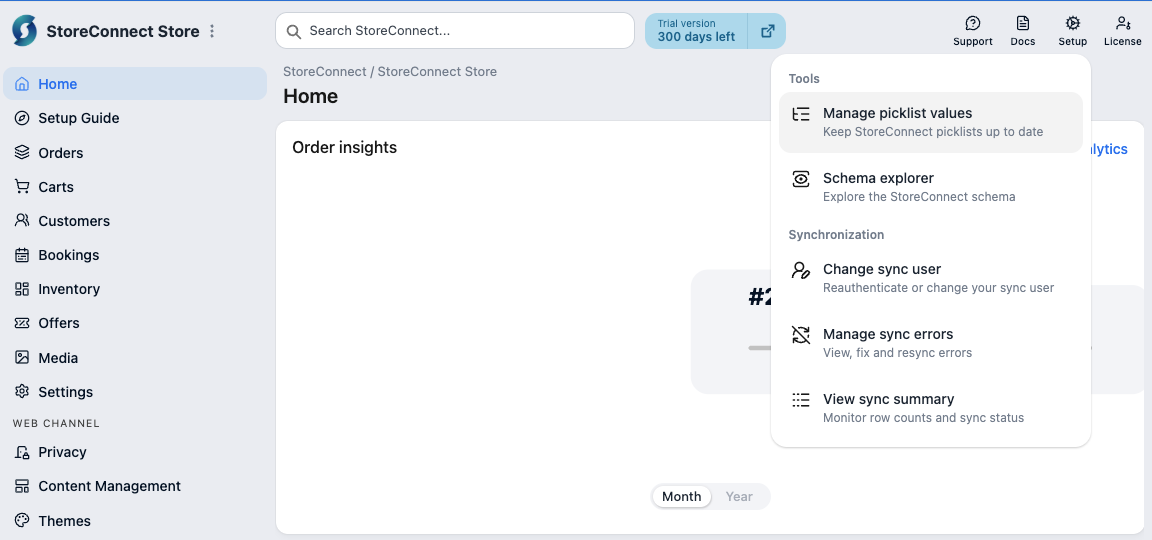
Each listed field now includes the latest StoreConnect picklist values.
Copy your theme
A Theme record (s_c__Theme__c) owns its Theme Template, Theme Asset, Theme Variable, and Theme Locale records. Salesforce’s Clone button copies only the Theme record itself, not those related records, so copying a theme takes several steps. Plan time for this before the upgrade window opens.
- Open the Store record and note which theme the Theme field points to.
- Open that Theme record and click Clone.
- Name the copy so it is easy to tell apart from the original, for example
Default Theme v21, then save it. Rename the original at the same time, for example toDefault Theme v20. - Copy each Theme Template, Theme Asset, Theme Variable, and Theme Locale record from the original theme to the copy. Open each record, click Clone, change the Theme field (
s_c__Theme_Id__c) to the copy, and save. To do this in bulk, use Data Loader or a third-party tool that can deep-clone a record together with its related records. Each new record gets its own StoreConnect ID when you save it, so leave StoreConnect External ID (s_c__sC_Id__c) blank if your tool exports it. - Make the template changes from your action list in the copy.
The copy now holds every template, asset, variable, and locale from the original, plus your changes, and your live store still uses the original.
Switch to the updated theme
Skip this section if your action list has no theme template changes.
When you switch depends on the kind of template change the upgrade needs:
- Backward-compatible changes — the copied theme works on both the old and the new website version. Switch to it whenever suits you, before or after the website upgrade.
- Changes the upgraded website depends on — the copied theme works only on the new website version. Switching before the upgrade breaks your live store, and so does leaving the original theme active for long after it. Coordinate the timing with StoreConnect, and make sure someone is available to act on the upgrade-complete notification as soon as it arrives.
- Wait for StoreConnect to tell you the website upgrade is complete, if the change is one the upgraded website depends on.
- Open the Store record.
- Set the Theme field to the copied theme, for example
Default Theme v21, and save.
Your storefront now renders with the copied theme.
Check your store after the website upgrade
Do this as soon as StoreConnect tells you the website upgrade is complete.
- Open My StoreConnect and confirm the StoreConnect version shows the target version.
- Open your storefront and visit the home page, a category page, a product page, the cart, checkout, and the customer account pages. Look for layout or content problems, paying most attention to pages that use templates the release notes mention.
- Place a test order from start to finish through checkout, using each payment provider your store has active. On a live store, check out with an email address listed in the
test_checkout_emailsstore variable so the order is flagged as a test, as described in test orders. Payments run as normal on a test order, so refund any card payment afterwards. - In Salesforce, open the Order record for the test order and confirm it is linked to your store and shows the payment you made.
- Open the sync error tool and confirm there are no new sync errors since the upgrade.
- If you plan to use new fields or related lists from the upgrade, add them to the relevant page layouts. New fields and related lists are not added to your page layouts automatically.
- For each integration that reads or writes StoreConnect records, confirm it still runs, and check it against the items on your action list.
- In Salesforce Setup, check Apex Jobs and Paused and Failed Flow Interviews for failures since the upgrade.
- Work through the rest of your action list and confirm each item behaves as expected.
The upgrade is complete when the test order appears as an Order record linked to your store, the sync error tool shows no new errors, and every item on your action list is resolved.
Common upgrade risks
These are the most frequent causes of problems after a StoreConnect package upgrade.
Field changes
The API name of a field in the StoreConnect package never changes once released, because Salesforce does not allow a managed package to rename a released field. A label change only affects how the field appears in Salesforce and has no effect on automations, Flows, or reports.
When a field needs to change significantly, StoreConnect deprecates the old field and adds a new one. The package upgrade copies data from the old field to the new one automatically. The storefront might not use the new field until the website is upgraded to the matching version.
Deprecated fields and components
Fields and components are usually announced as deprecated in one release and removed from the package in a later one. Removing a field from the package does not remove it from your org, so any custom Flow, report, or Apex that uses it keeps working until you delete the field. When you are ready, delete deprecated fields yourself, as described in delete deprecated metadata.
Console navigation changes
Functionality sometimes moves within the StoreConnect Console. For example, an action in the left navigation might move to the header toolbar. The feature works the same way, but staff who follow written steps or habit will look in the wrong place. Update your internal guides before staff use the upgraded console.
Post-install migrations with upgrade path dependencies
Some package upgrades run automatic data migrations that set default values on existing records. Occasionally a migration only runs on a specific upgrade path, for example when upgrading from one version but not another. If the migration does not run, the affected records can be left in an unexpected state. After upgrading, check the records the release notes name. If a later patch release mentions a migration fix, check whether your upgrade path was affected.
Picklist values
New picklist values added in a StoreConnect package release are not added to your org automatically when the package is upgraded. After an upgrade, you can add them using the Manage picklist values tool in StoreConnect Console Setup. See Update picklist values.
StoreConnect normally only adds new values. If a picklist value is renamed, any Flow, automation, validation rule, or custom code that matches on the old value by name silently stops working. It doesn’t throw an error; it just never matches.
If something breaks after upgrading
- Check Breaking changes and cautions in the release notes. The cause and fix are often described there.
- Open the sync error tool and look for errors that point to a field or record.
- If you cannot find the cause, log a case with StoreConnect support.
Was this article helpful?
Thanks for your feedback! It helps us improve our docs.