

Theme templates
On this page
Theme templates are what control the content you see on your Store. They define the HTML layout as well as the data content you want to show.
The first thing you will probably want to do with your new theme is change one or more of the built-in templates. There are several kinds of template that each serve a different purpose. The ones you customize will depend on what you want to achieve.
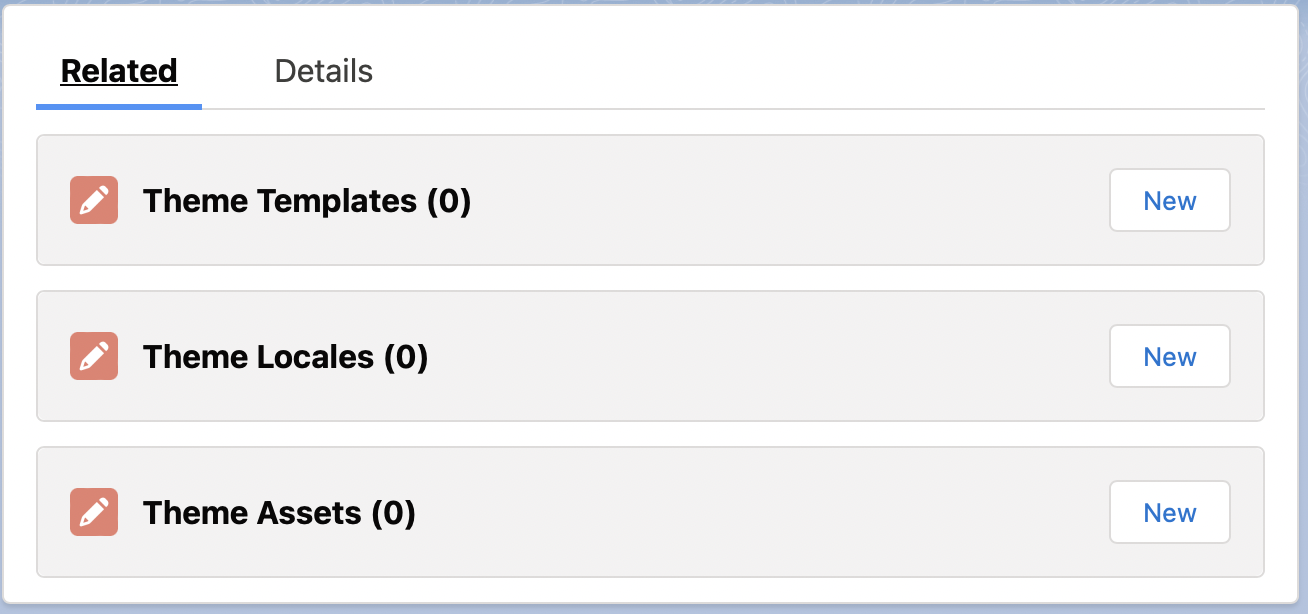
When viewing your theme record, you’ll see a section for Theme Templates in the Related section.
When creating a template, there are two important pieces of data required; key and content.
The key tells the theme engine what template this is. For all page-level templates, it must start with pages/. Then for the specific page types you must specify the exact name.
For example, to customize the Home page, the key must be: pages/home
Keys must be unique for a theme, i.e. you can’t have multiple templates with the key: pages/home
Page templates
Page-level templates are templates that are output as the content of the entire page between the header and footer. They correspond to the page that the user is visiting. Some examples are, the home page, the product page, the search page, the cart page, etc.
The content specifies what will show for that template. You can supply any HTML content (including CSS and Javascript if you need, though that’s not recommended). You can also use Liquid code to create smart templates that can access your data. For more information see Liquid References.
:::note You cannot use Markdown in the templates. :::
| Page | Key |
|---|---|
| account | pages/account |
| additional_payment | pages/additional_payment |
| article | pages/article |
| article_category | pages/article_category |
| auth/confirmation/pending | pages/auth/confirmation/pending |
| auth/confirmation/resend | pages/auth/confirmation/resend |
| auth/invitation/accept | pages/auth/invitation/accept |
| auth/invitation/pending | pages/auth/invitation/pending |
| auth/login | pages/auth/login |
| auth/missing_details | pages/auth/missing_details |
| auth/password/forgot | pages/auth/password/forgot |
| auth/password/reset | pages/auth/password/reset |
| auth/register | pages/auth/register |
| cart | pages/cart |
| cart.js | pages/cart.js |
| checkout | pages/checkout |
| form_submission | pages/form_submission |
| home | pages/home |
| location | pages/location |
| locations | pages/locations |
| maintenance | pages/maintenance |
| order | pages/order |
| page | pages/page |
| product | pages/product |
| product_category | pages/product_category |
| products | pages/products |
| search | pages/search |
| voucher | pages/voucher |
Alternative MIME-type rendering for pages and articles
Content pages and articles both support alternative MIME-type rendering. By appending a recognized file extension to a page or article URL, StoreConnect responds with the matching Content-Type header and renders the Liquid template body without the store layout (no header or footer).
| URL suffix | Content-Type served |
|---|---|
.xml |
application/xml |
.json |
application/json |
.js |
application/javascript |
.txt |
text/plain |
.csv |
text/csv |
.md |
text/markdown |
For example (content pages are served from the store root, articles under /articles):
/articles/my-news-feed.xml  → application/xml, layout-free body
/products-export.json       → application/json, layout-free body
The correct template is served based on the request’s Accept header or the file extension in the URL. The base page template (for example, pages/cart) and its alternate format template (for example, pages/cart.js) are independent templates, but both can exist on the same theme. Template suffixes match the URL extension in every case except .txt, however, a .txt URL renders a template with the .text suffix (for example, pages/page.text, not pages/page.txt).
Content pages and articles both have dedicated format-specific Liquid templates available for customization (for example, pages/page.xml.liquid and pages/article.xml.liquid, or pages/page.json.liquid and pages/article.json.liquid). These output the page’s or article’s body content by default. Use Liquid conditionals or separate format templates to emit the appropriate structure for each format. This is useful for building RSS feeds, JSON data endpoints, sitemaps, and similar structured outputs driven by StoreConnect content.
:::note The rendered body is the output of your Liquid template and there is no automatic XML or JSON serialization. Your template is responsible for emitting the correctly formatted markup or data structure. :::
:::note
Template key uniqueness applies per format. You can have pages/cart and pages/cart.js as separate templates on the same theme, but you cannot have two templates both with the key pages/cart.js.
:::
Content block templates
The second type of template you can customize are the content block templates. Content block templates are the templates used to show the various types of content blocks you use on your site. For instance, if you use a slideshow content block on your home page, it will be rendered using the built-in slideshow template. If you want to change how the slideshow looks or works, you can now customize it, or any of the other content blocks.
You can customize any of these built-in content blocks:
| Content Block | Key |
|---|---|
| container | blocks/container |
| featured_articles | blocks/featured_articles |
| featured_categories | blocks/featured_categories |
| featured_pages | blocks/featured_pages |
| featured_products | blocks/featured_products |
| html | blocks/html |
| image | blocks/image |
| image_beside_text | blocks/image_beside_text |
| image_text_overlay | blocks/image_text_overlay |
| media | blocks/media |
| slideshow | blocks/slideshow |
| text | blocks/text |
| video | blocks/video |
Custom content block templates
You can add your own custom content blocks as well. For example, if you want to create a new content block to render a widget, add an item to the Content_Block__c.Template__c picklist and give it the value widget. Then create a theme template with key blocks/widget to render your new content block.
Content block templates are created the same way as page templates. The only difference is that the key must start with blocks/ and must correspond to one of the Content Block template entries in the Content\_Block\_\_c.Template\_\_c picklist.
Snippet templates
The final template type is Snippets. Snippets are reusable templates you can load from any other template. For example, you may have a header that you want to use on each page. You can create a snippet for this as follows.
Create a new theme template with the key snippets/page_header and whatever content you want to be in your page header. Note that the key must start with snippets/ but the rest of it can be whatever you like as long as it’s unique for the theme.
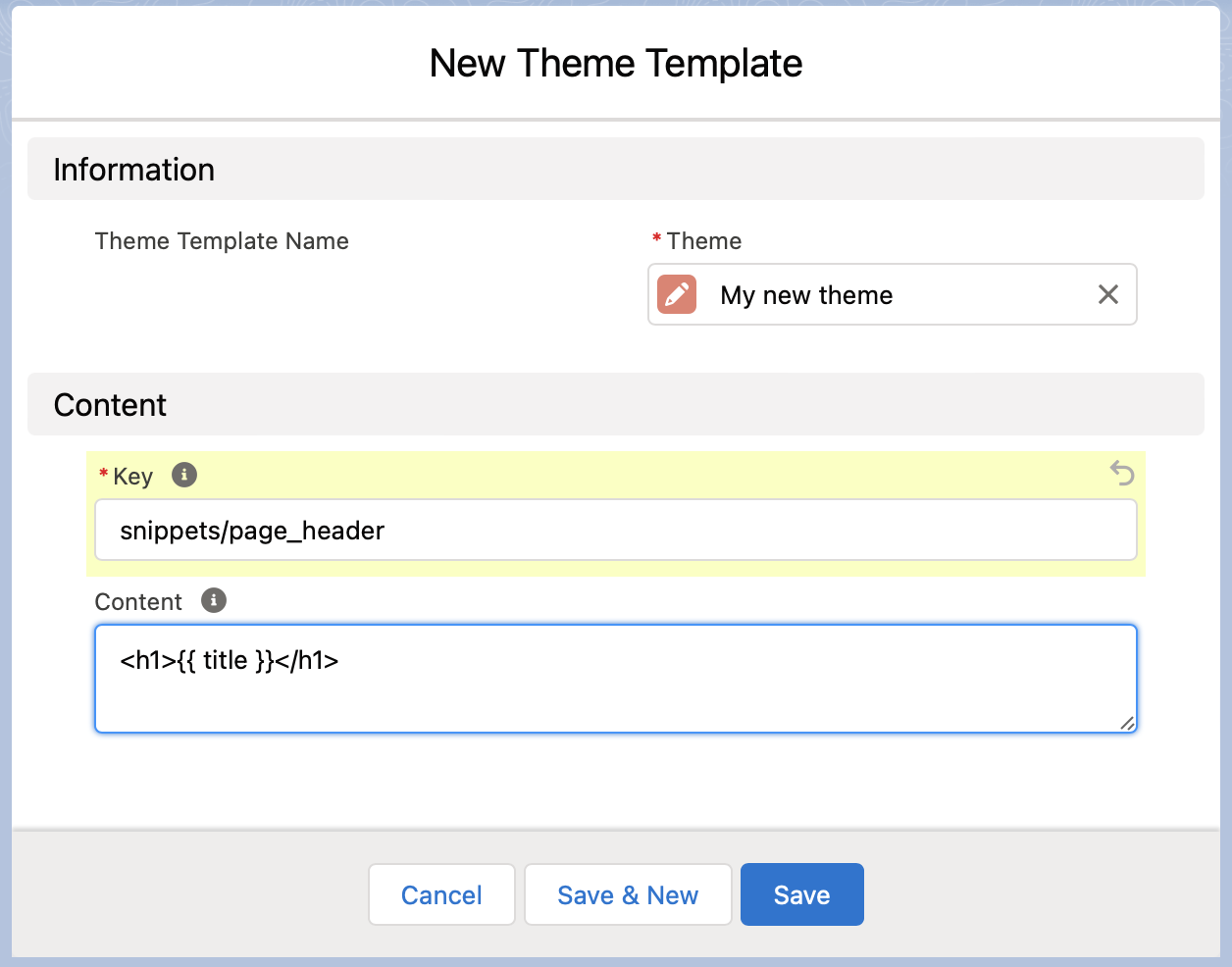
To use this snippet from another liquid template, use the following liquid code:
```liquid
{% render “page_header” %} ```
You’ll note that the sample snippet we created above calls a liquid variable title. The variable will be empty unless we pass a value in for it as follows:
```liquid
{% render “page_header”, title: “My Title” %} ```
Let’s update our home page template to use the header to use our new snippet.
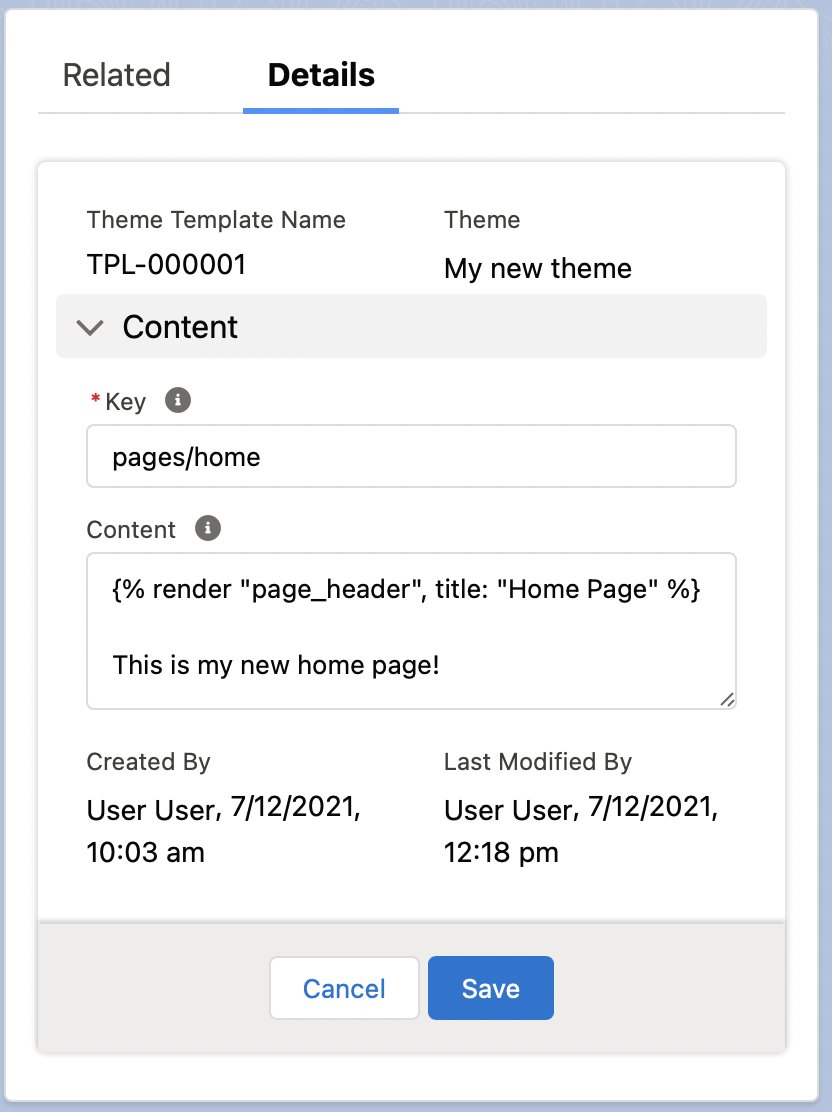
When we preview it we now see our new snippet is showing.
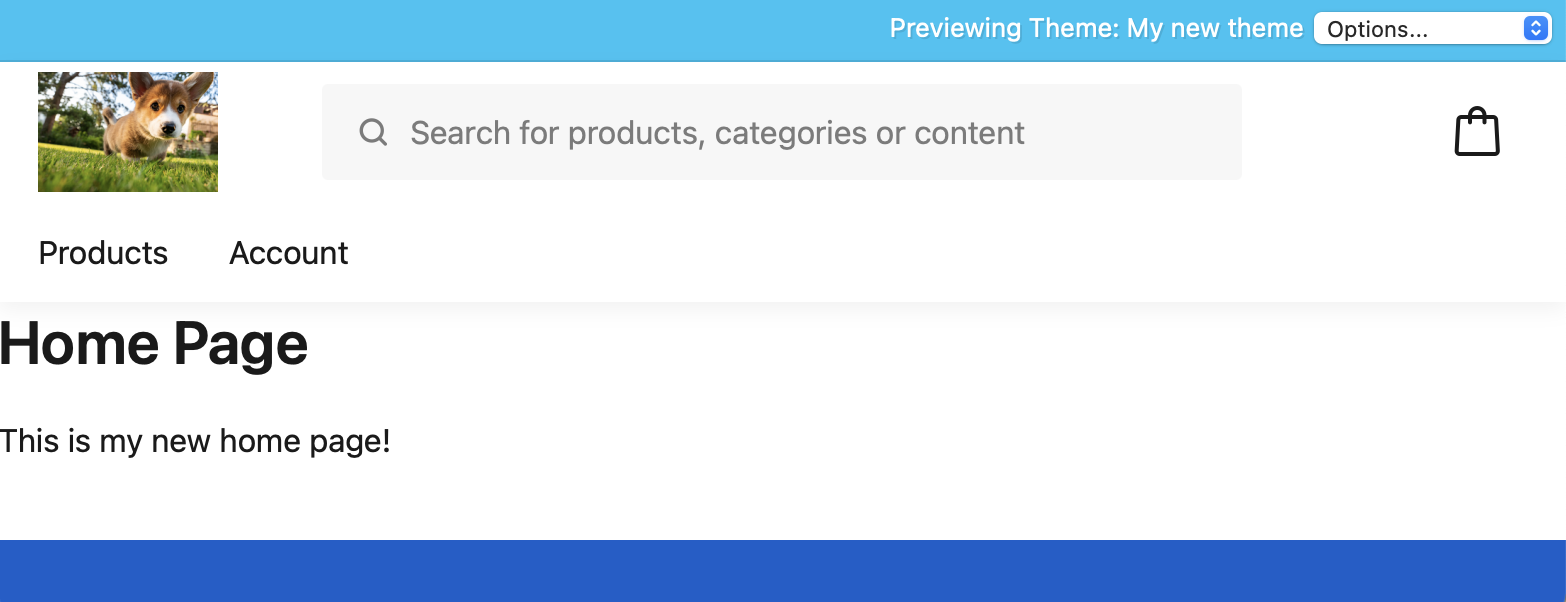
You can create any number of snippets, and load them from any other template, including other snippets. However, don’t try to load a snippet into itself - you’ll cause an infinite loop and crash your site.
Was this article helpful?
Thanks for your feedback! It helps us improve our docs.