

About the media manager
On this page
The media manager is where you upload, organize, and find the images and files used across your products and website. This topic covers what the media manager offers, who can access it, and how to find your way around the interface.
If this is your first time using the media manager, check that the one-time admin setup has been completed. Without it, thumbnail previews and tagging do not work.
Take a video tour of the media manager.
Media manager features
- Folder-style structure with a collapsible, hierarchical tree, up to three levels.
- Grid or list view layouts with sortable columns, thumbnail previews, and infinite scroll.
- Real-time search and advanced filtering by type, tag, folder, and other criteria.
- A favorites system for quick access to frequently used assets.
- Media preview modal with metadata and contextual actions.
- Integrated media creation from product records via a dedicated StoreConnect action.
- The ability to see where a media object is used in your store.
Who can use the media manager?
Access is granted by Salesforce permission set. By default these three include the media manager:
- StoreConnect Administrator
- StoreConnect Content Manager
- StoreConnect Order Manager
StoreConnect Theme Manager and StoreConnect Sync User Permission explicitly exclude the Media menu.
If you cannot see the Media section, contact your Salesforce admin.
Access the media manager
- Go to the StoreConnect Console.
- Select Media from the menu.
The media manager opens. The left panel contains the collapsible folder tree and navigation controls. The right panel displays the contents of the selected folder, or the full library when no folder is selected.
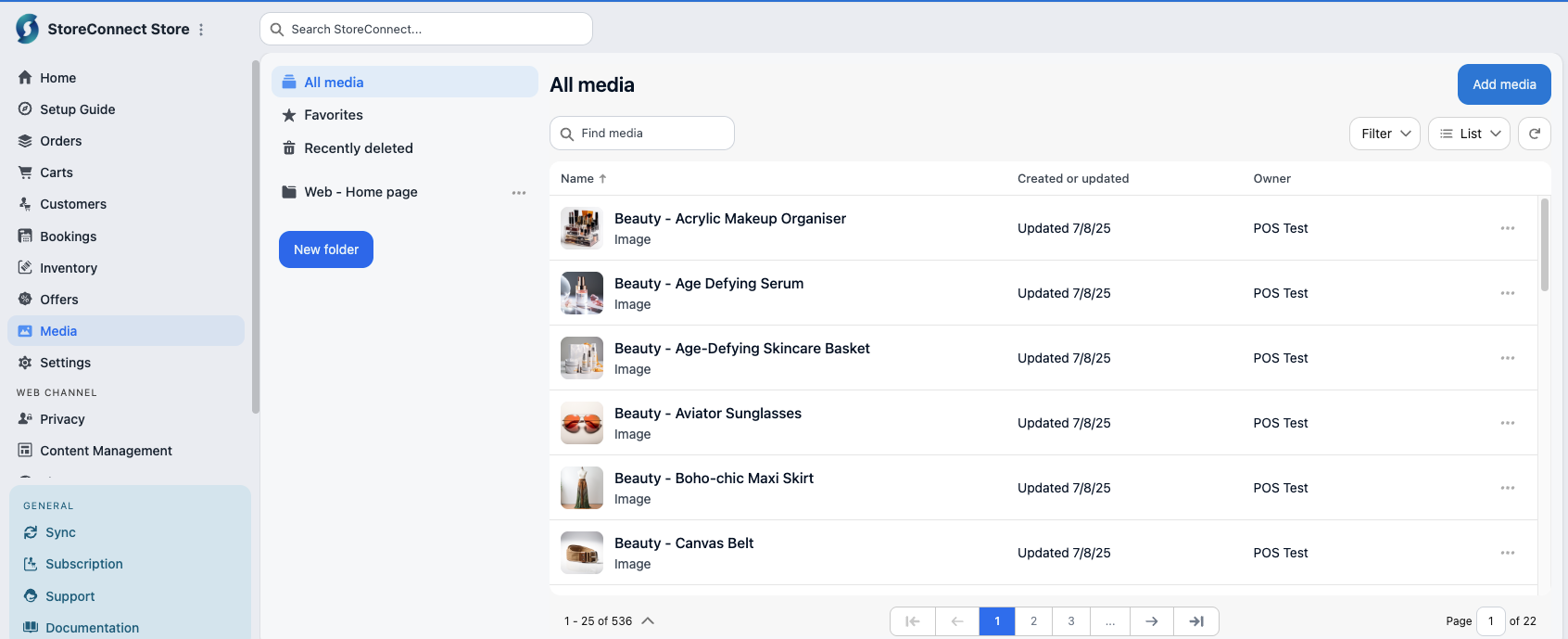
Switch between grid and list view
The right panel supports two layout options. Select the Grid view icon to display media as thumbnail cards with hover actions. The view updates immediately.

Was this article helpful?
Thanks for your feedback! It helps us improve our docs.