

Variable pricing for donations and tips
On this page
Variable pricing lets customers choose how much they pay for a product at checkout. You can present a set of predefined amounts, allow free-entry above a minimum, or both. It is most commonly used for donation products and pay-what-you-want pricing, but can also be adapted to allow for adding tips at an on-site business.
How it works
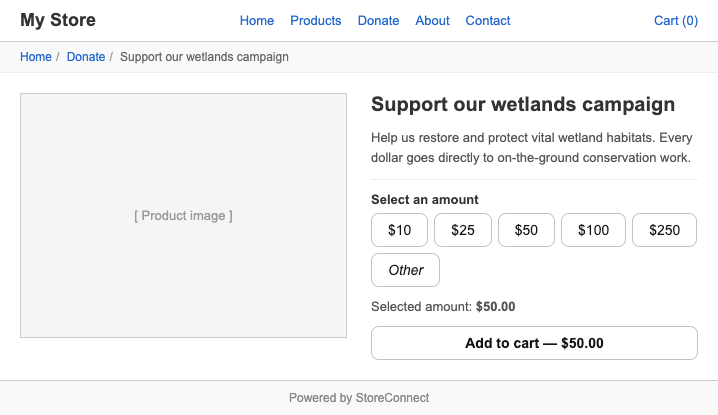
When variable pricing is enabled on a price book entry, customers see a pricing picker on the product page instead of a fixed price. The product’s Price (or Sale Price, if set) acts as the minimum — customers cannot pay less than this amount.
You can also set predefined amounts for customers to select from, and optionally set a maximum to cap contributions. Here’s what it looks like.
Enable variable pricing on a product
Variable pricing is configured per price book entry, not on the product itself. This lets you apply variable pricing in specific price books while keeping a fixed price in others.
- Open the product in Salesforce and go to its Price Book Entries related list.
- Open the Price Book Entry for the price book you want to configure.
- Check Enable Variable Pricing (
s_c__Enable_Variable_Pricing__c). - Set the Price (or Sale Price) to the minimum amount you want to allow. Customers cannot pay less than this value.
-
In Variable Pricing Options (
s_c__Variable_Pricing_Options__c), select the preset amounts you want to offer at checkout. The available amounts are $50, $100, $250, $500, $1,000, $2,000, $5,000, and $10,000. Select Other Amount to allow customers to type in any amount above the minimum.:::tip For a typical donation setup, select a few mid-range amounts (for example, $50, $100, $250) and also select Other Amount so donors can give any amount they choose. :::
- Select Save.
If you leave Variable Pricing Options empty, only the Other Amount free-entry field appears — customers can type any amount at or above the minimum.
Preset amounts in detail
Variable Pricing Options is a multiselect picklist with fixed values. The available preset amounts are $50, $100, $250, $500, $1,000, $2,000, $5,000, and $10,000. If you need a specific amount that is not listed (for example, $25), set the product’s minimum Price to that amount instead and rely on Other Amount for free entry.
- Select one or more preset amounts to show as quick-select buttons at checkout.
- Select Other Amount to add a free-entry field alongside any preset buttons.
- You can combine presets with Other Amount — customers see both buttons and the free-entry field.
If Variable Pricing Options is left empty, customers see only the free-entry field and can type any amount at or above the minimum.
Set a maximum amount
To cap the amount a customer can pay, set Variable Pricing Max Amount (s_c__Variable_Pricing_Max_Amount__c) on the price book entry. Leave it blank to allow any amount above the minimum.
You can also use Variable Pricing Min Amount (s_c__Variable_Pricing_Min_Amount__c) to set a minimum that is higher than the product’s base price — useful if you want a floor above zero while keeping the listed price lower.
:::note If both Variable Pricing Min Amount and the product Price are set, the higher of the two values is used as the effective minimum. :::
Set up recurring donations
Variable pricing can be combined with a subscription product to accept recurring donations. When a customer checks out, they choose their donation amount — that amount is then charged automatically on each renewal cycle.
:::note Subscription pricing only supports fixed price. The amount a donor chooses at checkout is stored as their recurring charge (the Term Price on their Subscription record) and is used for every subsequent renewal. Donors cannot change their amount between cycles without re-purchasing. :::
Step 1: Configure the product
- Open the Product record and check Virtual — donation products do not ship.
-
Scroll to the Subscription section and set the following fields:
Field Example value Notes Subscription Pricing Fixed Price The only supported value Subscription Type Evergreen The donation continues until the donor cancels Subscription Term 28The number of units between charges Subscription Term Unit Day Combined with Term 28, this charges every 28 days Subscription Behavior Always Process, Always Charge Automatically charges the saved payment method each cycle - Select Save.
For a calendar-month cycle instead of a 28-day cycle, set Subscription Term to 1 and Subscription Term Unit to Month.
See Subscription products for the full set of subscription configuration options.
Step 2: Enable variable pricing on the price book entry
Follow the steps in Enable variable pricing on a product to set a minimum donation amount and optional predefined amounts. The price the customer selects at checkout is charged on every subsequent renewal.
POS support
Variable pricing works in StoreConnect POS, making it practical for collecting donations at a physical counter, processing tips at point of sale, or accepting pay-what-you-want payments in person.
When a staff member adds a variable-priced product to a POS cart, a modal opens to capture the amount before the item is added. The same minimum and maximum constraints configured on the price book entry apply — staff cannot enter an amount below the minimum or above the maximum.
If the product has predefined amounts set in Variable Pricing Options, those amounts are available for quick selection in the modal alongside a free-entry field (if Other is enabled).
Was this article helpful?
Thanks for your feedback! It helps us improve our docs.