

Create StoreConnect apps
On this page
Use this process to build a Lightning app that gives a team just the StoreConnect records and tools they need. You might build one for a specific team, such as your warehouse staff, or for everyone in the business. An app scopes a set of business functions and restricts them to the profiles you grant access to.
Before you begin
- You need access to Salesforce’s Lightning App Builder.
- Decide which profiles should be able to open the app. You assign them in the last step, and the app is invisible to everyone else.
Create a Lightning app
The steps below build an app for managing orders as a worked example. Substitute your own name and navigation items for a different team.
The App Builder is a wizard, so complete the steps in order. You cannot skip ahead and come back.
- Go to Setup > App Manager.
-
Select New Lightning App.
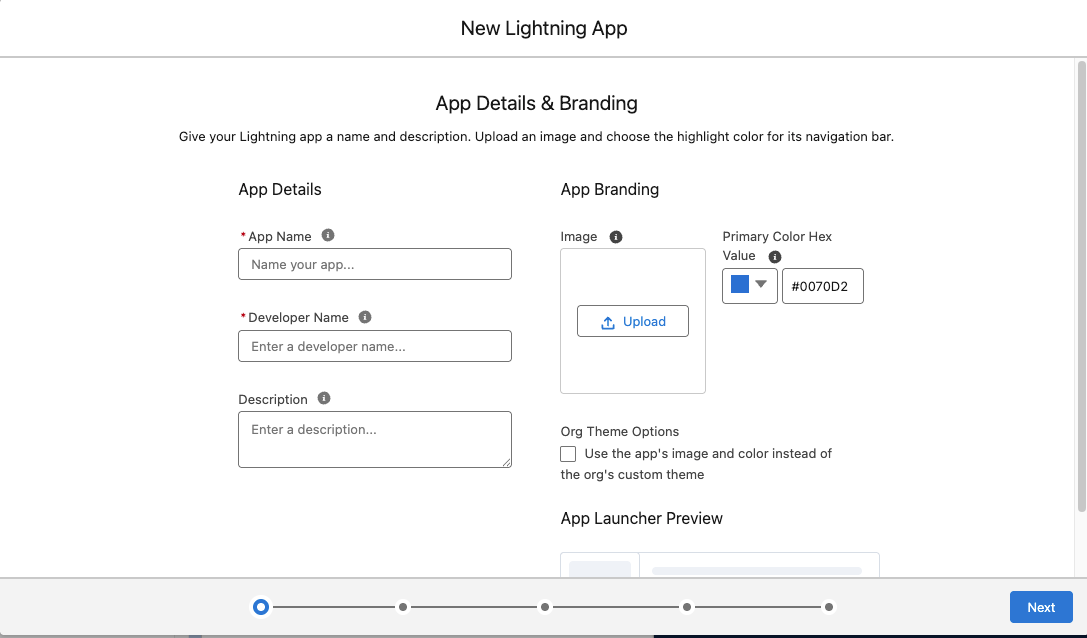
- Enter
Orders Manageras the App Name. - Enter a Developer Name to reference the app by.
- Add a Description so you and your team know what the app is for.
- Optionally, add an image to appear in the App Launcher.
- Select Next. The App Options window opens.
- Choose Console Navigation, then select Next.
- Select Add Utility Item, then:
- Select StoreConnect Sync and StoreConnect Navigation.
-
Select Start Automatically on both tabs, so the utilities open with the app.
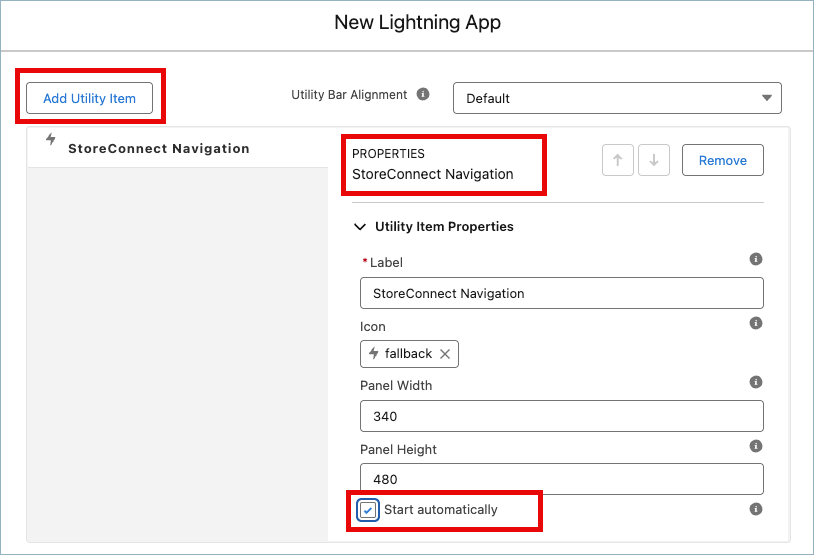
- Select Next.
- From the Available Items list, add the records the team needs. For an orders app, add Orders and Subscriptions, plus anything else useful such as Home.
-
Sort the items into the order you want using the up and down arrows.
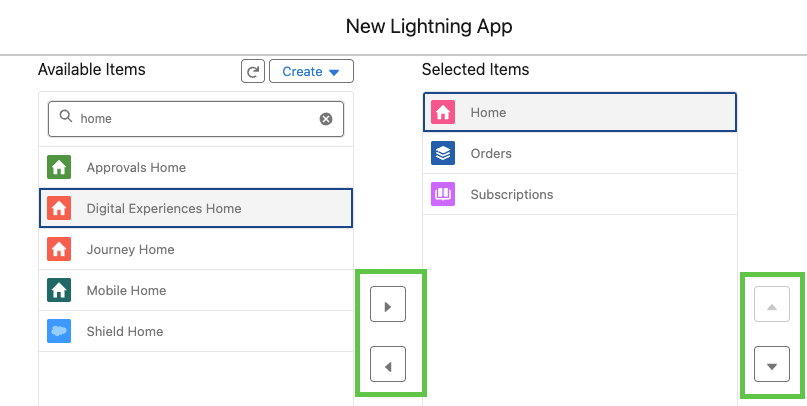
- Select Next.
- Set the Navigation Rules for each record type by selecting Subtabs of and choosing from the list. Repeat for every record type, then select Next.
- Move the profiles that should be able to open the app from Available Profiles to the selected list. The app is invisible to every other profile.
- Select Save & Finish.
Confirm the app works
- Open the App Launcher and search for
Orders Manager. - Open the app and confirm the navigation items you added appear, and that the StoreConnect Sync and StoreConnect Navigation utilities are open at the bottom of the window.
- Ask someone on one of the profiles you granted access to open it as well, to confirm the profile assignment took effect.
:::tip To make the app easier to find, reorder it in the App Launcher list so it appears near the top for the people who use it most. :::
Was this article helpful?
Thanks for your feedback! It helps us improve our docs.