

Manage sync errors
On this page
Use the Sync Error Tool when a record fails to sync from your website to Salesforce. It lists every unresolved failure with the Salesforce error message behind it, so you can fix the cause and re-sync. Common causes are Duplicate Rules, required fields, Validation Rules, and Flow errors.
Left unresolved, a sync error holds up every later change to the same record, which is why order processing and customer notifications stop.
Find the article for your error
Read the status code on the failing error, then go straight to the matching article. Each one covers the symptoms, the cause, the fix, and how to confirm it worked.
| Status code | Go to |
|---|---|
DUPLICATES_DETECTED, DUPLICATE_VALUE |
Resolve duplicate account and contact sync errors |
FIELD_CUSTOM_VALIDATION_EXCEPTION |
Resolve custom validation sync errors |
CANNOT_EXECUTE_FLOW_TRIGGER, CANNOT_INSERT_UPDATE_ACTIVATE_ENTITY |
Resolve Flow and trigger blocking sync errors |
REQUIRED_FIELD_MISSING |
Resolve required field sync errors |
FIELD_INTEGRITY_EXCEPTION on a state or country field |
Resolve state and country picklist sync errors |
FIELD_INTEGRITY_EXCEPTION on order product quantity |
Resolve order product quantity sync errors |
EMAIL_ADDRESS_BOUNCED, INVALID_EMAIL_ADDRESS |
Resolve email bounce sync errors |
EMAIL_TEMPLATE_MERGEFIELD_ERROR |
Resolve email template merge field sync errors |
For any other status code, see sync status codes below.
Accessing the sync error tool
You can access the sync error tool in any of these ways:
- In the StoreConnect Console, click the Setup button in the header actions bar, then under Synchronization click Manage sync errors.
-
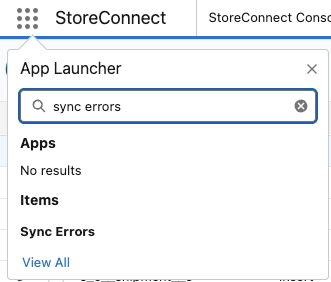
From the App Launcher, search for Sync Errors.
- The utility is also visible within the StoreConnect Config app and can be added to any Console app.
-
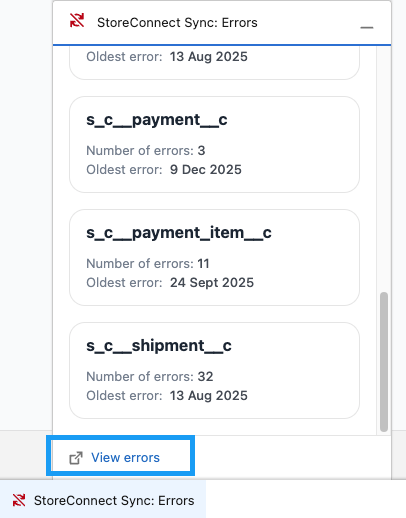
A Sync Error notification appears at the bottom of the StoreConnect apps and shows errors when detected.
Understanding the sync error fields
The Sync Error Tool provides a structured list of unresolved sync errors, helping users diagnose and fix issues efficiently.
- Object — the type of record being synced.
- Event Type — the action taken (
Create,Update, orDelete). - Processed At — the last time the record was processed by StoreConnect Sync.
- Salesforce ID — the Salesforce record ID, if the record exists.
- StoreConnect ID — the unique ID assigned by StoreConnect.
- Message — the specific error message provided by Salesforce.
Automatic retry
StoreConnect automatically retries failed sync change events from the last 12 hours every two hours, reducing the need to manually re-sync after transient failures. While auto-retry is running, a banner appears on the Sync Errors page and manual editing and retries are temporarily paused until the batch completes.
To change the retry frequency, update the sc_sync_auto_retry_interval_minutes key in Setup Configuration. Supported values are 60 to 1440 minutes.
Resolving sync errors
When a sync error occurs, it is logged in the Sync Errors list. Often, fixing the first listed error resolves subsequent related errors.
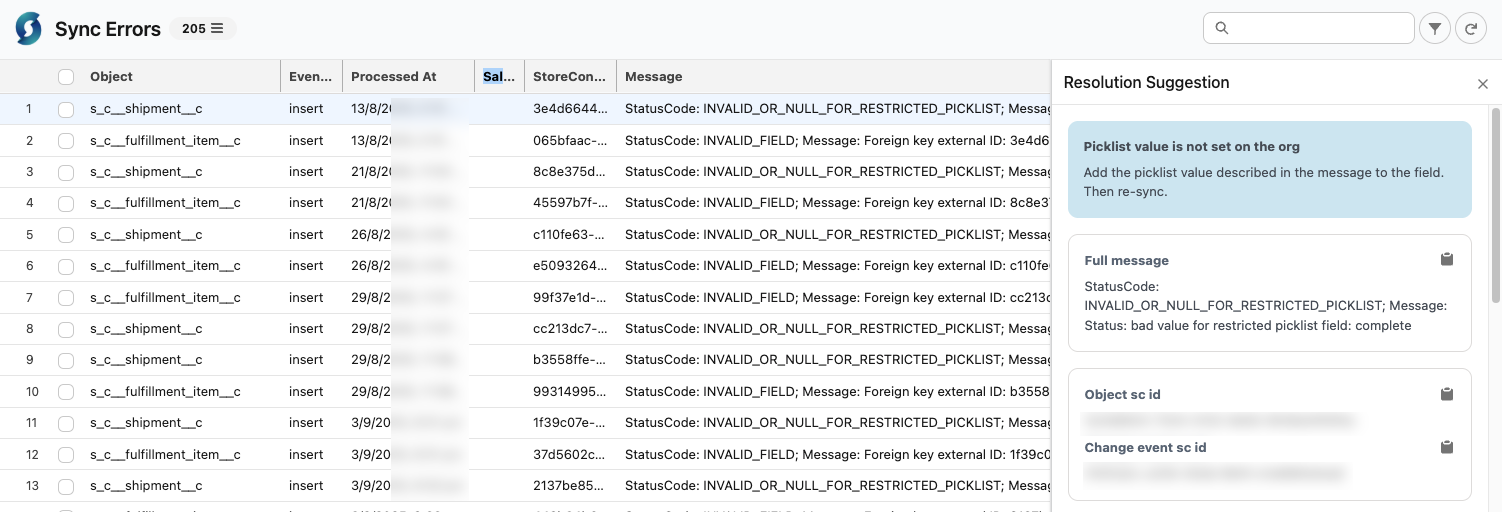
Clicking the information icon next to an error provides further details and resolution suggestions.
Example resolution process
- Identify the root cause of the sync error.
- Implement the recommended fix, for example removing a required field constraint or resolving a duplicate conflict.
- Select the checkbox next to each affected record in the Sync Errors list.
- Click Re-sync on the far right.
- Confirm the error disappears from the list.
Sync status codes
Sync errors in StoreConnect are categorized using Salesforce-native status codes.
These codes help identify why a record failed to sync and provide guidance for resolution.
Below are common error codes and their fixes.
| Status Code | Description | Resolution |
|---|---|---|
| CANNOT_EXECUTE_FLOW_TRIGGER | A Flow is blocking the action. | Check the sync error message to identify the Flow blocking the action. Fix or disable the Flow, then re-sync. For detailed steps, see resolve Flow and trigger blocking sync errors. |
| CANNOT_INSERT_UPDATE_ACTIVATE_ENTITY | An Apex error has occurred. | Check the sync error message for details. If related to a duplicate lead, disable duplicate rules, re-sync, then merge records. See also resolve Flow and trigger blocking sync errors. |
| CANNOT_REPARENT_RECORD | The owner of the object is inactive. | Change the owner of the record to an active user, then re-sync. |
| DUPLICATE_VALUE | A unique column has a duplicate value. | Change the duplicate value in the existing record, then re-sync. Adjust as needed after sync completes. See also resolve duplicate account and contact sync errors. |
| DUPLICATES_DETECTED | A duplicate rule is blocking the sync. | Temporarily disable duplicate rules, re-sync, then merge records. Ensure all referenced sync errors are resolved first. For detailed steps, see resolve duplicate account and contact sync errors. |
| EMAIL_ADDRESS_BOUNCED | The target contact’s email address is marked as Bounced. |
Address the reason for the hard bounce, which may mean the contact’s email is no longer valid, then clear the bounced status on the Contact record and retry the sync. For detailed steps, see resolve email bounce sync errors. |
| EMAIL_TEMPLATE_MERGEFIELD_ERROR | Merge field issue in an email template. | You can update the affected mergefield with a new field on the object to grab the data not syncing or clone the affected template and set the store to use the new template instead. See also resolve email template merge field sync errors. |
| ENTITY_IS_LOCKED | Unable to modify a locked record. | If related to an activated order, contact support. Otherwise, deactivate the object and re-sync. |
| FAILED_ACTIVATION | Record failed to be activated. | Resolve the specific error preventing activation, then re-sync. |
| FIELD_CUSTOM_VALIDATION_EXCEPTION | A custom validation is blocking the action. | Check the sync error message to identify which validation is blocking the action. Fix the validation or data, then re-sync. Disabling the validation temporarily is also an option. The validation may not be in Setup > Validation Rules; it could be in a managed package or Apex trigger. For detailed steps, see resolve custom validation sync errors. |
| FIELD_INTEGRITY_EXCEPTION | Creating or updating records with invalid field values. | If missing a State/Country code, see resolve state and country picklist sync errors. If the message references zero or negative quantity on an Order Product, see resolve order product quantity sync errors. |
| INVALID_CHANGE_EVENT | A previous change for the same record has failed. | Resolve the issue with the previous failed change, then re-sync this record. |
| INVALID_CROSS_REFERENCE_KEY | An update to a record is invalid for the object type. | The record associated with the update may be deleted or invalid. Check relevant Flows, then re-sync. |
| INVALID_EMAIL_ADDRESS | Unable to save a record due to an invalid email address. | Temporarily disable any Flow or trigger sending emails, re-sync, then correct the data. |
| INVALID_FIELD | A parent record has failed to sync. | This record has a lookup or master-detail relationship with a parent record that failed to sync. Fix the parent record’s issue first, then re-sync. |
| INVALID_OR_NULL_FOR_RESTRICTED_PICKLIST | A picklist value is not set in the org. | Add the missing picklist value from the error message to the field’s options, then re-sync. |
| REQUIRED_FIELD_MISSING | A required field is missing, preventing sync. | The sync user cannot populate a field marked as Required at the field level. Replace the field-level Required setting with a Validation Rule that excludes the sync user profile, then re-sync. For detailed steps, see resolve required field sync errors. |
| UNKNOWN_EXCEPTION | Record can’t be saved due to a validation, process, or job failure. | Check the error message for details. Fix or disable the failing validation, process, or Apex job, then re-sync. |
| UNABLE_TO_LOCK_ROW | Unable to get exclusive access to this record. | The record is locked by another action. Retry sync. If it fails again, find and unlock the record before re-syncing. |
Was this article helpful?
Thanks for your feedback! It helps us improve our docs.