

Item returns - refund and exchange at POS
On this page
Use these procedures to take back an item a customer has bought, either exchanging it for something else or refunding it. Apply your own business policy when deciding whether to accept the return.
The same process applies to an order placed on the web storefront. Order lookup at POS is not restricted by the channel or location that created the order, so a customer can return an online order in store. This is known by the industry term BORIS (Buy Online, Return In Store). See Omnichannel fulfillment models for how this compares to other fulfillment models.
To refund an order when the customer is not at a register, see Refund an order without a register.
Find your scenario
| The customer wants to | Go to |
|---|---|
| Return everything and get their money back | Select the items for return, selecting every item, then Process a refund |
| Return some of the items | Select the items for return, selecting only those items, then Process a refund |
| Return an item that carries a restocking fee | Select the items for return, step 6 |
| Swap an item for a different one, or return one item and buy another | Process an exchange |
| Return something at a different outlet from where they bought it | Return at a different location |
Video demo
Process a return
Select the items for return
- At the POS register, find the order. If the customer brought a receipt, use the transaction details on it to look the order up.
- Open the order.
- Select Order actions, then Return or exchange items. A list of the order’s items appears.
-
Select the item or items being returned.
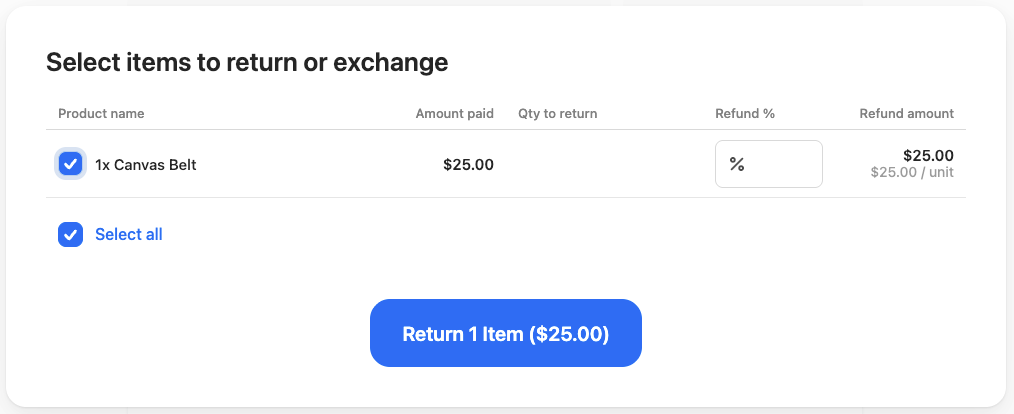
- If the customer is returning fewer units than they bought, set Qty to return for that item.
- If your policy keeps a restocking fee, lower Refund % for the item. For example, enter
85to refund 85% of the price and keep a 15% fee. - Select Return [n] items.
The returned items appear in the cart at the refund value you set. Follow the exchange or refund procedure below.
If an item on the order cannot be selected, it is either already fully refunded or still waiting on fulfillment. An item whose fulfillment is not yet complete or returned, such as a click and collect item the customer has not picked up, cannot be returned until its fulfillment status moves on.
Process an exchange
A customer who returns one item and buys something else instead is making an exchange. Keep both in the same transaction so only the difference is settled.
- Add the replacement item to the cart.
- Compare the price of the replacement against the returned item, then follow the matching path:
- Same price — select Process order to complete the transaction, then print the receipt.
- Customer owes the difference — select Process order, take the payment as normal, then issue a new receipt.
- Customer is owed the difference — follow the refund procedure below.
The exchange is recorded against the original order, and the receipt shows both the returned and replacement items.
Process a refund
- In the cart, select Refund [$amount].
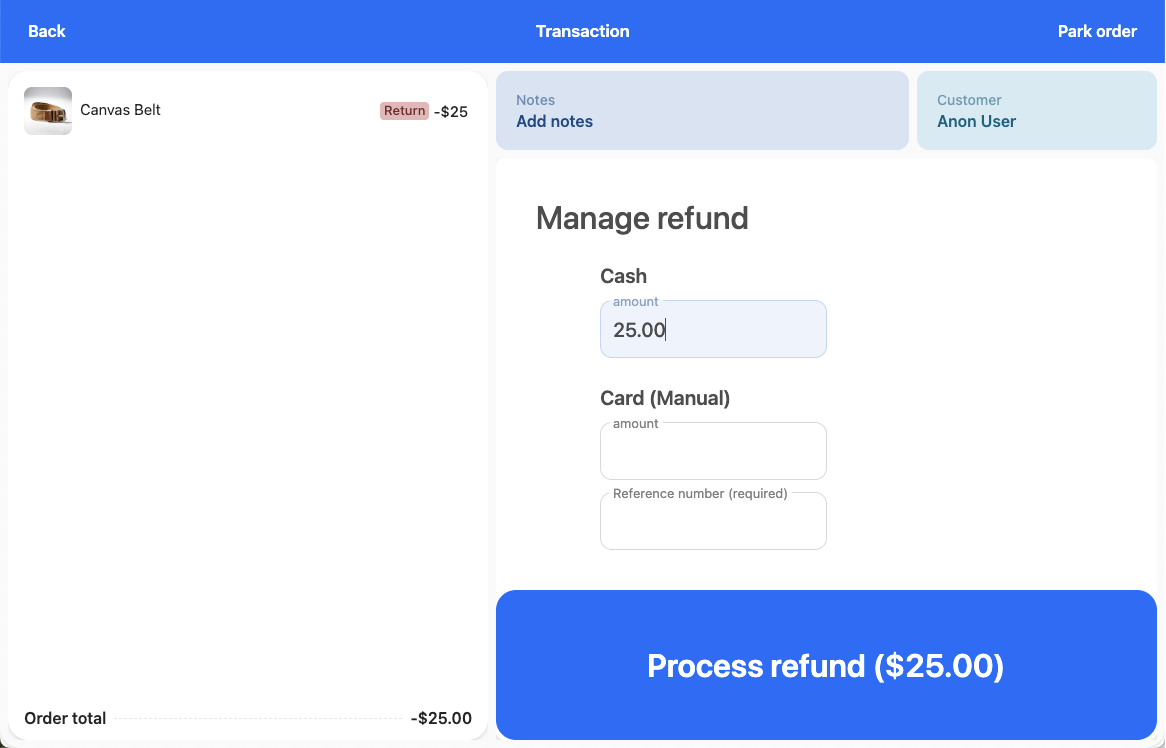
- Select the refund method. Only payment methods currently enabled in your POS configuration appear here, so if an expected method is missing it has been disabled. Check with your store administrator. The names below are the defaults; your store may have renamed them in POS payment methods.
- Cash — enter the cash amount, then select Process refund. Hand over the cash when the drawer opens.
- Card (Square), Card (Linkly), Card (Quest Airpay TAP), Latitude, or Gift Card (Vii) — enter the amount and select Process refund. The register issues the refund itself: a terminal method prompts on the device, and the others go straight to the provider. Do not process the refund separately. A Max label shows how much of that payment is left to refund. Gift Card (Vii) appears only when refunds are turned on for your Vii provider.
-
Card (manual) — process the refund on the EFT machine using the customer’s card, then enter the amount and reference number and select Process refund. The register has no connection to the machine that took the payment, so it records what you enter rather than moving the money itself.
-
Card (Tyro) — process the refund on the Tyro terminal using the customer’s card, then enter the amount and select Process refund. The register records the refund rather than sending it to the terminal, and there is no reference number field for this method.
- Pay on Account — available only when the original transaction included a Pay on Account payment. Enter the amount to refund, up to the original Pay on Account payment amount, then select Process refund. The original purchase order number is shown for reference, and the refund is credited back to the customer’s account. If the original payment was split, you can combine a partial Pay on Account refund with another method such as cash.
- Print and issue the receipt.
The refund is recorded against the original order and appears as a negative amount against that payment method in the shift totals.
What to expect from a register-issued refund
- A register-issued method appears only when that method took a payment on the order, and only up to the amount left to refund on that payment. A Card (Square) refund, for example, is available only on an order Square was paid on.
- Cash and Card (manual) are offered on every refund, whatever the original payment method, so a card sale can be refunded in cash. Decide whether your policy allows this and brief your staff.
:::warning A refund that fails is not recorded against the order, so the order still shows the customer as owed. Check the terminal before retrying, so the customer is not refunded twice. :::
Return at a different location
Any outlet can process a return, because order lookup spans every outlet in the store. Two things follow the outlet that processes the return, not the outlet that made the sale:
- The refund — counts against the shift of the register that processes it, so it appears in that register’s totals when you end the shift.
- The stock — does not return to inventory at either location automatically. See Inventory impact of a return.
Returns on deposit orders
Orders where only a deposit has been collected (incomplete orders) can also be returned at POS, provided at least one payment has been made. The return process is the same as for fully paid orders.
- Find the deposit order using order history or the customer’s order lookup.
- Open the order and select Order actions > Return or exchange items.
- Select the items to return and proceed as normal.
If all returnable items on a deposit order have been fully refunded, the Make payment button is hidden, because there is nothing left to collect.
:::note If a return is processed on a deposit order and the order is then updated in Salesforce (for example, items are added or modified), the POS will reflect those changes on the next sync. :::
Issue a voucher
If your policy allows, you might provide a voucher for the customer instead of cash or a refund. If so, treat the transaction as an exchange and add the voucher as the exchange item in the cart.
Issue store credit
Store credit can only be issued to customers who have an account with your store. The POS refund screen does not offer account credit as a refund method. Check with your store outlet manager for details.
Inventory impact of a return
Processing a return at POS does not automatically add the returned item back into available stock. Returning an item only records the return against the order, and the related Stock Level record’s Available to Sell quantity is unaffected.
If a returned item is in resellable condition and you want it back in available stock, increase Available to Sell on the item’s Stock Level record manually in Salesforce, or set up a Salesforce Flow (attached to a Quick Action on the Order, for example) that prompts staff to confirm whether the item is resellable and updates the stock level accordingly. For a return taken at a different outlet, update the Stock Level for the location where the item now is. There is no built-in setting that does this automatically.
Example: restocking fee on a partial return
A customer bought two pairs of boots at $120 each and returns one pair. Your policy keeps a 15% restocking fee.
- Open the order, select Order actions, then Return or exchange items.
- Select the boots, set Qty to return to
1, and set Refund % to85. - Select Return [n] items, then Refund [$amount], which shows $102.00.
- Select Card (manual), process $102.00 on the EFT machine, and enter the reference number.
The order now shows a refund of $102.00 against one pair of boots, and the store keeps $18.00.
Was this article helpful?
Thanks for your feedback! It helps us improve our docs.