

End a shift at POS
On this page
Use this process to close a register at the end of the trading day. You enter the closing balances for every payment method, then the POS signs you out and closes the register. This is not the same as signing out as an employee, which leaves the shift running.
Before you start
- You are signed in as a manager or a POS user with permission to end a shift.
- You have counted the cash and any other physical payment types in the drawer.
Video demo - start and end a shift at POS
Closing balance calculations
Counted methods (Cash, Card, Bank, Cheque/Check) require you to enter the amount you physically counted. Integrated and web payment methods, such as Linkly, Pay by Link, and pay-on-account, are calculated automatically from order data and shown for reference only, so no manual counting is required. Integrated methods only appear if they have a non-zero balance for the shift.
Refunds appear as negative amounts against the payment method used for the refund. For example, a $20 cash refund reduces the expected cash balance by $20, so a shift with $200 in cash sales and a $20 cash refund shows an expected cash balance of $180. The refund and the original sale are not reconciled against each other; each shift’s expected balance reflects the net of all transactions in that shift. If a refund is processed in a different shift from the original sale, the original shift’s expected balance is unaffected and only the refund shift carries the negative amount.
End a shift at POS
- In the POS sidebar menu, open the user profile section.
- Select your profile.
-
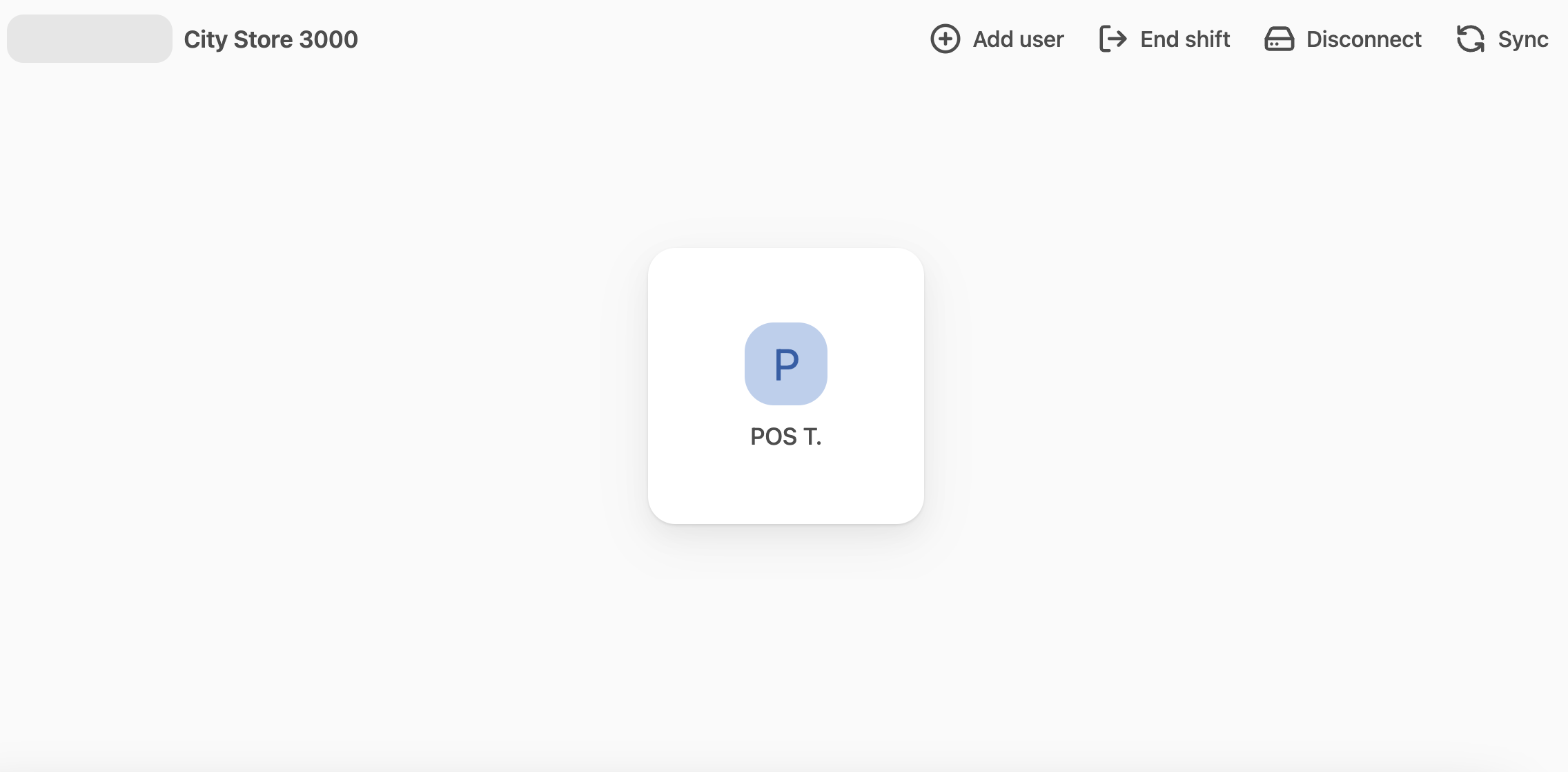
In the top menu, select End shift.
-
Enter the closing balances for all your payment methods. The expected amount from orders is shown alongside each method, so you can compare your count against the system total.
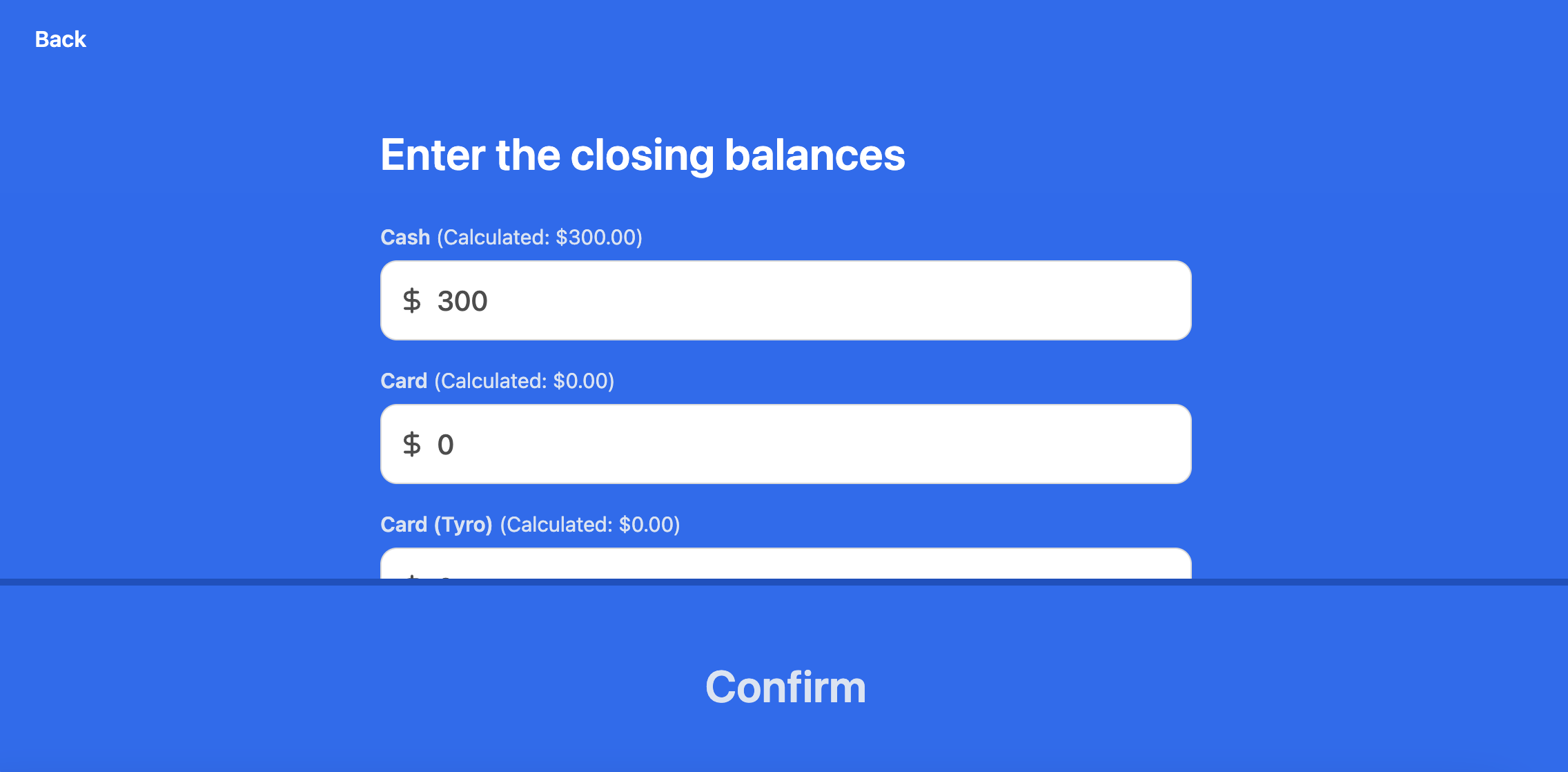
- (Optional) Enter a Bank deposit reference and any Notes to store against the shift record.
- Select Confirm.
The POS returns to the Start shift screen, and the shift record is saved with the counted and expected totals per payment method, the bank deposit reference, notes, and the user who ended the shift.
Was this article helpful?
Thanks for your feedback! It helps us improve our docs.